








Download App Cleaner & Uninstaller for macOS
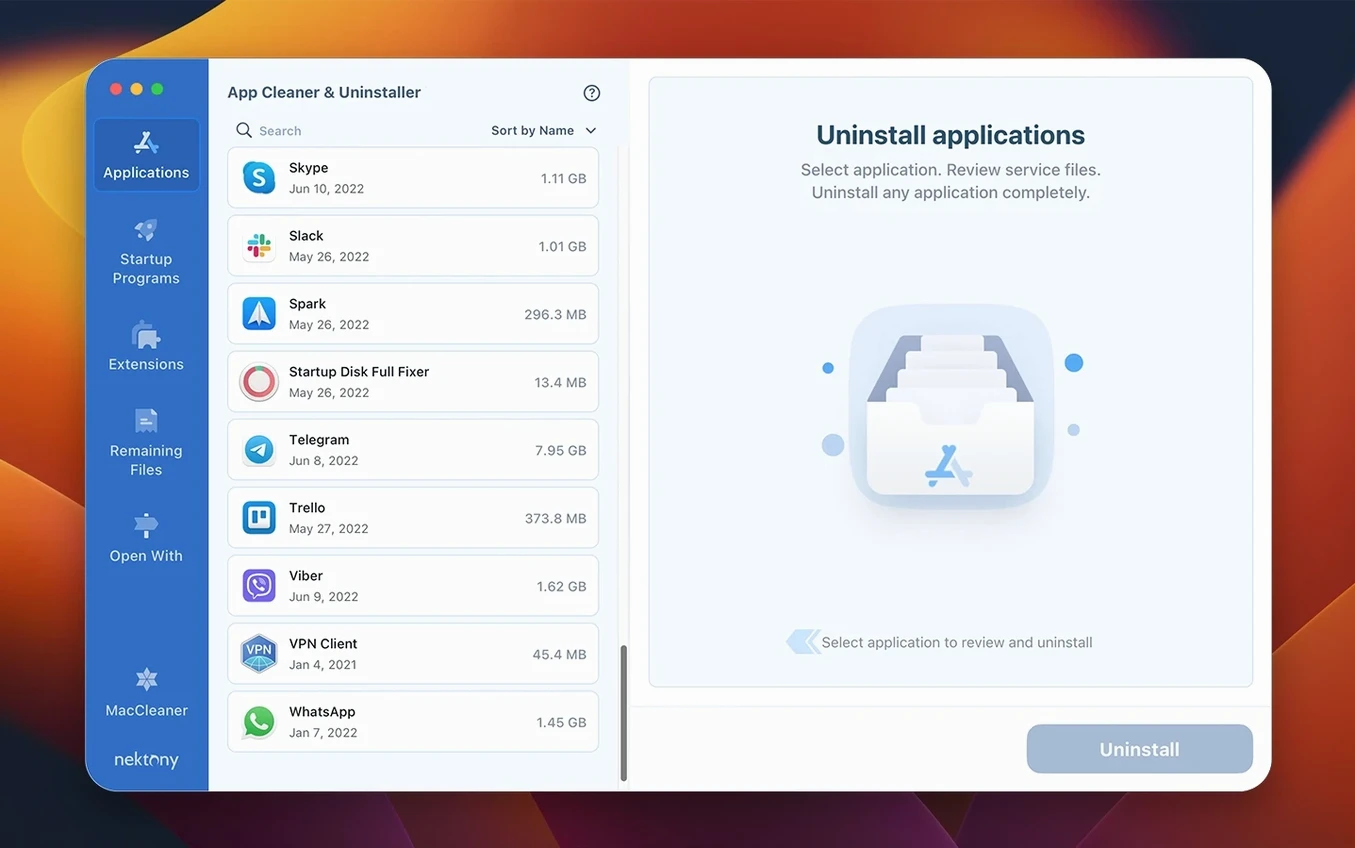
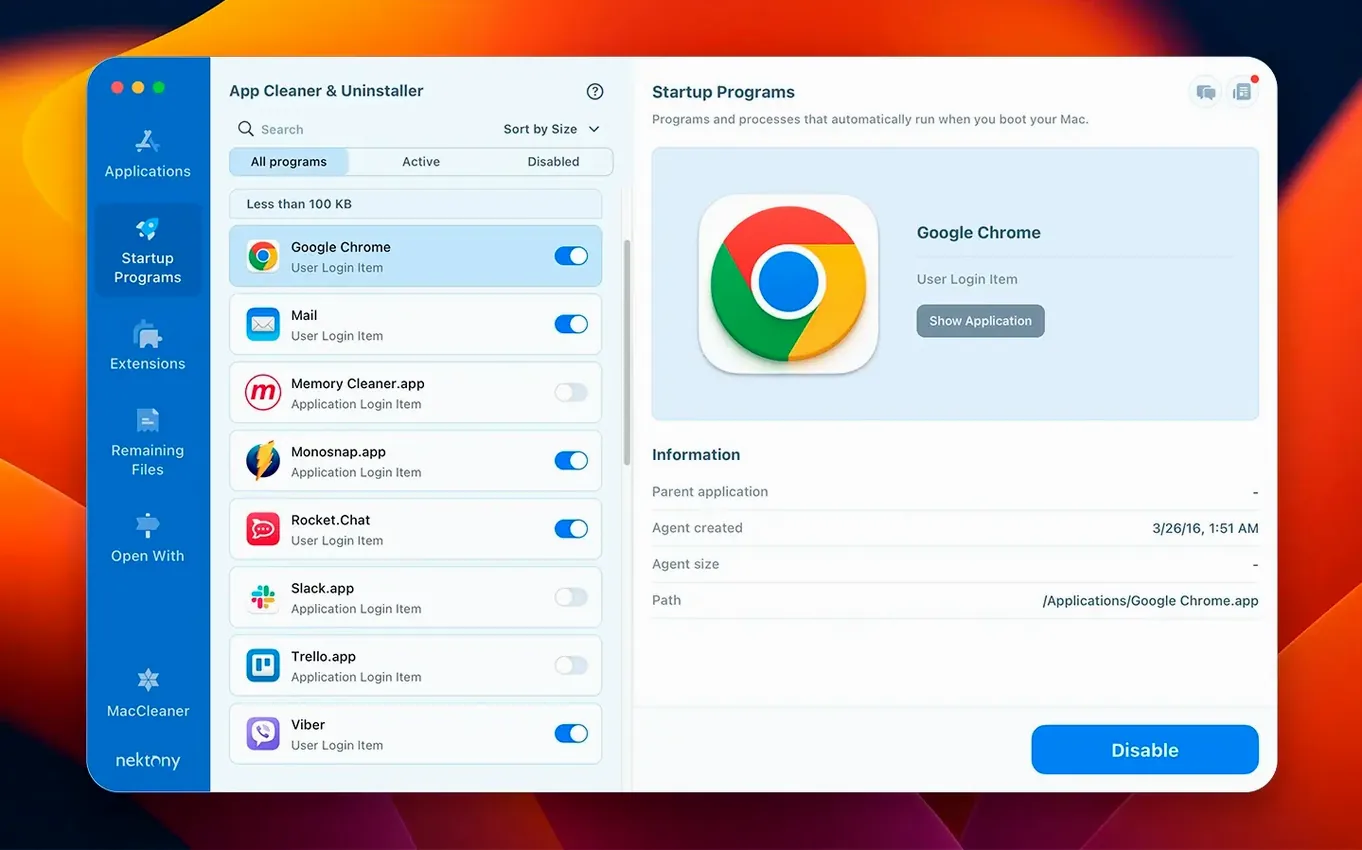
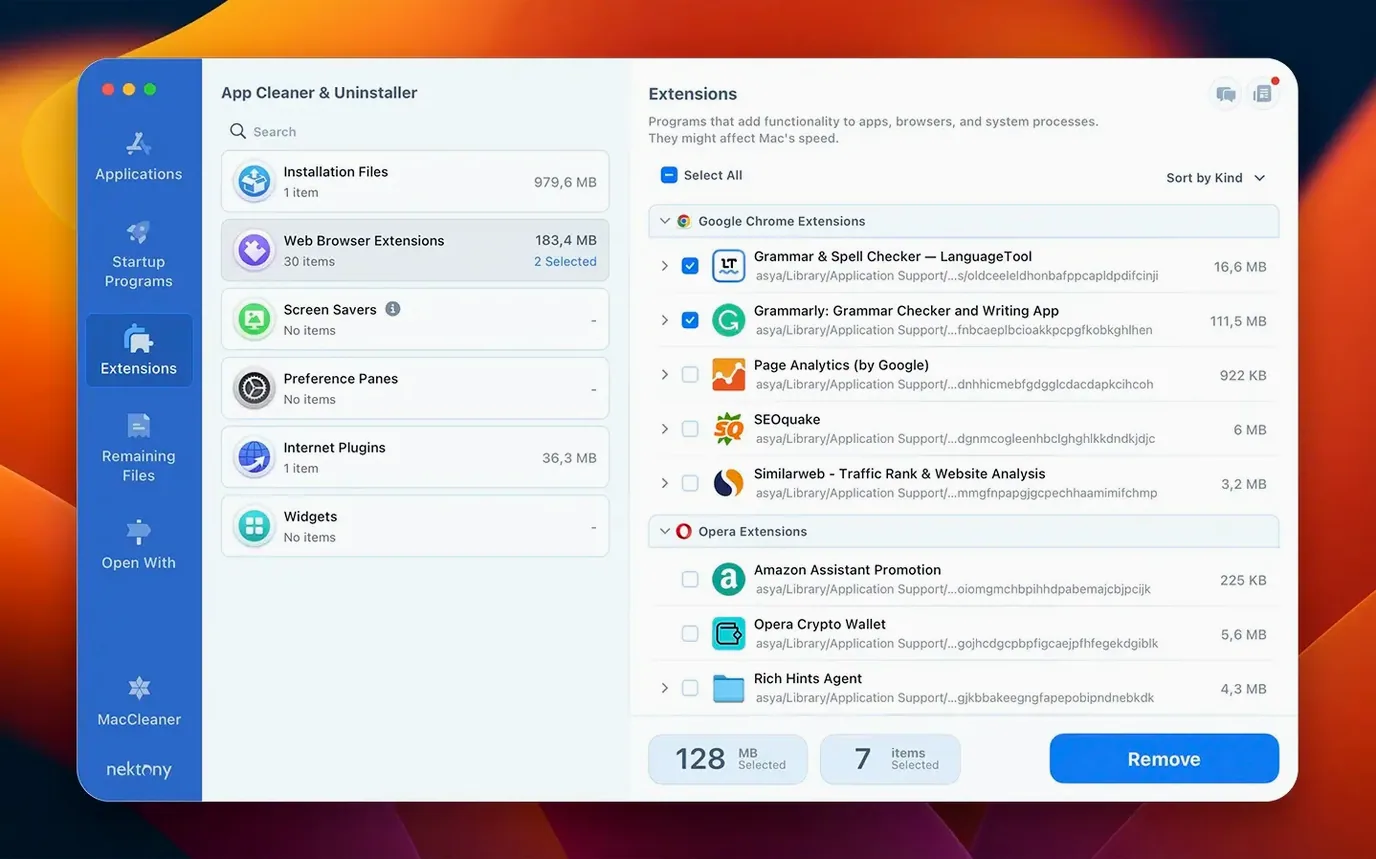
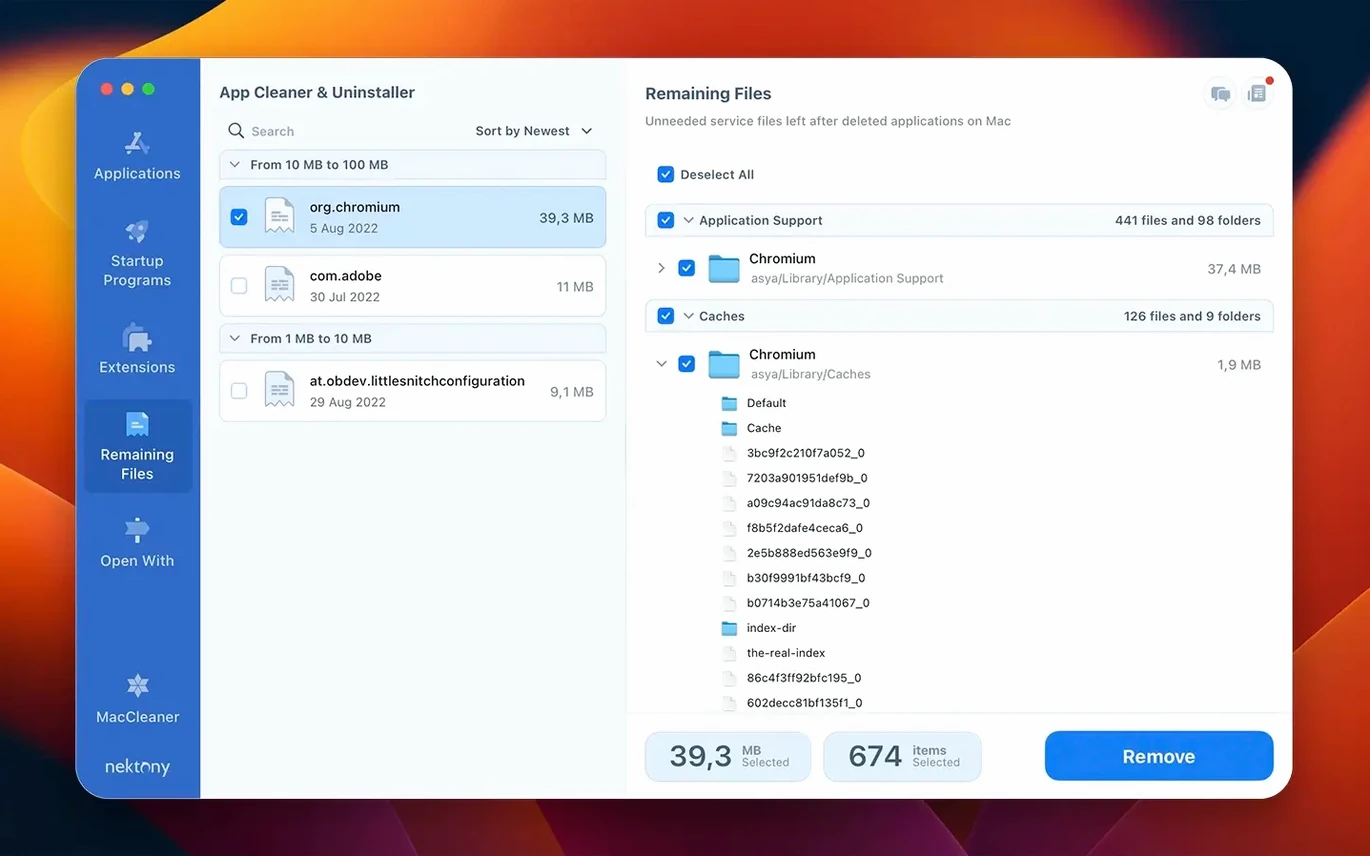
App Cleaner & Uninstaller is a Mac utility that removes apps completely while also giving you control over startup items, extensions, and leftover files from programs you thought were long gone.
Drag-to-Trash leftover cleanup and startup manager
- Finding leftover files from apps you already dragged to the Trash.
- Managing which apps launch when your Mac starts.
- Reviewing installed extensions alongside your regular apps.
- Running a quick Privacy Audit or Security Check on your setup.
Full app manager, not just a remover
- It's a full app manager, not just an uninstaller — so the interface covers more than removal.
- The AI Summary feature relies on processing that may vary in usefulness depending on what you have installed.
- Requires macOS 12 or later, so older Macs are left out.
Search digs deeper than app names
App Cleaner & Uninstaller packs a few thoughtful touches that stay out of the way until you stumble across them. The search field in the main window does more than filter by name — type a few characters and it narrows the list to matching apps, leftover files, and system extensions all at once, so you don't have to remember which category something fell under. Right-clicking any app in the list gives you a quick path to its Finder location, which is handy when you want to peek inside a package before deciding whether to keep it.
Another quiet perk lives in the sidebar. The Remaining Files section sorts its findings by size, letting you zero in on the biggest space-wasters from old uninstalls first. And if you ever hesitated before removing an app because you weren't sure what a file extension did, the built-in descriptions for launch agents and system daemons explain their purpose in plain language — no need to Google cryptic plist names.
The menu bar app, redesigned in version 10.0, adds a one-click network traffic monitor that shows data usage per app without opening the full window. It's the kind of thing you don't think about until you catch an app silently phoning home.
First-days advice
When you launch App Cleaner & Uninstaller for the first time, the initial scan can be surprising — you'll probably see leftover files from apps you deleted months or years ago. Don't rush to remove everything at once. Here's a calmer approach that pays off:
- Start with the Remaining Files section. It lists orphans from past Trash-drags, and clearing those gives you quick space back without touching active apps. Sort by size and tackle the largest clusters first.
- Check the Startup Programs tab early. You might find login items you didn't know were running. Disabling is reversible; deleting is not. I suggest disabling anything unfamiliar for a few days before you commit to removal.
- Run the Privacy Audit. It surfaces apps with camera, microphone, or full disk access permissions — useful for spotting things you granted access to years ago and forgot about.
- Skip the Security Check until you've settled in. It flags potential risks, but a flagged item isn't always malicious. Give yourself time to recognize normal parts of your setup.
- Hold off on the adobe cc uninstaller software paths. If you use Creative Cloud, the app does detect Adobe suite components, but removing them piecemeal can break the CC ecosystem. Learn the interface with smaller apps first.
One more thing: the incompatible applications filter added in version 10.0 lives quietly in the sidebar. If you've recently upgraded macOS, tap that filter early — it surfaces apps that may misbehave, and seeing the list is often enough motivation to finally clean house.
A freelancer's Saturday morning
Think of someone who does video editing and motion graphics, picks up client files weekly, installs trial plug-ins, and occasionally grabs a utility for a single project. Their Mac has accumulated After Effects scripts, half a dozen codec packs, a font manager they used once, and three uninstaller tools that came bundled with other software. The Applications folder has 200+ items, and the menu bar has icons they don't recognize anymore.
They open App Cleaner & Uninstaller on a slow Saturday. The Remaining Files section alone finds 18GB of leftovers from removed apps — old render cache folders, preference files for a colour grading tool they deleted in spring, launch daemons from a screen recorder they trialled and forgot. They clear those first. Then they switch to the Extensions tab and find a Quick Look plugin from an audio converter that hasn't worked since they updated macOS. Disabled in one click.
Next, the Startup Programs tab. They disable two helper apps that launched at login — leftovers from plug-ins they already uninstalled. The Privacy Audit shows a clipboard manager they installed last year has full disk access; they revoke it, then remove the app entirely. When they're done, the Mac boots noticeably faster, and the Finder sidebar feels cleaner. They didn't need to be an expert — they just needed a single tool that showed everything in one place.
Removing an app with its service files: start to finish
Let's walk through a specific removal — say you want to get rid of a video player you no longer use, and you want every trace gone. Here's the workflow I follow:
1. Open the Apps tab. The app list loads with sizes and last-used dates. I scroll or search for the player by name. Next to it, I can already see how much space its support files occupy — that number alone often surprises people.
2. Select the app. A single click highlights it, and the right panel populates with a full breakdown: the main binary, caches, preferences, saved states, crash reports, and any container folders. Nothing is hidden; every path is listed and selectable.
3. Review the file list. I uncheck anything I want to keep — maybe I want to save a playlist file or a custom preset. The checkboxes remember your last choices per app, so you're not starting from scratch if you return later.
4. Click Remove. The app confirms the total item count and size. One more click, and everything is gone — no dragging to the Trash, no hunting through ~/Library manually. If you've ever played detective in the Application Support folder, you know how much time this saves.
5. Verify with Remaining Files. After removal, I jump to the Remaining Files section and run a quick rescan. Occasionally an app's uninstaller leaves behind a stray log or a cached thumbnail; if anything appears, I nuke it right there.
For stubborn Adobe remnants — say you need an acrobat uninstaller path that actually catches everything — the same steps apply. The app identifies Creative Cloud components individually, so you can remove Acrobat without touching Photoshop or Premiere. The right panel distinguishes between shared components and app-specific files, which is where many 10bit uninstaller alternatives trip up.
The whole process takes under a minute, and the difference from a basic Trash-drag is that nothing lingers in the background — no orphaned login items, no leftover caches, no preference panes cluttering System Settings. It's the kind of clean removal that keeps a Mac feeling fresh after years of installing and deleting software.
Version 10.0 brings a few notable additions alongside a redesigned menu bar experience:
- A new network access tab gives you visibility into which apps are connecting out.
- The menu bar app was redesigned and now includes network traffic control.
- The updates database expanded to cover Safari extensions and Homebrew command-line tools.
- An incompatible applications filter helps you spot apps that might not play nicely with your current macOS.
- macOS 12 or later
- Works on both Apple Silicon and Intel Macs
Questions people ask
Can App Cleaner & Uninstaller remove leftover files from apps I already deleted?
Yes, it scans for leftover files from applications that were previously moved to the Trash without a proper uninstall.
Does it work as an Adobe CC uninstaller software?
It can remove Creative Cloud apps and their scattered support files, which makes it handy if you need a thorough Adobe CC uninstaller.
Also on readers' docks
Sign in or create an account to leave a comment.
No comments yet. Tell me how it got on with your other devices.
More in Mac Apps
See all AnyTrans for iOS
8.9.14 Mac Apps
398 MB
AnyTrans for iOS
8.9.14 Mac Apps
398 MB
 AppCode
2023.1.5 Mac Apps
1.8 GB
AppCode
2023.1.5 Mac Apps
1.8 GB
 Apple Keynote
15.3.1 Mac Apps
356 MB
Apple Keynote
15.3.1 Mac Apps
356 MB
 Updated Antivirus Zap - Virus Scanner
3.25.1 Mac Apps
49 MB
Updated Antivirus Zap - Virus Scanner
3.25.1 Mac Apps
49 MB
 Apple Remote Desktop
3.10 Mac Apps
16 MB
Apple Remote Desktop
3.10 Mac Apps
16 MB
 AppZapper
2.0.3 Mac Apps
4 MB
AppZapper
2.0.3 Mac Apps
4 MB
 AmpliTube
5.8.2 Mac Apps
3.1 GB
AmpliTube
5.8.2 Mac Apps
3.1 GB
 Alfred 5 Powerpack
5.8.1 Mac Apps
6 MB
Alfred 5 Powerpack
5.8.1 Mac Apps
6 MB