








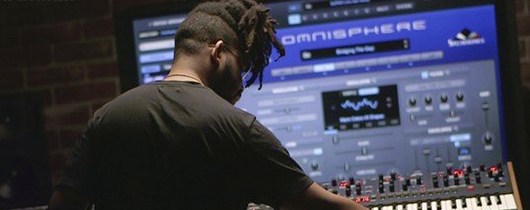
Download Omnisphere for macOS
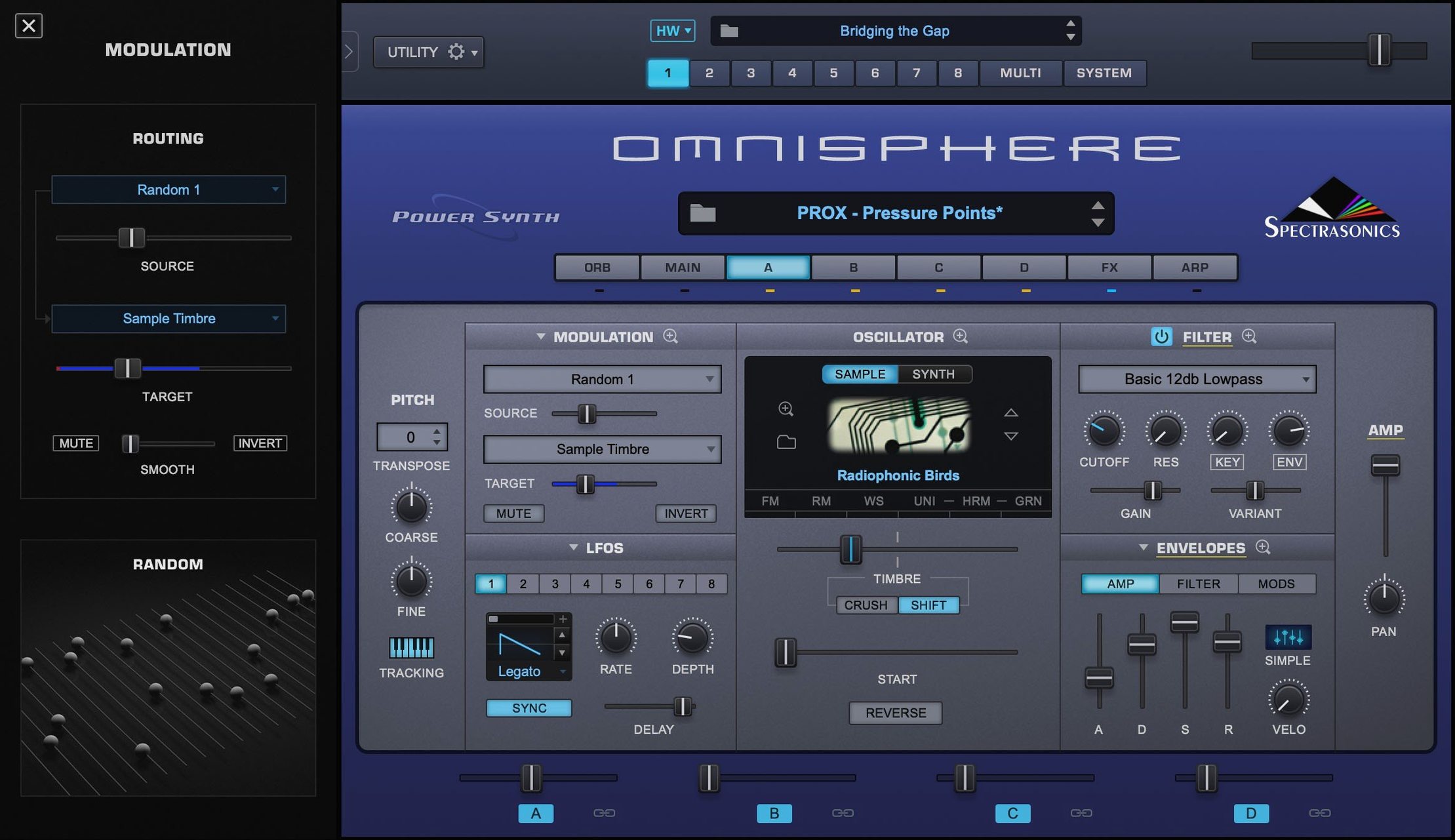
Version 3.0.2c arrived quietly, tightening things up across the board. The reference guide now reflects the update, so if you've been holding off on a fresh install, this is the point where everything lines up. I pulled the new build down and ran through a simple layered pad that I'd been sketching with a hardware controller, partly to test the Hardware Synth Integration, partly because there's nothing quite like shaping a sound with real knobs and faders.
I started in the standalone application, loading an organic-sounding sample from the core library and then blending in a wavetable layer that added some glassy motion. The integration with my MIDI controller meant I could tweak filter cutoff and envelope decay without touching the mouse. From there, I brought the patch into my DAW as a plug-in and added a touch of reverb from the effects rack. The whole chain, from the first preset scroll to the final render, felt immediate.
If you've ever wrestled with the Steam folder location, the standard installation routine here is refreshingly simple. Mount the disk image, run the installer, and the content settles into place without you needing to redirect paths manually. It's a small thing, but it saves that moment of dread when a library goes missing.
Once that first patch is saved and the Steam folder is humming along, there are a handful of things worth doing in the opening days that'll quietly shape how fast you work later. The first one sounds obvious, but I've skipped it before and regretted it: open the standalone app and let it fully scan the library while you make a coffee. If you launch it inside a DAW immediately, that initial scan can stall playback just when you're trying to sketch something, and you'll wonder why the disk light is solid.
Next, pick a hardware controller — even a modest one with a few knobs — and spend twenty minutes mapping the first four macros of a patch you actually like. Right-click any parameter and choose MIDI Learn, wiggle a knob, and Omnisphere remembers it. That small investment means that tomorrow, when you're hunting a sound rather than tweaking one, your hands will already know where the filter and the mod wheel depth live. I tend to save that mapping inside a Multi, so the assignments travel with the patch.
A third habit that's served me well: pin the Sound Match option at the top of the browser and use it ruthlessly. Pick a sound you already love — any sound — click Sound Match, and Omnisphere will sort the entire library by proximity. You'll discover pads stacked behind leads you'd never have scrolled to, and it cuts the endless preset-scrolling in half. I stumbled on a dusty tremolo electric piano this way that's now in three different cues.
Once those first patches are organized, Omnisphere starts to feel less like a self-contained island and more like a thread that runs through the rest of the Mac. It loads as AU, VST3 and AAX, so Logic, Ableton, Cubase and Pro Tools all see the same patches without translation. I keep the standalone app pinned to the Dock for sound design sessions where I don't want the DAW's transport bar staring at me, then drag Multi presets straight into the plug-in slot when I'm ready to arrange. On an Apple Silicon Mac, the AU version sits comfortably inside Logic without the bridge, and the standalone app launches fast enough that I'll often treat it like a hardware module — tweak, save, close.
Where Omnisphere clicks most naturally with macOS is in the file system. The Steam folder sits at a predictable path, and if you use multiple Macs, you can point a secondary machine at the same library over a fast network share. I keep a compact reference folder of my own patches in iCloud Drive, which is overkill for the factory content but perfect for the twenty or thirty custom Multis I don't want to lose. The audio engine also respects the system's sample rate switching, so plugging in an external interface with a different clock doesn't require a restart — just a quick flick in the Audio/MIDI Setup and the instrument follows.
A typical working session for me begins with a blank Multi in the standalone app. I'll load a percussive sound source into Part 1 — maybe a mallet strike from the core library — and set it to a narrow key range in the lower octaves. Part 2 gets a wavetable pad with a slow attack, layered across the middle of the keyboard, and I'll drag a third patch into Part 3 for a lead that only triggers above C4. With three parts humming, I start adjusting the arpeggiator on the lead, locking it to a dotted-eighth pattern that dances against a straight rhythm in my head. The Hardware Synth Integration kicks in here: my controller's filter knob is already assigned to the master filter on Part 2, so I can open and close the pad's brightness while playing the melody with both hands. By the time I save the Multi and drag it into an instrument track in my DAW, the sound is ninety percent shaped, and I'm just adding a send to ValhallaRoom or a touch of Logic's compressor before printing audio.
Stacked against other heavyweight synths on macOS, the differences are less about raw sound — they all sound good — and more about workflow territory. Serum feels like a microscope for wavetable design. You can draw harmonics by hand and see every partial move in real time, which is brilliant for surgical sound design but means the interface pulls you toward the wavetable tab constantly. Omnisphere hides its wavetable editing behind a cleaner panel, and the trade-off is that you reach for sample layers and dual filters sooner because they're right there. Serum rewards deep single-oscillator programming; Omnisphere rewards stacking and blending.
Arturia Pigments has a visual signal flow that I genuinely miss when I'm deep in Omnisphere's tabs. You can see the envelope shape animate as you drag it, and the modulation routing is color-coded in a way that teaches you what's modulating what. Where Omnisphere pulls ahead is breadth — the sheer number of sound sources, from burned circuit noises to bowed glass, dwarfs what Pigments ships with. Pigments feels like a laboratory; Omnisphere feels like a library with a laboratory attached.
Native Instruments Kontakt is the other obvious comparison, though it's more of a platform than a synthesizer. Kontakt excels when you need a deeply sampled piano or a string library with seventeen articulations. Omnisphere's sample engine isn't trying to do round-robins and release triggers for a concert grand; it's treating audio as raw material for synthesis. In practice, that means I'll reach for Kontakt when I need realism and Omnisphere when I want a cello that turns into a foghorn halfway up the keyboard — something Kontakt can do, but not without building a whole instrument first. The two sit side by side in my template, each taking the tasks the other finds awkward.
- The reference guide identifies Software 3.0.2c.
- macOS 11 or newer
- Intel and Apple Silicon support
Questions people ask
Is Omnisphere a standalone instrument or just a plug-in?
It includes both a standalone application and plug-in formats for DAWs and other hosts.
What macOS version does the current Omnisphere require?
It is compatible with macOS 11 and newer, and works natively on both Intel and Apple Silicon Macs.
Can I use external hardware with Omnisphere?
Yes, Hardware Synth Integration extends to major brands of synthesizers and MIDI controllers.
Also on readers' docks
Sign in or create an account to leave a comment.
No comments yet. Tell me how it got on with your other devices.
More in VST Plugins
See all Output Portal
1.2.1 VST Plugins
319 MB
Output Portal
1.2.1 VST Plugins
319 MB
 oeksound Spiff
1.4.4 VST Plugins
140 MB
oeksound Spiff
1.4.4 VST Plugins
140 MB
 Nuro Audio XVOX Pro
1.5.2 VST Plugins
625 MB
Nuro Audio XVOX Pro
1.5.2 VST Plugins
625 MB
 Nuro Audio Xpitch
1.5.2 VST Plugins
190 MB
Nuro Audio Xpitch
1.5.2 VST Plugins
190 MB
 Nudist Audio Nudistort
1.2.5 VST Plugins
45 MB
Nudist Audio Nudistort
1.2.5 VST Plugins
45 MB
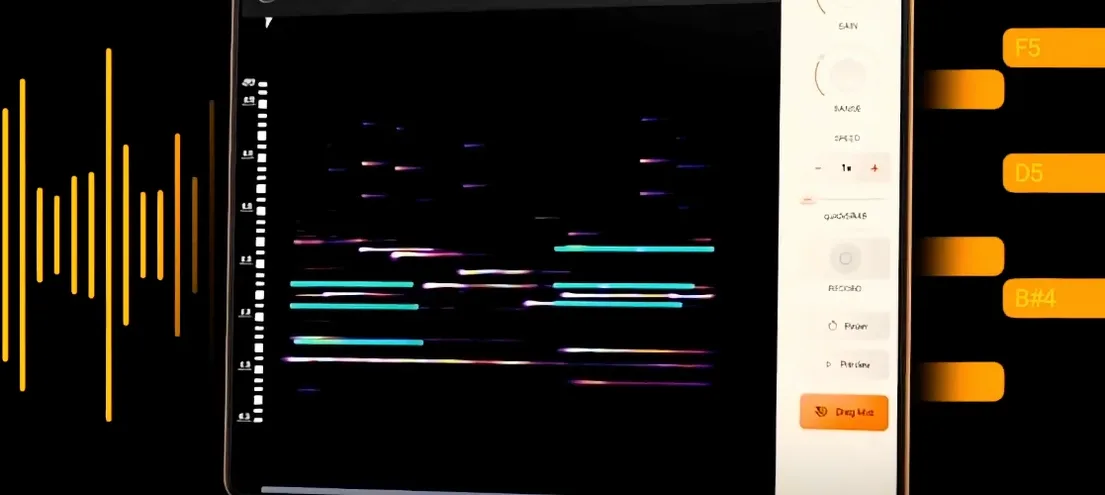 noteGRABBER
2.0.0 VST Plugins
35 MB
noteGRABBER
2.0.0 VST Plugins
35 MB
 Neural DSP Soldano SLO-100 X
1.0.0 VST Plugins
340 MB
Neural DSP Soldano SLO-100 X
1.0.0 VST Plugins
340 MB
 Neural DSP Parallax X
1.0.0 VST Plugins
179 MB
Neural DSP Parallax X
1.0.0 VST Plugins
179 MB