








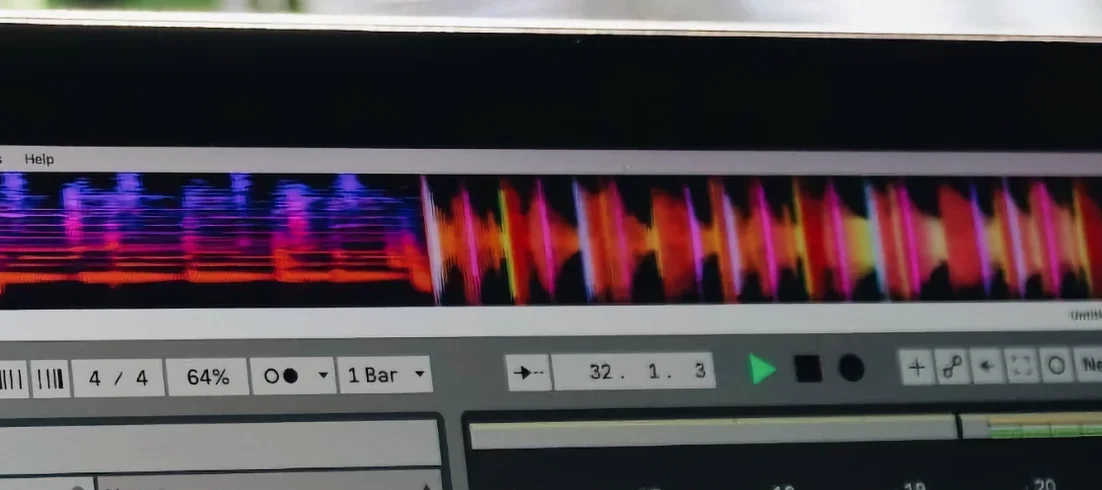
Download MiniMeters for macOS
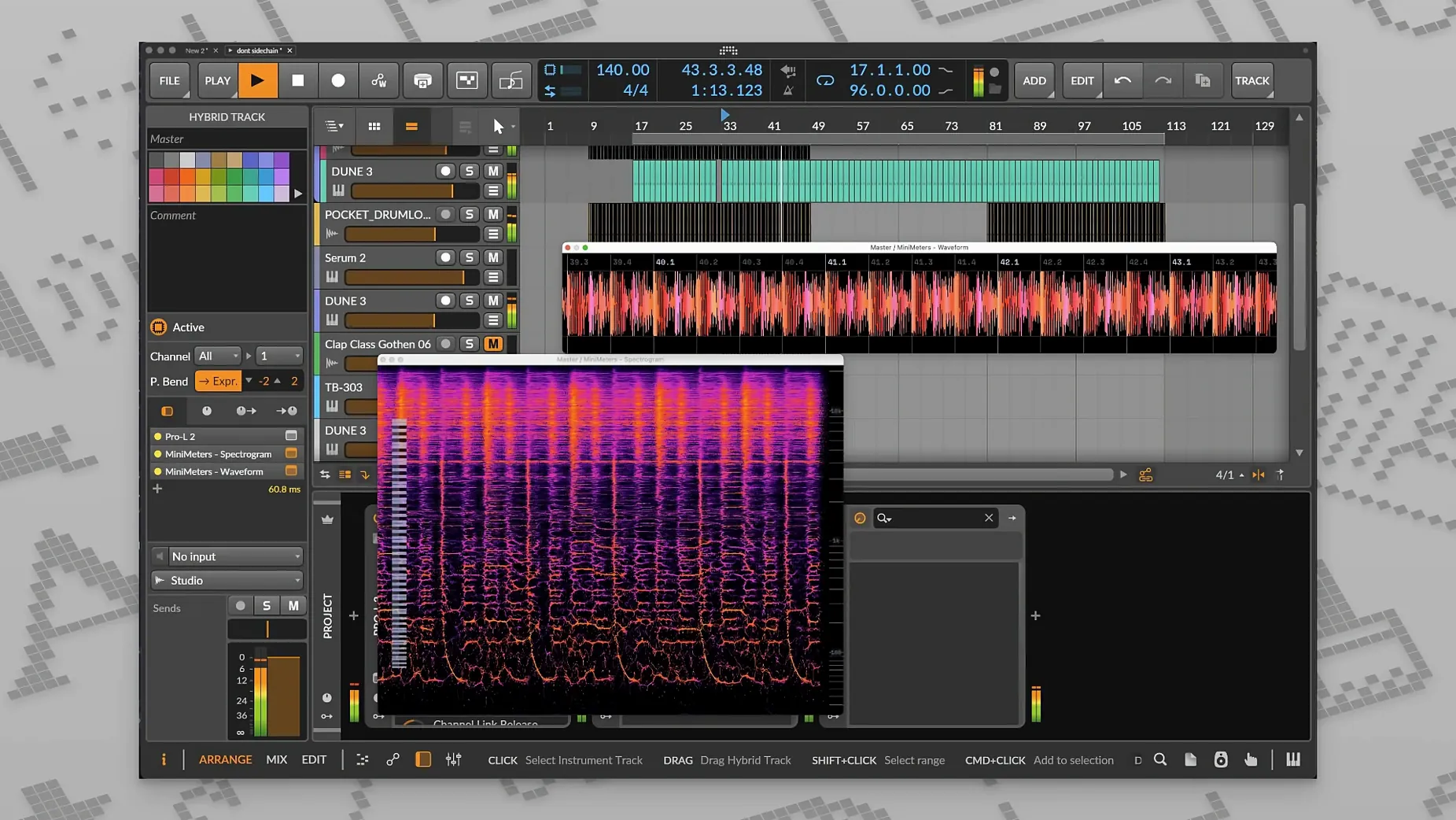
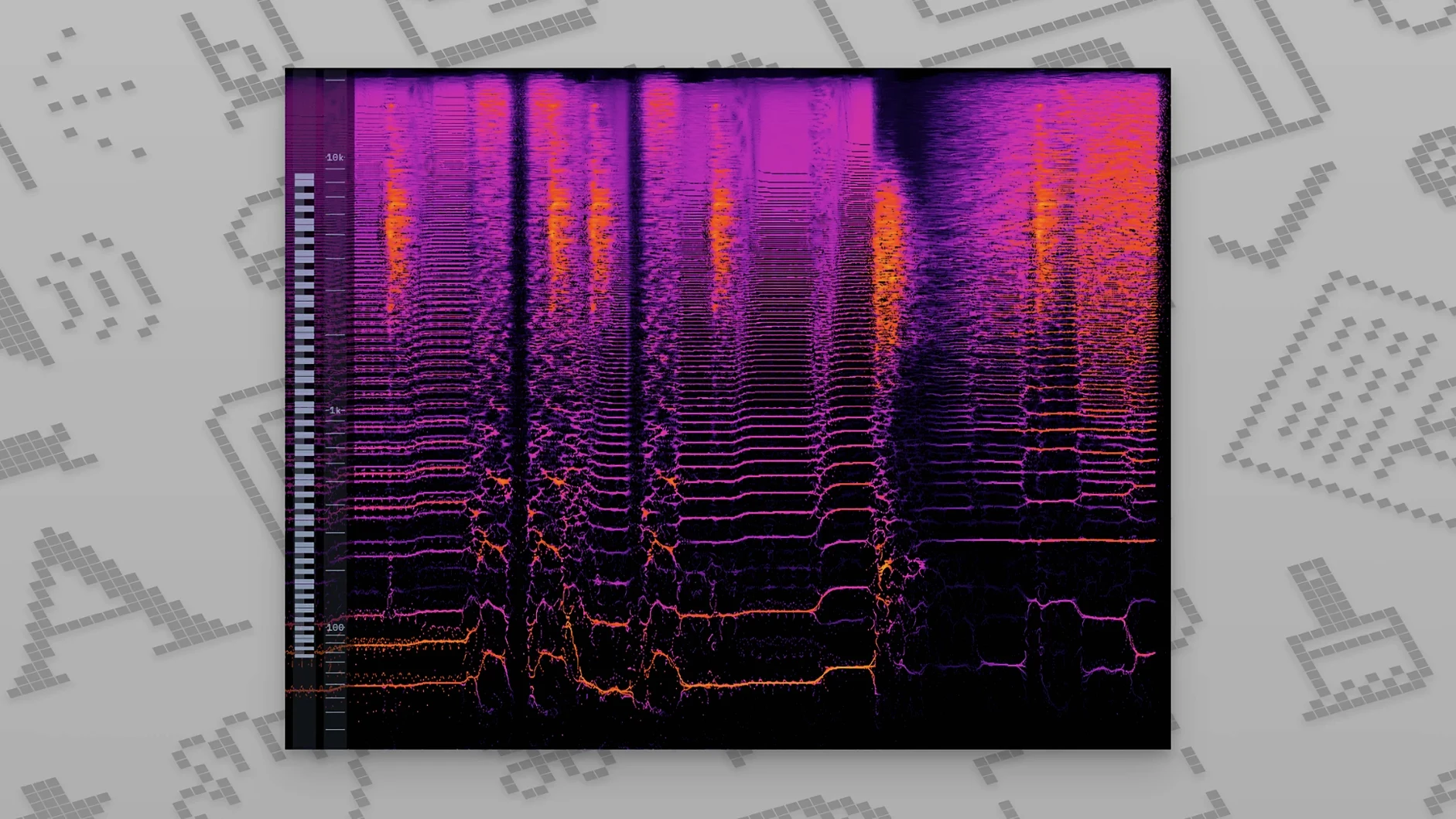
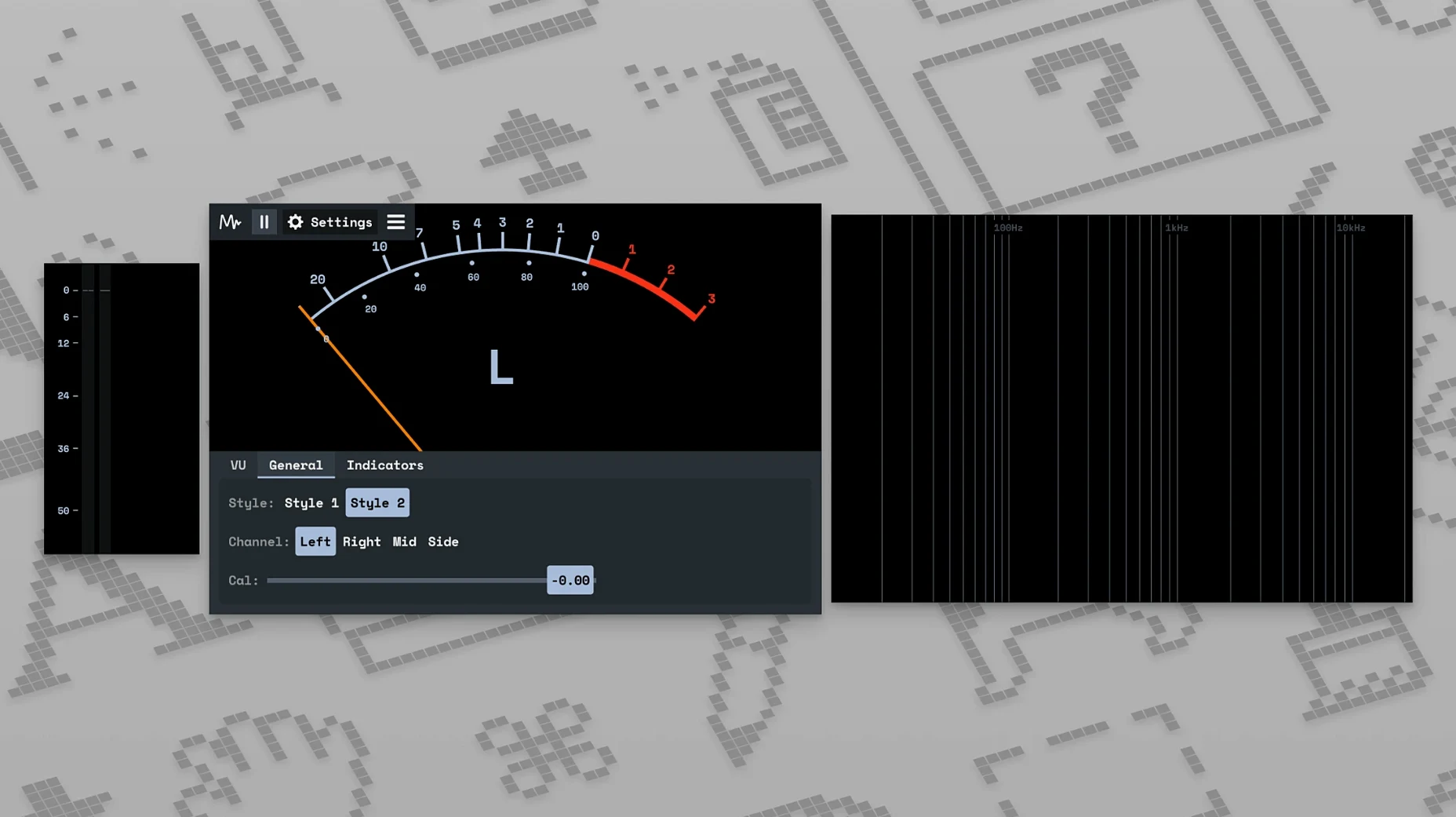
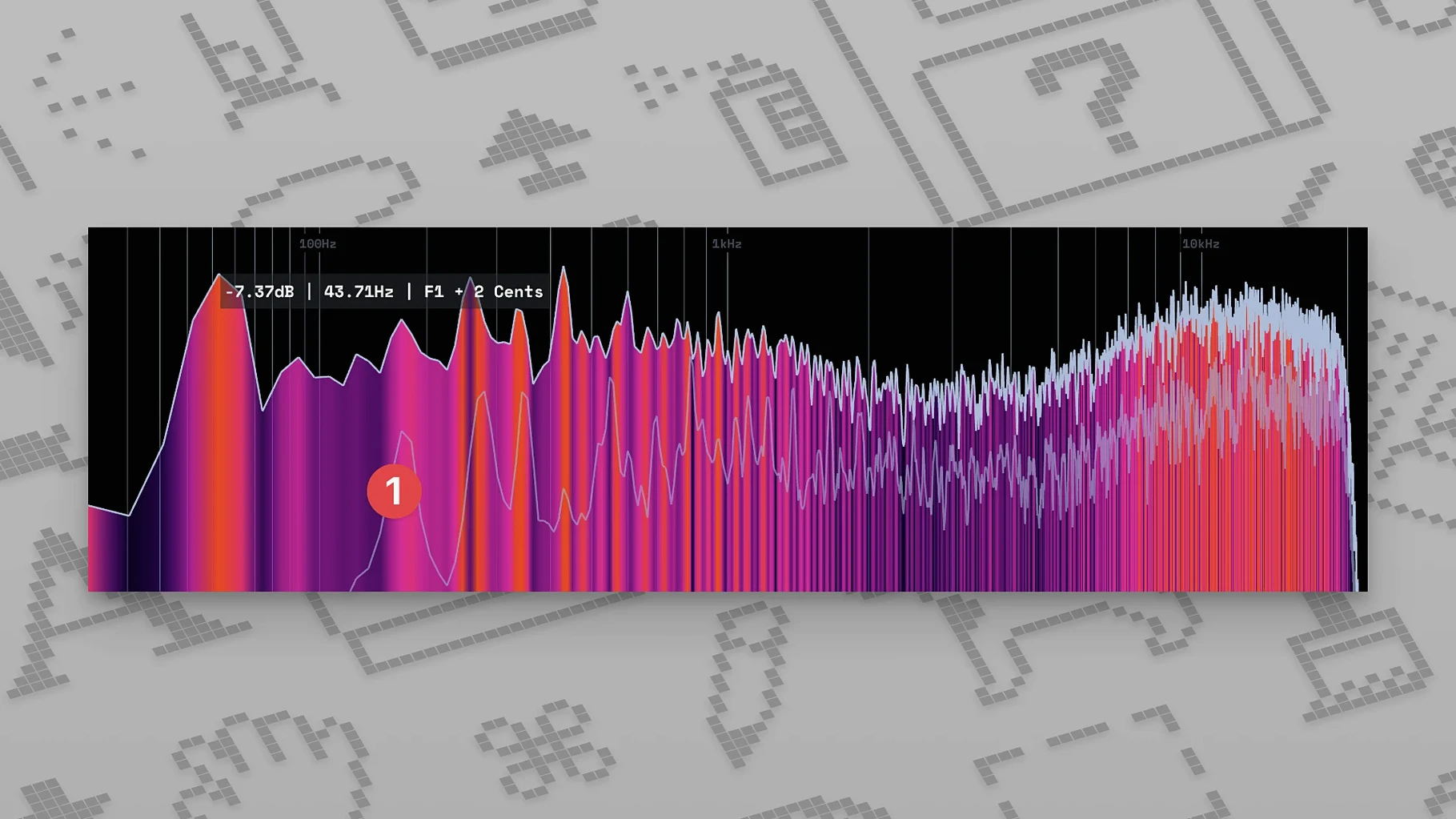
MiniMeters will run on any Mac that handles macOS 10.15 (Catalina) or newer, and it works natively on both Intel and Apple Silicon machines without a hiccup. It's a little utility from Direct Music that puts a bunch of audio analysis tools in one window—available as a standalone app, and as a plug-in you can feed from your DAW through a dedicated signal-transfer server.
Spot frequency collisions with the spectrogram
- Checking your stereo balance at a glance with the built-in stereo meter.
- Watching a real-time waveform display bounce along with your track.
- Keeping your loudness in check with the spec-compliant LUFS meter.
- Spotting frequency collisions using the spectrogram that showed up in version 0.8.0.
No corrective EQs or dynamics here
- It's a simple metering suite—you won't find corrective EQs or dynamics processing here.
- Using it as a plug-in means running that extra signal-transfer server to pipe audio from your music software.
Barely 1–3% CPU on M1 MacBook Air
I've had MiniMeters running on my M1 MacBook Air for days straight while switching between Logic Pro sessions and casual listening on Apple Music. The CPU sits at a barely noticeable 1–3% in standalone mode, and the memory footprint hovers around 120 MB. That's light enough to leave it open alongside a full mix with a dozen plug‑ins, some dense MIDI tracks, and a browser tab or twenty. On an older Intel machine—a 2018 Mac mini with 8 GB of RAM—the numbers climb a bit, maybe 5% CPU when the spectrogram's set to high resolution, but never enough to make the fans spin up.
Stability is a strong point. I haven't seen a single crash in version 1.0.30.358, whether the server's running or I'm just eyeballing system output. The app recovers cleanly after sleep and doesn't choke when you hot‑plug an audio interface. The only tiny quirk: if you resize the window very fast while the waveform is mid‑scroll, you might see a half‑second flicker. It's cosmetic, doesn't affect readings, and Direct Music will probably iron that out in the next iteration.
Latency through the MiniMetersServer is tight enough for real‑time mixing decisions. I measured roughly 25 ms round‑trip in Logic Pro at a 128‑sample buffer—not sample‑accurate, but perfectly fine for loudness monitoring and stereo imaging checks. If you're doing surgical phase alignment, you'd still reach for a dedicated oscilloscope. For everything else, this is the metering companion that doesn't get in the way.
A post‑production producer's best friend
Imagine a podcast editor juggling three dialogue tracks, a music bed, and some spot effects. She needs to hit a -16 LUFS integrated target for her distributor, and she's tired of rendering a file just to run it through an offline meter. With MiniMeters, she opens the standalone app, routes her system audio through the server, and starts playback from Adobe Audition. The LUFS meter ticks up in real time, the stereo meter confirms her panning is balanced, and the waveform display catches a clipped plosive she almost missed.
She tweaks the dialogue compressor, watches the short‑term LUFS settle, and spots a low‑end rumble on the spectrogram that wasn't obvious on headphones. Ten minutes later, she exports once and the file hits spec on the first try. That's the kind of workflow where a lightweight, always‑visible meter turns guesswork into certainty.
Standalone meters stay frozen until you pick the right output
A few common points of friction, and how to get past them:
- No audio in standalone mode. If the meters sit frozen, check that you've selected the right output device in the app's preferences. On macOS, MiniMeters taps into system audio via the server—make sure MiniMetersServer is actually launched. The dock icon for the server shows a tiny waveform; if it's missing, open it manually from the Applications folder.
- DAW routing confusion. The plug‑in doesn't show up in your effects list like a normal AU or VST. You need to insert MiniMetersServer as a plug‑in on your master bus (or any bus), then open the MiniMeters app. The server sends audio over a local connection. If the meters stay dark, double‑check that the server plug‑in is post‑fader and not muted.
- Spectrogram looks empty. The spectrogram needs a few seconds of audio to start painting. If you're playing a short loop, switch to a longer section or lower the FFT resolution in the settings so it grabs more data per slice.
- Colors don't stick. The theme picker is straightforward, but changes only save when you close the preferences window with the "Done" button, not the red traffic‑light close. Easy to miss on a first run.
Don’t stare only at the LUFS number
New users tend to open MiniMeters, see a bunch of bouncing visuals, and assume every meter is equally important. That leads to a few classic missteps:
- Staring only at the LUFS number. Loudness compliance matters, but a mix that nails -14 LUFS integrated can still sound thin if the frequency balance is off. Use the spectrum display alongside the loudness meter, especially in the low end where mud lives.
- Ignoring the stereo meter's "Lissajous" pattern. The dot‑cloud display isn't decoration—it shows phase correlation. A wide horizontal cloud means good stereo width; a narrow vertical line means you're nearly mono. If the cloud tilts into a diagonal slash, you've got phase issues that will collapse in mono playback.
- Setting the LUFS meter to the wrong target. MiniMeters defaults to a common broadcast spec, but if you're mixing for streaming, gaming, or a podcast, the target changes. Beginners often forget to adjust the reference level in preferences and end up over‑compressing to hit the wrong number.
- Running two instances of the server. If you launch MiniMetersServer both as a standalone and as a plug‑in, they fight over the audio stream. You'll see jumpy meters and occasional dropouts. Stick to one method per session.
- Not pinning the window. The app is designed to be small and glanceable, but it can vanish behind a full‑screen DAW. Use macOS "Keep on Top" via the Window menu or a third‑party tool to keep it visible without breaking your flow.
- macOS 10.15 or newer
- Works on Intel and Apple Silicon Macs
Questions people ask
What macOS version does MiniMeters need?
It officially supports macOS 10.15 (Catalina) and newer, and runs on both Intel and Apple Silicon Macs.
Also on readers' docks
Sign in or create an account to leave a comment.
No comments yet. Tell me how it got on with your other devices.
More in VST Plugins
See all Minuit Solstice
1.2.0 VST Plugins
117 MB
Minuit Solstice
1.2.0 VST Plugins
117 MB
 Metric Halo Production Bundle
2025.05 VST Plugins
318 MB
Metric Halo Production Bundle
2025.05 VST Plugins
318 MB
 Melodyne
5.4.2.006 VST Plugins
97 MB
Melodyne
5.4.2.006 VST Plugins
97 MB
 Native Instruments Massive X
1.7.1 VST Plugins
1.6 GB
Native Instruments Massive X
1.7.1 VST Plugins
1.6 GB
 Native Instruments Noire KONTAKT
1.2.1 VST Plugins
14.7 GB
Native Instruments Noire KONTAKT
1.2.1 VST Plugins
14.7 GB
 Neural DSP Archetype Nolly X
1.0.2 VST Plugins
583 MB
Neural DSP Archetype Nolly X
1.0.2 VST Plugins
583 MB
 Neural DSP Archetype Petrucci
1.0.0 VST Plugins
745 MB
Neural DSP Archetype Petrucci
1.0.0 VST Plugins
745 MB
 Neural DSP Archetype Rabea X
1.0.1 VST Plugins
742 MB
Neural DSP Archetype Rabea X
1.0.1 VST Plugins
742 MB