Download Scrivener for macOS
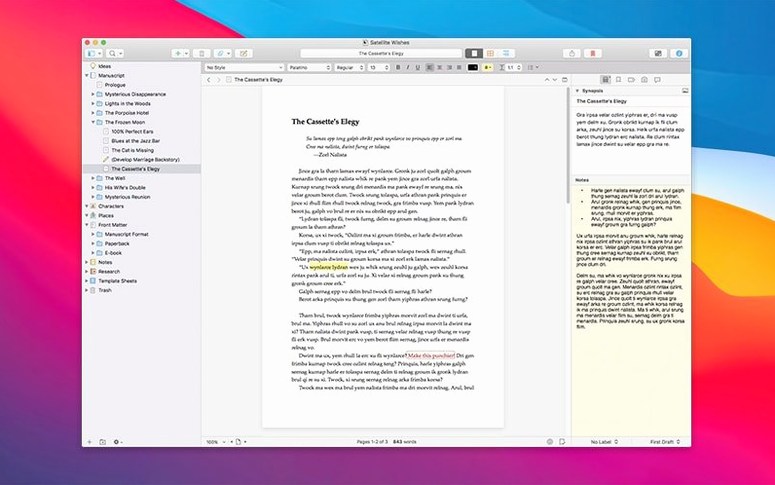
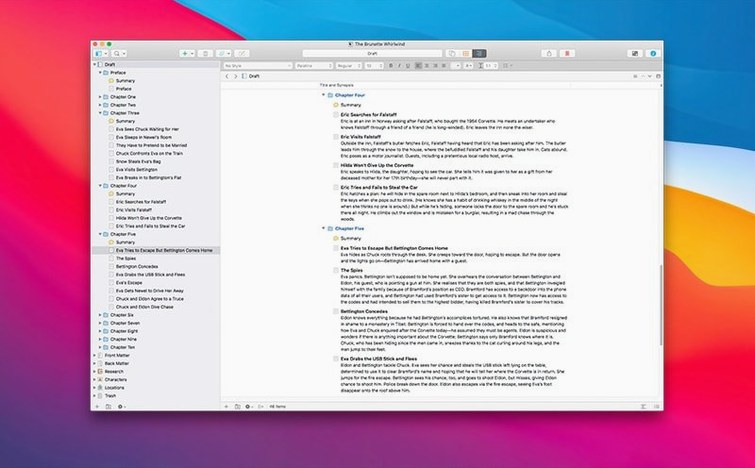
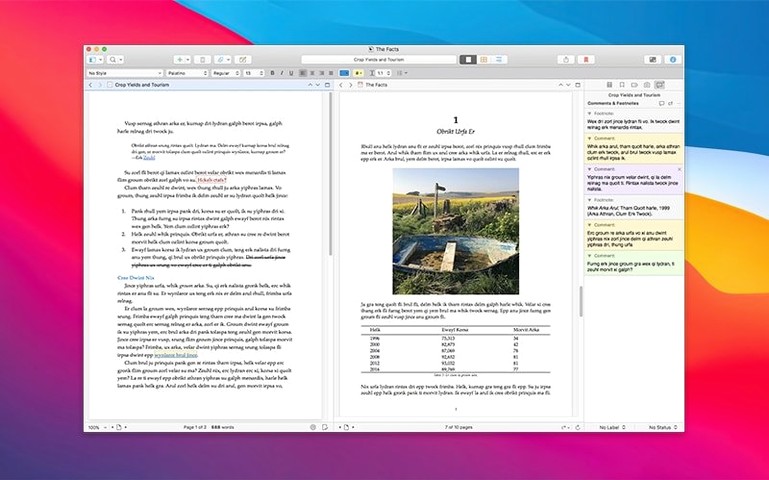
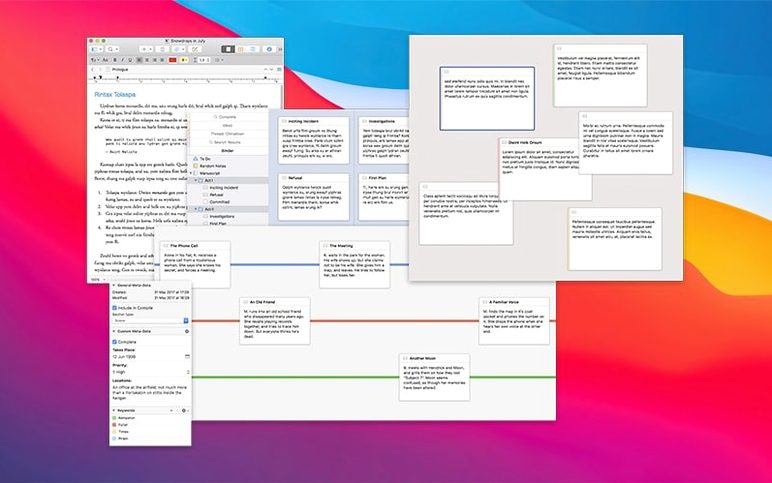
A Research folder sits inside every new project, ready for the photos, PDFs, audio clips, and stray web links that feed a big manuscript. Scrivener still draws the line between a word processor and a project manager by letting you pour all that supporting material into the same binder where the draft lives, then switch views without opening another app.
| Current version | macOS required |
|---|---|
| 3.5.2 | macOS 10.13 or later |
Version 3.5.2 is a quiet bug-fix release that doesn’t rewrite the playbook, and that’s fine when the playbook already includes snapshots for whole documents or selected fragments. Keeping multiple versions of a scene or a beat sheet feels natural once you’ve used it, and the app runs on both Apple Silicon and Intel Macs without a separate download. It’s the kind of update you install, forget about, and simply carry on writing—until you notice the binder hasn’t lost a single research item along the way.
Here's what a morning session usually looks like. I open the project I've been nursing for months—a messy novel draft surrounded by character sketches, location photos, and a few PDFs of old maps. The binder sits on the left, a long vertical list of folders and text files that mirrors the structure I've built chapter by chapter. I click into a scene that needs rewriting. The editor fills the centre of the screen, clean and distraction-free. I tap Cmd-8 to pull up the snapshot panel on the right, take a fresh snapshot, and start cutting. Halfway through, I remember a bit of dialogue I liked in last Tuesday's version. I open the snapshot browser, compare the two side by side, and snatch the line back. No new document, no hunting through a backups folder. The whole loop—write, snapshot, compare, restore—happens inside a single window, and I never touch the Finder.
When I need to check a research detail, I drag a PDF from the Research folder into a split view. The top pane stays my draft; the bottom pane scrolls through a scanned letter from 1923. I can highlight text in the PDF, add a note, and close it without ever leaving the project. Later, I drop a few photos into a corkboard view for the next chapter. The index cards shuffle around as I work out the sequence, each card pulling its synopsis from the scene's text. It's not magic—it's just an app that treats a writing project as a bundle of interconnected stuff, not a single long file.
Opening a .scriv file instead of the folder
First snag people hit: they open a project and the binder looks empty. Nine times out of ten, they've opened the .scriv folder itself instead of the project file inside it. On a Mac, a Scrivener project is a package that looks like a file in the Finder, but if you unzip a compressed copy or poke around with third-party tools, you'll see its guts. The fix is simple—close everything, locate the .scriv package, and double-click that. Don't go digging inside.
Another classic is the disappearing toolbar. Someone leans on a keyboard shortcut and suddenly the format bar is gone. View > Show Toolbar brings it back, or Opt-Cmd-T if you want to stay on the keys. While we're here: if the inspector vanishes from the right side, Cmd-Shift-I toggles it. These three shortcuts cover about eighty percent of the "my layout broke" panic moments.
Syncing projects through cloud services can get messy if you leave a project open on two Macs at once. Scrivener locks a project when it's in use, and Dropbox or iCloud will happily create conflict copies that leave you squinting at "Conflicted Copy" filenames. The habit that saves headaches: always close the project on one machine before opening it on another, and give cloud services a minute to finish uploading before you shut the lid. For anyone who's searched for a Scrivener Mac torrent and ended up with an older version, note that 3.5.2 handles locked-project warnings more cleanly than earlier builds—the dialogue actually tells you which machine has it open, if the project's been shared.
Snapshots confuse newcomers too. People hit Cmd-5 and expect a Save As dialogue, but Scrivener just silently records the state of the document. To find it again, open the Inspector (Cmd-Shift-I) and click the camera icon. The snapshot list lives there, each one timestamped and titled. You can roll back an entire document or just copy a paragraph from an older snapshot without losing the current version. If you've ever lost a good paragraph to over-editing, this panel becomes your best friend within a week.
When chapters shift order and research piles grow
Long-form writers are the obvious answer: novelists, thesis students, narrative journalists. Anyone with a word count north of ten thousand and a research pile to match. Scrivener thrives when a project has moving parts—chapters that shift order, characters who need their own notes, reference images that have to stay visible while you draft. A short blog post doesn't need this much scaffolding. A 90,000-word manuscript with forty research sources absolutely does.
Screenwriters get a tailored experience too, though they sometimes overlook it. The scriptwriting mode handles industry formatting without making you tab between elements. Scene headings, action, character, dialogue—each one has a keyboard shortcut and the binder shows coloured index cards that follow screenplay conventions. If you've ever wrestled with a regular word processor to keep dialogue margins consistent, the script mode feels like a weight lifted.
Researchers and students who juggle PDFs alongside their notes find the split-view workflow indispensable. Drop a journal article into the Research folder, open it in the bottom pane, and highlight passages while typing analysis in the top pane. The highlights and annotations stay inside the project, not scattered across Preview or Adobe Reader. When it's time to compile a submission draft, all the source material is already linked in one place. Some people hunting for a Scrivener crack for Mac discover that the Research folder alone changes how they organise academic work—even before touching the corkboard or outlining tools.
That blank document tied to the project name
- Project notes. Click the project name at the top of the binder and you get a blank document that belongs to the project itself, not to any chapter. Perfect for a running to-do list, a style guide, or a list of questions you need to answer before the next draft.
- Composition mode fade. In composition mode (
Ctrl-Cmd-F), hover near the bottom edge and a paper-width slider appears. Most people never spot it. You can widen or narrow the text column on the fly without leaving the dark background. - Label colours on index cards. Right-click any binder item, pick a label colour, and that colour stripes across the corkboard card and the binder entry. Novelists often colour-code by POV character or plot thread—it makes the structure visible at a glance, and it's hiding in plain sight under the Labels menu.
- Session word count target. The bottom-right corner of the main window shows a live word count. Click it and a small panel opens where you can set a daily target. The progress bar fills up as you type, and it resets each day. Quiet motivation that doesn't nag.
- Collections for temporary groupings. If you need to see all scenes featuring a particular character across multiple chapters, create a Collection instead of moving files. Collections are saved searches that sit in the binder and leave your folder structure untouched. Great for revision passes.
- Copyholders. In split view, you can lock one pane so it doesn't scroll away while you reference it. Right-click the pane header and check "Lock in Place." The other pane scrolls freely. Ideal for keeping a character sheet or outline visible while drafting below.
Some of these features surface organically after a few weeks of use; others stay buried for years. The snapshot panel alone is worth reading the manual for, yet plenty of people who install a scrivener 3.5 build never click the camera icon until they lose a chapter. Once you build a habit around snapshots—take one before a big edit, take one after—you start treating revision as something reversible, which changes how bravely you rewrite.
Keyboard shortcuts compound over time. Cmd-1 through Cmd-4 switch between the main views (single document, corkboard, outliner, scrivenings). Cmd-5 takes a snapshot. Cmd-8 opens the snapshot panel. Ctrl-Cmd-F enters composition mode. Esc exits it. Learn those seven and you'll navigate a project without touching the mouse for long stretches. The binder, the inspector, and the editor all have their own focus rings—Tab cycles between them once you know they exist.
Scrivener 3.5.2 is a bug-fix release that irons out small issues without changing the feature set.
- macOS 10.13 or later
- Apple Silicon or 64-bit Intel processor
Questions people ask
Can Scrivener keep older versions of my text?
Yes, snapshots let you save a full document version or just a selected fragment so you can return to earlier drafts anytime.
What goes into the Research folder?
A new project always includes a Research folder where you can store notes, images, PDFs, audio, and web links alongside your draft.
Will Scrivener 3.5.2 run on an Apple Silicon Mac?
Absolutely—it supports both Apple Silicon and 64-bit Intel Macs starting from macOS 10.13.
Also on readers' docks
Sign in or create an account to leave a comment.
No comments yet. Tell me how it got on with your other devices.