Download OmniReader Pro for macOS
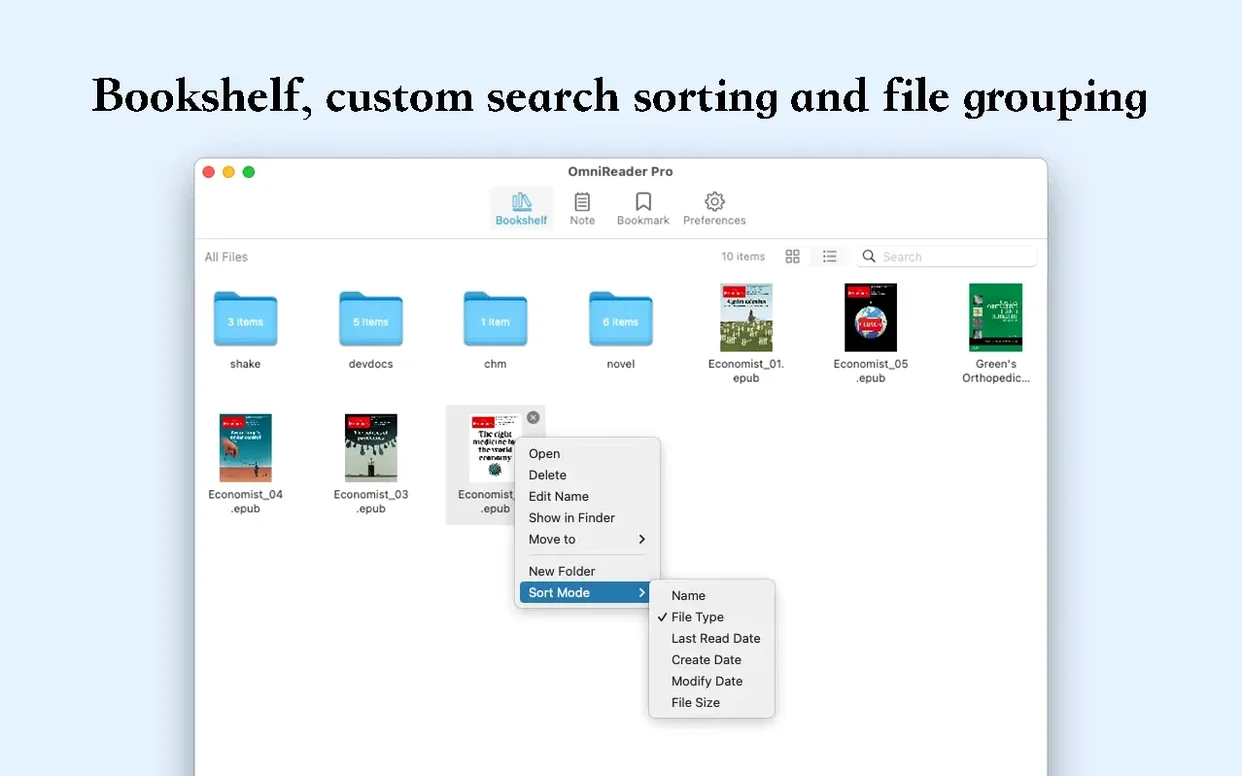
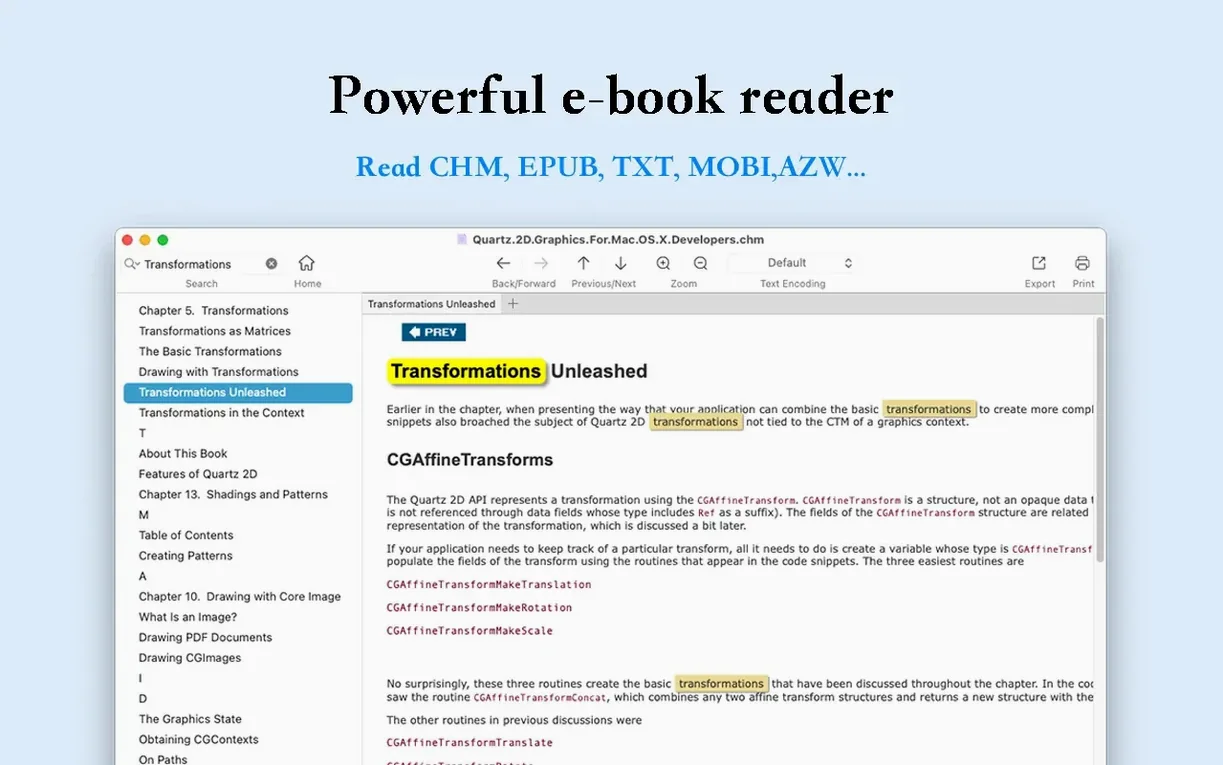
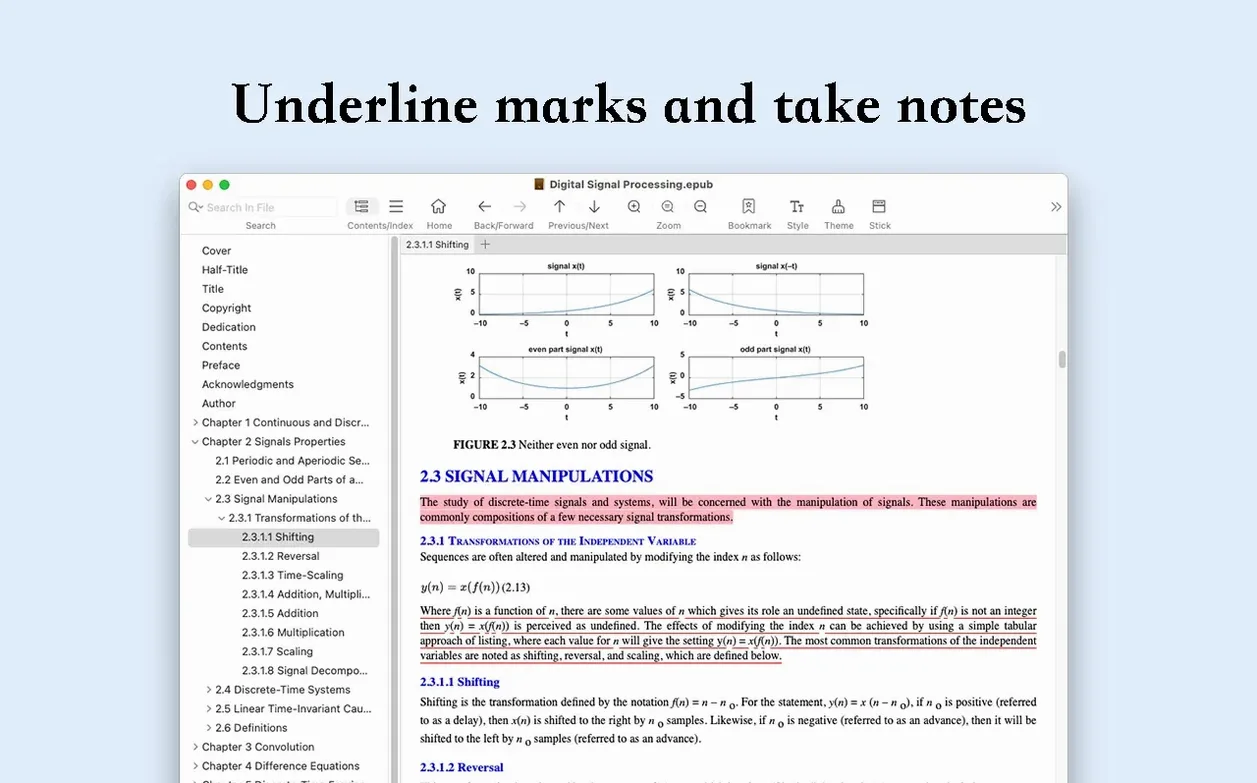
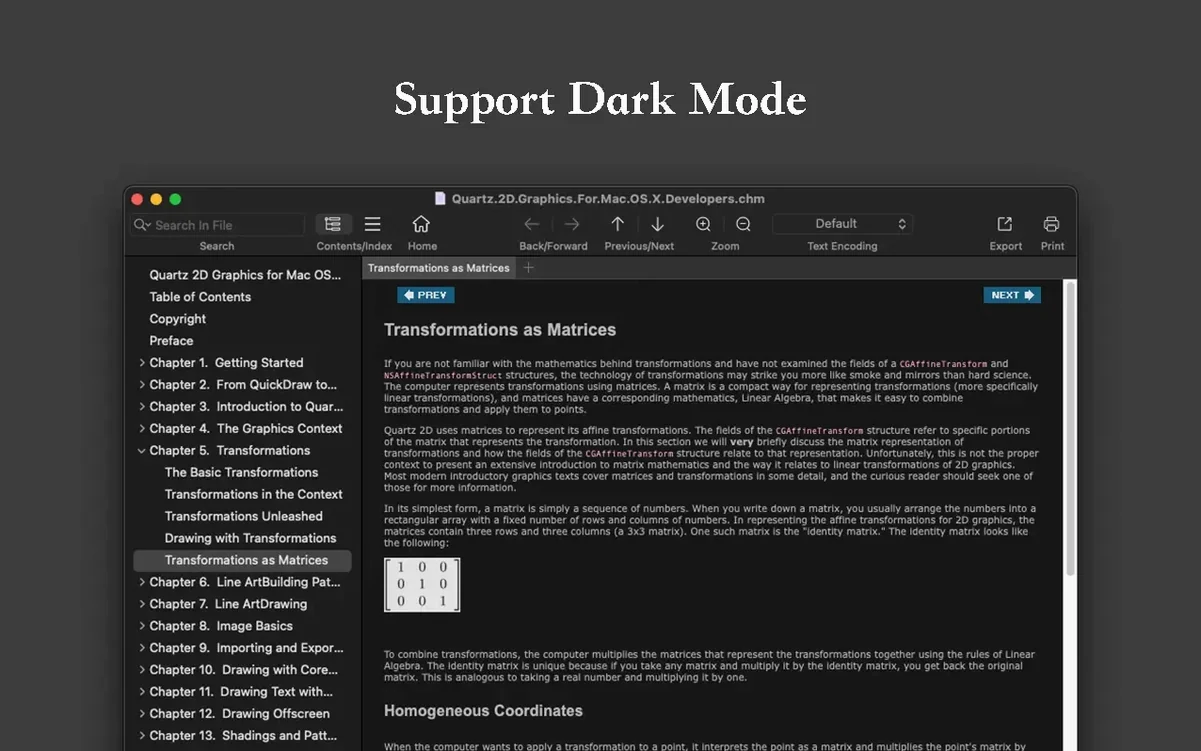
The search bar is more than a simple find box — it is a full-text engine that scans across your entire library. OmniReader Pro still centers on straightforward reading, supporting EPUB, CHM, and Kindle files without clutter. I keep coming back because it remembers exactly where I left off, with forward and back reading history that feels like a web browser for books.
What file formats does it open?
EPUB, CHM, and Kindle files are the core trio. Basic file information sits a click away for any document in your list.
How does the search system work?
You get both a page-level search and a full-text search that digs through the whole book. Matches highlight clearly, so jumping between results takes no thought.
Can I print pages from OmniReader Pro?
Yes — page printing is built right in. It handles the formatting cleanly, which makes grabbing a paper copy of a recipe or a reference page painless.
Preferences that silence the sidebar delay
Out of the box, OmniReader Pro does its job, but a few tweaks make the reading experience a lot smoother. Head into Preferences and you will find a couple of things that are not obvious on first launch.
- Default encoding for plain text. If you open older CHM files or documents that originated outside the English-speaking world, garbled characters can appear. The app supports manual encoding handling — set your fallback to
UTF-8orGBKdepending on where most of your files come from, and you will stop seeing question marks in place of letters. - Image auto-resize behavior. By default, the app adjusts image sizes to fit the window. That is usually what you want, but if you are reading technical manuals with diagrams, you might prefer to turn it off so you can zoom in on the original resolution. The toggle sits under the View tab.
- Sidebar collapse on launch. I keep my library sidebar hidden until I need it. There is a setting to start with the sidebar collapsed, which gives you a clean, distraction-free page right away. You can always bring it back with the toolbar button or a keyboard shortcut.
How OmniReader Pro fits with other apps and macOS features
This is not an app that tries to do everything. It reads books, and it does that well — but the export features are where it starts talking to the rest of your Mac.
The EPUB-to-PDF export pipeline has become part of my routine when I want to annotate a chapter in another app. I will pull a book into OmniReader, export the relevant section as PDF, and then open it in something like Preview or a note-taking app for markup. Because the export keeps formatting clean, the resulting PDF does not look like it went through a blender.
Image extraction is another bridge. If a book contains illustrations or charts you want to use elsewhere, the "extract all images" option pulls every embedded image into a folder in one go. No renaming, no hunting through package contents — just a folder of sequentially named files that drop right into any image editor or document.
On the macOS integration side, OmniReader plays nicely with the system print dialog. That means any printer you have set up on your Mac — including PDF services — is available. I have used the "Save as PDF" system option from the print menu more than once to grab a clean copy of a single page without going through the full export flow. Spotlight does not index the contents of your library by default, but exported PDFs land in your documents folder and become searchable immediately. For quick access, dragging the app into the Dock gives you a fast way to open your current read without digging through Finder.
From CHM chapter dump to instant procedure search
Here is a real task I use OmniReader Pro for, end to end. I keep a few technical reference books in CHM format — the kind where you need to find one procedure buried in chapter 14 and have it in front of you while you work. The app handles the CHM structure without breaking the table of contents, which is already a win.
I open the book and use the full-text search to locate every mention of the topic I am researching. The highlights make it easy to scan the result list, and the reading history lets me bounce between three or four relevant pages without losing my place — back and forward arrows work exactly like a browser, so I can follow a thread through the book and retrace my steps later.
When I have identified the pages I actually need, I print them using the system dialog. Instead of sending them to paper, I choose "Save as PDF" and direct the output to a project folder. For pages that contain diagrams or tables, I also use the image extraction tool — it pulls the figures out at full resolution, which is helpful when I am assembling documentation and need the original chart, not a screenshot of the page.
The whole flow takes under five minutes: search, verify with highlights, export the relevant pages as PDF, extract any figures I need separately. At the end, I have a focused set of reference materials sitting in Finder, and the book stays open in OmniReader Pro exactly where I left off, with my history intact in case I need to revisit something.
- macOS 10.13 or later
- Apple Silicon & Intel 64-bit
Questions people ask
Does OmniReader Pro keep track of where I stopped reading?
Yes, it keeps a forward and back reading history, so you can retrace your steps through a book just like a web browser.
Also on readers' docks
Sign in or create an account to leave a comment.
No comments yet. Tell me how it got on with your other devices.