Download Microsoft Outlook for macOS
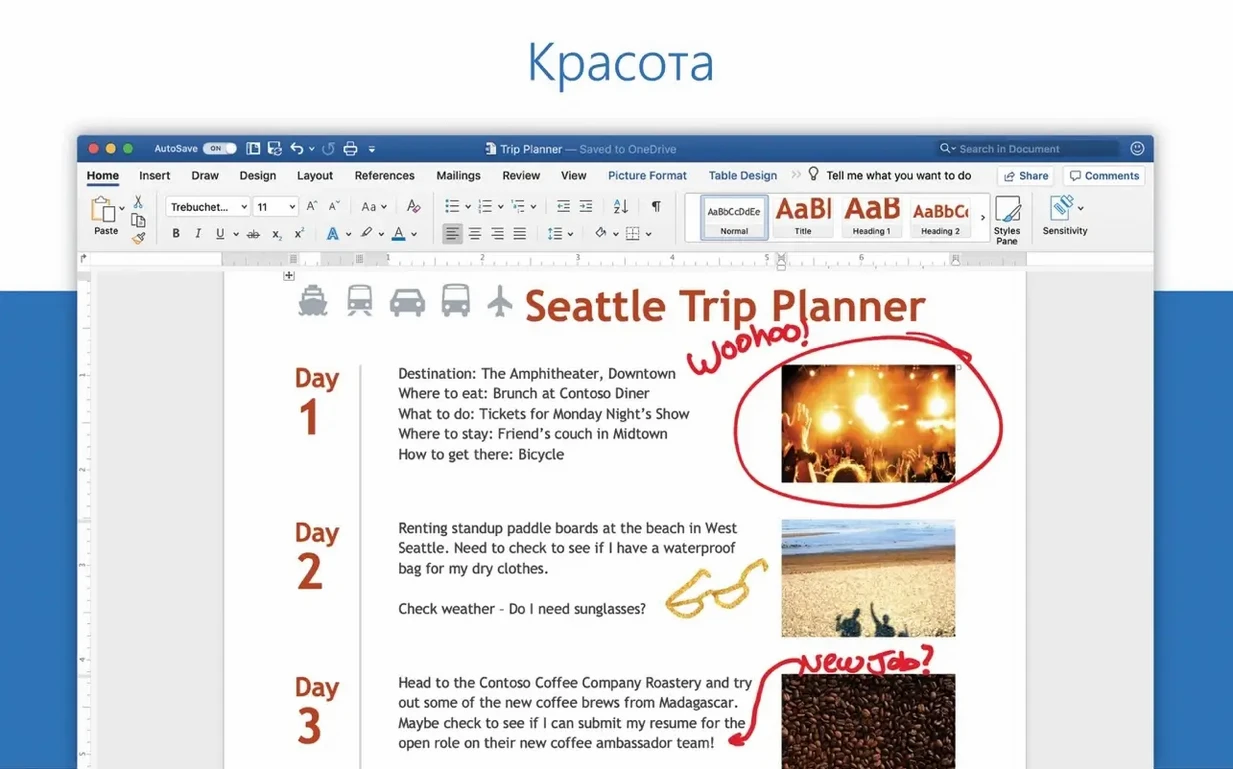
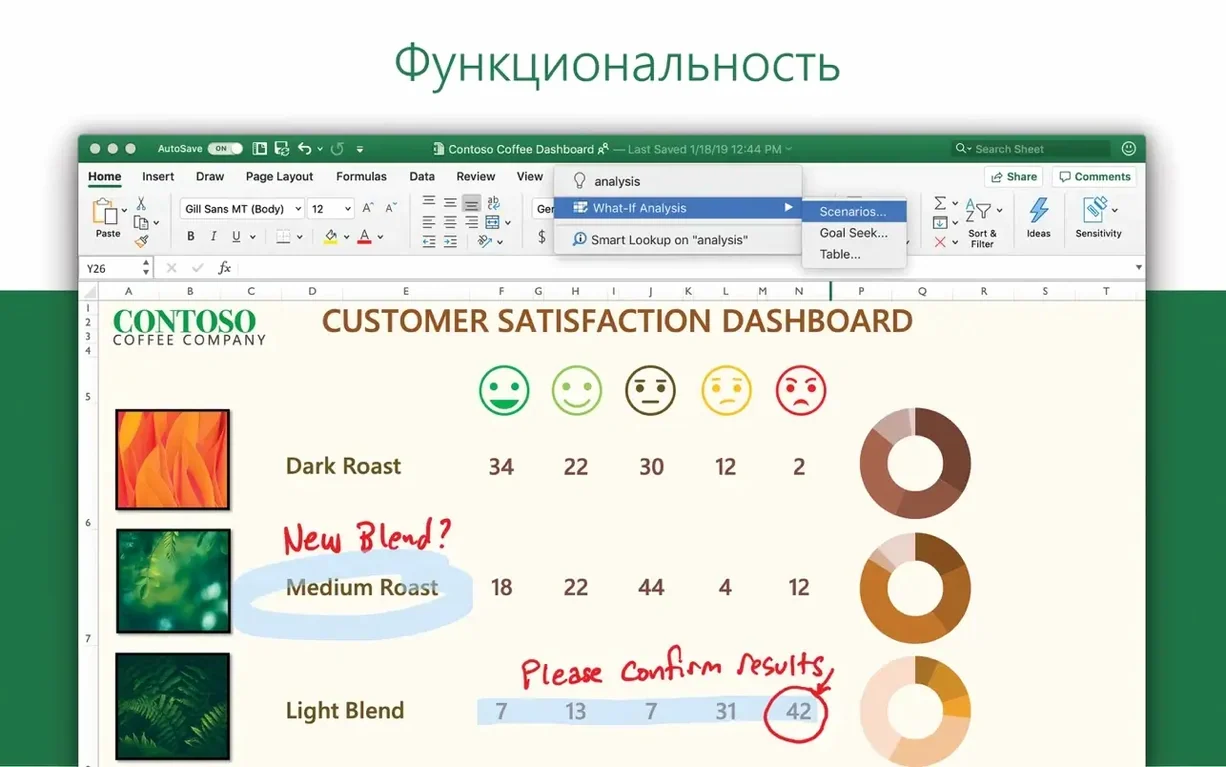
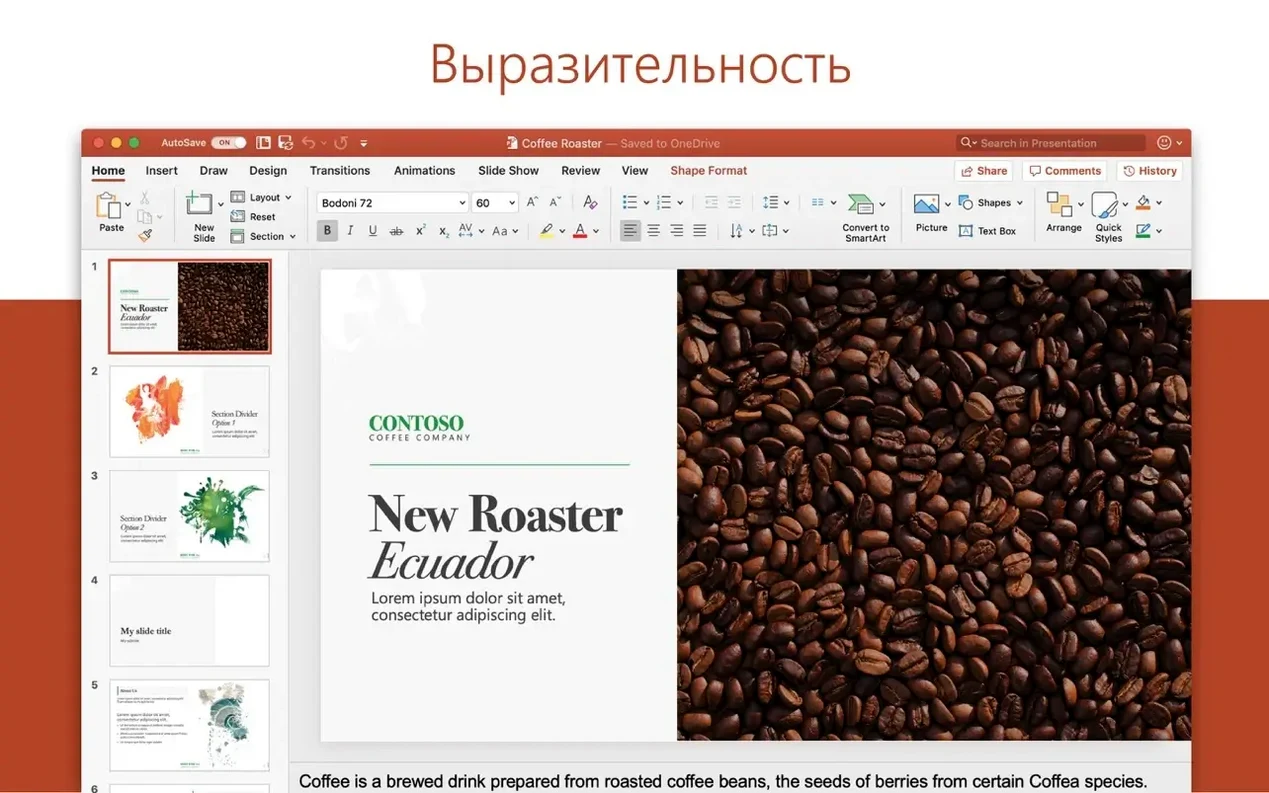
If you already live inside Word and Excel, Outlook feels like the missing half of the picture. It's the email client that comes bundled in the Mac Office suite alongside the apps you open every day, and it ties your inbox directly to the calendar you probably glance at a dozen times before lunch.
Bringing work and personal accounts together
I started the morning with three accounts scattered across browser tabs — a Microsoft 365 work address, an old Gmail for mailing lists, and a personal Outlook.com inbox. Outlook for Mac pulled them all into a single window without making a fuss. Adding a Gmail account took maybe twenty seconds, and the unified inbox meant I stopped tab-hopping. The calendar picked up my work meetings automatically and let me overlay the personal calendar, so I could see at a glance that Thursday afternoon was double-booked before I said yes to another coffee catch-up.
Scheduling without the back-and-forth
The real time-saver came when I needed to find a slot for three people. I opened a new meeting, dropped in their names, and Outlook showed when everyone was free using the scheduling assistant — no chain of "how about Tuesday?" emails. I picked a time, added a Teams link with one click, and sent it from my work account while keeping the personal inbox quiet in the background. Profiles on macOS let me split work and personal contexts when I wanted focus, but the app never forced me to choose.
A morning session, step by step
I sat down at 8:45 with a coffee and a dozen unread threads. Outlook was already running in the background, its Dock badge nudging me toward the work account. Tapping ⌘1 switched me straight to Mail, where I skimmed subject lines, flagged two messages from the design team, and dragged a newsletter into a "Read Later" folder I'd set up months ago. The beauty of the unified inbox is that my Gmail and Outlook.com messages sit right alongside the Exchange threads — no mental gear-shifting required.
Around 9:15 a meeting reminder surfaced as a macOS notification, and clicking it opened the event right inside Outlook. I hit Join, and the Teams call launched while the calendar view stayed open beside it, showing me what was coming next. During the call, I jotted quick notes directly into the meeting's description field — these synced back to the server so my phone had them before I even stood up to refill the cup.
By 10:30 I'd replied to the flagged threads, snoozed two low-priority messages until the next morning, and archived a handful of receipts. I hadn't opened a browser window once.
Attach recent Excel files from OneDrive or your Mac
Outlook plays nicely with the rest of the Office family in ways that feel almost invisible until you need them. Attach a spreadsheet from Excel using the paperclip icon, and it pulls recent files from both your Mac and OneDrive without you leaving the compose window. The same goes for Word documents and PowerPoint decks — they're just there, ready to send.
Outside the Microsoft bubble, the app integrates into standard macOS workflows too. Drag a Mail message out of Outlook and drop it into Finder to save an .eml file. Crank up a search in Spotlight and your Outlook messages appear in the results alongside files and contacts — useful when you remember a phrase from an email but not which account it arrived through. Profiles, a newer macOS integration, let me switch between Work and Personal contexts from the menu bar; each profile remembers its own window layout, signature, and notification settings, which keeps the work brain separate from weekend-planning brain.
On iPad and iPhone, the companion app picks up every category, folder, and snooze timer I've set on the Mac. I'll often flag a message at my desk and find it waiting in the top of the mobile inbox when I'm out.
January 2025 fixes for sharing Office docs into Outlook
The 16.93 releases shipped in January 2025 and brought a handful of quiet but practical improvements. The most noticeable fix addressed sharing documents and content from other Office applications directly into Outlook — an issue that had been tripping up workflows where users sent files from Word or Excel via the Share menu. That's now smooth again, and I've stopped second-guessing whether the attachment actually made it.
Under the hood, the app remains enhanced for Apple Silicon, and the difference shows in everyday snappiness — launching the app cold, switching between modules, and syncing large mailboxes all feel immediate on an M-series Mac. Account support hasn't shifted dramatically in this cycle, but the continued polish around microsoft outlook for mac means Gmail, Yahoo, POP, and IMAP accounts all coexist without the sync hiccups that used to plague earlier versions. If you've been hunting down an outlook for mac build that handles multiple services cleanly, this release keeps all those plates spinning without drama.
- macOS 13 or later
- Runs natively on both Intel and Apple Silicon Macs
Questions people ask
Does Outlook for Mac work with Gmail accounts?
Yes, Outlook for Mac supports Gmail, Yahoo!, POP, and IMAP accounts alongside Microsoft 365 and Outlook.com addresses.
Is Outlook included in the Microsoft Office suite for Mac?
It is — Outlook comes bundled with Word, Excel, PowerPoint, OneNote, and OneDrive in the Mac Office suite.
What macOS version does the current Outlook require?
Version 16.93 of Outlook for Mac requires macOS 13 Ventura or later.
Also on readers' docks
Sign in or create an account to leave a comment.
No comments yet. Tell me how it got on with your other devices.