Download Microsoft Excel for macOS
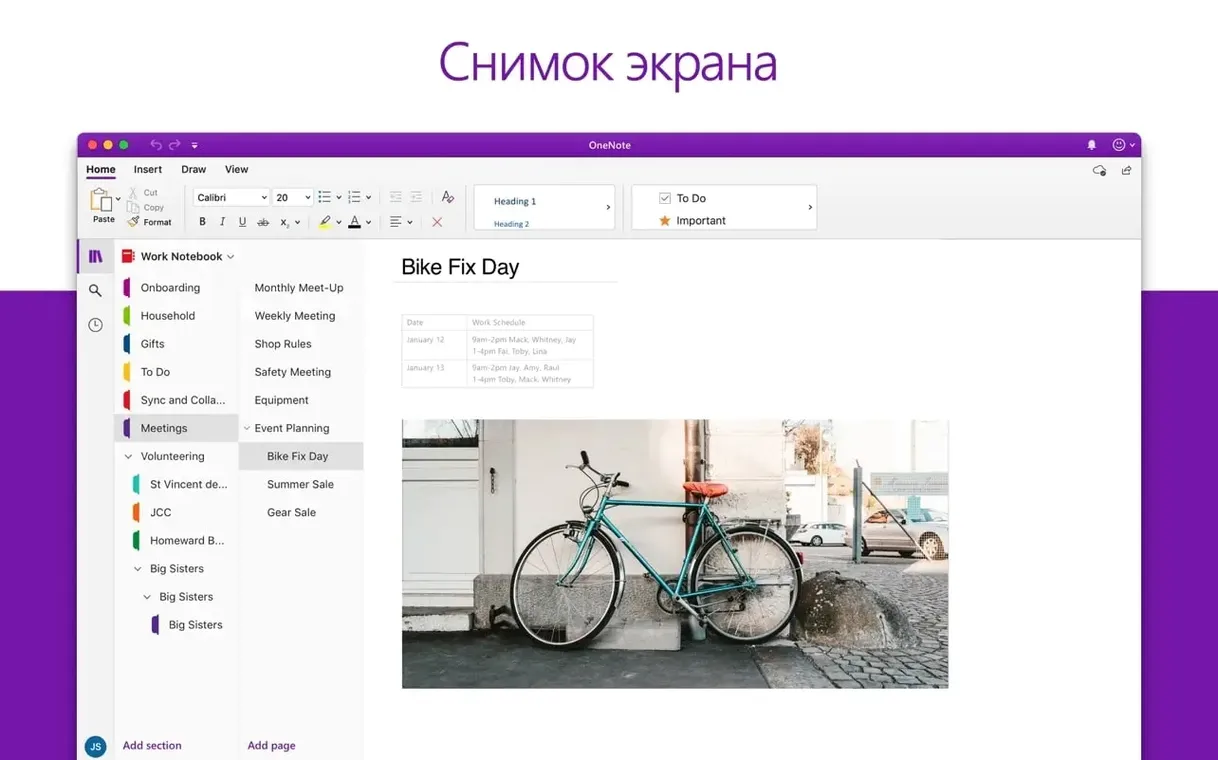
Excel runs on any Mac with macOS 13 Ventura or newer, and it’s a true universal binary — full native performance on both Apple Silicon and older Intel machines. No Rosetta slowdown, no architecture surprises.
| What it does | Who builds it |
|---|---|
| Create, view, edit, and share workbook files | Microsoft Corporation |
| Charts and Ideas for visualizing data trends | Part of Microsoft 365 / Office for Mac |
| Version 16.93 — ARM and x86 |
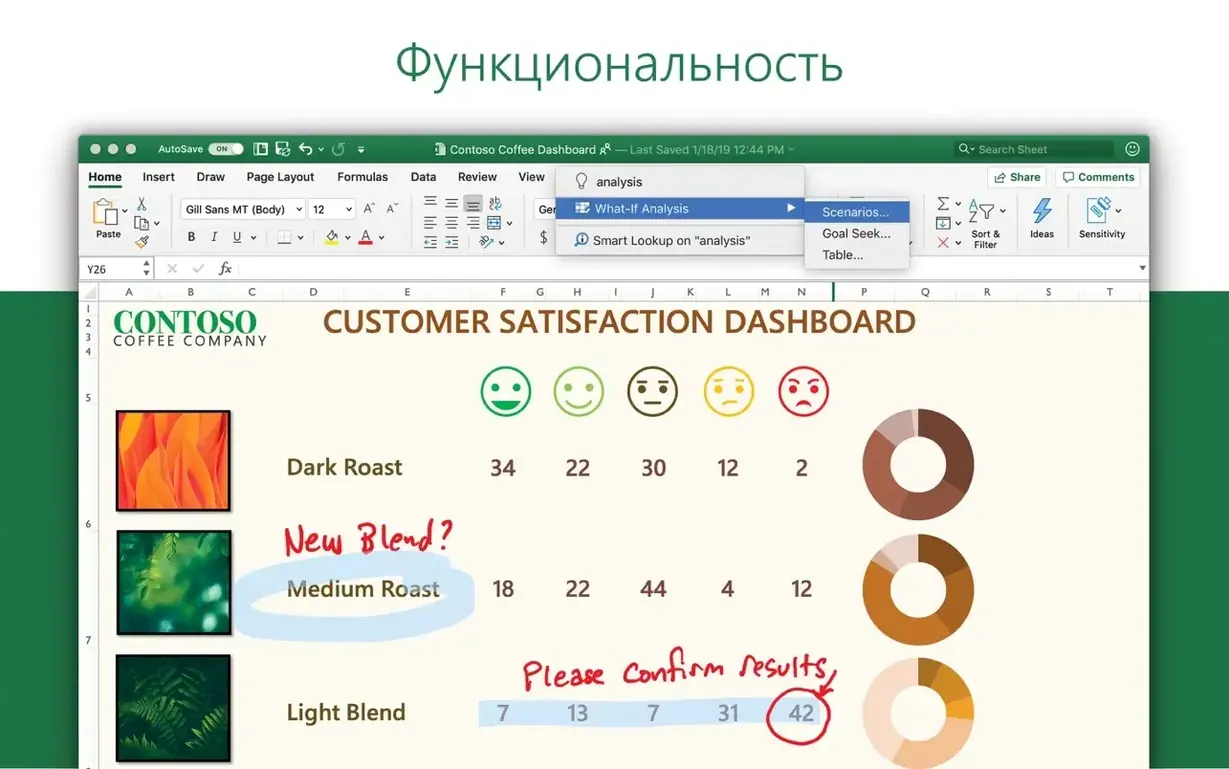
Where Excel earns its keep on a Mac is how it plays with the tools you already have open. A budget you rough out in Numbers can become an Excel workbook when you need pivot tables or Power Query, and the file stays accessible across Teams or OneDrive without a format headache. The new charts in 16.93 give you a few more visual options for quarterly reviews, and the Ideas feature spots trends in your data that you might miss while staring at raw numbers. It’s not about replacing your lighter spreadsheet tools — it’s about having the heavy lifter ready when a quick table turns into something your whole team needs to pick apart.
Turn Off Auto Data Conversion First
Excel ships with defaults that work for a broad audience — which means they probably don't fit your daily rhythm. A few tweaks right after install save real friction later.
- Turn off auto data conversion. Head into Preferences > Edit and uncheck all the boxes under "Automatic Data Conversion." Excel loves turning fractions into dates and long numbers into scientific notation, and undoing that on a full sheet is tedious. You can always convert manually when you actually want it.
- Set your default file format. Preferences > Compatibility lets you choose whether new workbooks save as the modern
.xlsxor the older.xls. If you share files with people on older Office versions, set it now and forget about "Save As" gymnastics. - Customize the Quick Access Toolbar. It sits above the ribbon and you'll ignore it unless you put something useful there. Print, Paste Values, and Freeze Panes are three clicks you make dozens of times a week — drag them up once.
- Adjust the number of recent files. The default shows a handful. If you bounce between ten or twelve workbooks for different projects, bump it to 20 or more in Preferences > General so the file you need is one click away, not a Finder hunt.
- Disable animations in dark mode. macOS dark mode plus Excel's sheet-switching animations can feel sluggish on larger files. Uncheck "Animate sheet transitions" under Preferences > View and the app snaps between tabs.
Escape Cmd+V Formatting Chaos
Most early frustrations with Excel on Mac aren't about missing features — they're about habits carried over from lighter spreadsheet apps or old Windows muscle memory.
Trusting the default paste. Beginners hit Cmd+V and get formatting chaos: fonts change, column widths break, conditional formatting multiplies. Paste Special (Control+click or Cmd+Ctrl+V) gives you plain values, formulas only, or formatting only. Set a keyboard shortcut for Paste Values if you do nothing else — it's the one you'll use most.
Ignoring Tables altogether. A block of data is not the same as an Excel Table (Insert > Table). Without converting, your formulas don't auto-fill when you add rows, your charts don't expand, and your pivot tables need manual range updates. Beginners treat Tables as a formatting feature; they're really a structure feature.
Merging cells for layout. It looks tidy but it breaks sorting, filtering, and formula references. Use "Center Across Selection" under Alignment instead — same visual result, none of the havoc.
Assuming Excel for Mac is missing features it actually has. Power Query lives under the Data tab, not on the ribbon by default for some configurations. The Analysis ToolPak add-in is tucked away in Tools > Excel Add-ins. Plenty of users give up on a feature before checking if it's simply not visible yet.
Forgetting that Mac and Windows Excel share files, not interface habits. The ribbon layout differs slightly, and a few shortcuts use Option instead of Alt. The workbook itself is identical — the learning curve is just muscle memory, not a compatibility gap.
Paste Values Only with Cmd+Shift+V
Excel buries some of its best small helpers under menus most people never open twice. These aren't hidden features — they're just not advertised loudly.
- Cmd+Shift+V pastes values only, skipping the Paste Special dialog entirely. macOS's own shortcut, and Excel respects it.
- Control+Option+V opens the full Paste Special window when you need more granular control — formulas, formats, column widths, or operations like multiply and add.
- F2 to edit a cell works on Mac keyboards if you press Fn+F2. Without it, you're double-clicking cells constantly.
- Cmd+` cycles through open workbook windows — not sheets, but separate files. Handy when you're comparing two spreadsheets side by side without dragging windows around.
- Drag the fill handle with the right mouse button (or Control+click) instead of left, and Excel pops up a menu of fill options — weekdays only, linear trend, copy formatting only. Most people drag left and hope for the best.
- Cmd+Arrow keys jump to the edge of a data region, and adding Shift selects everything in between. Combine with Option for even faster navigation in large sheets.
- The Name Box (the field left of the formula bar) isn't just for showing cell references. Type a range like
A1:D50and hit Return to select it instantly. Name a range through Formulas > Define Name and you can jump to it from the Name Box dropdown forever after. - Hold Option while clicking a sheet tab and drag to duplicate the entire sheet, formatting and all. No right-click menu needed.
Waterfall and Funnel Charts Arrive
Version 16.93 isn't a headline-grabbing overhaul, but it shifts a couple of daily workflows enough to notice. The new chart types expand what you can do without building elaborate workarounds — waterfall and funnel charts especially feel overdue for anyone who reports financial or sales data regularly. They make a quarterly deck look sharper with less fiddling in the formatting pane.
Ideas, the other big addition flagged for this build, changes how you explore unfamiliar data. Highlight a range, click the Ideas button on the Home tab, and Excel surfaces patterns, outliers, and suggested pivot tables in a task pane. It's not a replacement for knowing your data — it's a second pair of eyes when you inherit someone else's workbook and need to spot what matters quickly. For audit work, that alone can shave an hour off the initial review.
Under the hood, the universal binary support across ARM and x86 means the app launches fast and recalculates large sheets without the translation layer overhead Rosetta would introduce. If you upgraded from an Intel Mac to Apple Silicon and kept the same Excel build, you felt the difference immediately — especially on workbooks with thousands of volatile formulas.
Still a Port, but a Polished One
Most pre-install hesitation boils down to a few practical worries. Here's what those conversations sound like when someone is on the fence.
"Does it actually feel like a Mac app, or is it a port?" It's a port, but a mature one. The interface uses macOS conventions where they count — native file dialogs, proper multi-window support, Touch Bar integration if you still have one — but the ribbon and formula engine are the same codebase as Windows. If you expect a fully Mac-native design language like Numbers, you'll notice the difference. If you just want Excel to work reliably and respect your Mac's performance, it does.
"Will my Windows co-workers see the same thing I do?" Yes. File fidelity has been Excel's one non-negotiable for years. Charts, conditional formatting, pivot tables, and even VBA macros (within the Mac's limitations) travel fine. The only friction points are a few ActiveX controls and older Windows-only add-ins, neither of which are common in modern workflows.
"Can I run it without signing into a Microsoft account?" The activation method for this build uses a volume license serializer, so no ongoing sign-in is required for core functionality. Certain cloud features — co-authoring, Ideas, OneDrive integration — need a connected account, but offline use is fully supported.
"Will it slow down my Mac over time?" The app itself is well-contained. Microsoft AutoUpdate handles patches and you can configure it to check weekly or manually. The footprint stays reasonable unless you leave enormous workbooks open with iterative calculation turned on — and that's a data problem, not an app problem.
"Is it the same as the Mac App Store version?" Functionally, yes. The build available through the volume license channel mirrors what ships through the Mac App Store and Microsoft 365 subscriptions, just delivered through a different packaging and activation path. You get the same version 16.93 feature set either way.
Version 16.93 focuses on making your data easier to present and understand at a glance.
- New chart types give you more ways to visualize your numbers.
- The Ideas feature helps you spot patterns and trends without building formulas yourself.
- macOS 13 Ventura or newer
- Apple Silicon or Intel (64-bit) Mac
Also on readers' docks
Sign in or create an account to leave a comment.
No comments yet. Tell me how it got on with your other devices.