Download Notebooks for macOS
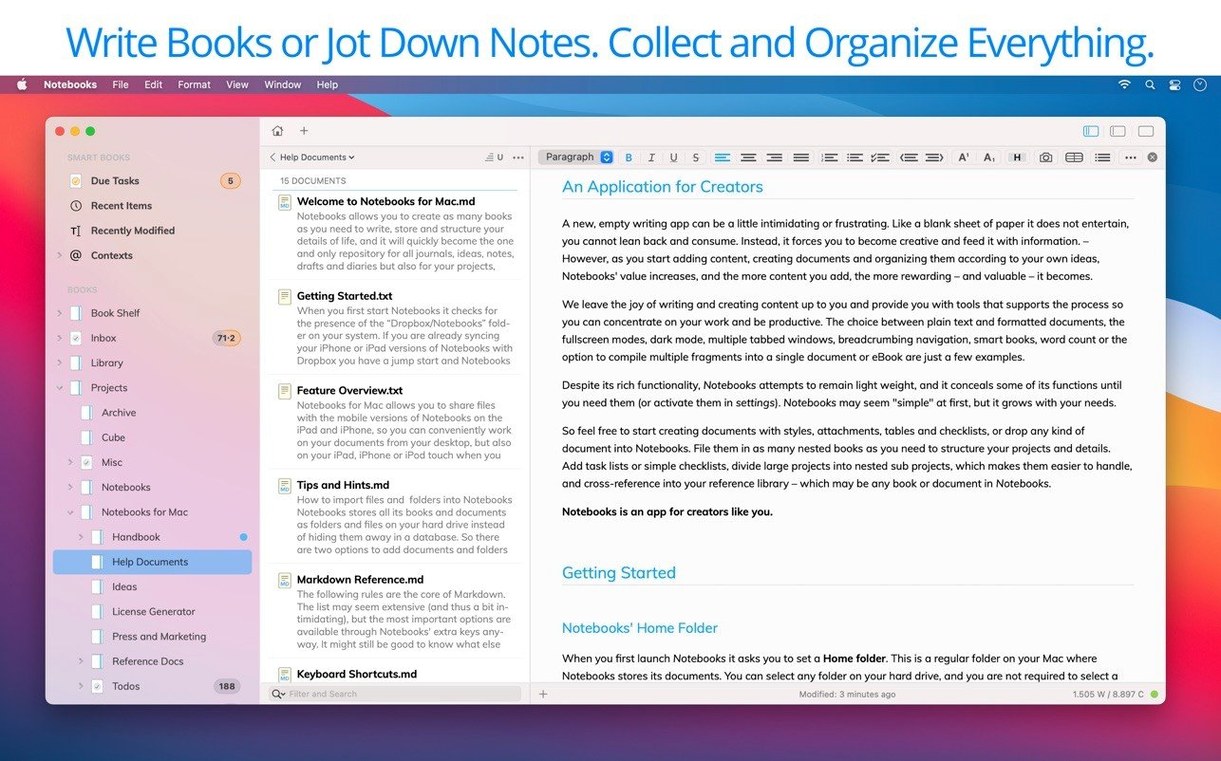
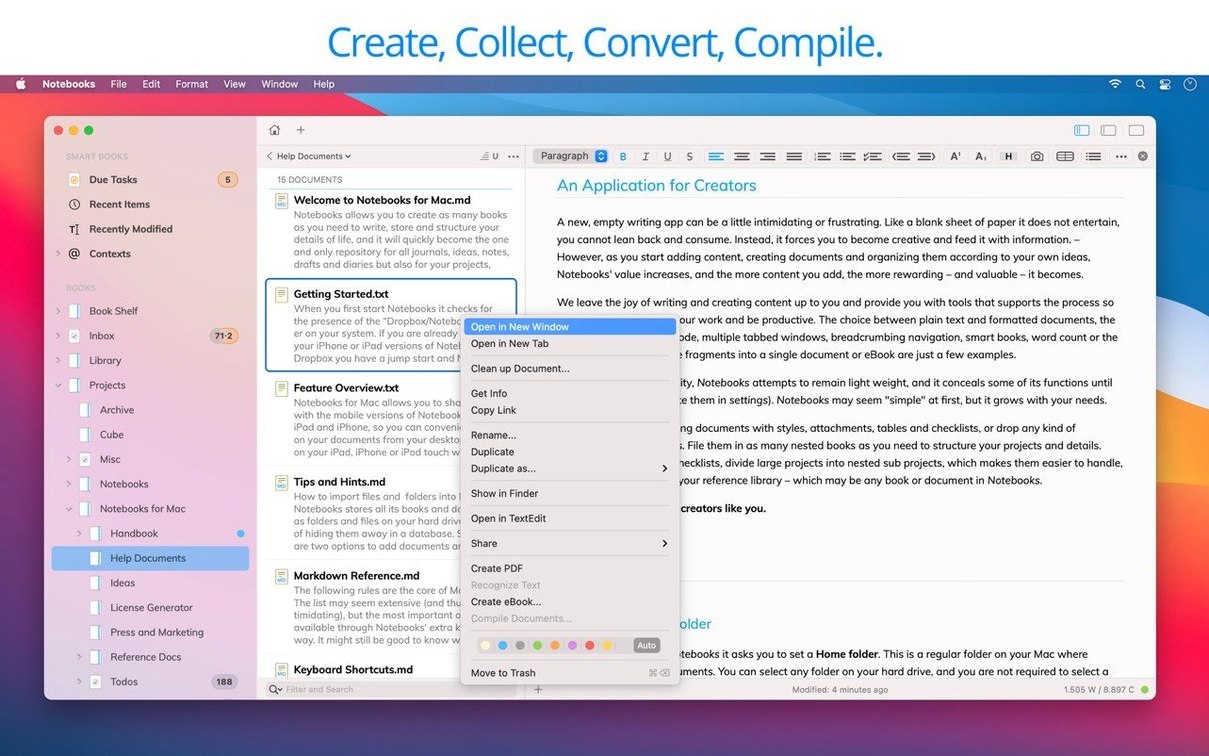
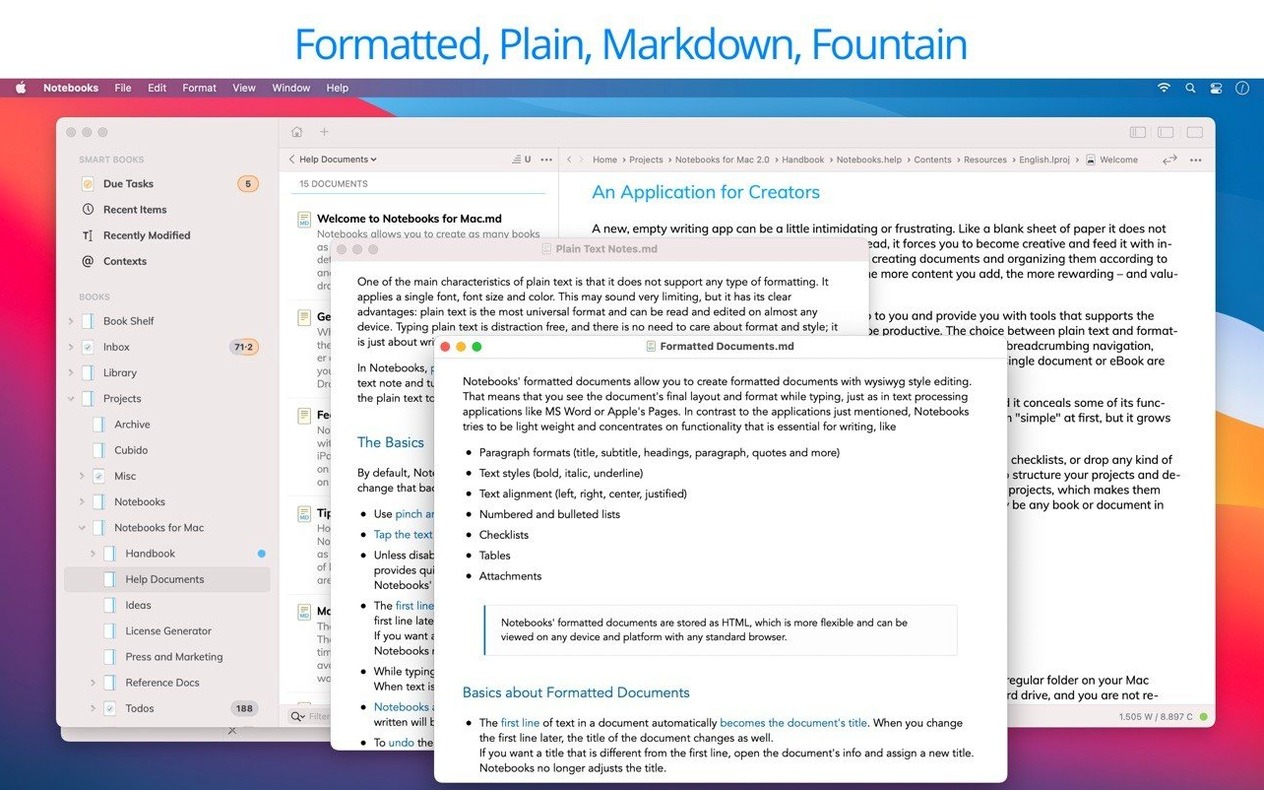
Notebooks runs happily on practically any Mac you still have plugged in—it asks only for macOS 10.11 or newer, and the current version 4.0.0 is a universal binary that sings on both Intel and Apple Silicon machines. That wide compatibility alone makes it worth a look if you share a workflow across an older desktop and a newer laptop.
One Realistic Project, Start to Finish
Let’s walk through a small research project. I start by dragging a handful of PDFs, a couple of Word docs, and a messy plain-text brainstorm into Notebooks. The app displays them all inline without forcing me to hop between preview panes. I turn the brainstorm note into a task list by simply writing lines that start with a dash and a space; Notebooks automatically extracts those into checkable to-dos I can track alongside the reference material. As I read through the PDFs, I highlight passages and jot quick notes in a linked text file that sits in the same book. When the draft is ready, I compile the notes and one edited PDF into a single eBook right from the file menu. Everything—source files, extracted tasks, the final PDF—lives inside one nested book structure, not scattered across Finder folders and sticky notes.
What Holds It Together
Under the hood, Notebooks acts as a document manager that leans on your regular file system. For the smoothest searching, keep Spotlight enabled on the drive where your documents live. The app syncs across devices and can talk to WebDAV servers, so the same library you organize on your Mac is available on an iPad or iPhone through the companion apps. It handles plain text, rich documents, spreadsheets, photos, video, and music without batting an eye—pretty much whatever you throw at it renders or plays right there.
Point It at Your Finder Folder First
After you drag the app into Applications and launch it, take ten minutes to point it at the right folder. Notebooks respects your existing Finder structure, so point it at a folder inside Dropbox or a WebDAV-synced location if you plan to share with an iPad later. Then flip open preferences and confirm Spotlight is enabled for that drive—searches feel snappier when the index is warm.
A couple of habits make the first week smoother:
- Start with a single “Inbox” book. Drop everything there for a day or two before you decide on a deeper hierarchy. Notebooks lets you drag notes into nested books later without breaking links.
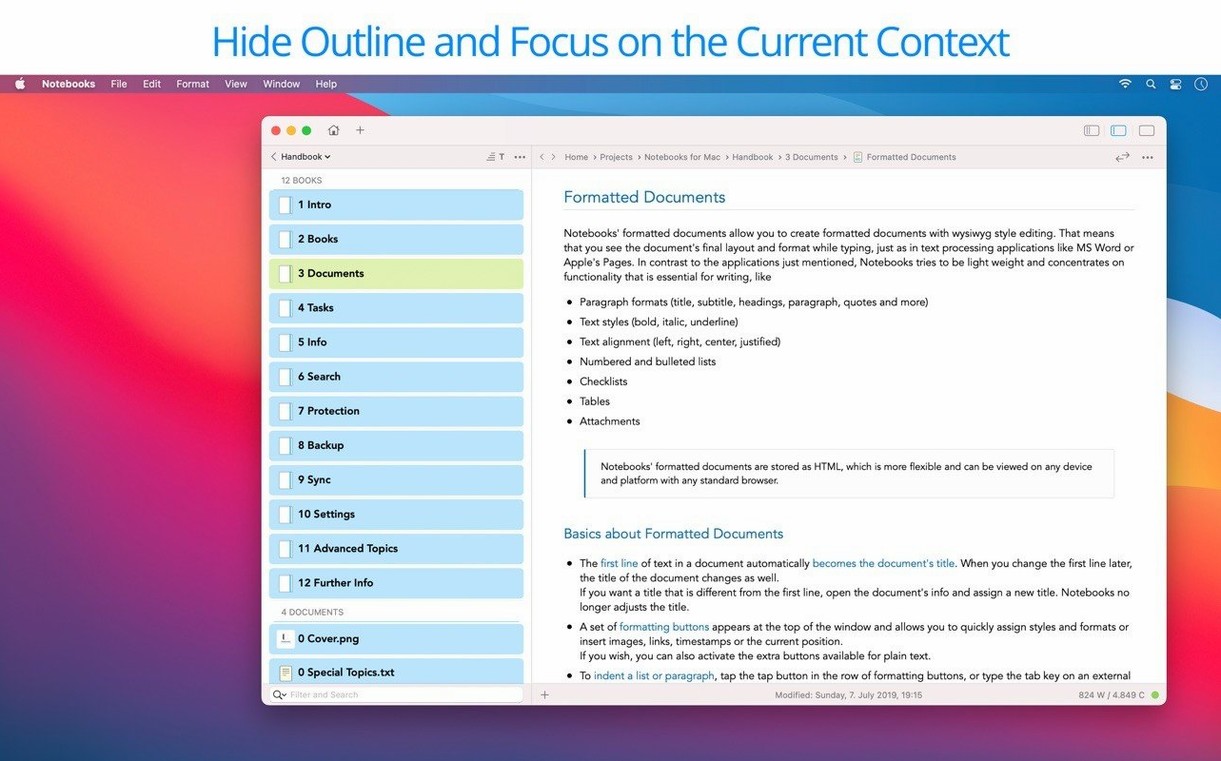
- Use the document list outline. Version 4.0.0 tightened up the outline behavior, so collapsing sections and reordering items now feels predictable. Rely on it early to scan long project books.
- Let task extraction do its thing. Write a quick bullet list of action items inside any note, then check the extracted tasks pane. Ticking one off here also updates the source text—less double-editing.
- Remember the file system. Because Notebooks mirrors real folders, you can always open the same documents in another editor if you need a specialized tool for an afternoon.
A Freelance Writer’s Tuesday Morning
Imagine a freelance journalist juggling three article drafts, a handful of interview recordings, and a running invoice list. She keeps a single “Assignments” book in Notebooks, with sub-books for each publication. On Tuesday morning she opens the app, glances at the extracted task list from a project note—“transcribe quote about supply chains,” “fact-check regional stats”—and marks two as done before coffee. She drags a client’s PDF brief into the same book, skims it side-by-side with her draft, and pastes a snippet into a linked note without ever switching windows. When an editor emails a last-minute question, she searches Notebooks for a keyword she remembers from an old interview transcript; Spotlight had indexed the folder overnight, so the result pops up immediately. By lunch, she compiles the finished draft and the marked-up brief into a single PDF and sends it off, knowing every related file still sits organized in one place for the next assignment.
Version 4.0.0 is a deep polish pass that tightens the everyday experience. Here’s what changed:
- Everyday editing feels smoother, with noticeably better typing performance.
- Task extraction is more consistent, so fewer action items slip through the cracks.
- The outline and document list behave more predictably as you navigate around.
- Working with PDFs is more convenient, with small refinements that reduce friction.
- Liquid Glass support has been enhanced for a more cohesive look.
- Interface inconsistencies have been ironed out, and a fresh app icon ties it together.
- macOS 10.11 or later
- Intel 64-bit or Apple Silicon Mac
- Spotlight search enabled on the drive storing your documents (recommended)
Also on readers' docks
Sign in or create an account to leave a comment.
No comments yet. Tell me how it got on with your other devices.