Download OmniPlan Pro for macOS
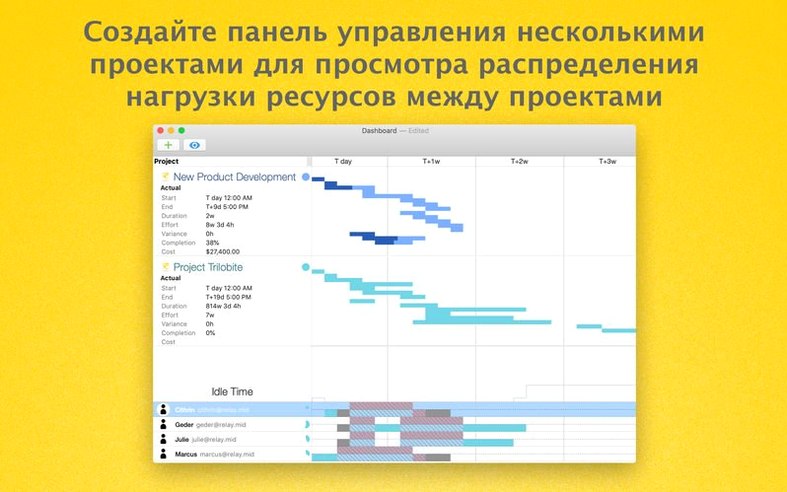
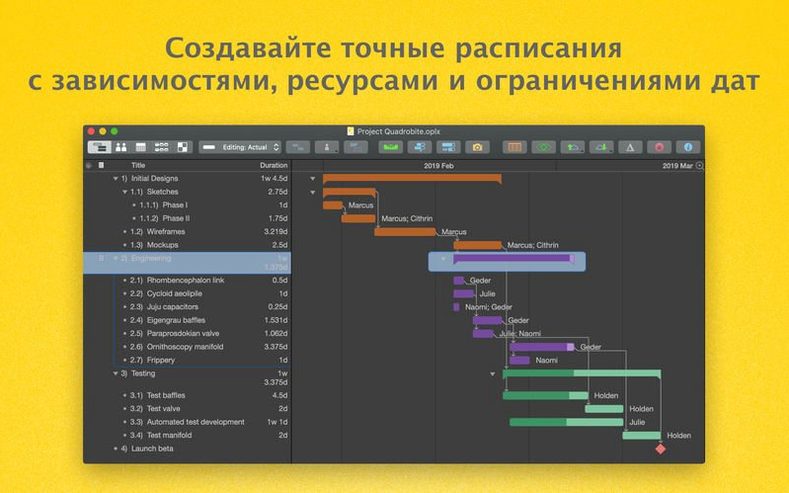
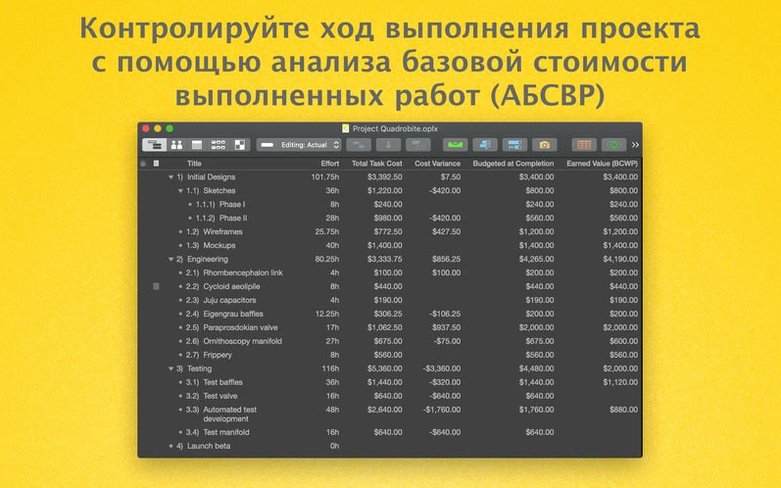
Project leads and resource managers often turn to OmniPlan when a spreadsheet starts feeling too fragile. It's built for people who need to map milestones, balance workloads, and keep an eye on costs without juggling three different tools. The Mac app wraps that logic in a familiar, native interface that has been around long enough to feel settled.
Mapping dependencies and smoothing team workloads
- Breaking complex work into tasks with clear dependencies and milestones
- Optimizing resource loads and tracking progress across teams
- Importing and exporting Microsoft Project documents when you collaborate outside the Apple ecosystem
- Adding days of absence to team calendars so schedules reflect real availability
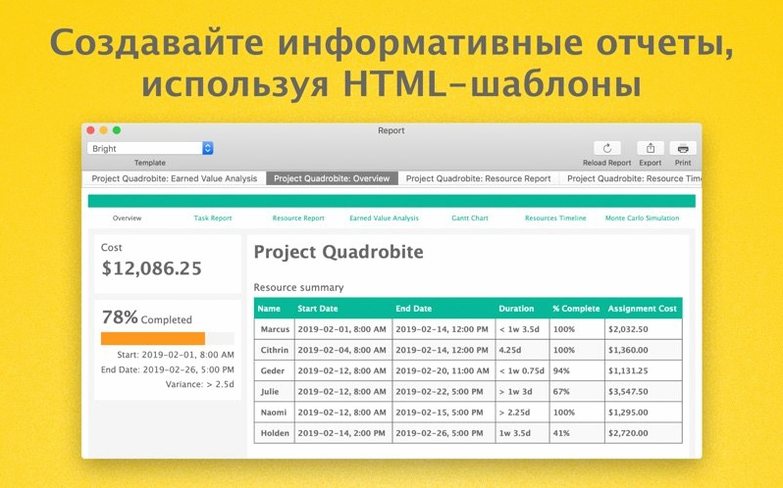
- Pro users who want HTML reports and a multi-project dashboard
macOS 12 requirement locks out older Macs
- OmniPlan 4.11 requires macOS 12; older Macs stuck on Catalina or Big Sur are out of luck
- Collaboration and change review (accepting or rejecting edits individually) requires the Pro edition
- Runs natively on both Intel and Apple Silicon Macs
When you first open OmniPlan and start dropping tasks onto the timeline, it's tempting to treat it like a fancy checklist. The app will let you do that, but you will feel the friction a few weeks in when adjustments cascade in ways you didn't expect. The single most common beginner stumble is ignoring task dependencies. Dragging a bar earlier without linking it to its predecessor means the schedule looks clean but doesn't actually represent the real order of work. A week later, a delay on one task doesn't push the ones that should follow it, and suddenly the Gantt chart is telling a pleasant lie.
Another early mistake is assigning resources before the task structure is solid. OmniPlan's leveling engine is eager to help, but if you lock in assignments while still rearranging milestones, you will spend a lot of time undoing automatic shifts. Build the skeleton first — tasks, groups, milestones, and dependency lines — then introduce the people. The same goes for setting constraints. Beginners often slap a "start no earlier than" date on half the project, which handcuffs the scheduling engine and defeats the purpose of letting the app calculate dates for you.
Option-drag creates instant task copies
OmniPlan packs a lot of power into right-click menus and modifier keys that don't advertise themselves. A few I wish I had known on day one:
- Option-drag a task bar to create a copy. Great for repetitive phases where the same sequence of tasks repeats.
- Command-click multiple tasks and use the inspector to set shared resource assignments or scheduling rules in one go — much faster than configuring each row individually.
- The Violations sidebar is not just for show. It catches logic problems like a task scheduled before the project start date or a resource assigned beyond capacity. New users often close it to save screen space, but keeping it visible for the first week teaches you how OmniPlan thinks.
- Type-ahead in the resource assignment field works better than you'd guess. Start typing a name and hit Return, and the app fills in the rest. In a project with dozens of contributors, this alone saves an embarrassing amount of clicking.
- Milestones can have zero duration, but giving them a one-hour placeholder makes them more visible on a dense Gantt chart and prevents them from disappearing when zoomed out.
If you come from a Microsoft Project background, you might instinctively look for a "save baseline" button. In OmniPlan, baselines live under the Project menu → Set Baseline, and you can store multiple snapshots. What's easy to miss is that the baseline bars appear as a thin shadow underneath your current task bars on the Gantt chart — subtle, but once you spot them, they become an indispensable visual reference for schedule drift.
First days: setup that pays off later
Before you build anything that matters, spend twenty minutes on the calendar. OmniPlan ships with a generic working-hours calendar, but real projects have holidays, team off-days, and people on different schedules. Go into the Calendars view and add actual days of absence for the coming months. The effort feels tedious at first, but resource leveling is only as useful as the availability data you feed it. If OmniPlan thinks everyone works every weekday, it will happily schedule tasks during a team member's vacation.
Next, set up your project's working times under Project → Project Info and confirm the hours-per-day and days-per-week values match how your team actually operates. These numbers feed directly into effort calculations and the automatic effort estimation feature. An eight-hour day set against a team that works six productive hours will make every estimate optimistic by 25 percent.
If you are using the Pro edition, turn on change tracking early, even if you are working solo. It creates a record of every scheduling decision, which is invaluable when you need to explain three weeks later why a deadline moved. For teams using Omni Sync Server or a WebDAV setup, change tracking also lets you accept or reject edits individually — something that gets chaotic fast without it.
Smoother editing on Ventura and Sonoma
OmniPlan 4.11 is a maintenance-oriented update, but two changes affect everyday work in ways worth calling out. The first is improved compatibility with newer versions of macOS. For users on recent Ventura or Sonoma releases, this mostly shows up as smoother window rendering and fewer oddities with the toolbar customization panel — small polish that you notice when it stops being a problem.
The second change is a genuine quality-of-life fix: editing a task with a large number of assigned resources no longer comes with a noticeable pause. In earlier 4.x builds, opening the inspector on a task that had fifteen or twenty people attached could trigger a brief beachball while the resource table populated. For coordinators managing large event crews or multi-team engineering projects, that hiccup was frequent enough to become irritating. The 4.11 update makes that interaction feel immediate again.
If you are running a recent Mac and working with resource-heavy plans, this version is tuned for exactly that scenario. The Monte Carlo simulation and earned value analysis features continue to be Pro-exclusive, but the performance improvements apply across both tiers.
Version 4.11 is a maintenance release with two welcome fixes:
- Improved compatibility with newer versions of macOS
- Better performance when editing a task that has many assigned resources
- macOS 12 or newer
- Runs on Intel and Apple Silicon Macs
Questions people ask
Does OmniPlan open Microsoft Project files?
Yes, it supports importing and exporting Microsoft Project documents, which helps when you share plans with stakeholders on Windows.
What does the Pro version add?
OmniPlan Pro includes multi-project dashboards, HTML reports, and collaboration features that let colleagues review and accept or reject changes.
Can I track team availability in OmniPlan?
Absolutely. You can add days of absence to calendars, which feeds directly into resource optimization and workload balancing.
Also on readers' docks
Sign in or create an account to leave a comment.
No comments yet. Tell me how it got on with your other devices.