Download GoodNotes for macOS
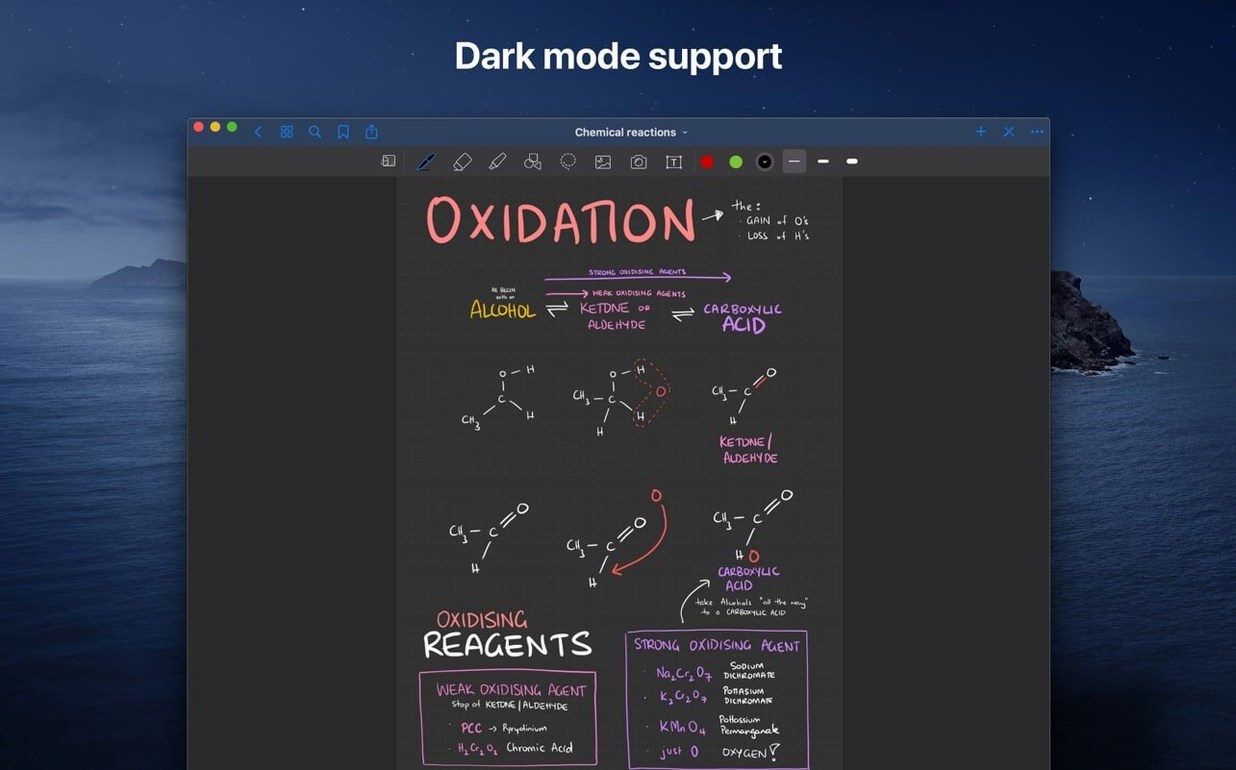
Runs on Catalina and newer, Intel or M-series
GoodNotes 5 needs macOS 10.15 (Catalina) or newer. It runs natively on both Intel and Apple Silicon machines, so you're covered whether you're on an older MacBook or the latest M-series chip.
iCloud sync brings notebooks over instantly
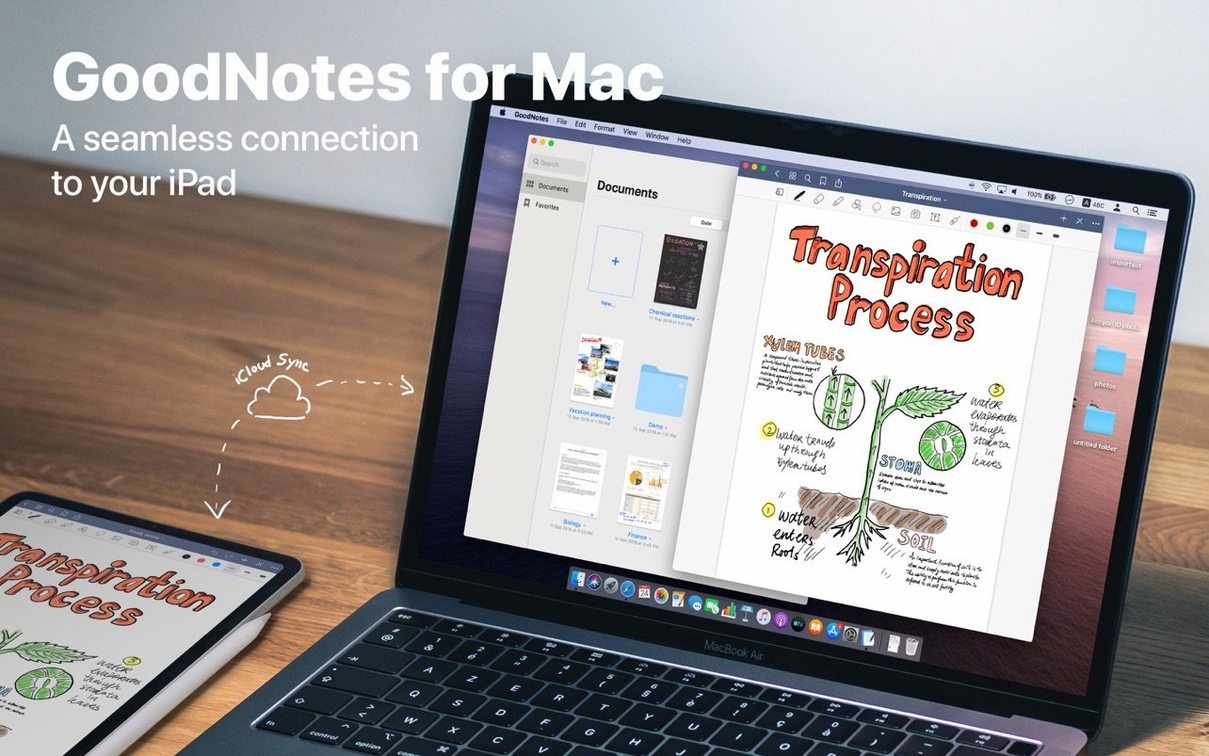
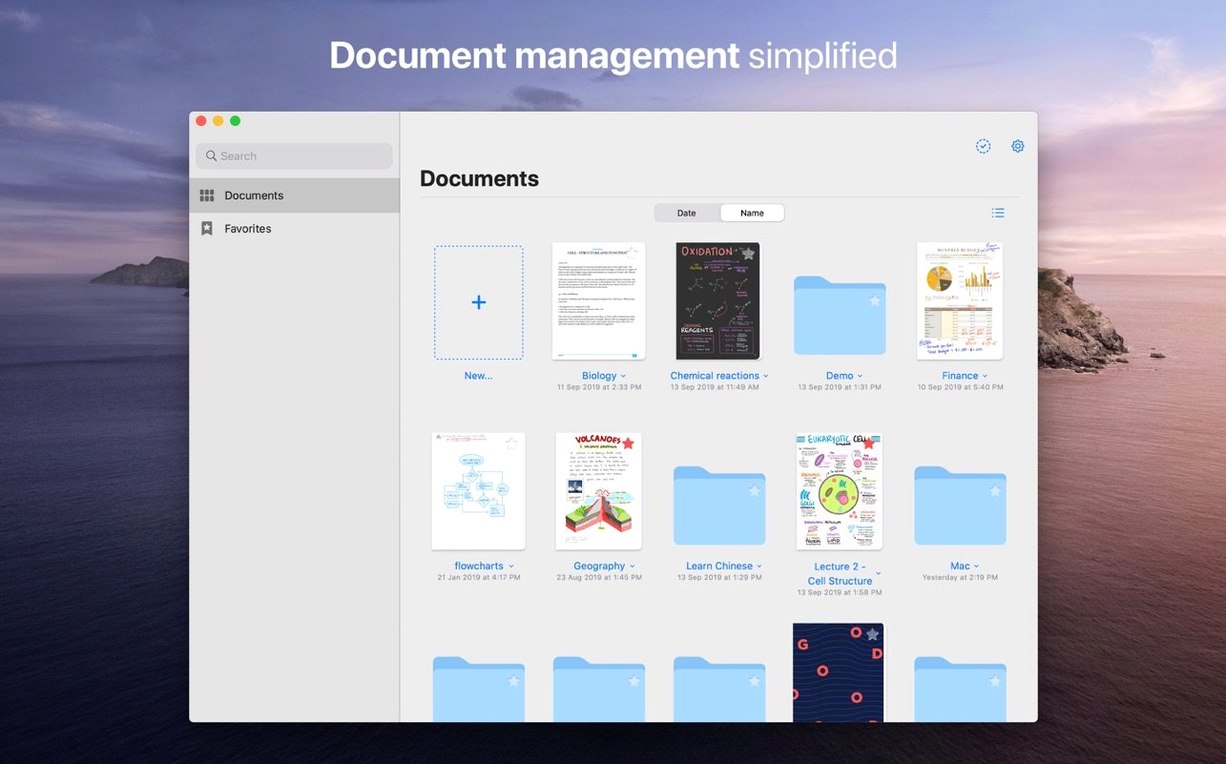
The Mac version syncs straight through iCloud with the iPad and iPhone apps. Open the app, sign into the same Apple ID, and your notebooks, folders, and favorites appear without any export dance.
Annotate PDFs, draw shapes, and drag out pages
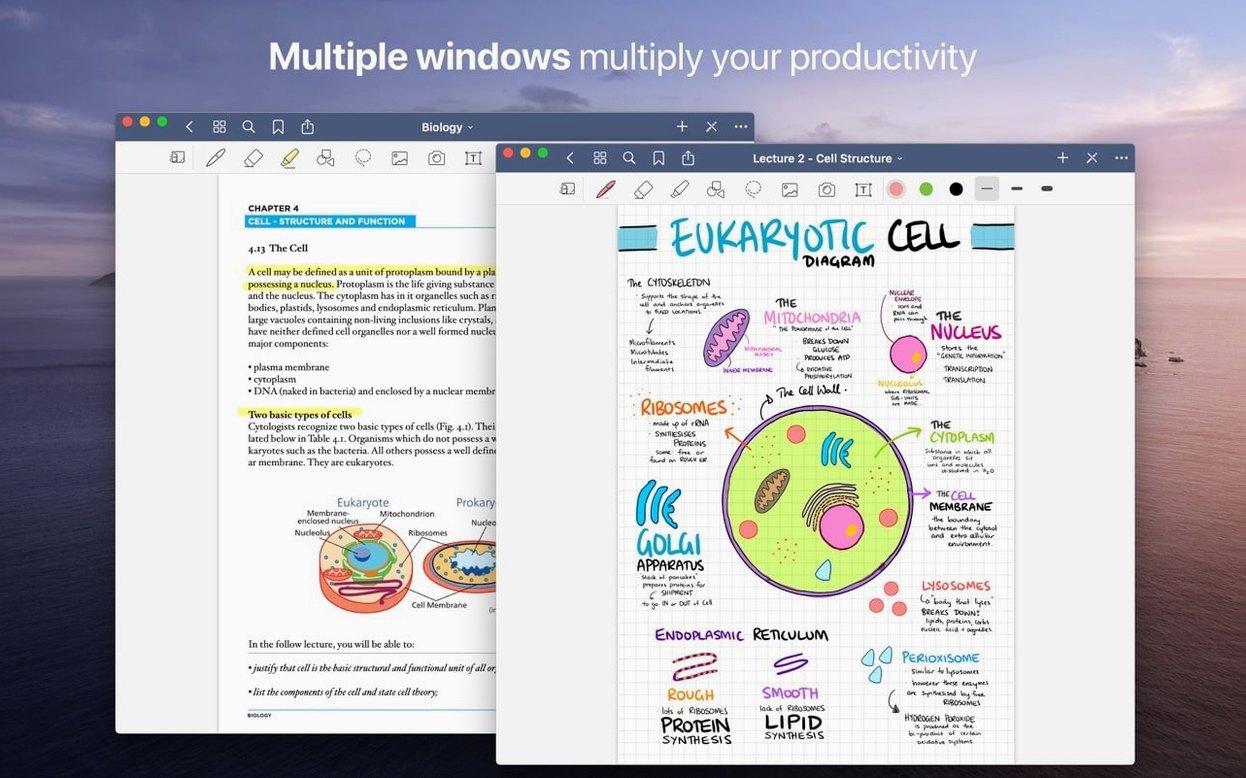
You can view, edit, and organize everything you created on your tablet. Annotate imported PDFs with live hyperlinks, use the Shapes tool for clean diagrams, and export pages as PDFs by dragging them out. You can even move and recolor handwriting you originally scribbled on an iPad.
Redirect auto-backup to a desktop-friendly folder
Fresh installs ship with sensible defaults, but a handful of tweaks make the experience feel properly tuned to a desktop workflow.
- Disable auto-backup (or point it somewhere useful). By default GoodNotes can keep a secondary copy of your library. If you already rely on iCloud sync and a Mac Time Machine backup, heading to Settings > Auto Backup and turning it off stops duplicate disk chatter. On the flip side, if you want a local safety net, point it to a folder you actually remember.
- Switch the scroll direction. GoodNotes defaults to a vertical scroll that mimics a tablet feed. On a trackpad, horizontal scrolling often feels more natural for flipping through notebook pages. Find it under Settings > Document Editing > Scroll Direction and try both; you'll know within five seconds which one sticks.
- Tame the palm rejection for external tablets. If you pair a Wacom or similar drawing tablet, the Mac version can misinterpret the stylus hover. Turn off Handwriting Mode when you're not actively drawing, or adjust the stylus pressure curve in the macOS System Settings if the stroke weight feels off.
- Set your default notebook template. Every new notebook you create pulls the same blank or ruled paper. Set your favorite—dotted, grid, or a custom PDF template—once in Settings > Notebook Templates and you stop adjusting it later.
Instant launch on Apple Silicon, gentle on resources
GoodNotes on macOS doesn't behave like a lightweight text editor, but it also doesn't punish a machine that's running a dozen other apps. Launch time on Apple Silicon is near-instant; Intel Macs see a two-second bounce in the Dock before the library appears. Once it's open, scrolling through a fifty-page notebook loaded with handwriting and images stays buttery, even on a base M1 MacBook Air.
Memory use sits around 250–400 MB with a modest library open, climbing toward 600 MB when you're flipping through several large textbooks simultaneously. That's reasonable for an app that renders ink strokes as vector data rather than flat bitmaps. I haven't caught it triggering the high-performance GPU cores unnecessarily during idle periods, which older Electron-based notes apps sometimes do.
iCloud sync is the real variable. With a fast connection, a page written on iPad appears on the Mac within three to five seconds. On spotty Wi-Fi, you might see a fifteen-second lag and the occasional "Syncing" spinner. The app handles conflicts gracefully—duplicate pages get a "(Conflict)" suffix instead of silently overwriting your work, which is the kind of quiet reliability you appreciate when you're not in the mood to babysit software.
Snags and their fixes
Handwriting looks jagged or low-resolution on the Mac display
This catches people who first open their iPad notebooks on a large monitor. The ink hasn't degraded; GoodNotes renders strokes at screen resolution on the fly. If they appear fuzzy, check that your Mac isn't scaling the display in a non-integer ratio (like the default "More Space" setting on Retina displays). Switch to the native resolution or the standard "Default for display" scaling in System Settings > Displays, and the vector ink snaps back to crisp edges.
PDF hyperlinks stop working after import
Live hyperlinks survive the import process only if the PDF was created with proper link annotations, not just underlined text that looks clickable. If links break, the quickest fix is to re-export the original document from its source as a standard PDF/A file and drag it in again. For existing notebooks, the links aren't recoverable—but you can add fresh ones manually using GoodNotes' own link tool in the toolbar.
Search misses handwritten words you're sure are there
Handwriting recognition relies on the indexing process completing in the background. If you just finished a long writing session on iPad and immediately search on the Mac before iCloud finishes syncing the index, results come up empty. Wait for the sync spinner to vanish, then try again. Also, recognition works best with cursive that isn't overly compressed; extremely tight letter-spacing can confuse the engine.
GoodNotes won't open a notebook from a shared drive or USB stick
The Mac version expects notebooks to live in the iCloud GoodNotes folder or a local library location. If you double-click a .goodnotes file sitting on an external drive or a network share, the app may throw a silent fail. Workaround: drag the file onto the GoodNotes window from Finder, or copy it into ~/Library/Containers/com.goodnotesapp.mac/Data/Documents/ first. After that it opens without complaint.
High CPU usage while idling
Rare, but it's happened to me twice after updating the app. If GoodNotes pegs a core doing nothing visible, the culprit is usually a stuck iCloud sync session. Sign out of iCloud inside the app (not system-wide), quit GoodNotes, restart, sign back in. The spike drops immediately and the library rebuilds within a few minutes. No need to reinstall.
- macOS 10.15 or later
- Apple Silicon & Intel 64-bit
Questions people ask
Does GoodNotes on Mac sync with my iPad?
Yes, changes sync through iCloud so your notebooks, folders, and favorites stay current across Mac, iPad, and iPhone.
Can I edit PDFs I import into GoodNotes?
Absolutely. Imported PDFs keep their live hyperlinks, and you can annotate them directly before exporting individual pages or whole documents as new PDFs.
What happens to handwriting I did on my iPad?
You can move, rotate, resize, and recolor any handwriting on your Mac. It stays fully editable, not flattened into a static image.
Also on readers' docks
Sign in or create an account to leave a comment.
No comments yet. Tell me how it got on with your other devices.