Download Dato for macOS
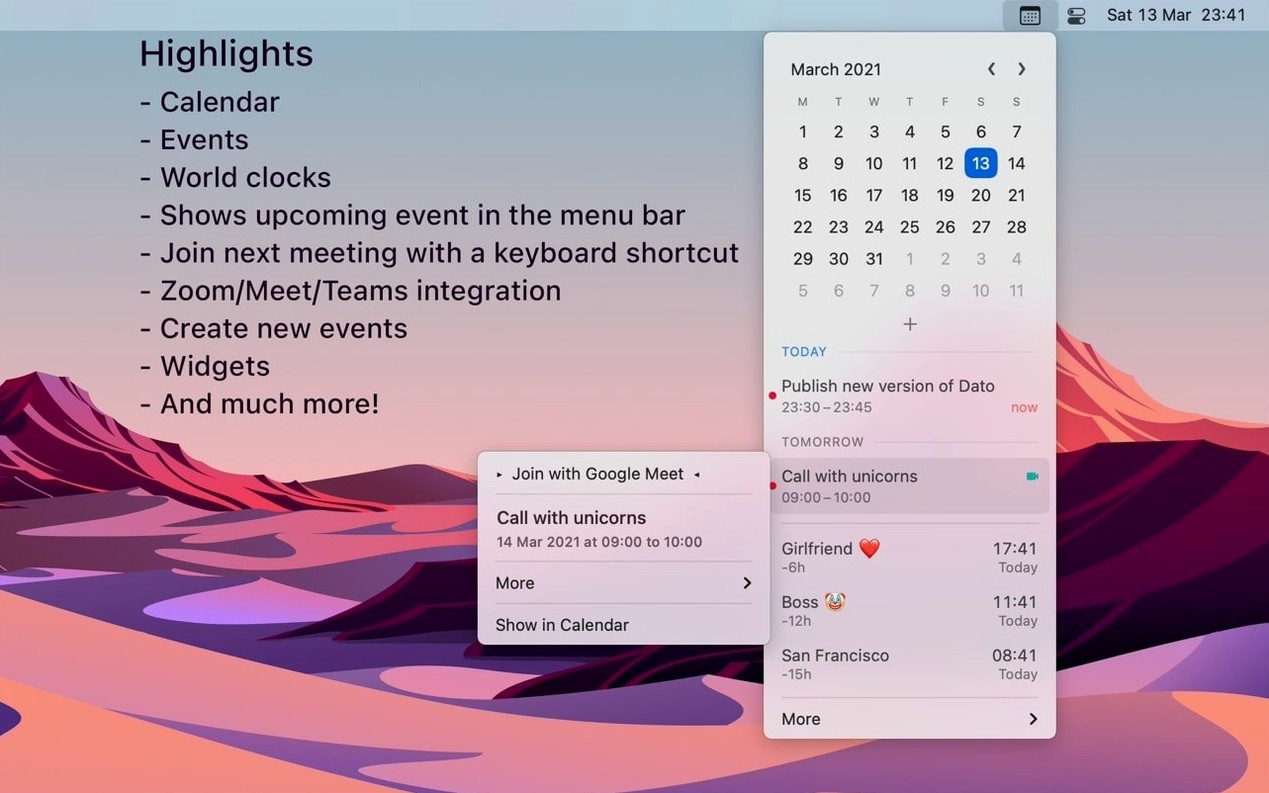
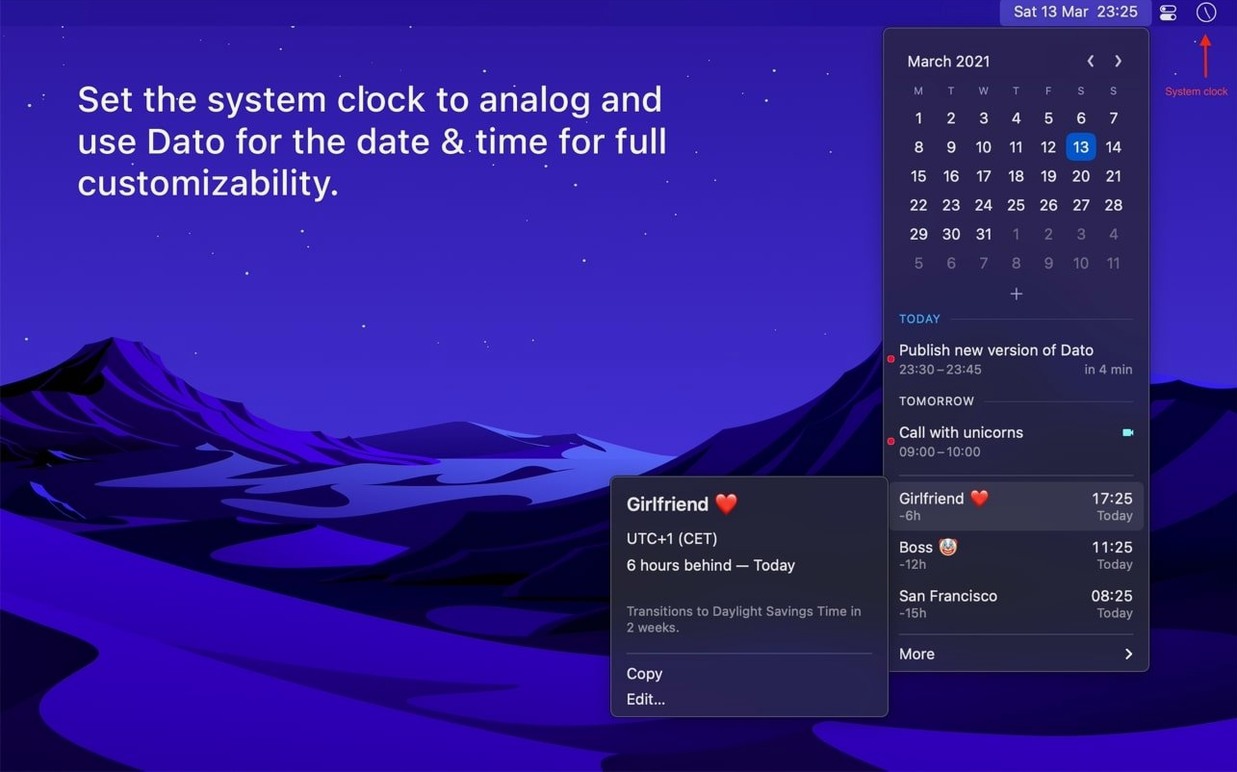
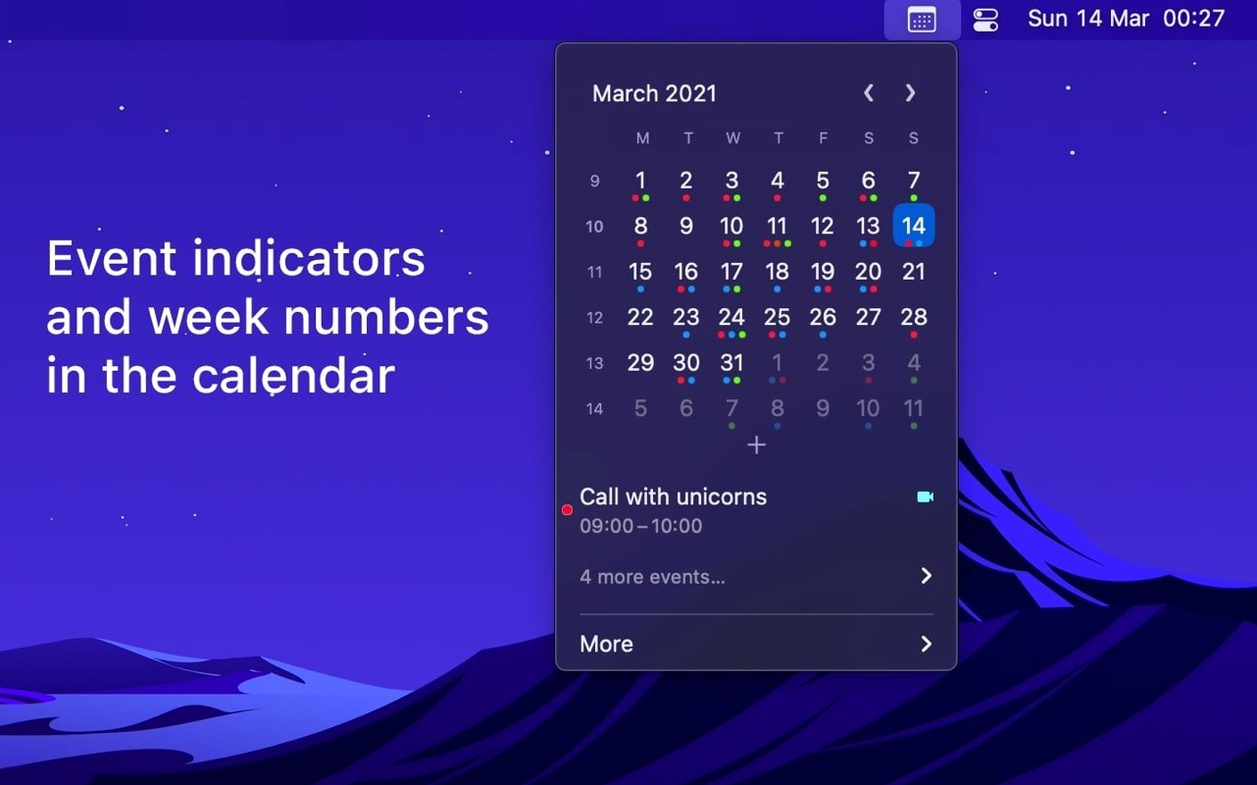
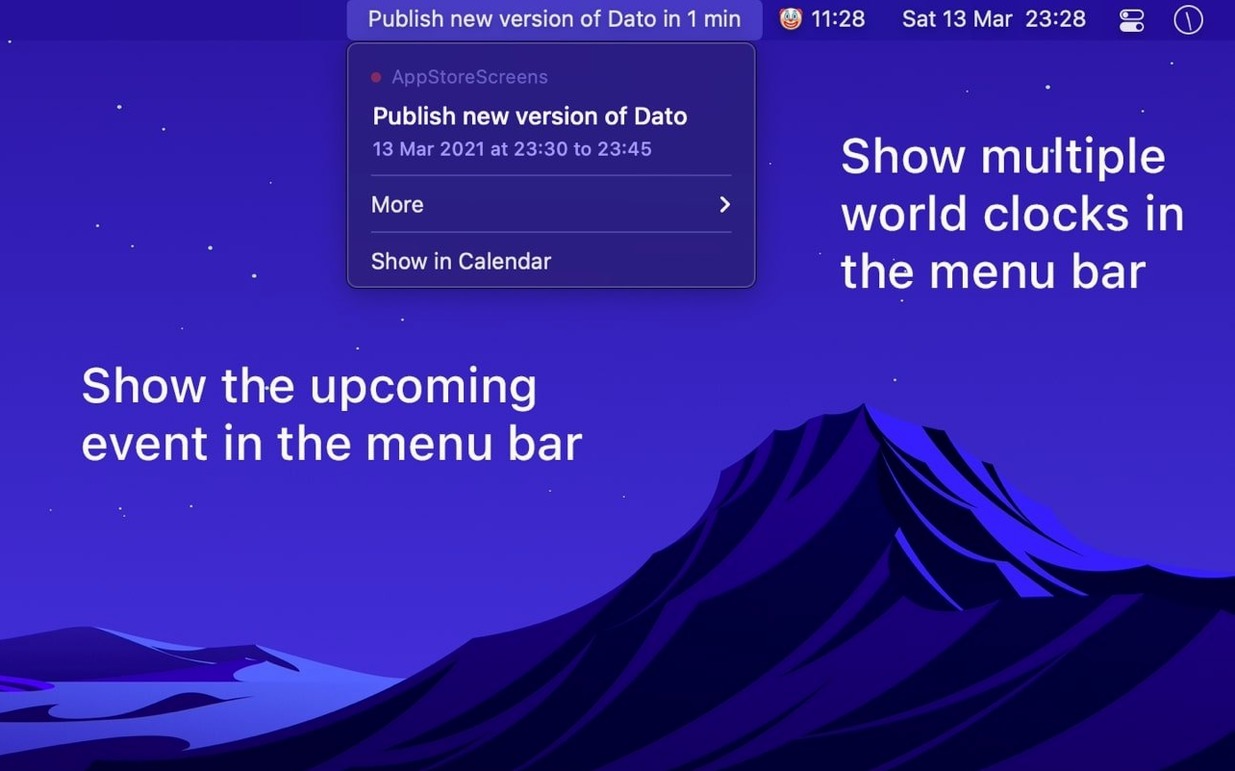
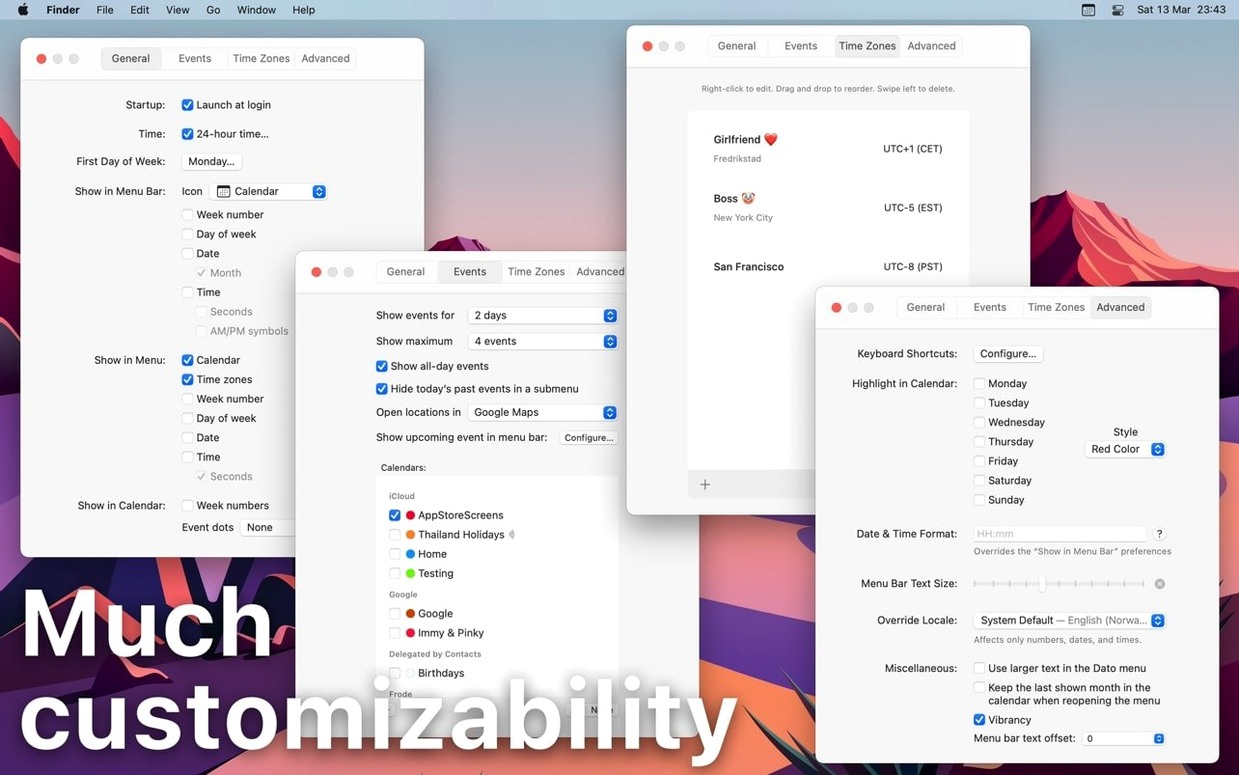
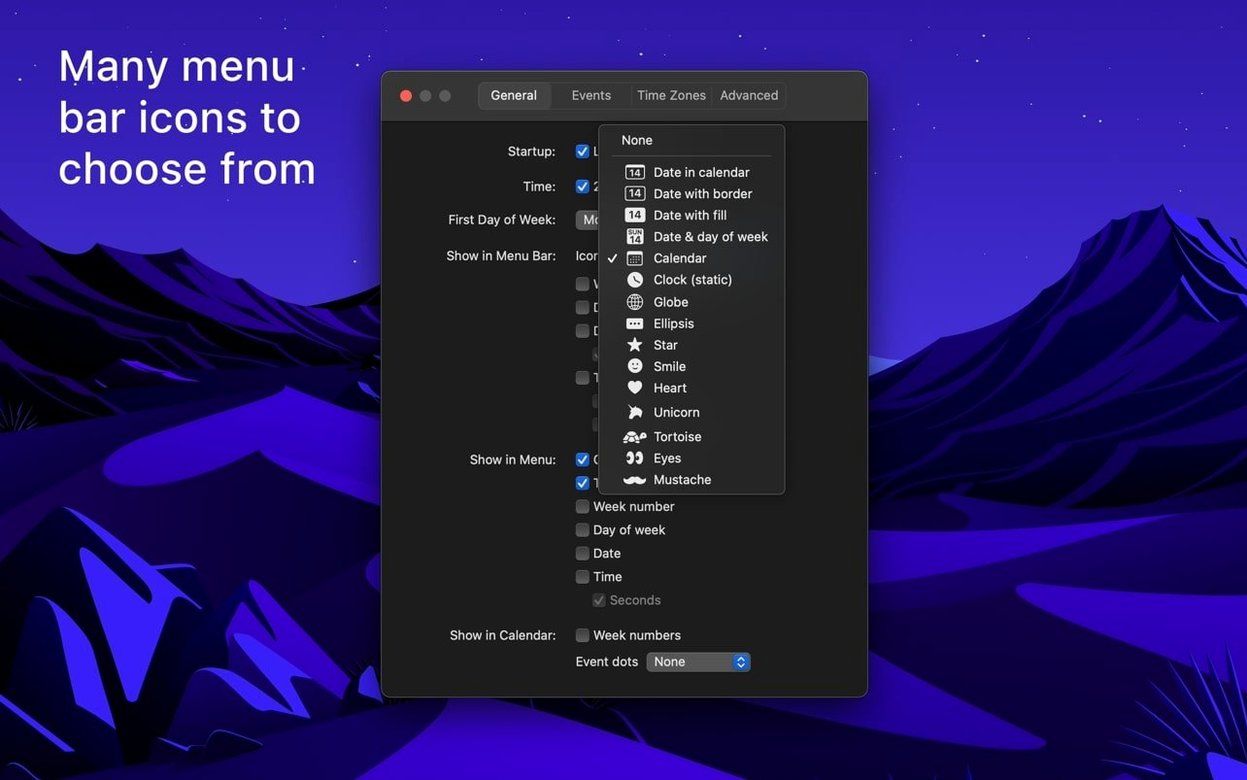
Remote workers, frequent travelers, and anyone who lives by their calendar will feel right at home with Dato. It turns the tiny clock in your menu bar into a full-featured scheduling companion that keeps your next move visible.
Check what's next without opening the Calendar app
Click the menu bar icon to see a clean list of upcoming events pulled from your delegated calendars. You can also set an event title to display directly in the menu bar so nothing sneaks up on you.
Join a meeting with a single keystroke
Dato spots Zoom, Google Meet, and Microsoft Teams links in your events and lets you jump into the next meeting through a configurable global keyboard shortcut. No more hunting through notifications.
Track time across time zones
Add world clocks that appear inside the menu or right in the menu bar. The hourly chime and large text mode make it easy to keep an eye on distant colleagues without doing mental math.
How Dato plays with other apps and macOS
Dato doesn't try to replace your calendar service — it sits quietly alongside whatever you already use. Because it hooks into macOS's native calendar engine, it picks up iCloud, Google, and Outlook accounts without any extra setup. Add an event through Fantastical or BusyCal and it shows up in Dato's menu within seconds.
The Shortcuts integration deserves a mention. You can trigger a Show Next Meeting shortcut from the Shortcuts app, the menu bar, or even a Stream Deck button. Apple's Focus modes work nicely too — Dato respects notification settings, so fullscreen meeting alerts stay quiet during Do Not Disturb.
If you use Google Calendar's web interface, there's a thoughtful touch: right-click any event in Dato's menu and choose to open it directly on the web. It saves clicks when you need the full event details that the menu preview skips.
Create Calendar Events via Global Shortcut
Version 5.8.3 refined the calendar event creation flow. You can now create an event through a global keyboard shortcut, type the title, pick a date with natural language, and move on — all without touching the trackpad. Earlier versions required you to click into the menu first.
The date and time calculator got smarter too. Select two dates in the calendar view and Dato shows the difference in days, weeks, and months. It's a small addition that replaces quick mental math when you're planning deadlines or travel.
Widgets have been stable since their introduction, but the latest build tightened how they refresh. The calendar widget now updates more reliably after you add or edit an event from any synced device.
A quick workflow: scheduling across three time zones
Say you're in London and need a call with colleagues in Tokyo and New York. Here's how Dato streamlines it:
- Set up the world clocks. Search for Tokyo and New York in Dato's city lookup — it works offline — and pin both to the menu. Give them custom names like "Taro" and "Sarah" so they're instantly recognizable.
- Check overlap at a glance. Open the menu and use the time travel view to slide forward to a proposed slot. Dato shows the local time for each city right next to the calendar, so you spot a 4 PM London slot that lands at midnight Tokyo — and scrap it before anyone sends an invite.
- Create the event from the menu bar. Hit the global shortcut, type "Sprint sync", and pick the agreed time. Dato writes it straight to your default calendar. The event appears with a Meet icon if the system detects a link in the notes or location field.
- Join later with zero friction. When the fullscreen notification pops up ten minutes before, click the join button or press the keyboard shortcut. Dato hands the link off to your browser or meeting app.
It's a flow that cuts out the Calendar app entirely for routine scheduling. The menu bar becomes the hub.
- macOS 26 or later
- Apple Silicon or Intel 64-bit Mac
Questions people ask
Can I use my own date format in the menu bar?
Yes, Dato supports custom date and time formats, so you can make the menu bar display exactly what you need.
Also on readers' docks
Sign in or create an account to leave a comment.
No comments yet. Tell me how it got on with your other devices.