Download Final Draft for macOS
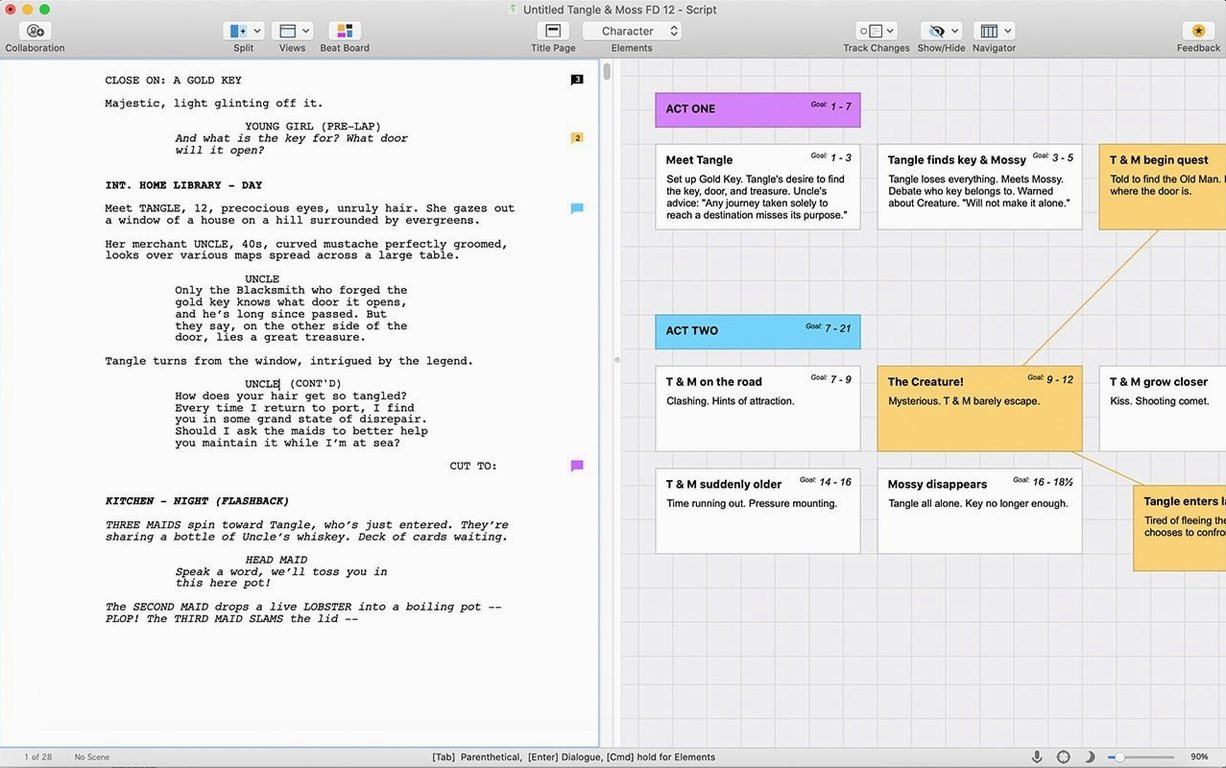
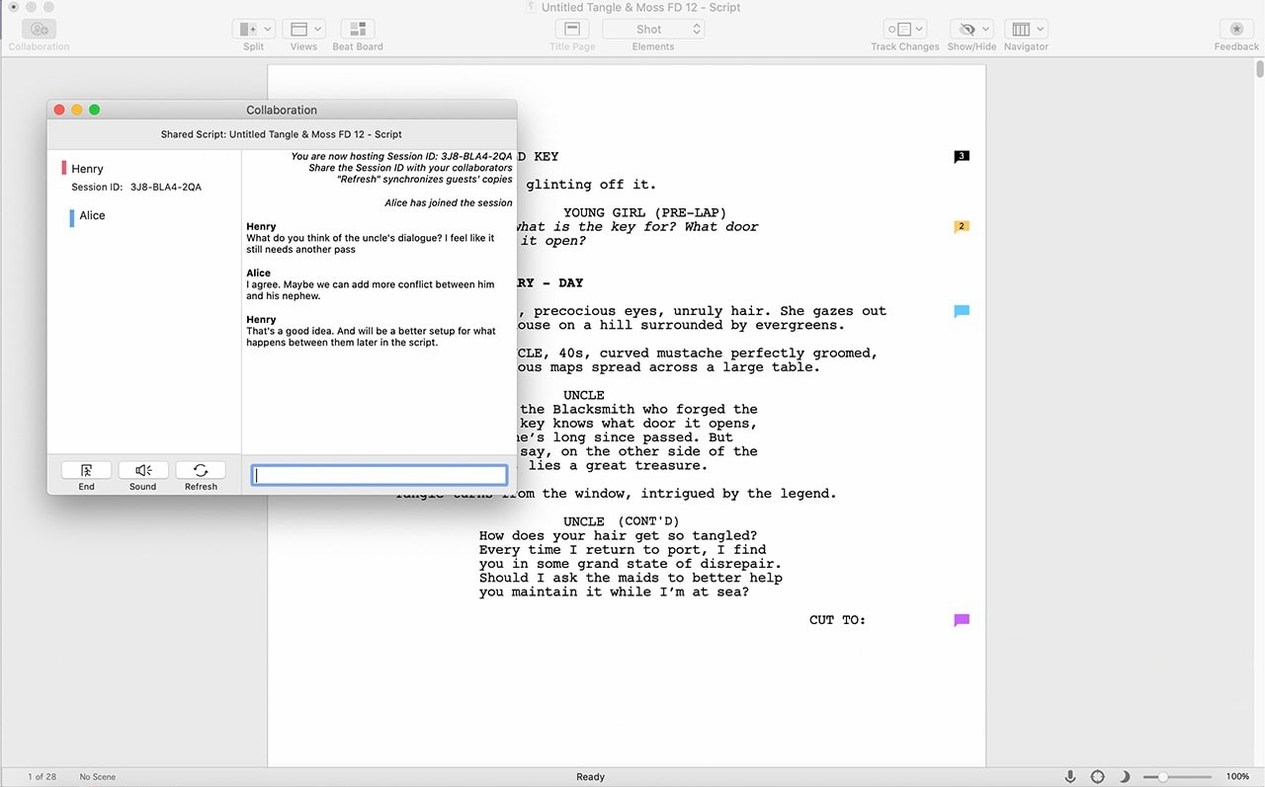
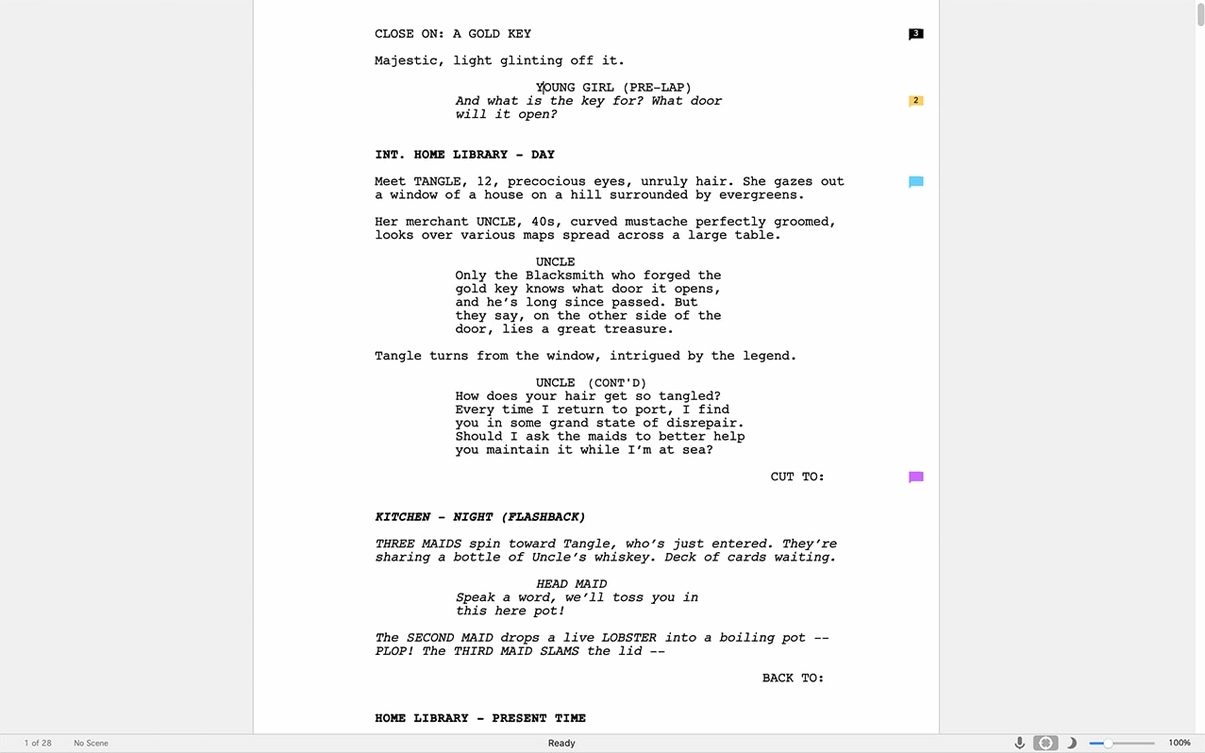
Staring at a blinking cursor while worrying about margins and proper script formatting kills a good story before it starts. Final Draft takes that friction away so you can focus on character and plot. The app respects the rigid standards of film, television, and stage writing without making you learn them first.
Compatibility at a glance
- macOS 12 Monterey or later is required
- Runs natively on Intel Macs
- An active internet connection is needed for the initial sign-in
- Interface language: English
What you get when it's running
Once you're past the quick setup, Final Draft feels simple. Type a character name, and the next line automatically shifts to dialogue. Sluglines, action, and transitions all snap into place as you write. The app handles the formatting heavy lifting, from revision marks to page counts, so your pages always look like they came straight from a production office. It's a focused workspace built for one job, and it does that job without getting in your way.
A quiet Tuesday writing session
I open Final Draft around 9 a.m., coffee still hot. The last thing I remember from yesterday is Maria standing in the doorway, so I type INT. APARTMENT — DAY and let the app do the rest. Tab drops me into action. I describe the cracked window frame, the light hitting the floor wrong. When Maria speaks, I type her name. Enter. The cursor lands exactly where dialogue belongs, indented and ready. I don't touch the ruler once.
Twenty minutes in, I realize the scene belongs later. I grab the Navigator panel on the left and drag Scene 14 down past Scene 22. All the numbering adjusts. No copy-paste, no hunting for page breaks. I keep typing. Around 11 a.m. I use the ScriptNotes panel to flag a line I'm not happy with — "make this sharper" — and move on. The note sits in the margin, colored yellow, not interrupting the flow. By lunch, I've got four new pages and nothing broke along the way.
After lunch, I switch to revision mode. The producer asked for blue pages on this draft, and Final Draft handles that with a toggle. Every new line I type shows up in blue. Edits are tracked, page numbers update, and the revision set exports clean later. I save, close the lid, and the script is exactly where I left it — formatted, numbered, and ready for tomorrow.
First days with Final Draft: what actually helps
The first forty-eight hours after installing are when habits form. Here's what makes those early sessions smoother.
- Do a fifteen-minute formatting test first. Before starting your real script, open a blank document and type a scene with two characters, a slugline, and some action. Watch how the app responds. Learn where Tab sends you and when Shift+Tab pulls you back. It's muscle memory, and fifteen minutes now saves hours of correcting misformatted elements later.
- Name your first draft something obvious. Call it "Pilot — v1" or "Feature Draft — exploratory." The version tracking inside Final Draft is good, but clear file names will save you when you're digging through a folder at 1 a.m. looking for the version you sent to your writing group.
- Turn on Autosave, then forget about it. Go to Preferences right after you install and make sure Autosave is on a tight interval — every three minutes works well. You won't think about it again until the power flickers, and that's the point.
- Pick one font and stick with it. Courier Final Draft is the default for a reason: it's industry standard and reads predictably. Resist the urge to experiment with Courier Prime or other options in the first week. Get comfortable, then play.
Settings worth flipping before you write a word
The defaults are sensible, but a handful of tweaks make the app feel like yours immediately.
Startup behavior
Final Draft's Preferences let you decide what happens when the app launches. I set mine to open the last script I was working on. If you're juggling multiple projects, you might prefer the Document Browser instead. Either way, choose it consciously — the default is a blank new document, which isn't always what you want when you sit down to resume work.
SmartType and auto-fill
The SmartType feature remembers character names, locations, and other elements as you type them. It's on by default, and you should leave it on. But dig into the SmartType settings and clear out sample data if this is a fresh install. The app ships with demo scripts that leave behind names like "CHARACTER A" and "TOWN SQUARE" in the suggestion memory. Purge those so your own cast populates the list cleanly.
Page count and numbering
By default, page numbering restarts with each new scene in some views. If you're preparing a submission draft, go into Document > Page Layout and confirm that numbering runs continuously. Little details like this catch beginners out when they print or export a PDF for a reader.
Spellcheck and dictionary
Final Draft includes a script-aware spellchecker that knows character names aren't typos. It's on by default. If you write in a dialect or use non-standard spellings intentionally, add those words to the dictionary early. Right-click any flagged word and choose "Add to Dictionary." Do this during your first session and you won't fight the red underlines through draft three.
Manually Spacing Instead of Letting the App Format
I see the same handful of errors every time someone picks up Final Draft for the first time. They're easy fixes once you know what's happening.
- Typing formatting manually. The number one mistake: hitting the spacebar five times to center a character name or manually indenting dialogue with the tab key. Final Draft uses element-based formatting. If you're spacing things by hand, you're fighting the app. Use the Element dropdown or learn the keyboard shortcuts instead. Tab moves you forward through elements; Shift+Tab moves you back. That's the whole system.
- Ignoring the Navigator. Beginners often leave the Navigator panel closed and scroll through a hundred pages hunting for Scene 37. The Navigator gives you a clickable outline of every scene, complete with titles and page numbers. It also lets you reorder scenes by dragging. Use it from day one.
- Forgetting to set the script type. Final Draft supports film, TV, stage play, and multi-camera sitcom formats. They're different. If you start writing a stage play in the default film template, your margins and element labels will be wrong. Set the template before you type the title page, not after you've written ten scenes.
- Overusing revision mode too early. Revision mode is powerful — colored pages, locked page numbers, tracked changes. But turning it on during a rough first draft creates visual noise that slows you down. Write clean first, then activate revision mode when someone else has given notes and you need to show what changed.
Quick Fixes for Four Recurring Roadblocks
Even experienced writers hit walls. Here are the ones that come up most often and what to do about them.
The sign-in loop
Final Draft 13 requires an internet connection for the initial sign-in, and sometimes it fails silently. You enter your details, the screen blinks, and you're back at the sign-in prompt. First, check your firewall — it might be blocking the app's outbound connection. If that's not it, restart your Mac and try again before the internet drops. The activation only needs to happen once, but it's stubborn when something interferes.
Elements refusing to change
You're typing dialogue and suddenly the app thinks you're writing action. Hitting Tab doesn't fix it. This usually means you accidentally changed the element manually via the dropdown or a stray keyboard shortcut. Click into the misbehaving line, open the Element menu, and pick the correct element for where you are. The app will resume automatic formatting from that point.
Page breaks in weird places
Final Draft follows industry widows-and-orphans rules that sometimes split dialogue across pages in ways that look odd on screen. You can adjust this in Document > Page Layout > widow/orphan control. Loosen the setting slightly if a critical line keeps breaking awkwardly. Print or export to PDF to check — what looks strange in the editor often resolves in the final output.
Exporting and the recipient can't open it
You send an FDX file to a collaborator and they say it's blank or corrupted. This happens most often when the recipient is using an older version of Final Draft — say, someone still on final draft 11 mac — and your file uses features introduced later. Export as Final Draft 11 format from the Save As dialog, or send a PDF alongside the FDX. The PDF is universal and proves the script is intact even if the editable file causes headaches.
The app feels sluggish on an older Mac
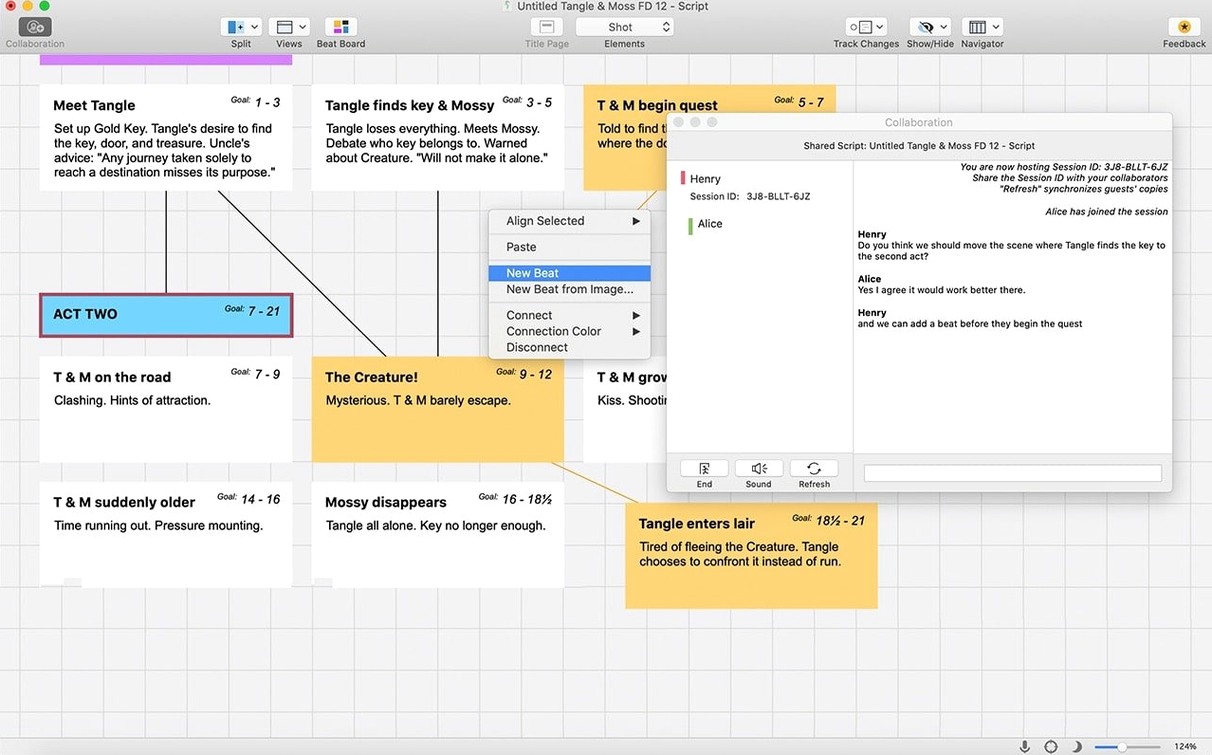
Final Draft 13 runs on Intel Macs, but long scripts with heavy revision tracking can feel slow on machines near the minimum requirements. If you notice lag, try turning off live collaboration features when you're not using them, and close the Beat Board if it's running in the background. The app relies on processor power for real-time formatting, and trimming what's active helps significantly.
- macOS 10.15 or later
- Intel 64-bit
Questions people ask
Does Final Draft 13 require an internet connection?
Yes, an active internet connection is required during the initial sign-in process, after which you can work offline.
Also on readers' docks
Sign in or create an account to leave a comment.
No comments yet. Tell me how it got on with your other devices.