
Download Bear for macOS

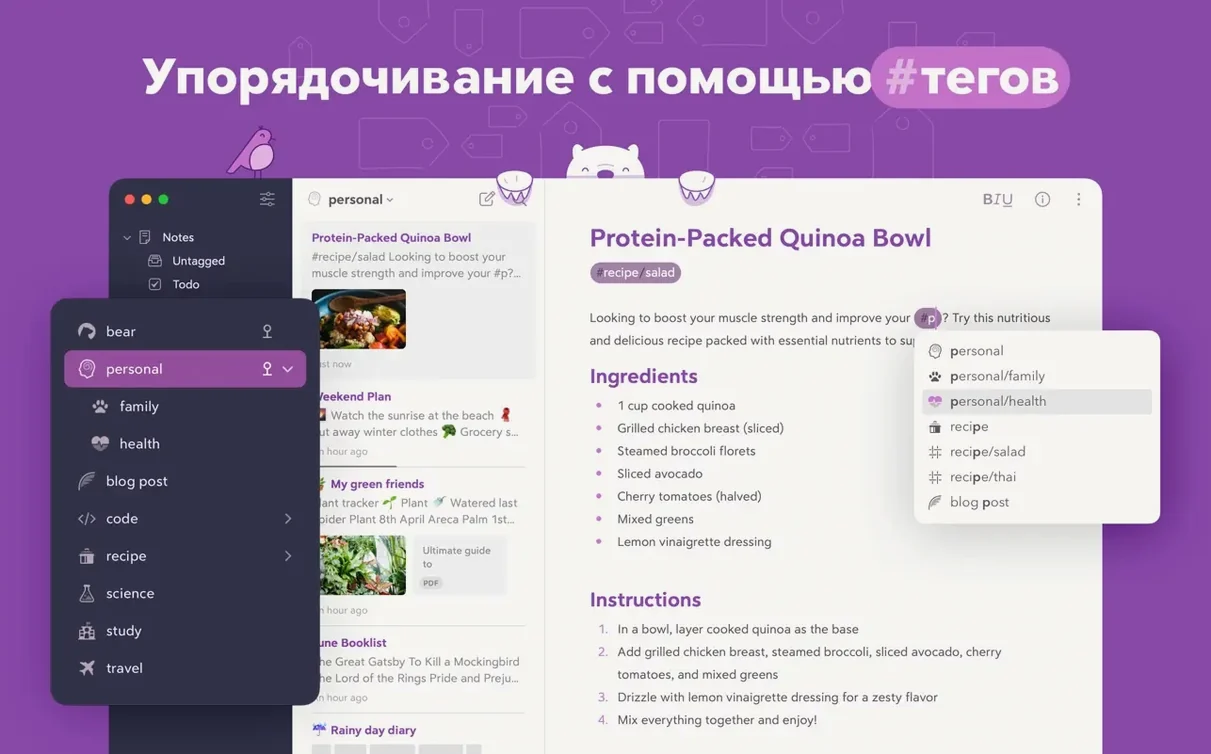




Every Bear note is plain text at heart, formatted with Markdown you can hide for a cleaner reading view. That makes it a comfortable spot to land thoughts that might otherwise end up in a messy TextEdit window or a heavyweight word processor. It sits alongside the tools you already use—a Safari web clipper grabs page content, tasks can be checked off across notes, and tags with nesting keep things findable without rigid folder structures.
- Write with hidden Markdown: Use bold, italics, strikethrough, links, and tables, then hide the syntax so notes read like finished pages.
- Clip from the browser: A Safari extension sends web pages and selections straight into Bear, landing next to your own writing.
- Organize with tags, not folders: Drop tags anywhere in a note—even multi-word or nested ones—and find everything fast without duplicating content.
- Track tasks across notes: Add to-dos inline, then see all open tasks collected in one view regardless of which note holds them.
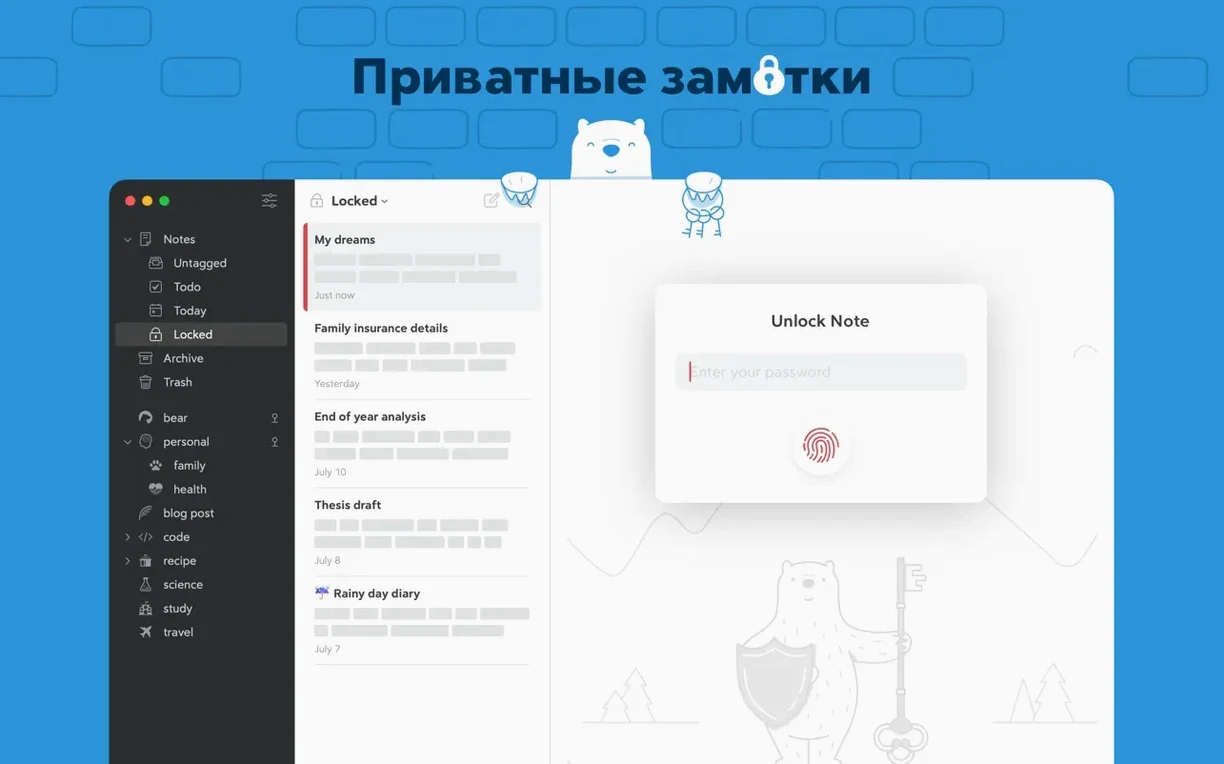
- Keep it private: Notes, tags, and data aren't visible to the developer. No account is required to start, and Bear Pro adds encryption plus device lock.
The app handles quick captures via Siri and keyboard shortcuts, and the Pro tier adds iCloud sync along with exports to HTML, DocX, PDF, JPG, and ePub. It won't replace a full word processor, but for daily notes, journaling, lists, and planning, it fills the gap between a scratch pad and a document manager without getting in the way.
What's new in everyday use
Bear 2.10 didn't rewrite the interface or add splashy features—it tightened the plumbing. The headline change is internal error logging, which means quirks you might have shrugged off before now get quietly reported so the team can squash them faster. In practice, you won't notice a visual difference, but you might notice fewer moments where a tag doesn't resolve or a search stalls on a large library. If you'd been running an older bear for mac setup where occasional hiccups crept in during heavy clipping sessions, this release makes those sessions feel steadier.
Pin #inbox and project anchors in the first hour
A fresh installation is the right moment to set a few habits that pay off later. Here's what I do in the first hour:
- Pin your anchors. Create tags like
#inbox,#projects/active, and#journal/2025, then drag them to the sidebar's pinned section. They'll stay visible even when you're deep in nested tags. - Teach Spotlight your notes. Open System Settings, confirm Bear is checked under Spotlight search, then type a phrase from a recent note. If it appears, you've saved yourself a dozen trips to the app window.
- Hide the markup early. Tap the pen icon in the toolbar to toggle Markdown visibility, then leave it hidden. Reading your own writing as clean text trains your eye to scan faster, and you can always reveal the syntax when you need a link or table.
- Clip a page on day one. Install the Safari extension, head to any article, and send it to Bear. Check how the clipped content lands—images, headings, and links—so you know what to expect when you're researching later.
- Skim the info panel. Open any note and glance at the table of contents and backlinks on the right. It feels like a minor feature until you have fifty notes interlinked by tags and need to trace a thread backward.
A Bear torrent search can land you an older build, and starting with 2.10 means the error logging is already working in your favor—every odd behavior feeds back into future fixes without you lifting a finger.
Version 3.0.2 is a small but important one — it squashes a bug that could crash the editor. If you've been losing your train of thought mid-sentence, this update should keep things steady.
- macOS 12.4 or later
- Apple Silicon or Intel 64-bit
Also on readers' docks
Sign in or create an account to leave a comment.
No comments yet. Tell me how it got on with your other devices.