Download Cubase for macOS
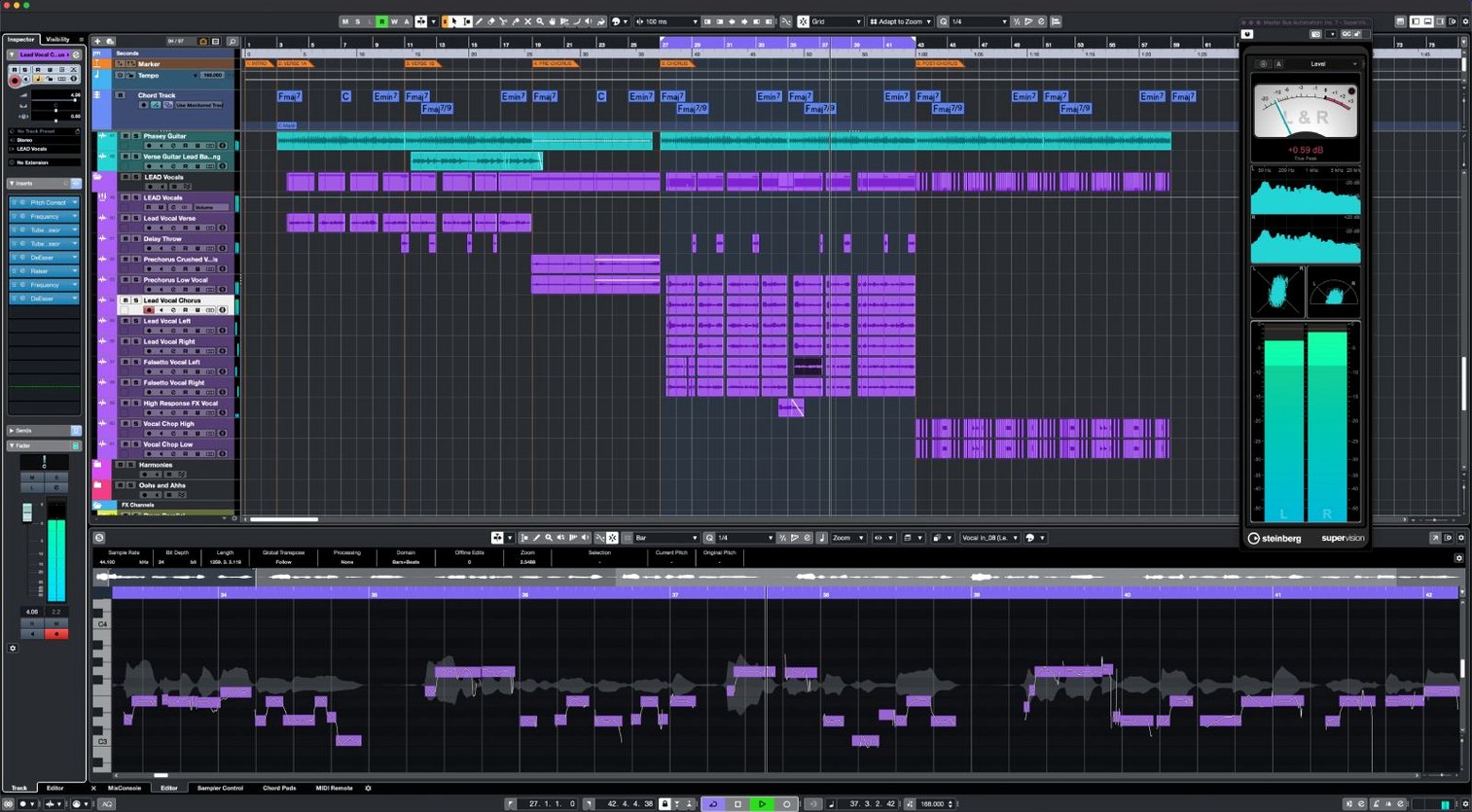
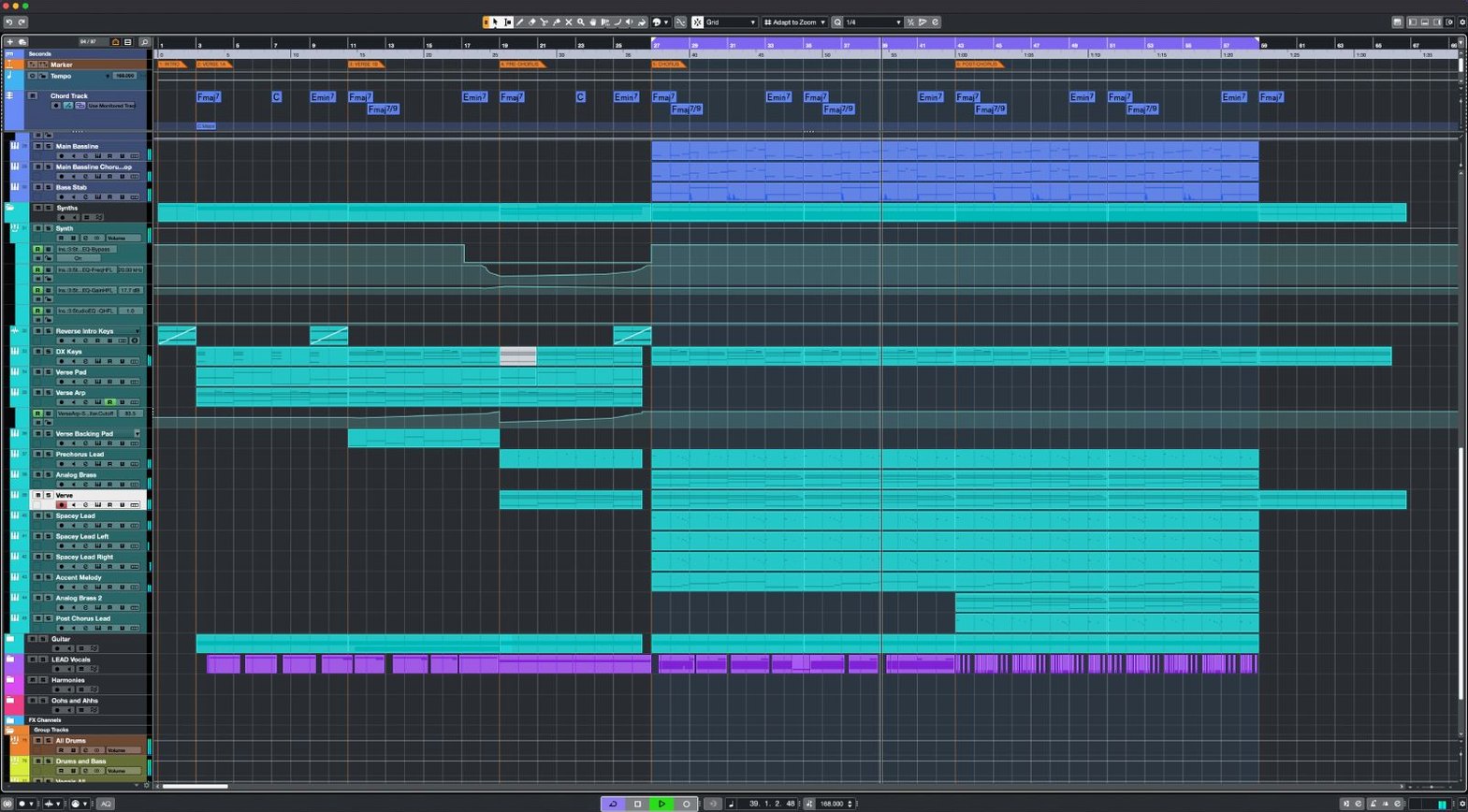
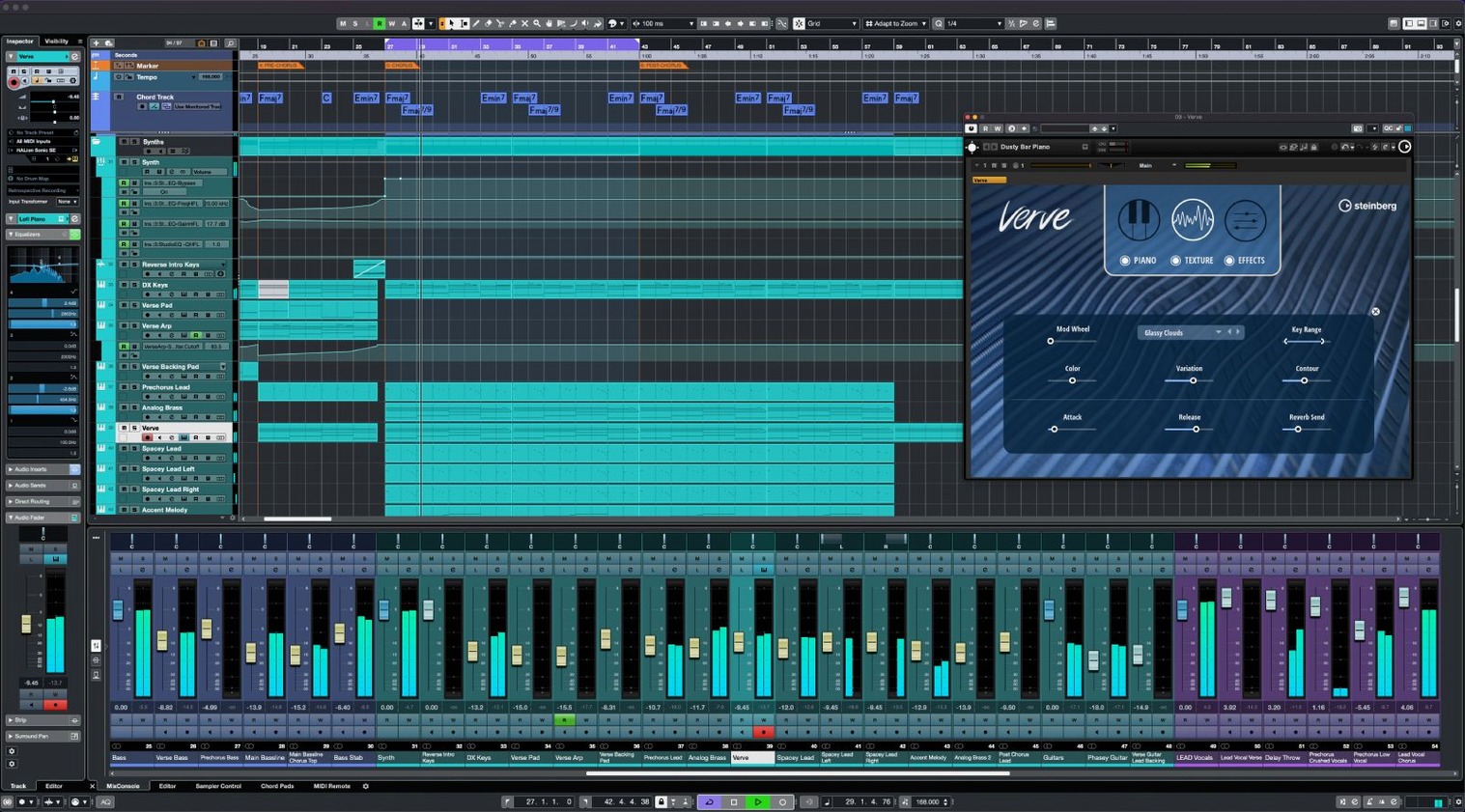
I sat down with a rough guitar loop—three chords I liked but couldn't quite name. My goal wasn't to mix a masterpiece. I just wanted to build a synth pad bed underneath without hunting for notes on a keyboard for an hour. Cubase 15 handled the heavy lifting.
From Hum to Harmony
I dropped the audio onto a track, opened the editor, and let the chord detection do its thing. The Audio to MIDI chords feature grabbed the harmony and turned it into a neat MIDI clip in seconds. A quick tweak to the voicing, and I had a working progression ready for the Scale Assistant. With a preset scale locked in, I pulled up a soft synth and started layering. The 64-bit engine didn't blink—six insert effects on the channel, and the playback stayed crisp. The whole process felt immediate, not like software getting in the way.
Routing Without the Gridlock
From there, I added a drum groove and routed it to a group channel to apply a uniform compression character. With up to 256 group channels on tap, the mixer never felt crowded. The keyboard shortcuts kept my hands off the mouse, which matters when an idea is fresh. This version's support for the Novation Launch Control Series 3 meant my physical faders mapped instantly, letting me ride levels without looking at the screen. It's a setup that rewards speed—unlimited tracks, 192 kHz headroom, and a straightforward interface that doesn't hide its deeper tools.
What I noticed after a full week of daily sessions is that Cubase 15 doesn't slowly degrade the way some DAWs do once your project crosses a certain threshold. I had one arrangement with 80‑odd tracks, a mix of audio and instrument channels, couple of convolution reverbs, a handful of spectral processors, and the transport never stuttered. Memory pressure stayed comfortably green on my machine, and the 64‑bit engine handled floating‑point processing without any audible glitches when I pushed the master bus with Raiser. The app isn't lightweight—no professional workstation is—but it respects the resources you give it. Plug‑in sandboxing means a misbehaving third‑party effect doesn't take the whole session down; the host stays stable and just flags the culprit, which saved me twice during the first three days when I was auditioning older plug‑ins I hadn't used in years.
Startup time on Apple Silicon is snappy, and even larger projects load noticeably faster than I expected from a DAW that supports unlimited track counts and 256 physical I/O channels. I ran a couple of sessions off an external USB‑C SSD, and the disk streaming kept up without dropouts. That kind of reliability makes a practical difference when you're switching between a studio desk and a café table.
First Days with Cubase 15
If you're installing fresh, give yourself an afternoon with a throwaway project before opening anything important. Here's what actually helped me settle in:
- Map your most‑used actions early. The keyboard shortcut system is deep, and the factory defaults are sensible, but three custom bindings—toggle quantize, open the AudioWarp panel, and switch between the mix console and project window—cut my screen‑flipping time in half. Do this before muscle memory sets in on the defaults.
- Load a reference track on day one. Drop a finished mix you know well into a stereo audio track, route it straight to the control room outputs so it bypasses your master bus processing, and get used to A/B‑ing with the click of the Control Room button. It's the single quickest way to calibrate your ears to a new monitoring setup in Cubase.
- Let the MIDI Remote integration scan your controllers. With MIDI Remote API 1.3 now in play, Cubase picks up a wider range of hardware than before. Let it auto‑detect everything connected, then tweak the mapping from the MIDI Remote Editor; you can assign faders to group channels or effect sends without opening a manual.
- Resist the urge to build a template. I know, everyone says to build a template. But spend the first week recording and arranging loose ideas instead. You'll discover which track types, routing paths, and plug‑in chains you actually reach for, and the template you build on day eight will be leaner and more useful than one built on guesswork.
Sliding Into Your Existing Workflow
Cubase doesn't demand that you reorganize your whole creative life around it. I kept my usual sample libraries on an external drive, pointed the MediaBay at them, and the indexing was fast enough that I was auditioning kicks inside ten minutes. The browser respects Finder tags, so folders I'd already organized for another DAW showed up with the same color coding—small thing, but it made the transition feel less like moving house.
Where it fits into the macOS ecosystem, a few things stand out. AudioWarp's tempo‑matching means you can drag in a loop from Voice Memos or a field recorder, and Cubase stretches it to the project grid without mangling transients. I pulled a rain recording off iCloud Drive, placed it behind a piano sketch, and the warp markers did the alignment in seconds. The Dolby Atmos integration also plays nicely with Apple's spatial audio pipeline—bounce an ADM file and it previews correctly on AirPods with head tracking enabled, no extra conversion step needed.
For users who also run notation software or video editing tools, the unlimited MIDI tracks and 64 VST instrument slots mean you can host an entire orchestral template and still have room for sound‑design layers. Export stems, pull them into Final Cut Pro or DaVinci Resolve for scoring work, and keep a single Cubase project as the hub. The channel strip architecture, with its 16 insert slots per channel, handles complex parallel processing chains that would choke lighter hosts.
Disable Look‑Ahead Latency While Tracking
A handful of factory defaults are worth adjusting before you commit to a serious mix:
- Constrain Delay Compensation. Under the Studio Setup dialog, check the option to constrain delay compensation during recording. It stops Cubase from applying heavy look‑ahead plug‑in latency to your live input monitoring, which matters when you're tracking vocals through a channel with linear‑phase EQ.
- Auto‑Save interval. The default auto‑save is conservative. I brought mine down to every five minutes and set it to keep ten backups. With projects that can balloon in complexity fast, this has saved me more than once when an experimental FX Modulator patch went haywire and I wanted to roll back sixty seconds.
- Record format. The project defaults to 44.1 kHz, but if you're working on anything destined for video or spatial audio, switch the sample rate to 48 kHz or 96 kHz at project creation. Cubase supports up to 192 kHz, and the 64-bit engine handles the extra processing load cleanly, so there's little downside to starting high.
- VST plug‑in search paths. Consolidate your plug‑in folders early. Pointing Cubase to a single organized directory instead of letting it scan every possible location cuts the launch‑time plug‑in scan significantly and avoids duplicates in the effect menus.
FX Modulator deserves a special mention as a creativity tool rather than a utility. It's not the first thing you think to open, but dragging an envelope onto a filter cutoff and letting it run in free‑running mode turns a static pad into something that breathes. I've started dropping it on return channels too—sending a touch of modulated reverb to a group of percussion tracks adds movement that feels organic, not programmed.
This update polishes stability and adds fresh hardware integration:
- Support for Novation Launch Control Series 3 controllers.
- MIDI Remote API 1.3 compatibility.
- General fixes and enhancements across the application.
- macOS 13 or later
- Intel or Apple Silicon processor
Questions people ask
How does the Scale Assistant work in Cubase 15?
It lets you lock a project to one of many preset scales, so MIDI notes snap to the correct pitches for your key, keeping performances in tune.
Can Cubase 15 turn audio recordings into MIDI?
Yes, the Audio to MIDI chords feature detects harmony in an audio clip and converts it directly into a MIDI chord track for further editing.
Also on readers' docks
Sign in or create an account to leave a comment.
No comments yet. Tell me how it got on with your other devices.