Download SQLPro Studio for macOS
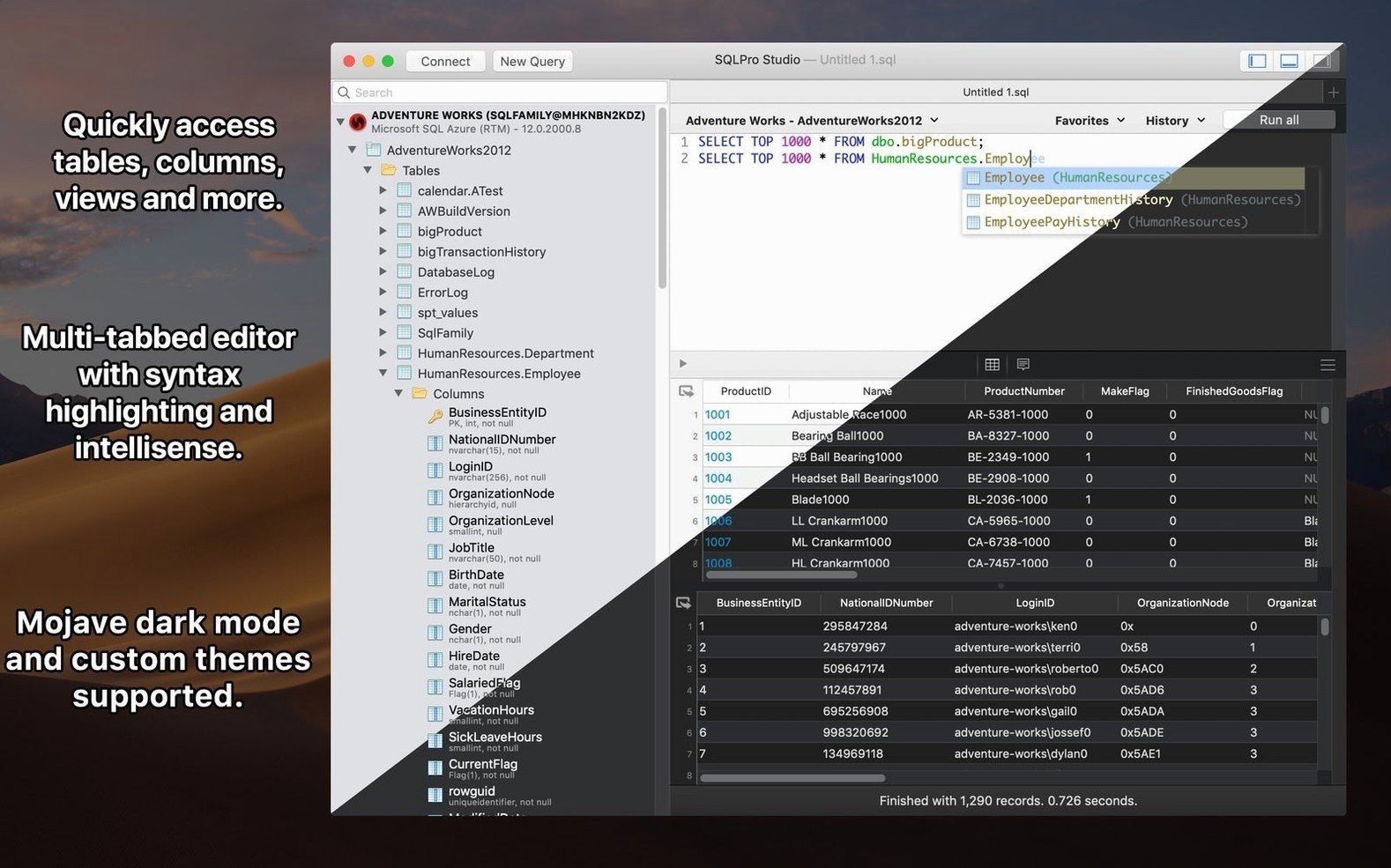
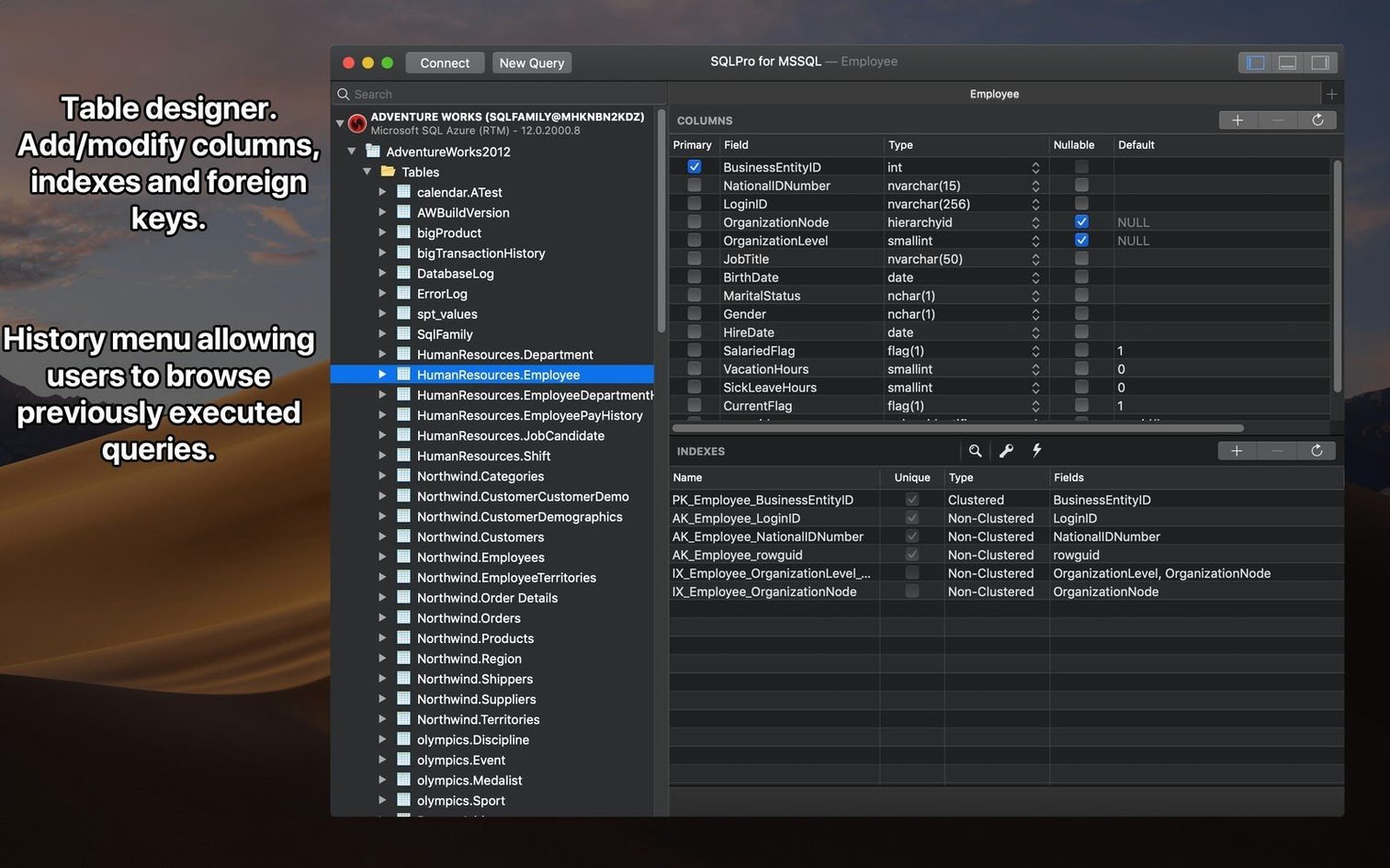
SQLPro Studio runs on both Apple Silicon and Intel Macs, so it fits older machines and newer ones alike. If you bounce between database engines, this is where the app earns its keep — one native client for MySQL, MariaDB, PostgreSQL, SQL Server, SQLite, Oracle, Snowflake, and Redshift.
One app for MySQL, Postgres, MSSQL, and more
- People juggling multiple database types who would rather not open a different app for each one.
- Anyone who writes a lot of SQL and wants syntax highlighting plus autocomplete while typing.
- Folks who like a tabbed interface and context-aware navigation through the database tree.
- Users who move between iPhone and Mac, thanks to Handoff support for picking up a session on macOS.
Dense Mac-native workspace with no guided tour
- The interface is English-only.
- You'll want to be comfortable working inside a fairly dense desktop tool — it's built for practical database work, not a guided tour.
- It's a native macOS app, so expect it to behave like one rather than a web-based dashboard.
A nice early experiment is selecting a few cells in a results grid and watching the aggregates strip show count, sum, average, minimum, maximum, median, and mode. It's a quick way to get a feel for how the app treats results as something you can poke at, not just read.
A reporting workflow, start to finish
Let's say you need a quick sales summary from a PostgreSQL database. You connect to the server, pick the orders table from the tree navigator, and open a query tab. Type a SELECT statement joining orders and customers — autocomplete fills in column names as you go, and syntax highlighting keeps the JOINs readable. Run the query, glance at the results grid, then drag across the total column cells. The aggregates strip pops up with sum, average, and median right there. A few keystrokes later you've tweaked the WHERE clause for a date range, compared the new result tab against the first one, and saved both queries for next month. No exporting to a spreadsheet just to get a sum.
A DBA's afternoon
Picture a database administrator who looks after a mix of Microsoft SQL Server and Snowflake instances. On a typical Tuesday, they're investigating a slow-running process in SQL Server while a colleague pings about a schema change in Snowflake. With SQLPro Studio, both connections live in the same tabbed window — SQL Server on the left tab, Snowflake on the right. They run an execution plan query on one side, then flip to the other to double-check column types before the change goes live. The context-aware tree refreshes after the ALTER, showing the updated structure without reconnecting. Because the app supports NTLMv2 and NetBIOS, the SQL Server connection doesn't fight the corporate network setup.
Pick your syntax theme before writing queries
After you sqlpro studio mac download and get it installed, a little upfront tinkering saves time later. Here's where to focus early on:
- Set up your syntax theme before you write much SQL. Open preferences and flip through the customizable themes until the colors feel right for long sessions — your eyes will thank you after hour three.
- Save frequent connections as favorites. Right-click any database in the tree and add it to favorites. The connection dialog also remembers recent servers, but favorites put the ones you touch daily one click away.
- Try multi-table selection early. In the database tree, ⌘-click a few related tables and watch them open side by side in the same tab. It's faster than hunting through a long table list each time you need to compare schemas.
- Explore the built-in SQL formatter. Paste in a messy query from a chat message or an old script, then hit the format command. Clean, indented SQL without re-typing makes debugging noticeably easier in the first week.
Version 2026.238 adds one handy touch: select cells in your results and a strip appears with count, sum, average, minimum, maximum, median, and mode.
- macOS 13.5 or later
- Apple Silicon or Intel 64-bit Mac
Also on readers' docks
Sign in or create an account to leave a comment.
No comments yet. Tell me how it got on with your other devices.