Download Slidepad for macOS
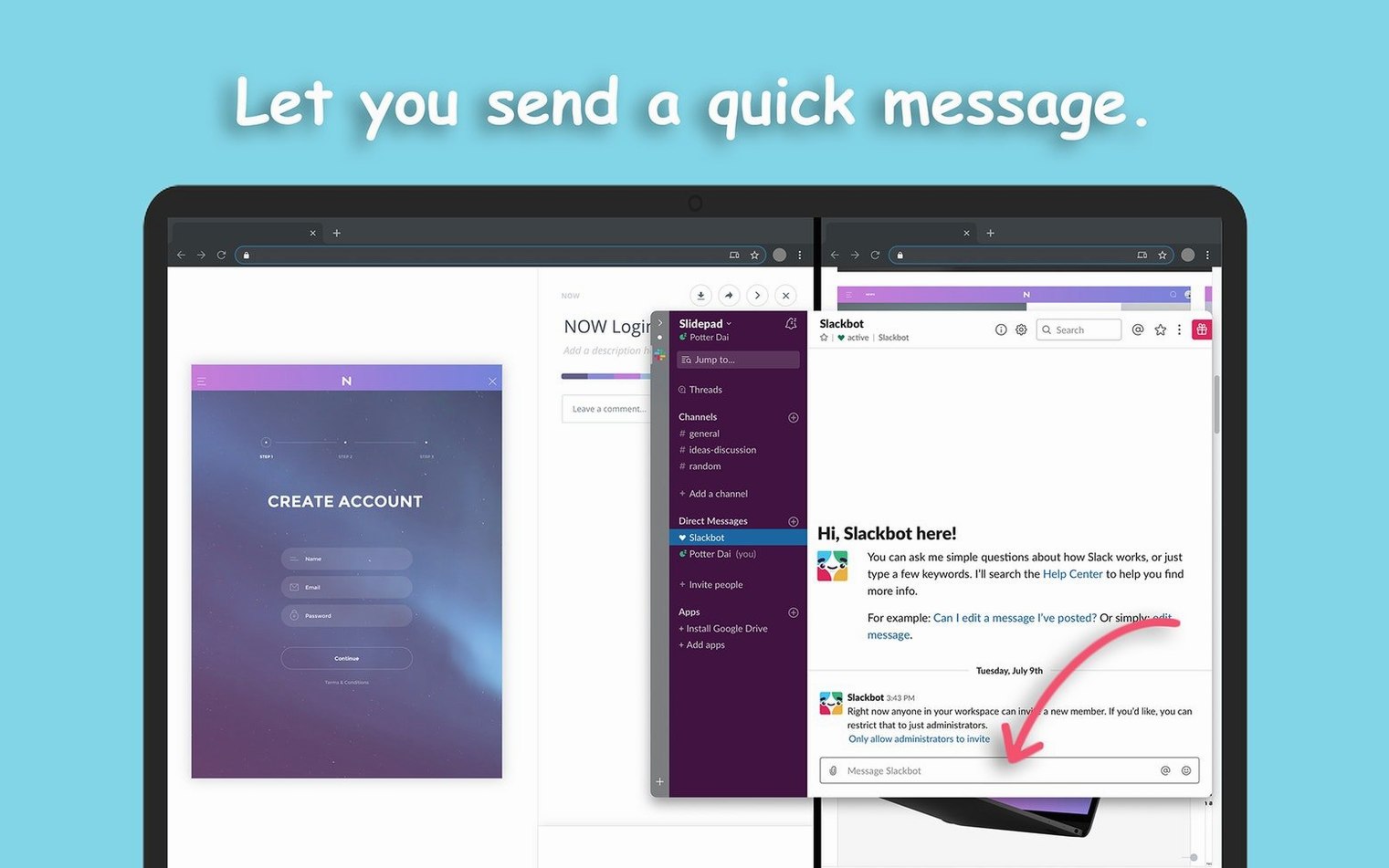
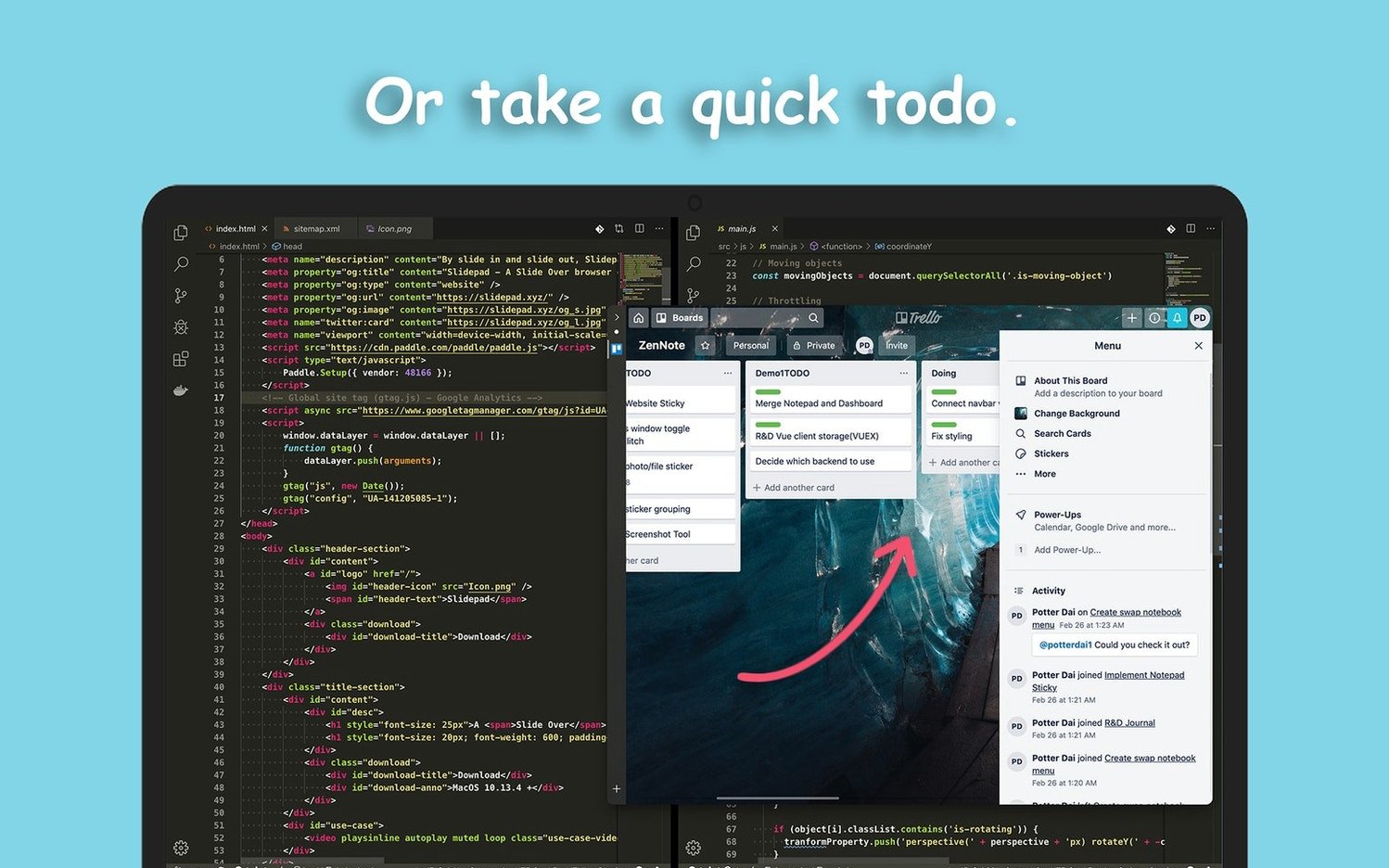
Slidepad runs on any Mac with macOS 11 or later, covering everything from older Intel machines to the latest Apple Silicon. If your Mac can run Big Sur or newer, this slide-over panel is ready to go—ARM and 64-bit Intel are both supported natively.
Power User Tools Under the Hood
- Auto Mute Control — kill audio distraction before it starts; the settings panel lets you enforce mute by default across every web app you load.
- Custom Sounds & Notifications — tweak exactly which alerts Surface and how they sound, so you can distinguish a work Slack ping from a personal message without leaving your main window.
- Persistent Browsing History — Slidepad keeps your session history intact, which matters when you treat the panel as a dedicated app drawer rather than a disposable pop-over.
- Dark Mode Awareness — on macOS 10.14 and later it follows the system appearance automatically, saving your eyes during late-night sessions.
Built on the Shoulders of Aggregators
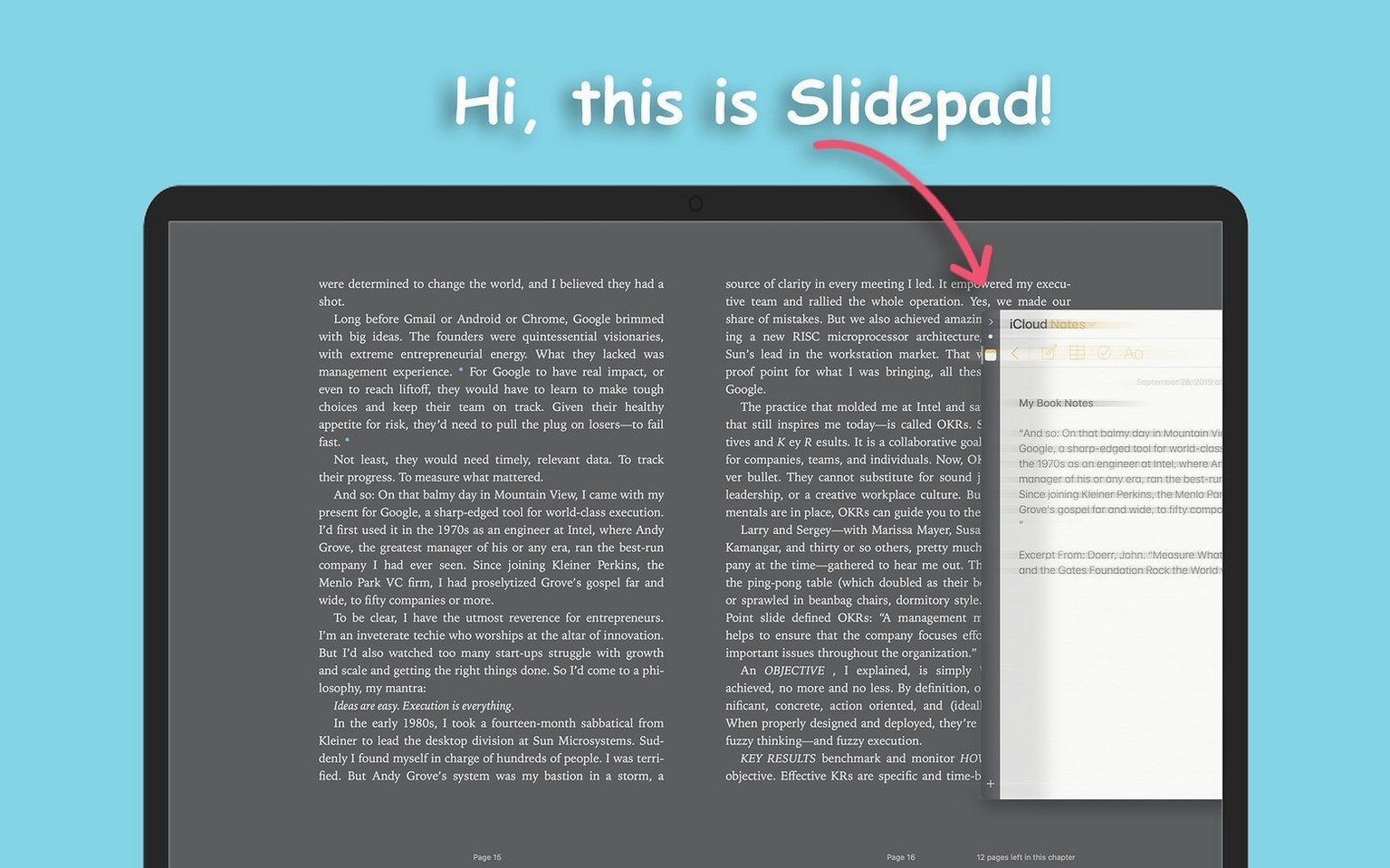
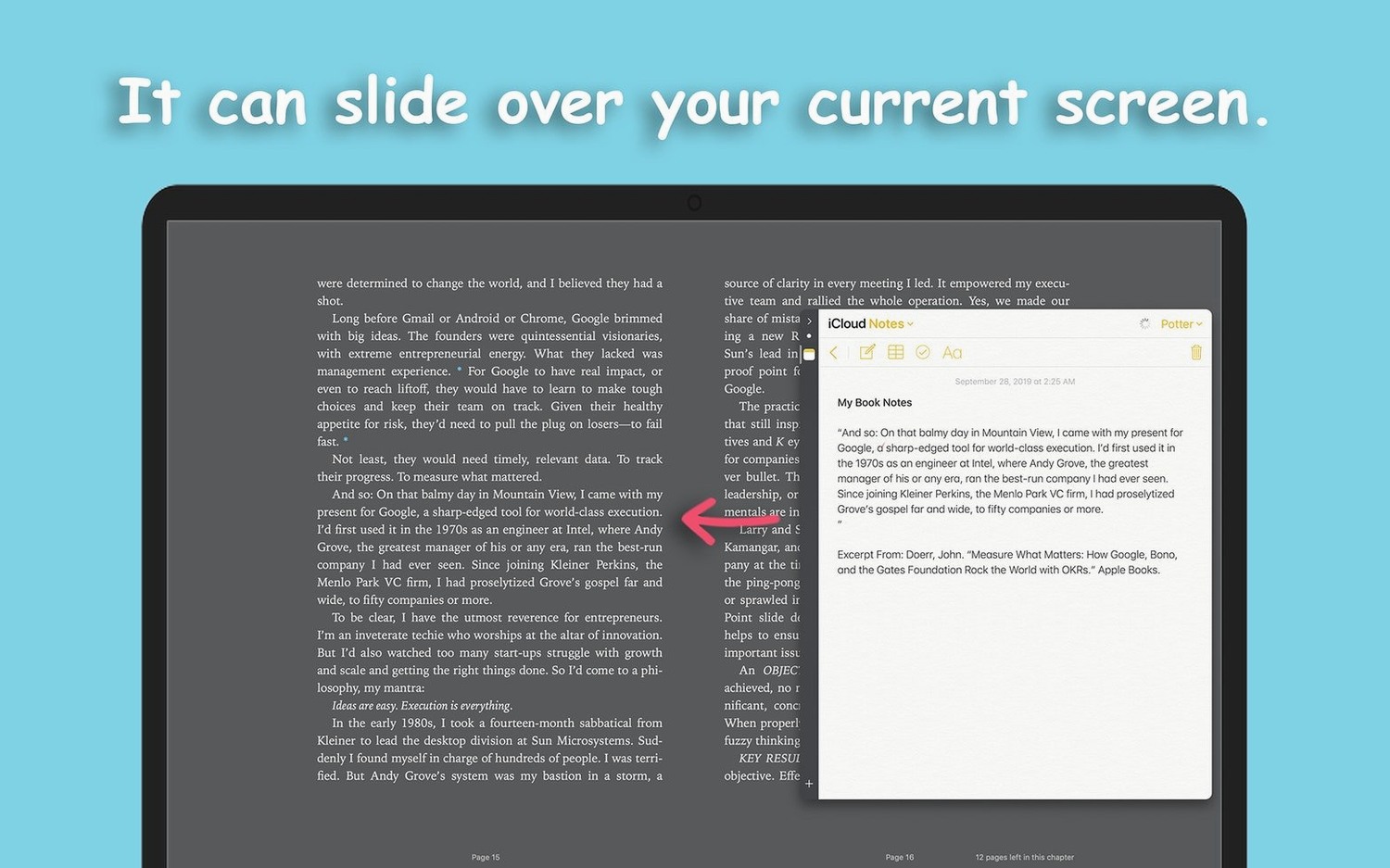
Slidepad draws clear inspiration from Franz and Station, but strips away the multi-account bloat. Instead of managing a dozen service tabs in a full window, you get a single slide-over panel modeled directly on iPad Slide Over—swipe it in, do your thing, tuck it away. For anyone who already lives between a Mac and an iPad, the muscle memory transfers instantly.
Common Snags Worth Knowing About
Slidepad isn't a full browser, and that trips people up. The omnibox handles URLs and search terms just fine, but if you paste a complex link with redirects or tracking parameters, it sometimes stumbles. Stick to clean URLs or type your destination directly—the panel works best when you treat it like a launcher, not a tab hoarder.
Another hiccup: some web apps expect a traditional browser window and refuse to load properly in Slidepad's compact view. Google Workspace tools occasionally throw a "browser not supported" warning. The fix is usually resizing the Slidepad panel slightly wider—just drag the edge until the site settles down. It rarely takes more than a few pixels.
Notifications can also feel aggressive out of the box, especially if you add half a dozen chat apps. The panel respects each site's notification settings, so the trick is to dial them back inside each web app rather than hunting through macOS System Preferences.
Flip 'Auto Mute' Before Your First Tab
Before you load up your app list, hit the preferences pane and flip a couple switches that change how Slidepad feels day to day.
Enable Auto Mute immediately. Slidepad remembers audio state per session, so an unmuted YouTube tab from yesterday will greet you with full volume this morning. Toggling auto mute in settings means every new panel session starts silent—you unmute only what you actually want to hear.
Turn off sounds for non-essential apps. The customizable notification sounds are genuinely useful for separating work messages from casual ones, but the default set pings for everything. Pick two or three apps that deserve audio alerts and silence the rest. Your main workspace stays focused, and the slide-over panel becomes a quiet assistant instead of a noisy second screen.
If you grabbed slidepad macos free to test the waters, these two tweaks make the difference between a tool that feels intrusive and one that disappears until you need it.
- macOS 11 or later
- Apple Silicon or Intel 64-bit processor
- Interface language: English
Questions people ask
Does Slidepad work on Apple Silicon Macs?
Yes, Slidepad runs natively on both ARM-based Apple Silicon and 64-bit Intel Macs.
Can I keep Slidepad from making noise?
Absolutely—the auto mute setting silences all audio by default, and you can fine-tune sounds and notifications independently in preferences.
Also on readers' docks
Sign in or create an account to leave a comment.
No comments yet. Tell me how it got on with your other devices.