








Download A Better Finder Attributes for macOS
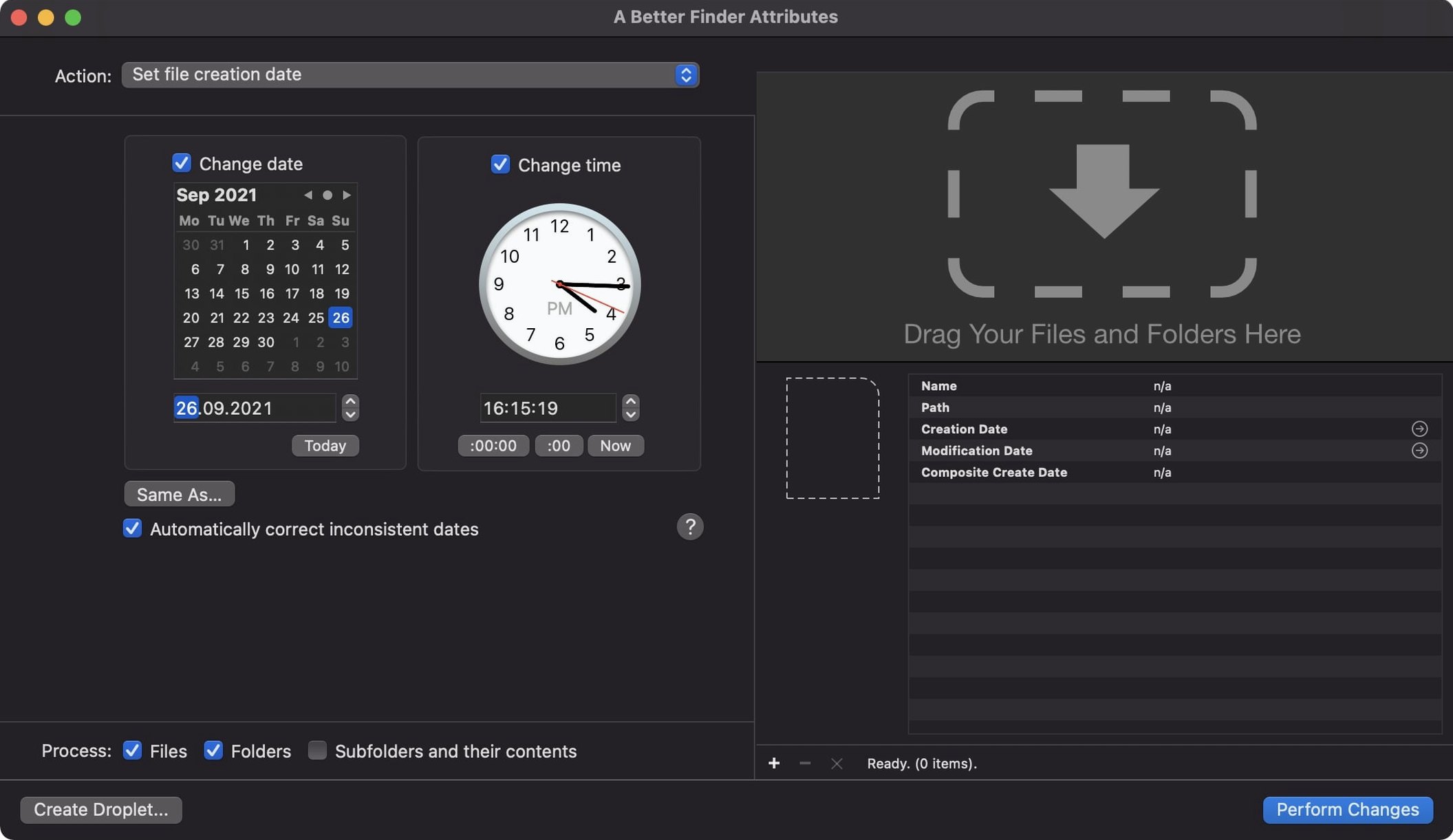
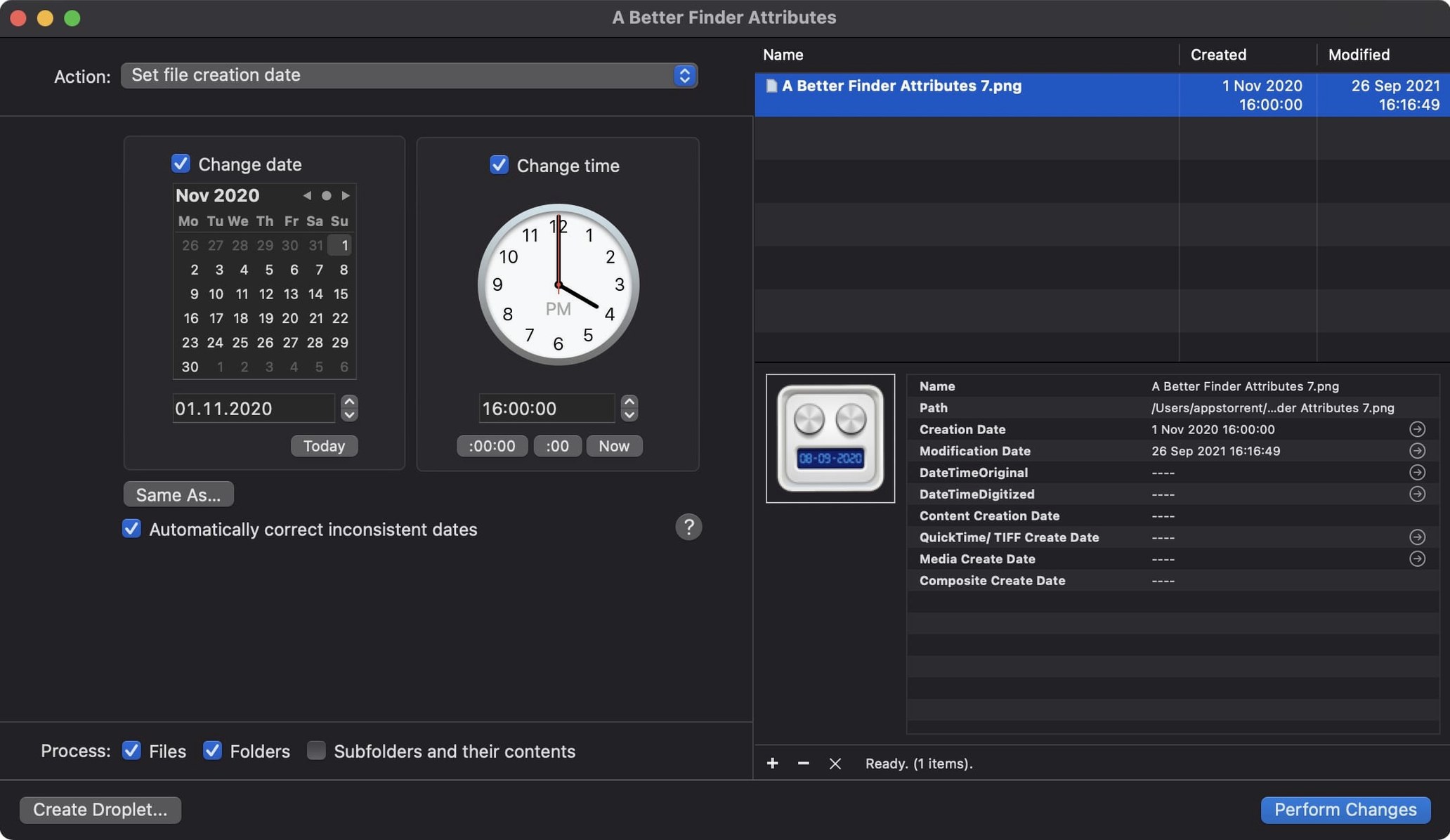
Version 7.50 of A Better Finder Attributes lands with a handful of fixes that matter for people wrangling media files. QuickTime movie dates now carry the Apple content creation timestamp, so Photos and Final Cut Pro actually see when footage was shot. A one-hour DST error when writing those QuickTime dates is gone. Photoshop files get their shooting dates back, and the change tag action accepts more GPS coordinate formats.
Fixing camera clock drift in EXIF timestamps
- Batch-correcting JPEG EXIF date and time data after a camera clock drift.
- Adjusting date and time data in CR2 and CRW files before importing into a catalog.
- Pinning down creation dates on QuickTime movies so they sort properly in Photos.
- Working on Apple Silicon or Intel 64-bit Macs without thinking about it.
Requires macOS 14.6 or later
- Requires macOS 14.6 or later, so older Macs are left out.
- Interface is available in English, German, and French only.
- The new title bar info button is small, but it does surface metadata details quickly.
A real workflow: fixing a vacation photo library
Last month I came home from a trip where I shot with two cameras and never bothered to sync their clocks. One body was seven minutes ahead; the other was set to a completely wrong time zone, so hundreds of NEF and JPEG files had creation dates that placed them in the middle of the night. Here's how I straightened it out with version 7.50 in one pass.
I dragged all the affected folders onto the app's file list. The NEF and CR2 files from the Nikon landed in one batch, and I used the Adjust EXIF Date & Time action to shift the embedded timestamps forward by exactly seven minutes. For the second camera's JPEGs, the offset was larger — nine hours back — so I set a second action row to subtract that span and ran both batches together. The preview column updated instantly, and I could spot-check individual files before committing.
The final step was tidying up the movie clips. A handful of .mov files from a compact camera had never been tagged with a content creation date at all. I used the new QuickTime date-writing support to stamp the shooting date into each clip so Photos and Final Cut Pro would place them correctly on the timeline. Total time: about four minutes of setup, then one click to execute. The sync between IPTC Date Created and EXIF time zone offsets that version 7.50 introduced kept the metadata internally consistent across every file that I checked afterward.
Enable automatic backups before batch runs
Out of the box, the app works with a sensible default configuration, but three tweaks make it feel much more your own.
- Turn on the backup option in preferences. Before any batch operation, the app can copy every file it touches into a parallel folder structure. It's one checkbox, and it saves you from ever having to reconstruct an original if you mistype an offset.
- Switch the date display format. Under the View menu you can flip between absolute dates and relative offsets. For photo work, I stick with absolute; when I'm handling document archives, I prefer offsets. Pick one and the list columns rearrange to match.
- Set the default action rows. The app remembers your last-used actions, but you can also save a named preset. I keep a preset called "Camera drift" that applies a -5 minute shift to EXIF dates and syncs the Finder modification date to match. Two clicks and I'm correcting a common problem without rebuilding the logic each time.
The new info button in the title bar is worth a mention too. Tap it on any file row and you get a floating pane with the current state of every date field the file holds — file system, EXIF, IPTC, QuickTime — all in one place. It's a great sanity check before you run a batch.
One morning with an archivist
A friend who manages a small documentary archive uses a better finder attributes as a companion to her scanning workflow. She receives boxes of prints and negatives, scans them in bulk, and ends up with folders where every TIFF and JPEG carries the scanner's timestamp instead of the date the photograph was actually taken.
Her routine: she sorts the scans by subject, cross-references a handwritten log, and then opens the app. She sets the creation date and modification date to match the event date from her notes — often the same date for an entire folder. For the JPEGs she also writes the EXIF date fields so downstream catalog software picks up the correct chronology. The batch runs in seconds. What used to take her half a day of clicking through Finder info panels now finishes while her coffee is still hot. She told me the biggest relief was that version 7.50 handles GPS coordinate formats more flexibly in the change tag action, because some of her field photos arrive with location data in odd string formats that earlier versions rejected.
Scanned 3,000 RAW files without lag
On an Apple Silicon Mac running macOS 14.6, the app launches in under two seconds and stays responsive even when I drop a folder with 3,000 RAW files onto the file list. The scanning pass that populates the preview columns is fast — around 15 seconds for that many images on my machine — and the actual date adjustments write back almost instantly per file. Memory use during that batch hovered around 180 MB, and the CPU settled back to idle the moment the operation finished. There's no lingering background process and no launch daemon.
I've seen a better finder attributes 7 hold steady across workloads that mix JPEG, NEF, CR2, and .mov files in a single batch. The DST fix for QuickTime dates in this release is the kind of thing you don't notice until you don't have to manually correct an hour offset in Photos, and that's been my experience so far: it just works. If you've been looking for a better finder attributes mac utility that doesn't choke on large media libraries, this one earns its place in the toolbox.
Version 7.53 has landed with a handful of refinements. The full rundown lives over at the developer's release notes, so head there for the nitty-gritty on what's been tuned up.
- macOS 14.6 or later
- Apple Silicon or Intel 64-bit Mac
Questions people ask
Does A Better Finder Attributes work on Apple Silicon Macs?
Yes, version 7.50 supports both Apple Silicon and Intel 64-bit Macs running macOS 14.6 or later.
Also on readers' docks
Sign in or create an account to leave a comment.
No comments yet. Tell me how it got on with your other devices.
More in Mac Apps
See all A Better Finder Rename
12.36 Mac Apps
16 MB
A Better Finder Rename
12.36 Mac Apps
16 MB
 4K YouTube to MP3
26.3.5 Mac Apps
218 MB
4K YouTube to MP3
26.3.5 Mac Apps
218 MB
 4K Video Downloader
26.3.5 Mac Apps
247 MB
4K Video Downloader
26.3.5 Mac Apps
247 MB
 1Password
7.9.4 Mac Apps
70 MB
1Password
7.9.4 Mac Apps
70 MB
 ACDSee Photo Studio
26.0.3 Mac Apps
441 MB
ACDSee Photo Studio
26.0.3 Mac Apps
441 MB
 Updated Adguard
2.20.2.2629 Mac Apps
3 MB
Updated Adguard
2.20.2.2629 Mac Apps
3 MB
 Adobe After Effects
26.5.0 Mac Apps
8.8 GB
Adobe After Effects
26.5.0 Mac Apps
8.8 GB
 Adobe Animate
24.0.15 Mac Apps
6.5 GB
Adobe Animate
24.0.15 Mac Apps
6.5 GB