









Download 4K Video Downloader for macOS
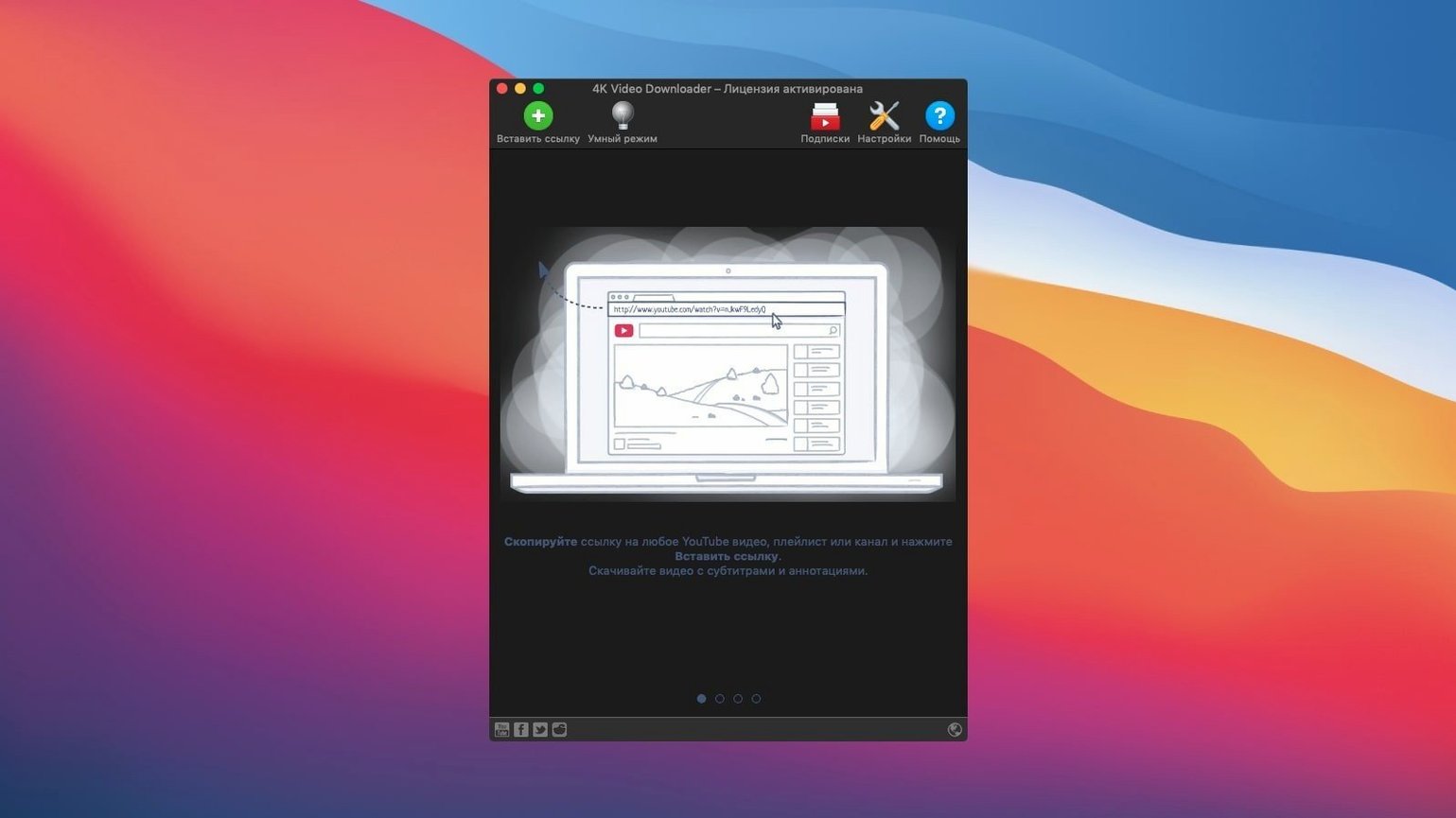
This one needs an Intel Mac with macOS 12 or later to run — and it earns its keep right next to Finder and your media player of choice.
4K Video Downloader — A download tool that grabs videos, audio tracks, and subtitles from supported websites and saves them locally.
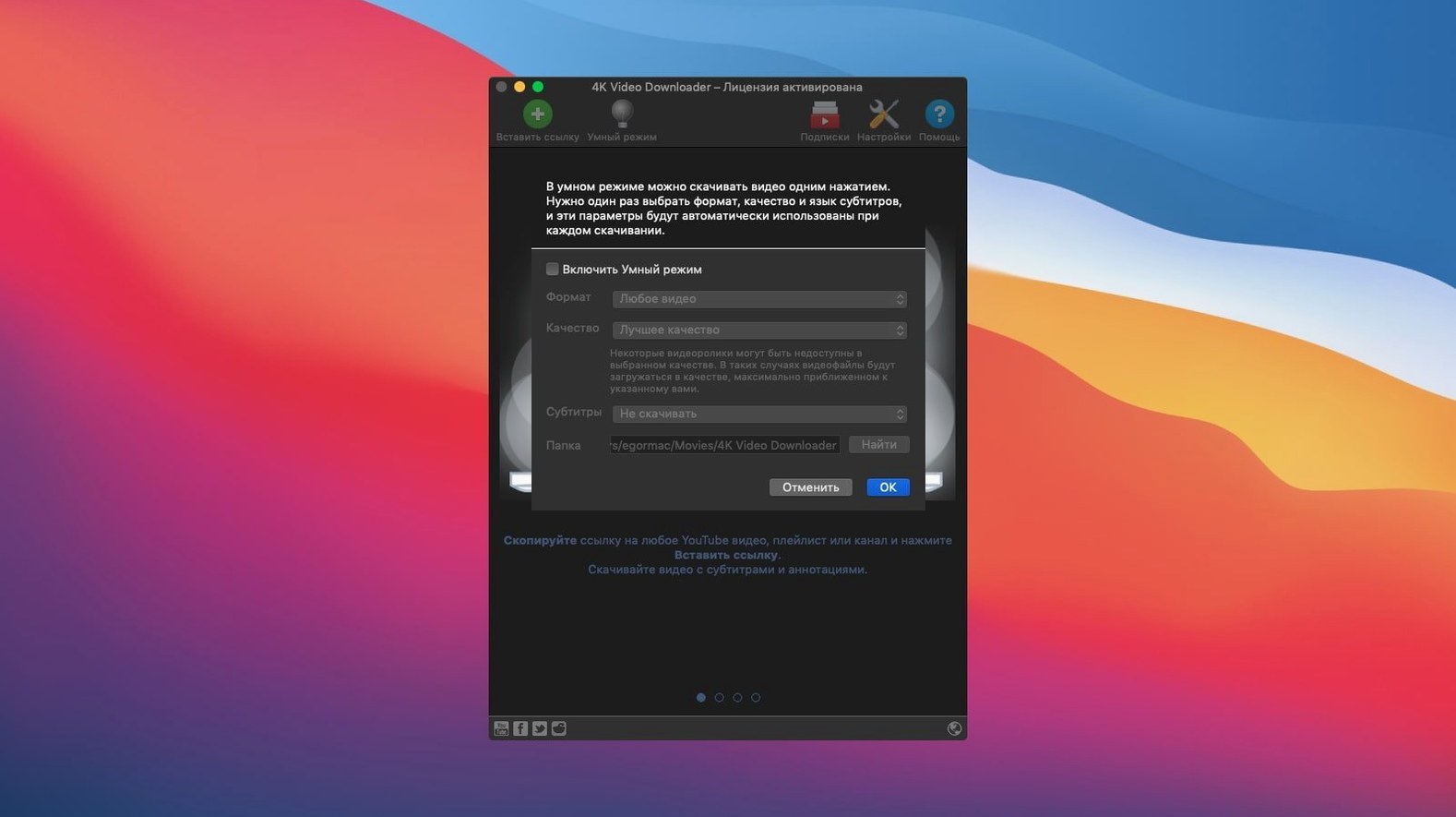
Smart Mode — A set-and-forget toggle that locks in your preferred format and quality so every download follows the same rules.
Playlists & Channels — Point the app at a playlist or an entire channel and it queues everything up, optionally writing an M3U file to keep the order intact.
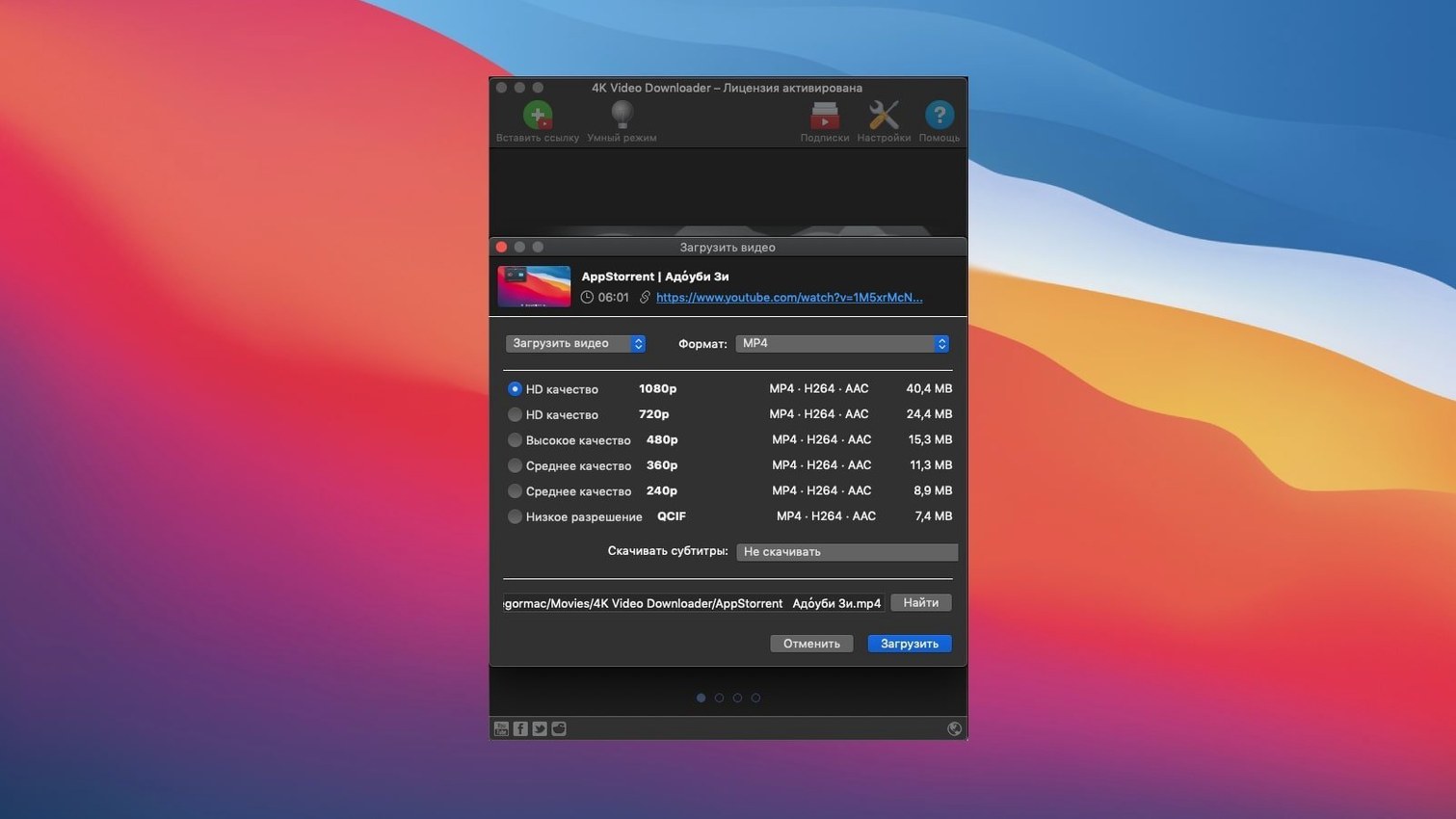
Resolution range — Pulls videos in 1080p, 720p, or true 4K, with 3D video support included for the right source material.
Subtitle handling — Downloads subtitles alongside the video so you are not hunting for an SRT file afterward.
On iPad and iPhone, OpenMedia offers a companion called 4K Video Downloader Plus that covers similar ground for mobile workflows.
It slots into a Mac routine without trying to be a media player itself. Drag a link, let the app fetch the file, and open it in whatever player or editor you already trust. If you keep a library of offline reference clips, footage for a project, or just want a playlist on your drive, the tool does the fetching while your existing apps handle the rest.
Clipboard Watcher and Other Hidden Touches
Most people paste a link and hit download — and that works fine. But there are half a dozen tiny features tucked into the interface that you won't notice until someone points them out.
The clipboard watcher is the one I wish I'd turned on sooner. Once enabled in preferences, any supported video URL you copy anywhere on your Mac triggers a small download prompt. You don't even need the app in front of you. Copy a YouTube link in Safari, switch back to your spreadsheet, and a notification appears in the corner asking if you want to grab it. It feels like a system feature after a while.
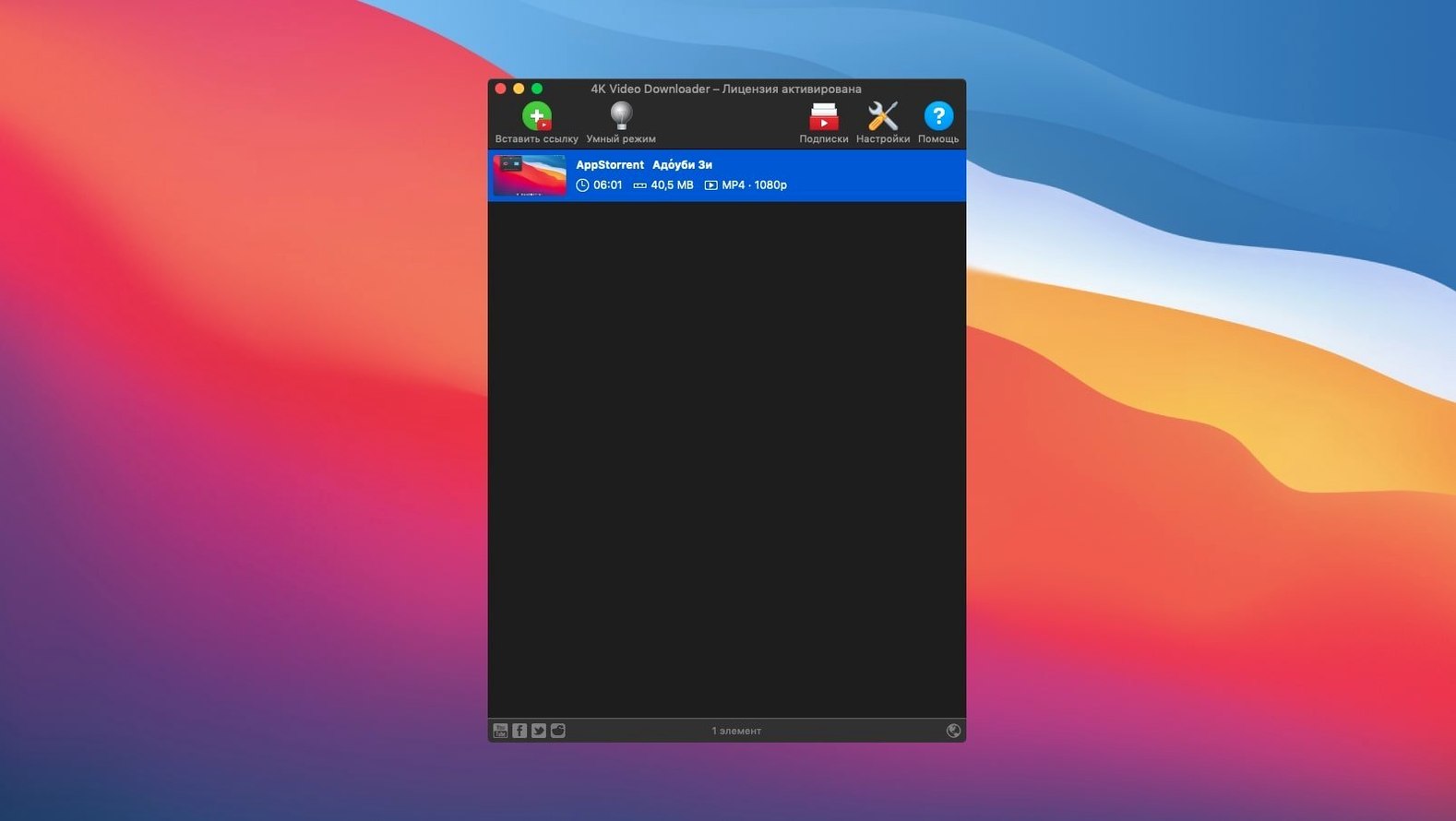
Another gem: you can pause and resume individual items inside a multi-video queue without touching the rest. If a playlist has a three-hour documentary mixed in with five short clips, pause the big one, let the small ones finish, then resume it overnight. Right-click any item in the download list and the pause option sits right there.
The Paste URL keyboard shortcut (⌘V while the app is active) skips the button entirely. And if you set a default download folder per-category — one folder for music, another for video projects — 4K Video Downloader + remembers your last-used location per format type, so MP3 rips don't end up scattered across your desktop.
There's also a subtle drag-and-drop reorder in the queue. Not every download manager lets you reshuffle items after they're queued, but here you can drag a priority video to the top mid-session and it bumps ahead of everything else without canceling or restarting anything.
Mac-Native Feel vs. JDownloader’s Bulk
Three other apps tend to come up in the same conversation: Downie, JDownloader, and ClipGrab. They all grab videos, but they approach the job differently.
Downie feels more Mac-native. It lives quietly in the menu bar, has a smaller footprint, and supports a staggering number of niche sites. But it doesn't handle full YouTube channels the way 4K Video Downloader does — you get single videos or playlists, not an entire channel's backlog queued in one shot. If you're archiving a creator's whole body of work, Downie makes you work harder.
JDownloader is the power-user beast. It captures links from almost anywhere, handles captchas, and can download from file hosters that 4K Video Downloader won't touch. But the interface is busy, it runs on Java, and it feels like a tool from another era. For quick video grabs, it's overkill. 4K Video Downloader stays focused on one job, and the interface reflects that.
ClipGrab is lightweight and free, with built-in format conversion. It works well for one-off downloads. The trade-off is that it lacks Smart Mode, playlist handling is basic, and 4K pulls aren't as reliable. It's a good backup, but not something you'd build a daily workflow around.
Where 4K Video Downloader lands squarely in the middle: more capable than ClipGrab for bulk work, less sprawling than JDownloader, and better suited to channel-level downloads than Downie. If you regularly save playlists or want a consistent format preset across every download, it's the most comfortable fit of the bunch.
Smart Mode Misdirects That Flood Your Music Folder
The most common slip-up: pasting a URL without checking what Smart Mode is set to. Someone downloads an entire playlist expecting 4K MP4s, only to find forty MP3s in their music folder because Smart Mode was left on "Extract Audio" from a previous session. The setting sits quietly in the toolbar, easy to overlook. Make it a habit to glance at the Smart Mode icon before you paste anything.
Another mistake is downloading private or unlisted playlists without realizing the app needs you to be logged in via the built-in browser for those to work. The download starts, fails silently, and people assume the video just isn't supported. If a link doesn't resolve, check whether it requires authentication — the in-app browser handles the login session.
Beginners also tend to queue a hundred-video channel overnight without adjusting the simultaneous download count. By default the app processes a few in parallel, which is fine for short clips. But with long 4K files, that can saturate a home connection and leave half the queue stalled. Dropping the concurrent downloads to one or two in preferences keeps things tidy and avoids rate-limiting from the source.
One more: people ignore the output format's subtitle embedding rules. MP4 files can embed subtitles directly; MKV can too, but not every player reads them the same way. If you plan to watch on an Apple TV or an older smart TV, test a short clip first with embedded subtitles before downloading an entire series and discovering the captions don't display.
Turn On Clipboard Monitoring and Set Per-Format Folders
- Turn on the clipboard monitor. It's off by default, and once it's on, you'll wonder why. The prompt is unobtrusive and saves the step of switching to the app window every time.
- Set a dedicated download folder per format. Under preferences, you can separate video and audio downloads into different directories. Music goes to a folder synced with your DJ library; video projects land on an external drive. It removes the need for manual sorting later.
- Adjust the post-download action. You can set the app to remove completed items from the queue automatically, or keep them listed so you can review what finished. If you download in bursts, clearing the list automatically keeps the window clean.
- Tweak the subtitle language preference. By default, it grabs whatever the source offers first. If you always want English subtitles — or always want them embedded — set that once in Smart Mode and stop adjusting per-video.
- Lower the parallel download count. For large 4K files or spotty connections, one or two simultaneous downloads is more stable and less likely to trigger server-side throttling.
6–8% CPU with Five Parallel 1080p Downloads
On an older Intel Mac with macOS 12, the app stays surprisingly lightweight. With five videos downloading in parallel at 1080p, CPU usage hovers around 6–8%, and memory sits under 400 MB. It's not going to crowd out Final Cut or Logic, and it handles being backgrounded well. I've left it running alongside a full Adobe suite without noticing a hiccup.
Download speed depends more on the source server than the app itself, but the app doesn't artificially cap throughput. A single 4K video over a fast connection saturates available bandwidth just fine. Where it gets sluggish is parsing very large channels — a channel with 800 videos takes a noticeable minute to resolve the full list, and the interface freezes briefly during that fetch. It's a one-time delay per channel, not a recurring pain, but worth knowing if you're bulk-archiving a prolific creator.
Stability over long sessions is solid. I've queued 200+ items, walked away for a weekend, and come back to a completed list with no crashes. Occasionally a single video fails — usually due to a geo-restriction or an age-gated link — and the app marks it red and moves on without stalling the rest of the queue. That resilience matters when you're not babysitting the machine.
One small quirk: the app doesn't always play nicely with aggressive VPN switches mid-download. If your connection changes IP, some in-progress downloads pause and need a manual resume. It's not a dealbreaker, but if you hop between VPN endpoints frequently, expect to tap the resume button now and then.
For a tool that handles 4K streams, parses playlists, and extracts audio on the fly, the resource footprint stays modest. It's the kind of app you install once, configure for five minutes, and then mostly forget about — until you need an offline copy of something and it's already sitting in your downloads folder.
- macOS 12 or later
- Intel 64-bit processor
Questions people ask
Can 4K Video Downloader save an entire YouTube channel?
Yes, you can point it at a channel URL and it will download every video in the list.
What audio formats does the app support?
It extracts audio from videos and saves it as a standalone file inside the download package.
Is 4K Video Downloader a video player?
No, it is strictly a downloader — you open the saved files in the media player you already use.
Also on readers' docks
Sign in or create an account to leave a comment.
No comments yet. Tell me how it got on with your other devices.
More in Mac Apps
See all 1Password
7.9.4 Mac Apps
70 MB
1Password
7.9.4 Mac Apps
70 MB
 4K YouTube to MP3
26.3.5 Mac Apps
218 MB
4K YouTube to MP3
26.3.5 Mac Apps
218 MB
 Updated A Better Finder Attributes
7.53 Mac Apps
13 MB
Updated A Better Finder Attributes
7.53 Mac Apps
13 MB
 A Better Finder Rename
12.36 Mac Apps
16 MB
A Better Finder Rename
12.36 Mac Apps
16 MB
 ACDSee Photo Studio
26.0.3 Mac Apps
441 MB
ACDSee Photo Studio
26.0.3 Mac Apps
441 MB
 Updated Adguard
2.20.2.2629 Mac Apps
3 MB
Updated Adguard
2.20.2.2629 Mac Apps
3 MB
 Adobe After Effects
26.5.0 Mac Apps
8.8 GB
Adobe After Effects
26.5.0 Mac Apps
8.8 GB
 Adobe Animate
24.0.15 Mac Apps
6.5 GB
Adobe Animate
24.0.15 Mac Apps
6.5 GB