









Download ACDSee Photo Studio for macOS
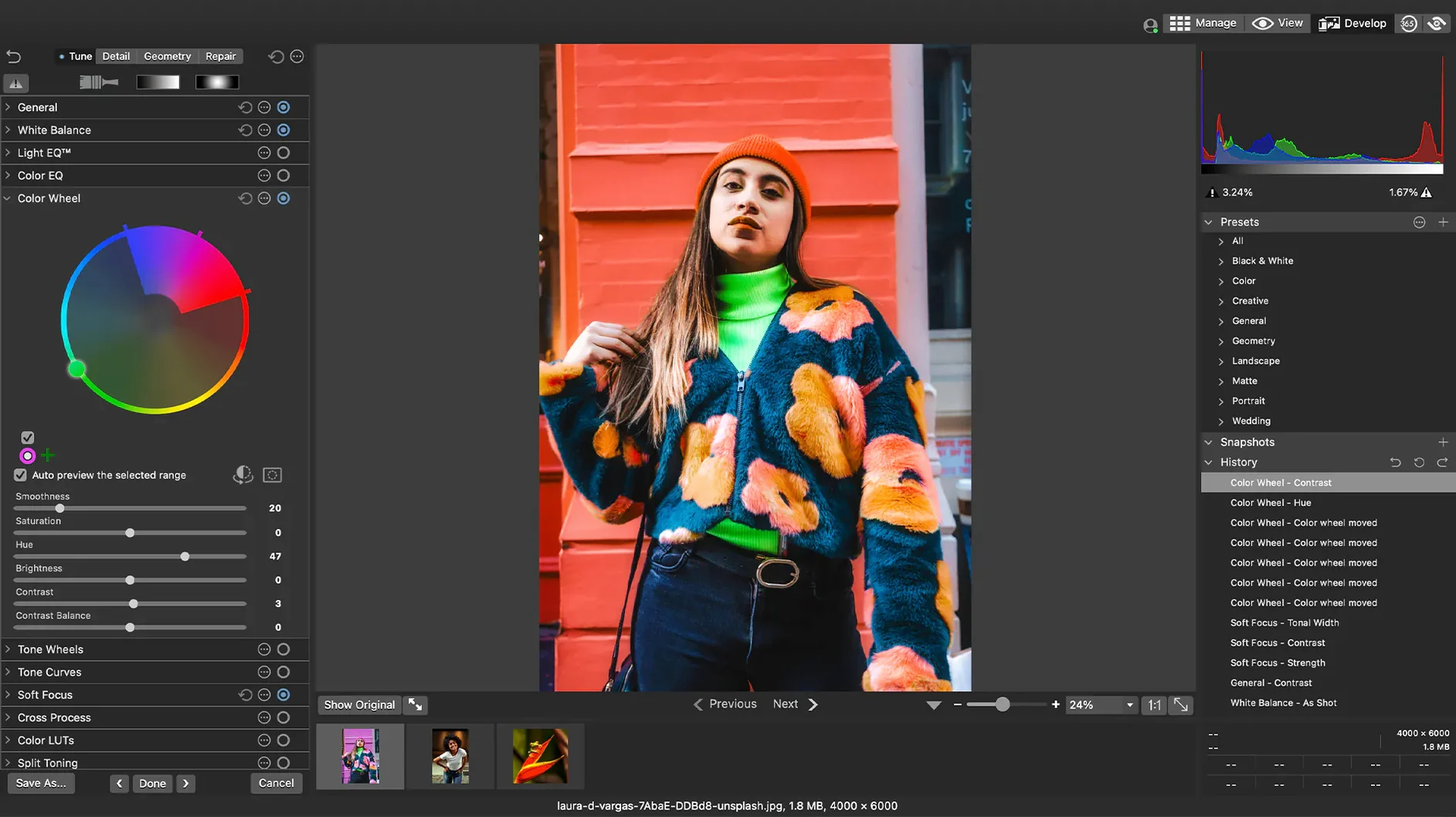
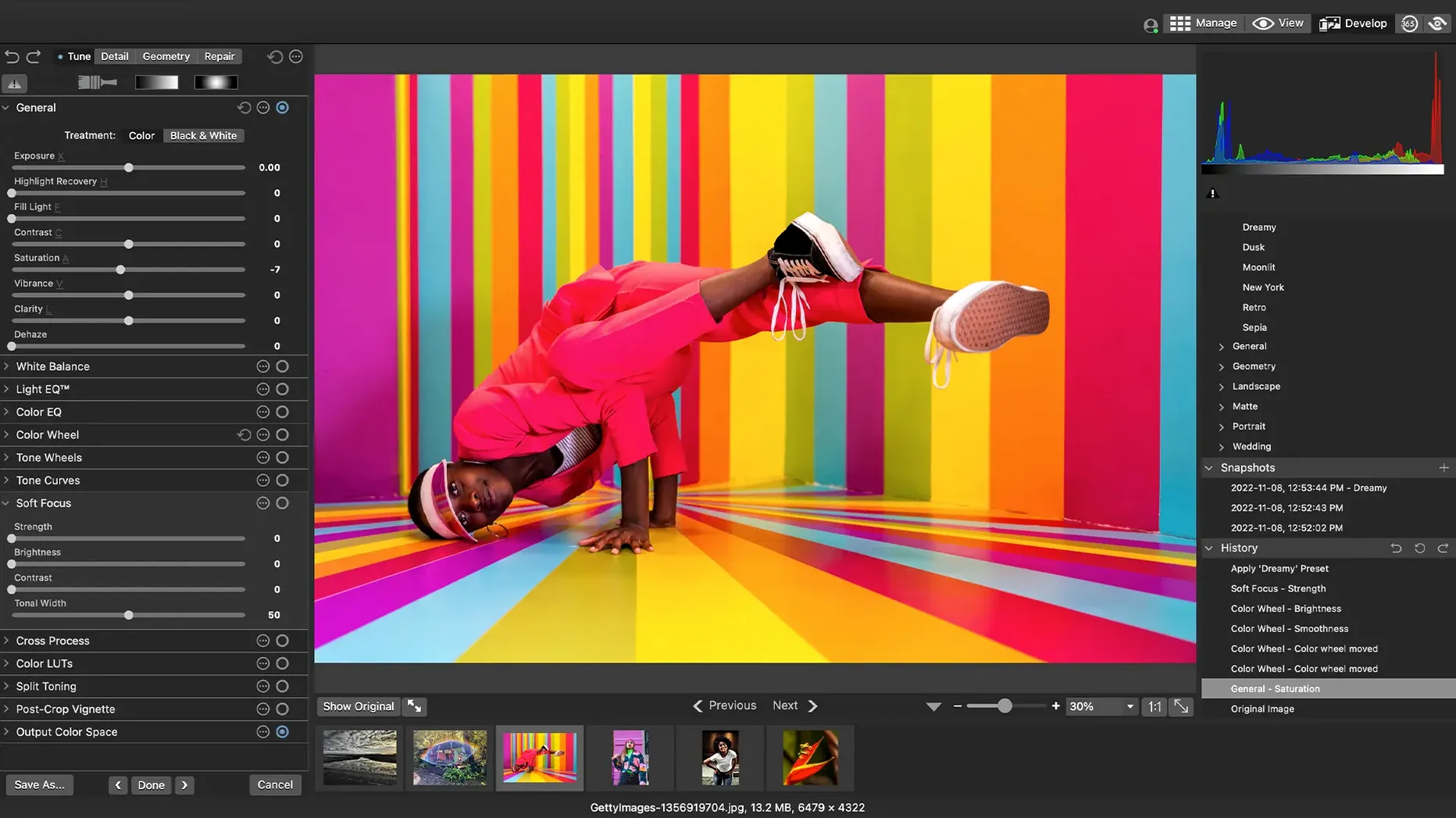
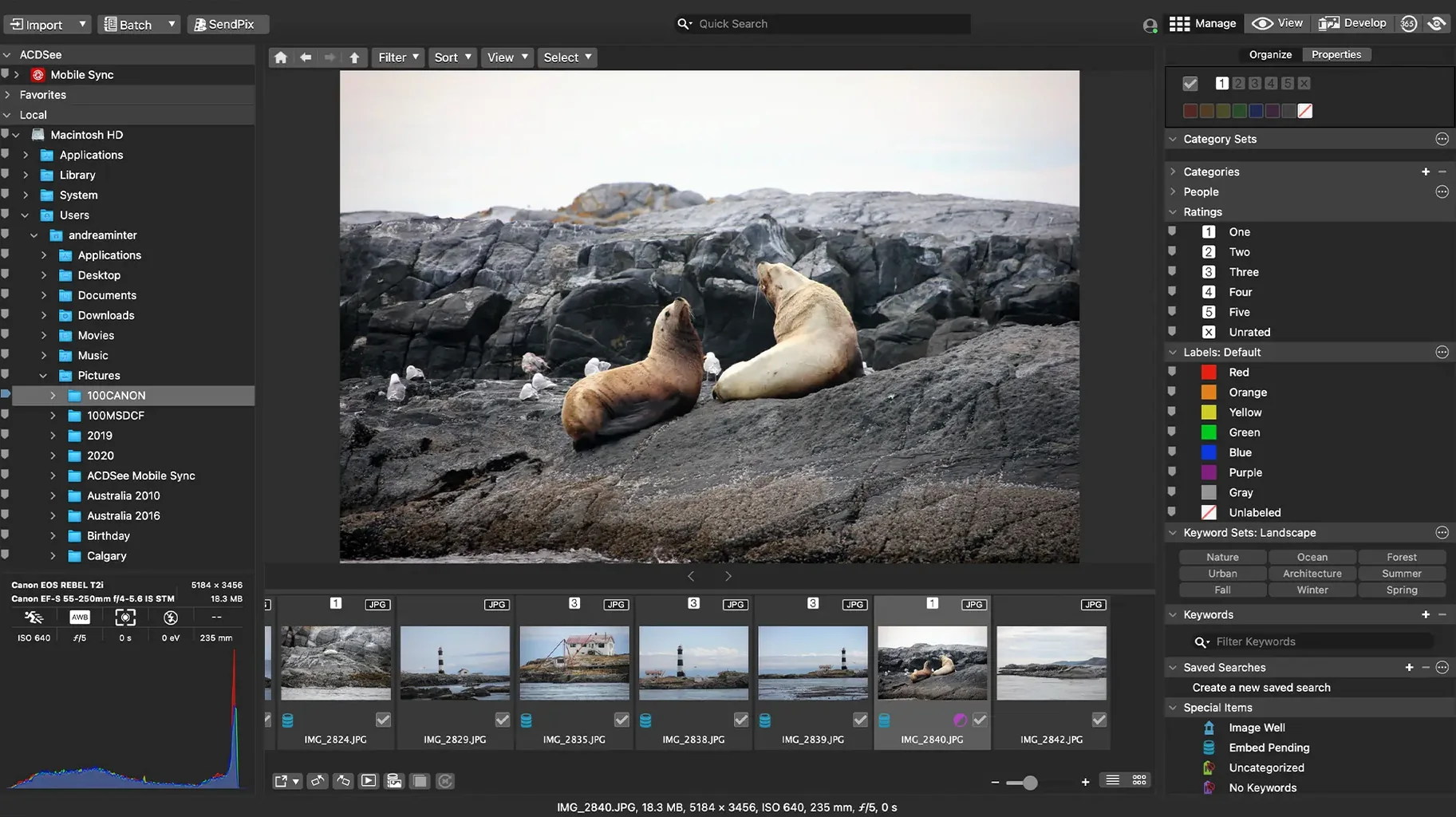
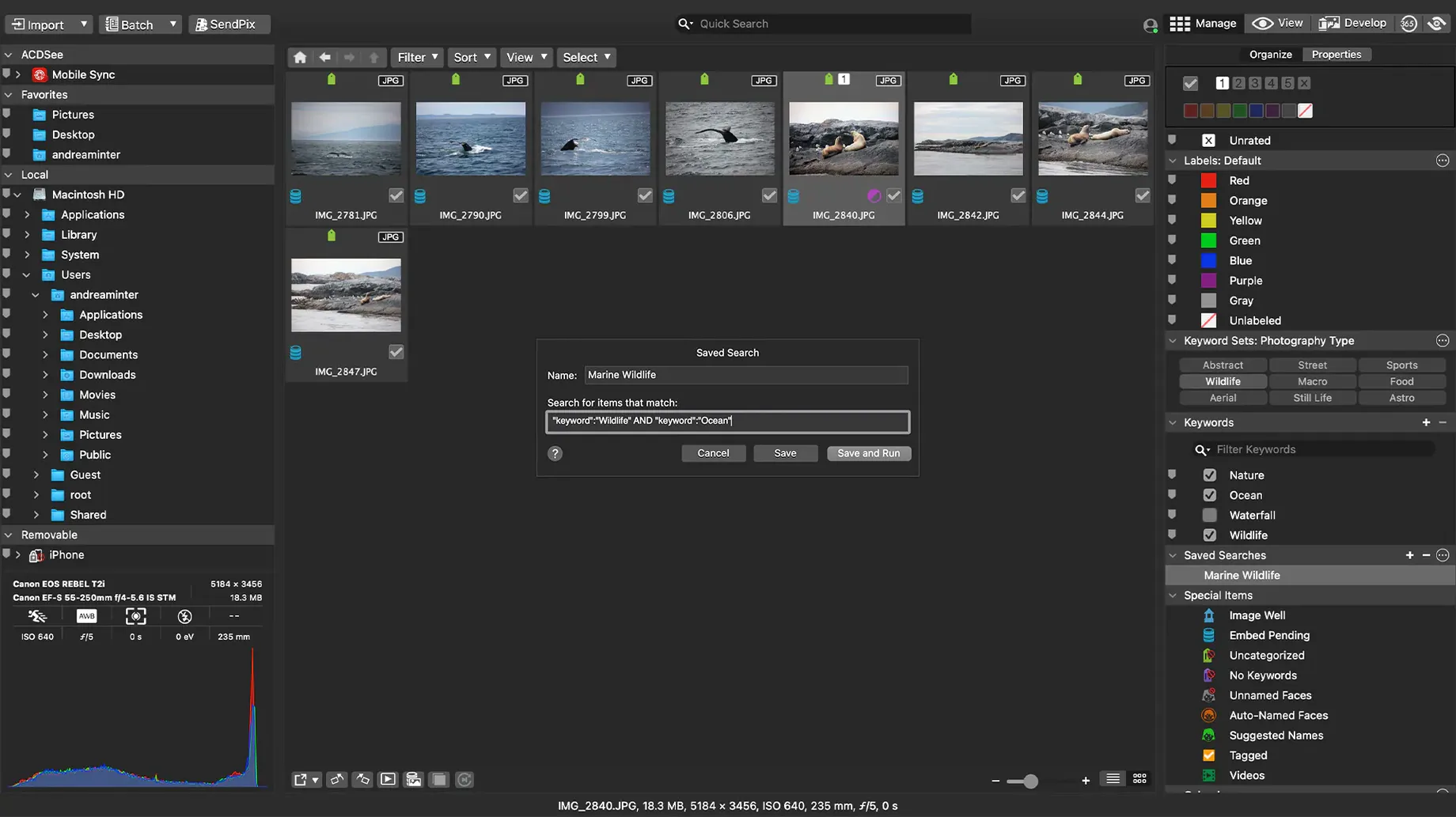
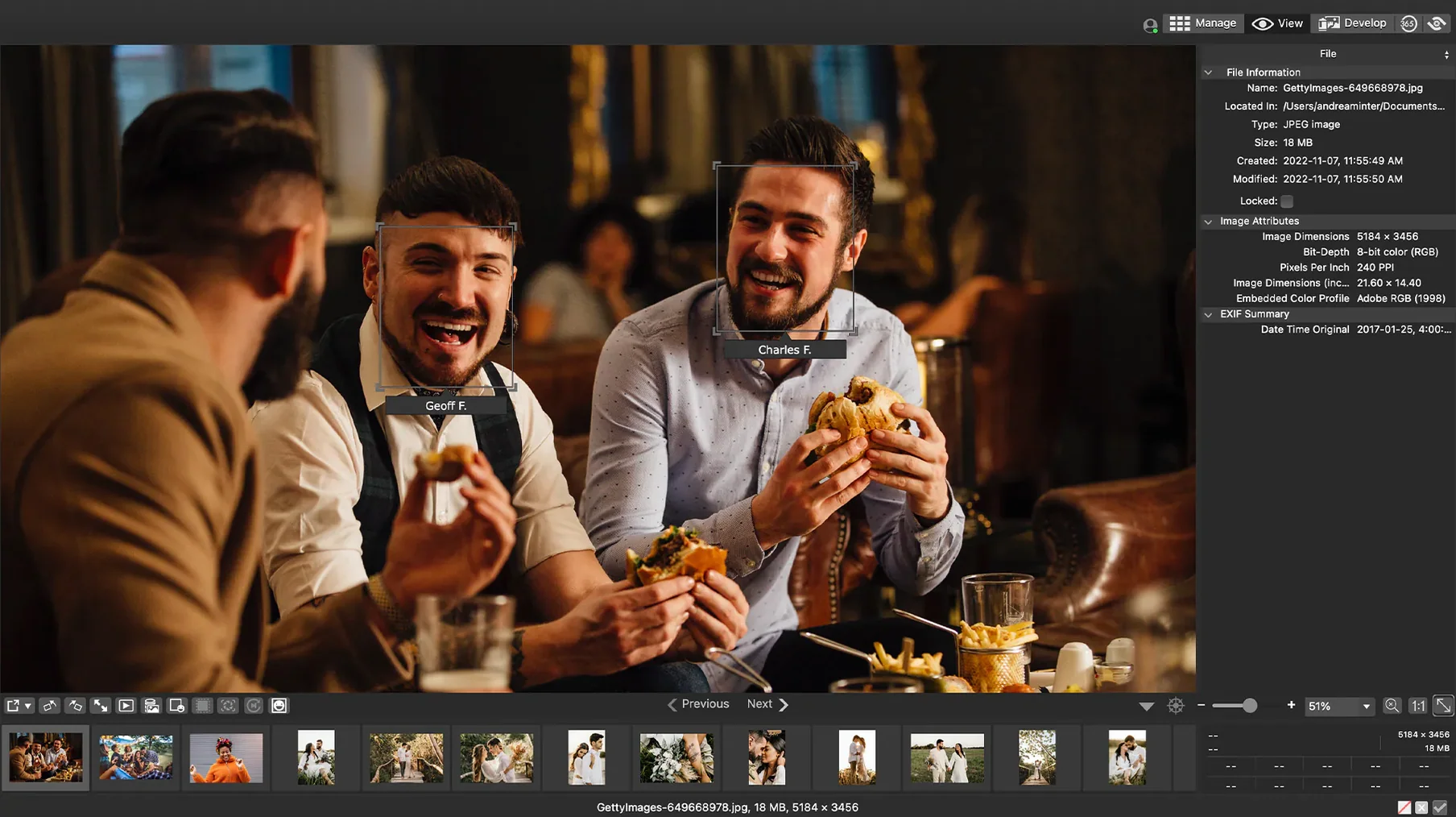
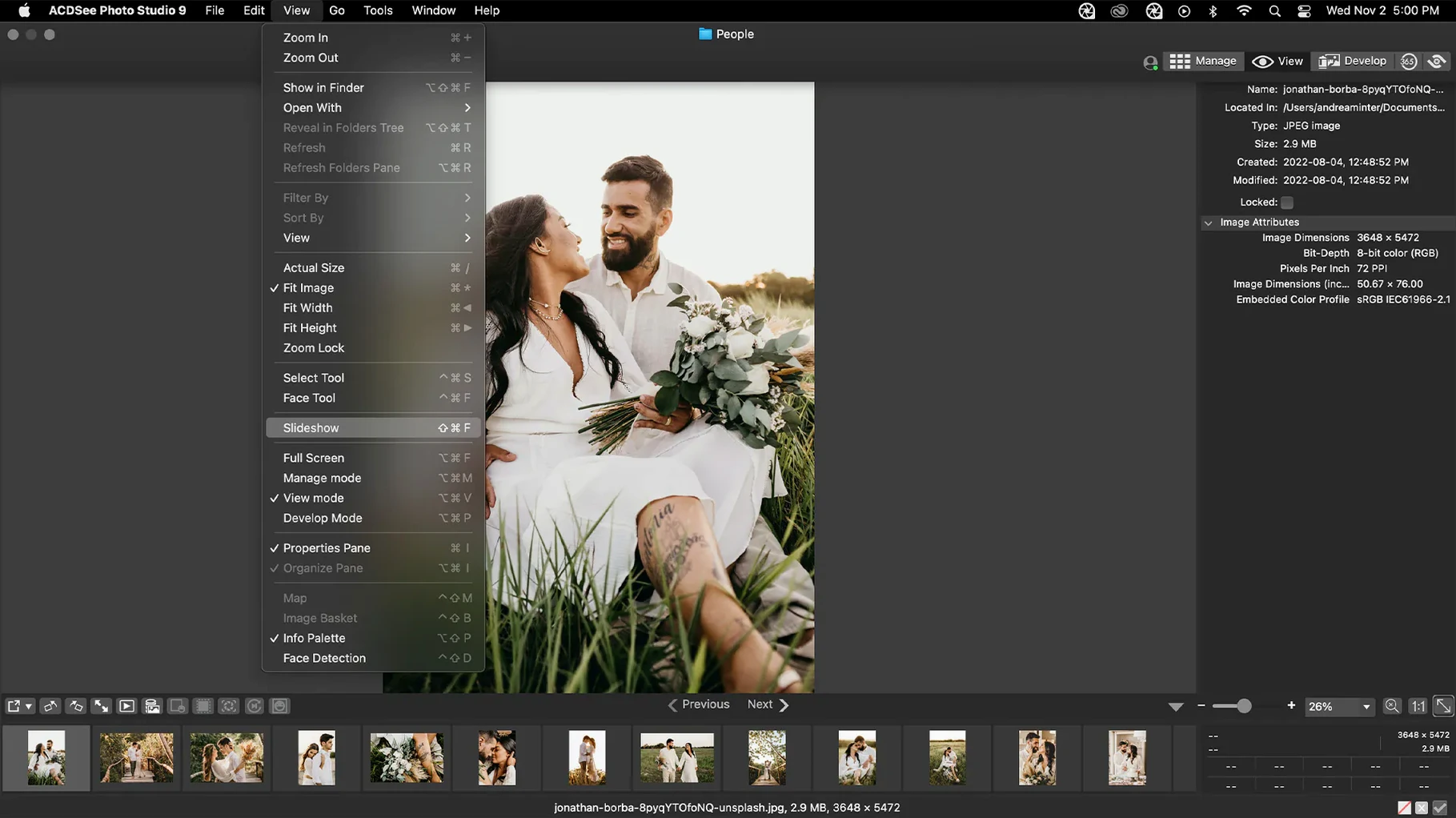
ACDSee Photo Studio finds its footing with photographers who come home to a card full of shots and want to cull, organize, and develop them in one place. It’s a photo management and editing app built for macOS that leans hard into cataloging without forcing you into a locked-in library.
Sort, rate, and find thousands of photos fast
- Sorting large folders by date, camera, or custom categories fast.
- Assigning keywords and ratings to keep client work or personal collections searchable.
- Developing RAW files from over 450 camera models — exposure, clarity, color, and noise controls sit right in the Develop panel.
- Hunting down duplicate files to reclaim drive space before editing even starts.
- Running natively on Apple Silicon and Intel Macs under macOS 14 or later.
Heavy batch processing and a busy interface
- Some adjustments lean on CPU horsepower — batch processing large RAW sets can feel heavier than on optimized competitors.
- The interface is dense with panels and tabs, which rewards familiarity but looks busy on a first launch.
- There isn't a companion iPad or iPhone app, so mobile culling needs a different workflow.
Stayed steady through a week of culling and duplicate hunts
After a week of daily use — culling a thousand travel shots, developing a batch of high-ISO RAW files, and letting the duplicate finder loose on a messy external drive — the app held its ground. Launching ACDSee Photo Studio is snappy on an Apple Silicon Mac, and browsing a folder of 45-megapixel RAW files felt fluid, with thumbnails popping in fast enough that I forgot I was waiting. The real test came when I queued up 60 RAW files with exposure tweaks, lens corrections, and a light sharpening preset. It took its time, and the fans spun up once or twice, but no beachballs interrupted the batch. Memory pressure stayed moderate, hovering around 1.5 GB during the run, which left plenty of room for a browser and a chat app in the background.
Stability was boringly good — and I mean that as a compliment. The 26.0.3 release patched a crash tied to adding keywords in a specific scenario, and in my use, tagging sessions stayed uneventful. iCloud integration, which had been a sore spot in earlier builds, now behaved: photos stored in iCloud Drive showed up without ghosted thumbnails or permission hiccups. One quirk I noticed is that closing the app while a batch export runs can leave a background process alive for a few seconds, so I learned to let it finish on its own. For a catalog app that handles tens of thousands of images, the resource footprint feels reasonable — not featherweight, but never bloated either.
Bridge’s Adobe ties versus XnView’s no-cost flexibility
Placing ACDSee Photo Studio on a shelf beside Adobe Bridge and XnView MP brings out distinct trade-offs. Bridge ties beautifully into the Adobe ecosystem — jump from browsing to Camera Raw or Photoshop in one click — but its standalone photo management feels less opinionated. ACDSee puts cataloging front and center, with ratings, categories, and batch presets living inside the same window rather than spread across an ecosystem. For a photographer who wants a self-contained workshop, ACDSee feels more cohesive.
XnView MP comes closest in spirit: a fast cross-platform browser that reads nearly any format and demands fewer system resources. Where ACDSee pulls ahead is in polish and depth. The Develop panel’s clarity and noise controls are genuinely useful, not checkbox features, and the duplicate finder includes visual comparison tools XnView lacks. On the flip side, XnView MP is leaner and feels quicker when you just need to flip through folders without any cataloging overhead. iCloud integration gives ACDSee an edge for Mac-only households — XnView treats cloud-synced folders as plain directories and can stumble on file availability if the file hasn’t been downloaded locally. If your workflow lives entirely inside macOS, ACDSee feels more native; if you split time across Windows and Linux too, XnView’s consistency across platforms matters more.
Compared to Adobe Lightroom Classic, ACDSee is the less opinionated sibling. Lightroom wants your whole library inside its catalog, with import presets and cloud sync woven into the experience. ACDSee Photo Studio lets you browse folders wherever they sit — on an external drive, in iCloud, on a network share — without importing first. That lower commitment is freeing for casual shoots, though Lightroom’s editing tools, especially masking and AI denoise, are a generation ahead of what ACDSee offers. For organization alone, ACDSee holds its own; for heavy editing, it’s a capable first draft rather than a full darkroom.
Skip the delete confirmation to speed up culling
A few minutes in preferences made the daily rhythm much smoother for me:
- Turn off “Confirm file delete” in Manage mode. The default nag dialog slows down culling sessions. If you trust your rejects, switching it off saves a click per deletion.
- Set the default sort to “Date created” instead of “Name.” Most folders make more sense chronologically, and this small change keeps import folders in shooting order.
- Customize the Quick Search bar. Drag-and-drop search is handy, but the default fields are broad. Narrow it to “Filename” and “Keywords” for snappier results when you know what you’re looking for.
- Adjust thumbnail caching to “High quality.” On a Mac with decent RAM, the crisper thumbnails save you from zooming in as often during first-pass culling.
- Map the “Develop” shortcut to a single key. I set mine to
D, mirroring muscle memory from other editors, and jumping between Manage and Develop modes became instant.
- Fixed a crash that could happen when adding a new keyword or category.
- Clicking away from a new keyword or category now correctly stops editing instead of leaving the field hanging.
- RAW file ratings now read accurately in scenarios where they were previously misread.
- iCloud integration got a stability fix.
- macOS 14.0 or later
- Apple Silicon or Intel Mac
Questions people ask
Does ACDSee Photo Studio handle iCloud photo libraries?
It works with locally stored folders rather than packaging everything into its own library, and version 26.0.3 fixed an iCloud integration issue so referencing cloud-synced folders is smoother now.
What’s the RAW editing like compared to a dedicated converter?
You get direct controls for exposure, clarity, sharpness, lighting, color, noise, and detail without round-tripping to another app — it’s built for photographers who want to stay in one tool from import to export.
Also on readers' docks
Sign in or create an account to leave a comment.
No comments yet. Tell me how it got on with your other devices.
More in Mac Apps
See all Updated Adguard
2.20.2.2629 Mac Apps
3 MB
Updated Adguard
2.20.2.2629 Mac Apps
3 MB
 A Better Finder Rename
12.36 Mac Apps
16 MB
A Better Finder Rename
12.36 Mac Apps
16 MB
 Adobe After Effects
26.5.0 Mac Apps
8.8 GB
Adobe After Effects
26.5.0 Mac Apps
8.8 GB
 Updated A Better Finder Attributes
7.53 Mac Apps
13 MB
Updated A Better Finder Attributes
7.53 Mac Apps
13 MB
 Adobe Animate
24.0.15 Mac Apps
6.5 GB
Adobe Animate
24.0.15 Mac Apps
6.5 GB
 4K YouTube to MP3
26.3.5 Mac Apps
218 MB
4K YouTube to MP3
26.3.5 Mac Apps
218 MB
 Adobe Bridge
16.0.8 Mac Apps
3.7 GB
Adobe Bridge
16.0.8 Mac Apps
3.7 GB
 4K Video Downloader
26.3.5 Mac Apps
247 MB
4K Video Downloader
26.3.5 Mac Apps
247 MB