









Download MotionVFX mModules for macOS
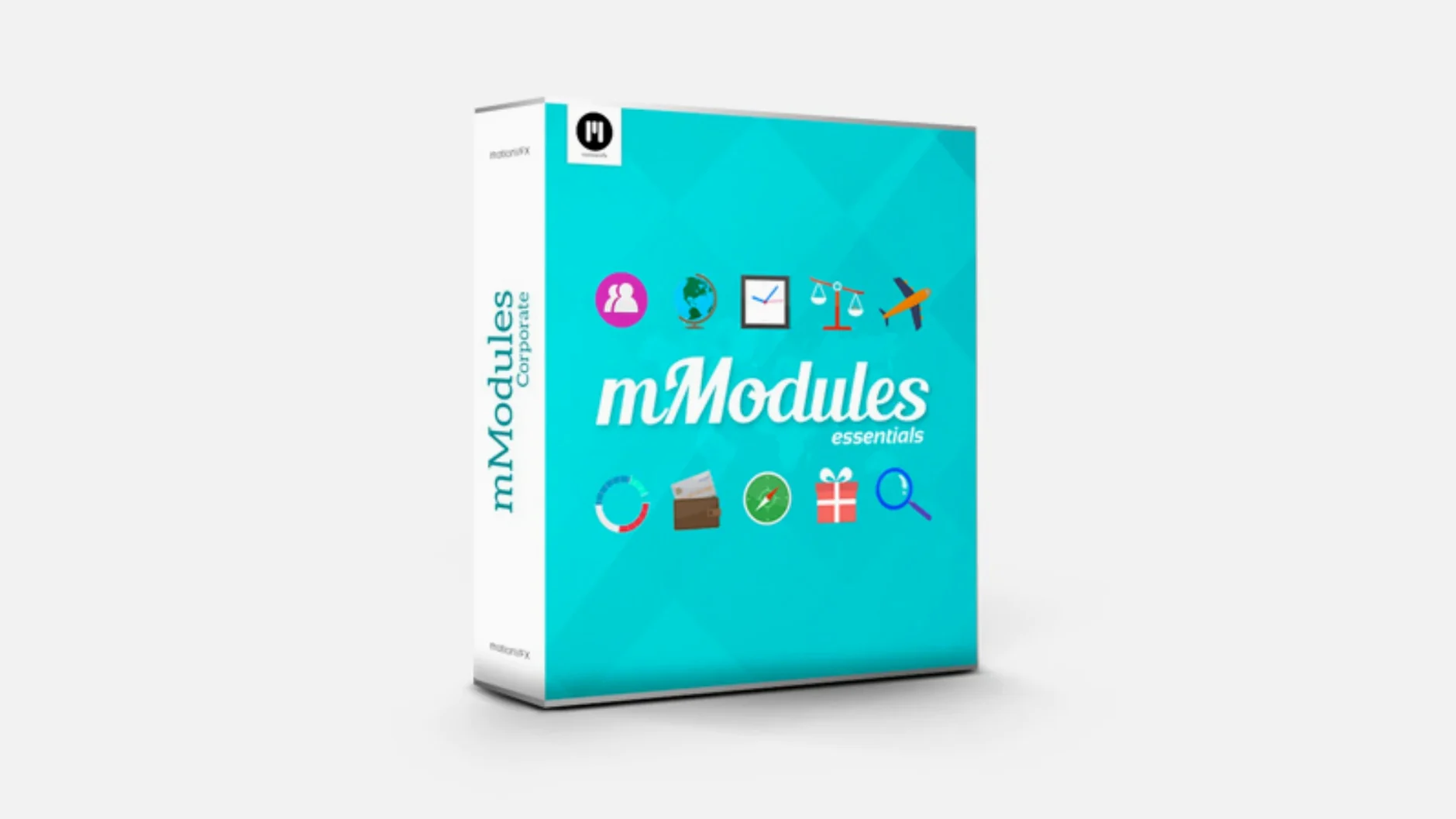
Editors who live in Final Cut Pro's timeline and would rather not bounce over to Motion for every lower third or transition flourish. mModules slides right into that workflow. It's a pack of 60 pre-built elements—call them titles, call them graphics—that live in your Titles Browser.
Where these fit in a session
- Quick titles and lower thirds — Grab a styled module, type your text, and you're out.
- Background accents and transitions — Small animated shapes that fill gaps between clips without feeling like stock.
- Info-graphic hits — Short animated bursts for highlighting a stat or a price on screen.
Buses and routing
No extra buses or complex routing to think about. mModules drop onto any track above your footage, just like a built-in FCPX title. Adjust text, colors, and timing right in the inspector. For editors cutting corporate recaps, YouTube episodes, or event highlights, that's the whole appeal—60 graphics that behave like native FCPX tools.
Who clicks with mModules right away
Not every editor needs a pack of 60 pre-built elements—but some live inside Final Cut Pro so deeply that a dedicated trip to Motion feels like switching apps mid-sentence. Those editors get the most mileage here. Corporate video folks cutting training modules or internal comms love pulling a clean lower third without building one from scratch. YouTube creators who publish weekly see mModules as a way to keep motion style consistent across episodes without re-animating intros or accent shapes every time. Wedding and event editors, often working under brutal turnaround pressure, tend to reach for the info-graphic hits and background accents when the timeline is tight and a client expects polish.
If you're already comfortable tweaking parameters in the FCPX inspector—text, color, scale, timing—these modules feel like extensions of the app itself. There's no new panel to learn. But if you're the kind of editor who builds everything from a blank Motion canvas and prefers custom keyframes on every single element, mModules may feel more like a starting-point library than a finished-toolbox. That's fine. It's aimed at speed, not deep customization.
No Extra License Manager Required
A handful of the same worries come up when someone considers dropping a motionVFX pack into their templates folder. Here's what's usually on their mind.
"Does this need a separate license manager or activation?" No. That's one of the quiet selling points. You unpack the archive and move the contents to your Motion Templates folder. Final Cut Pro finds them on the next launch. No serial number, no online check-in. The plugin sits there ready in the Titles Browser under the motionVFX category, and sometimes in the Generators Browser too, depending on the element type.
"Will these slow down my playback?" Most of these elements are lightweight enough to play back smoothly on Apple Silicon machines without heavy pre-rendering. A few of the more animated shapes may benefit from a quick render if your timeline is already stacked with effects, but they're not the kind of template that brings an M1 to its knees. Editors working on Intel Macs with integrated graphics might see a little more beachball when stacking several modules on top of graded 4K footage—nothing unusual for FCPX templates in general.
"Can I share projects with someone who doesn't own mModules?" Only if you export a finished file. Since the elements live in your local Motion Templates directory, they're not embedded in the library in a way that travels. A collaborator without the pack installed will see a missing-plugin warning. The fix is either rendering that section to a ProRes clip before sharing or making sure both machines have the same template folder contents.
Drag-and-Drop Text Replacement Hidden in the Inspector
Once the pack is sitting in /Users/Your User Name/Movies/Motion Templates/Titles, Final Cut Pro organizes them under the motionVFX category, but the real time-savers aren't always obvious. Here are a few worth knowing.
- Drag-and-drop text replacement. Instead of clicking into the inspector to retype, drag a text layer from the viewer onto a module's placeholder and watch it snap in. Works with many of the title-style elements.
- Color picker consistency. Most modules expose a single color well in the inspector. Changing it once ripples through the entire element, so you're not hunting down three separate fills inside a single lower third.
- Placeholder scaling. Several modules include a scale slider that affects the whole graphic proportionally—handy when you need the same shape smaller for a corner bug rather than a full-width accent.
- Generators Browser overlap. Don't just check the Titles sidebar. Some accent and background elements appear under Generators too, which can be faster if you're building backgrounds rather than text-driven graphics.
- Blend mode stacking. A few of the animated shapes react well to blend mode changes—try Screen or Overlay on a dark background for a less "template-y" look without touching keyframes.
Missing in the Browser After Moving Files
Most hiccups trace back to one of three things: the folder path, a restart that didn't happen, or a misunderstanding about which browser holds which element.
"I moved the files but nothing shows up." The first thing to double-check is the path. It needs to be /Users/Your User Name/Movies/Motion Templates/Titles—not a subfolder inside that, and not the Motion Templates folder one level up. If you unpacked an archive that created its own wrapper folder, you may have accidentally nested things one directory too deep. Move the actual template files directly into Titles, restart Final Cut Pro, and they should appear under motionVFX.
"I see the category but some elements are missing." Remember that mModules splits between the Titles Browser and the Generators Browser. If you're staring at the Titles list and don't see the background accents, switch to Generators and look there. The motionVFX brand label appears in both places, but the contents differ.
"The text field won't accept my font." A few modules ship with system fonts baked into the template defaults. If you pick something obscure, it might not render until you select a font installed on your machine. Stick to fonts you know are active, or open the inspector and explicitly reassign the font family—once reassigned, the module remembers it for the session.
"Final Cut Pro crashes when I apply a module." This is rare but not unheard of after a macOS update that resets plugin caches. A quick fix is deleting the FCPX preferences file (hold Command and Option while launching Final Cut Pro, then confirm the reset), followed by a manual cache clear in /Users/Your User Name/Library/Caches/com.apple.FinalCut. Restart, and the modules should load cleanly. No need to reinstall the pack.
For the curious, plenty of editors search for a motionvfx download or look into whether a motionvfx free download exists; some even chase a motionvfx crack or a motionvfx torrent hoping to sample the elements. The real pack, installed properly, sits quietly in your templates folder and works without activation gymnastics—no crack needed, no torrent headaches.
Also on readers' docks
Sign in or create an account to leave a comment.
No comments yet. Tell me how it got on with your other devices.
More in Final Cut Pro Plugins
See all MotionVFX - mLowers Universal for FCP
Final Cut Pro Plugins
71 MB
MotionVFX - mLowers Universal for FCP
Final Cut Pro Plugins
71 MB
 Motionvfx - mTitle Cinematic
Final Cut Pro Plugins
5 MB
Motionvfx - mTitle Cinematic
Final Cut Pro Plugins
5 MB
 MotionVFX mKBHD
Final Cut Pro Plugins
12 MB
MotionVFX mKBHD
Final Cut Pro Plugins
12 MB
 MotionVFX mInfographics
Final Cut Pro Plugins
8 MB
MotionVFX mInfographics
Final Cut Pro Plugins
8 MB
 FxFactory Pro
9.0.5-8654 Final Cut Pro Plugins
68 MB
FxFactory Pro
9.0.5-8654 Final Cut Pro Plugins
68 MB
 Flicker Free
2.1.6 Final Cut Pro Plugins
24 MB
Flicker Free
2.1.6 Final Cut Pro Plugins
24 MB
 Dehancer Pro
7.3.4 Final Cut Pro Plugins
382 MB
Dehancer Pro
7.3.4 Final Cut Pro Plugins
382 MB
 Color Finale
2.2.8 Final Cut Pro Plugins
35 MB
Color Finale
2.2.8 Final Cut Pro Plugins
35 MB