









Download CorelCAD for macOS
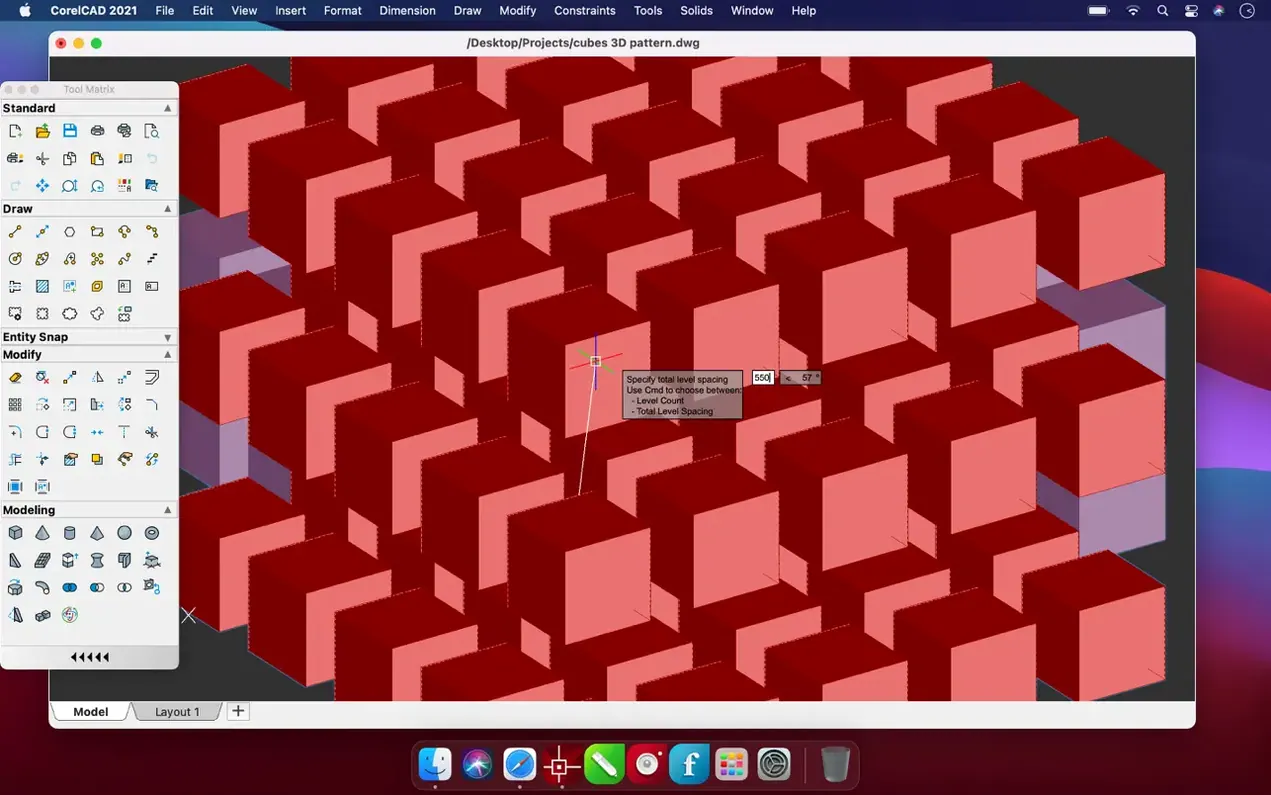
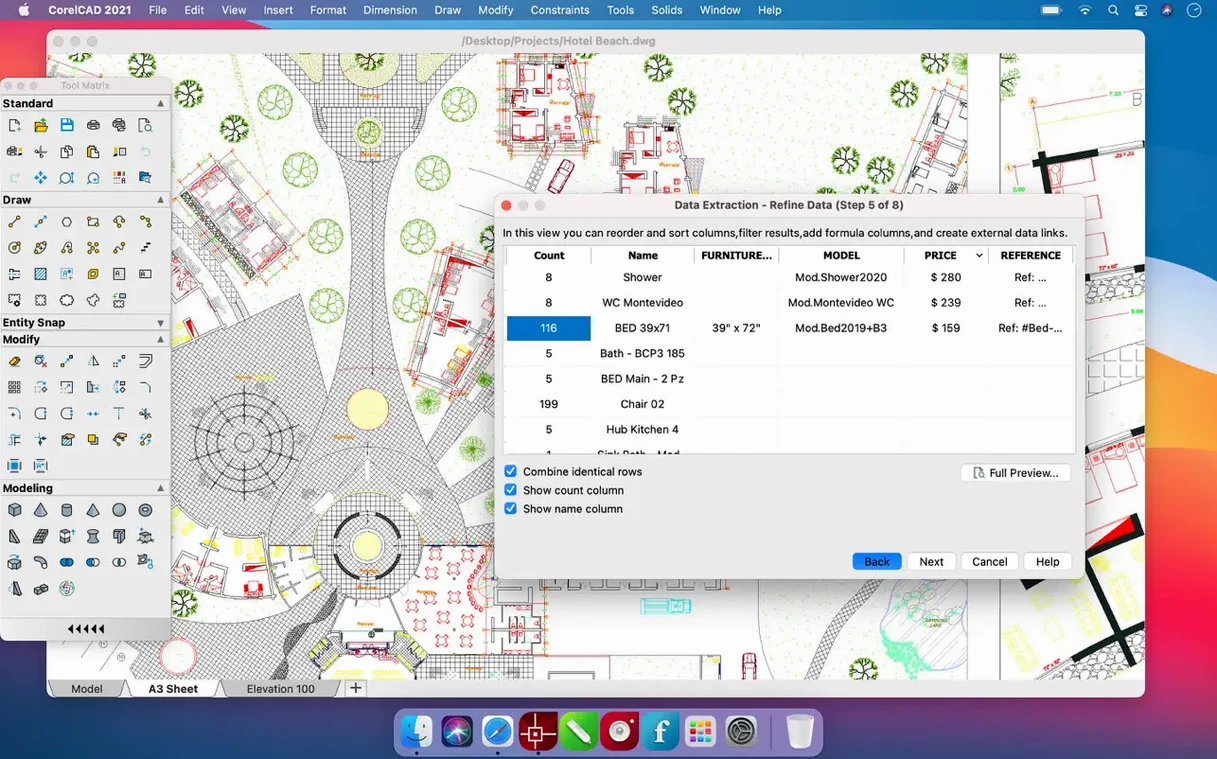
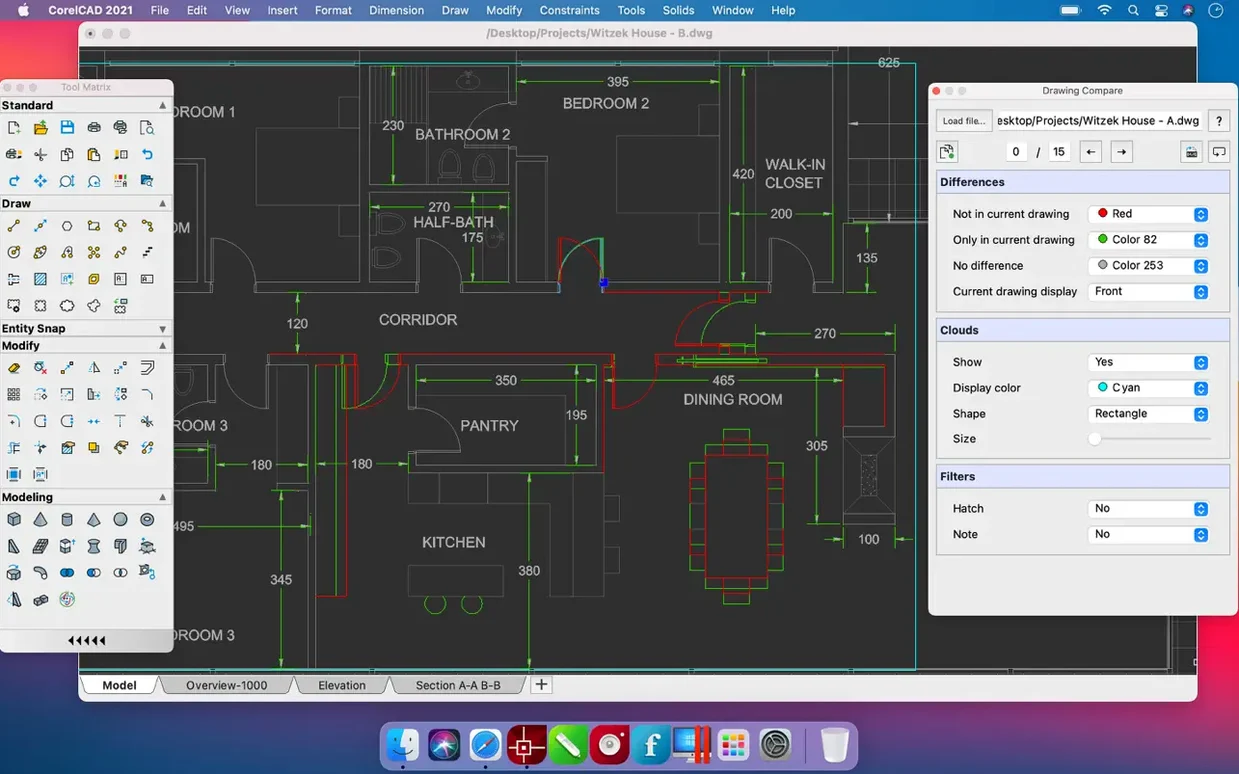
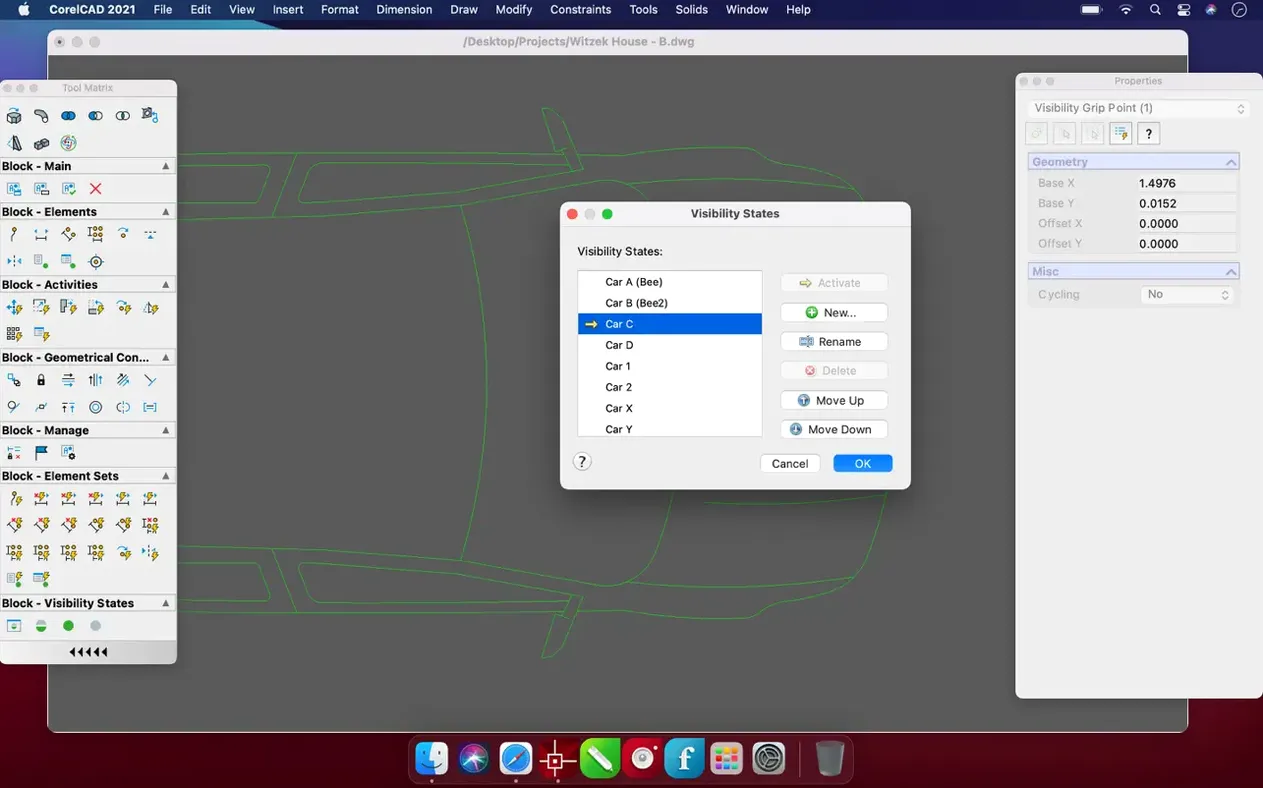
If you've ever wrestled with a sluggish port of a Windows CAD tool, CorelCAD's native Apple Silicon support feels like a proper exhale. It reads and writes the AutoCAD DWG format natively, so files move between teams without a hiccup, but it runs like a true Mac citizen.
Drafting the 2D Floor Plan
I started with a simple floor plan, snapping walls to precise measurements. The tool palette stays out of your way, and the command line—familiar to AutoCAD veterans—lets you type dimensions on the fly without touching the mouse.
Extruding into a 3D Model
With the 2D lines locked in, pushing those walls up into a 3D shell was a single command. Switching views to orbit around the rough structure showed where the window cutouts needed to go, and adjusting them updated the 2D plan views automatically.
Preparing the Model for 3D Printing
Once the volume looked right, I exported an STL file. CorelCAD offers a dedicated set of checks for watertight geometry, so the slicer software downstream didn't choke on any open edges—saving a trip back to the drawing board.
Truly Lossless DWG Round-Trips with AutoCAD
A couple of questions come up over and over when folks first eye CorelCAD. The big one is whether the DWG compatibility is truly lossless. I’ve opened files from AutoCAD 2024, edited them, and sent them back without a single complaint from collaborators — layers, line weights, and sheet set references all survived intact. Another common hang-up is performance on older Intel Macs. The app certainly prefers Apple Silicon, but a well-specced Intel machine from 2018 or later handles midsize drawings without the beachball, especially if you keep the viewport count reasonable and purge unused blocks before heavy orbit sessions.
People also ask about the learning curve. If you cut your teeth on AutoCAD, the transition is measured in hours, not weeks. The command line recognizes the same shorthand — L for line, E for erase, O for offset — and customization files you may already have can often be ported across. Someone coming from a parametric modeler like Fusion 360 will need a mental shift toward explicit geometry, but the direct-editing tools in 3D mode soften that landing considerably.
Sketching Too Far from the Origin Point
The most frequent stumble I see is ignoring the drawing limits. CorelCAD won’t force you to define a workspace boundary, so newcomers sometimes start sketching miles away from the origin point. Later, when they zoom to extents, the drawing shrinks to a speck. Setting limits early and snapping the first line to a known coordinate prevents that head-scratcher.
Another classic misstep is treating layers like folders. Layers in a DWG-based workflow control visibility and plot styles, not object hierarchy. Beginners who dump everything onto Layer 0 and then try to isolate elements with hide or isolate commands end up with a tangled mess. Naming layers by discipline — A-WALL, M-DUCT, E-LIGHT — takes five minutes at the start and saves an hour of cleanup down the road.
On the 3D side, folks often extrude profiles without checking whether the source polyline is closed. The extrusion still renders, but the resulting solid can fail STL export checks or behave oddly during boolean operations. Running the built-in Check tool on 2D geometry before pushing it into the third dimension is a habit worth building early.
No More Selection Lag on Complex Nested Blocks
The 2022.5 update didn’t rewrite the interface, but it smoothed out a handful of friction points. Selection highlighting used to lag slightly when picking complex blocks with nested attributes — that’s gone now, and the grip-editing handles pop up with a responsiveness that makes on-screen adjustments feel direct rather than mushy. Stability improvements are the kind you notice by their absence: session crashes during multi-sheet PDF exports were a rare but real annoyance in prior versions, and I haven’t triggered one yet in this build.
Performance tweaks under the hood mean that refreshing a layout tab with a dozen viewports no longer redraws every single viewport sequentially. The screen updates in one clean pass, which adds up when you’re flipping between paper space and model space to check annotation scaling. For anyone picking up corelcad mac for the first time with this build, the fit and finish is a step above what the version number alone suggests.
Shift–Right-Click Snaps Without Leaving the Mouse
A few right-click tricks speed things up more than you’d expect. Holding Shift while right-clicking brings up the object-snap override menu without taking your left hand off the mouse — great for mid-command snaps when the running object snap settings would grab the wrong point. Double-clicking a viewport border activates model space inside it instantly, and double-clicking outside returns you to paper space, no ribbon hunting required.
The customizable alias file is a quiet gem. If you find yourself typing the full command for Explode or Hatch, you can assign those to two-letter shortcuts in the PGP file stored in the user preferences folder. The syntax matches the AutoCAD alias format, so veterans can drop in their existing file and pick up right where they left off.
One feature that’s easy to overlook is the Quick Select tool, tucked in the Tools menu. It filters objects by type, layer, or color and lets you act on the selection set in one go — isolating all dimensions on a cluttered sheet, for instance. Combine that with the on-screen property palette, and you can adjust text height across an entire drawing without clicking a single dimension string individually.
CorelCAD 2022.5 (build 22.3.1.4090) brings the enhancements and stability improvements from the 2023.5 update train, keeping the tool snappy on both older and newer Mac hardware.
- macOS 10.14 or later
- Apple Silicon or Intel Mac
Questions people ask
Can CorelCAD read and write native AutoCAD files?
Yes, it supports the native AutoCAD DWG format for both opening and saving, making file exchange with colleagues straightforward.
Does the Mac version work on Apple Silicon?
Absolutely. The app provides native support for ARM and 64-bit x86 architectures, so it runs smoothly on both M-series and Intel Macs.
What file type does it use for 3D printing?
It exports STL files, a standard format for 3D printing, and includes tools to help ensure your model is solid before you send it to a slicer.
Also on readers' docks
Sign in or create an account to leave a comment.
No comments yet. Tell me how it got on with your other devices.
More in CAD & 3D
See all BricsCAD
24.2.04-05-1 CAD & 3D
1.1 GB
BricsCAD
24.2.04-05-1 CAD & 3D
1.1 GB
 Autodesk Flame
2027.1 CAD & 3D
8.4 GB
Autodesk Flame
2027.1 CAD & 3D
8.4 GB
 AutoCAD
2027 CAD & 3D
2.3 GB
AutoCAD
2027 CAD & 3D
2.3 GB
 Artlantis
9.5.2.32853 CAD & 3D
370 MB
Artlantis
9.5.2.32853 CAD & 3D
370 MB
 ArchiCAD
29.2.1 CAD & 3D
5.1 GB
ArchiCAD
29.2.1 CAD & 3D
5.1 GB
 Garden Planner
3.8.86 CAD & 3D
225 MB
Garden Planner
3.8.86 CAD & 3D
225 MB
 Adobe Substance 3D Sampler
6.0.4 CAD & 3D
675 MB
Adobe Substance 3D Sampler
6.0.4 CAD & 3D
675 MB
 Adobe Substance 3D Painter
12.1.5 CAD & 3D
3 GB
Adobe Substance 3D Painter
12.1.5 CAD & 3D
3 GB