Download Audiofile Engineering Fidelia for macOS
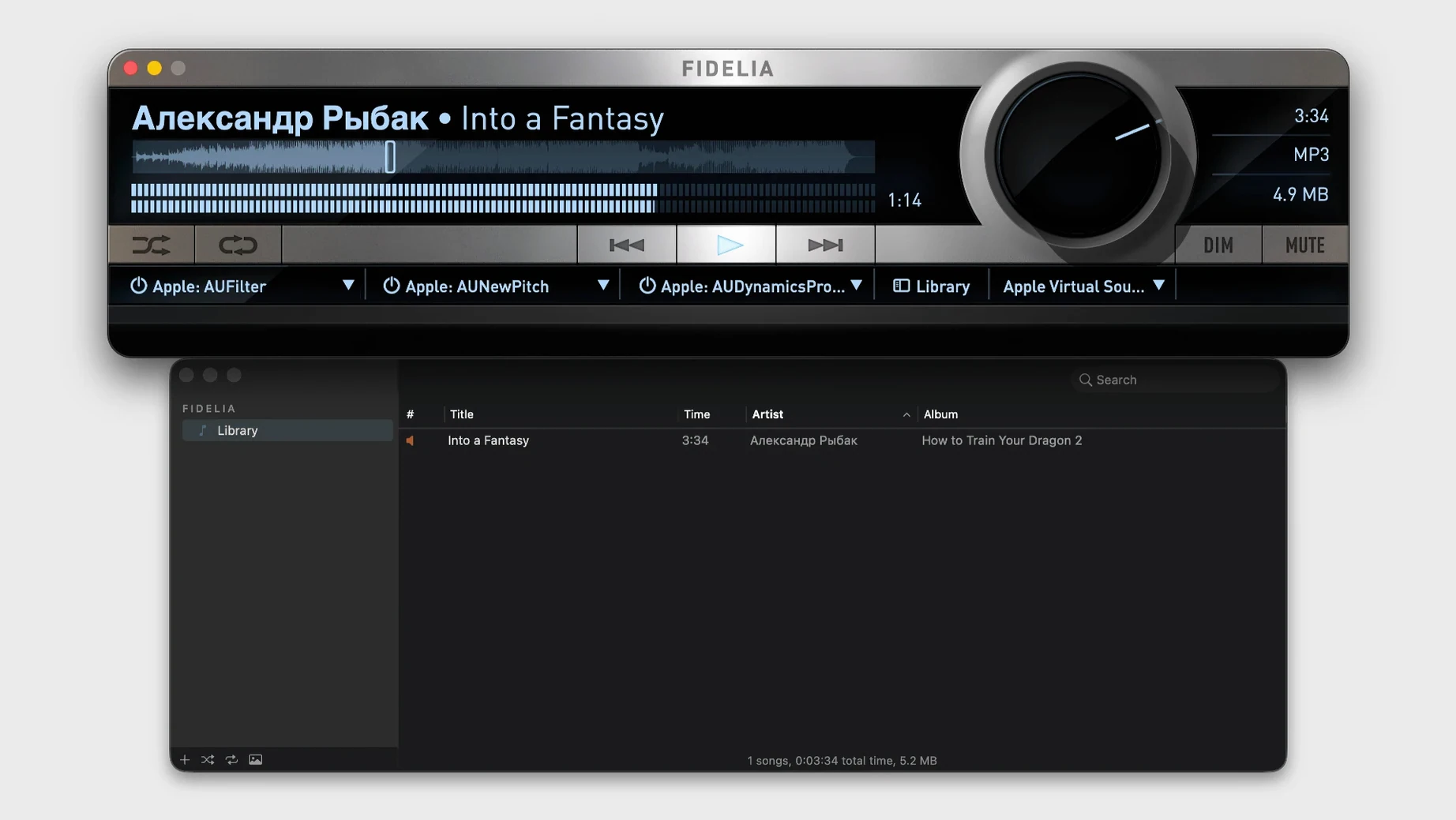
Fidelia is a dedicated music player for the Mac built around your own local library with a serious suite of audio processing tools.
Hi-res local playback, gapless albums, and headphone listening
- Playing high-resolution local files — WAV, FLAC, ALAC, AIFF, and more — with gapless transitions between tracks.
- Owners of large network-attached libraries who want to stream across the house from a single source.
- Headphone listeners who appreciate HeadSpace crossfeed processing to ease the hard left-right separation of studio mixes.
- Anyone whose collection includes legacy or niche formats like Sound Designer II, Wave64, or AC3.
- Quick APE-to-Apple Lossless conversion without altering sample rate or bit depth.
Requires macOS 14, no streaming service integration
- It requires macOS 14 or later — older Macs won't make the cut.
- This is a player for owned music files, not a streaming service front-end, though it can see tracks you've purchased in Apple Music.
- Three Audio Unit plugin slots give you room to shape the sound, but it's a focused toolkit rather than an infinite effects rack.
- Keyboard shortcut customization is available, but you'll need to set it up yourself.
A session with Fidelia, start to finish
I drop a folder of FLACs onto the dock icon. Fidelia reads the tags, populates the library, and I drag a full album into the transport area. First thing I notice: the waveform draws immediately, not after some background scan. I size the window down to the compact horizontal player — just artwork, transport controls, and a thin waveform strip — and tuck it into the corner of my screen while I work.
Halfway through the album I remember I wanted to try a gentle tube-emulation Audio Unit a friend sent me. I open the three-slot plugin panel, drop it into slot one, and the change hits the output instantly — no restart, no re-import. I toggle it on and off with the little power button next to the slot to compare. The difference is subtle but real, and Fidelia doesn't add any clicks or dropouts when I switch.
Later I open the HeadSpace panel, pick the medium crossfeed preset, and keep it on for the rest of the session. The stereo image softens just enough that I stop noticing the panning decisions in older records and just listen. When the album ends, gapless playback means the next one starts without a hiccup — even though I mixed ALACs and FLACs in the queue.
Set bit-perfect or exclusive output for your DAC
Open Preferences before you play your first track. A few defaults are sensible, but a couple deserve immediate attention.
- Output mode. Switch to bit-perfect or exclusive mode if your DAC supports it. The default shared mode works fine for casual listening, but bit-perfect bypasses the system mixer and hands untouched samples to your hardware.
- HeadSpace crossfeed. It's off by default. Turn it on and set the strength — light for closed-back headphones, medium for open-backs, heavy for IEMs that push the image too wide. You can adjust it while music plays, so experiment.
- Resampling engine. The default is minimum-phase. If you're downsampling high-rate material and want zero post-ringing, switch to linear-phase. The difference is tiny but audible on transient-heavy recordings.
- Keyboard shortcuts. The defaults are sparse. Map your most-used actions — play/pause, next track, toggle mini player — and you'll rarely touch the mouse during a listening session.
- Library sync. If you use Apple Music for owned tracks, enable the sync option so Fidelia sees those files without re-importing everything.
Disable HeadSpace crossfeed when using speakers
New users often treat Fidelia like a system audio utility and run into friction that's easy to avoid.
Leaving HeadSpace on for speakers. Crossfeed is designed for headphones. Playing through desktop monitors with it engaged smears the stereo field in a way that sounds muddy. Turn it off when you switch outputs, or set a dedicated preset that disables it.
Stacking three heavy Audio Units without checking gain staging. The three plugin slots sit in series. If each AU adds even 2 dB of gain, you'll clip the output before the signal reaches your ears. Watch the level meter and use a trim plugin in slot three if needed.
Forgetting about the mini player. People live in the full-size window for weeks, then discover the tiny floating controller. It shows album art, transport, and a volume slider — perfect for keeping music going without the library occupying screen space.
Using exclusive mode with a multi-output device. When exclusive mode grabs your DAC, system sounds and other apps lose audio access. If you need alerts or want a browser tab making noise, stick with bit-perfect mode instead, or route system audio to the built-in output while Fidelia claims your external interface.
- macOS 14 or later
- Apple Silicon or Intel 64-bit processor
Questions people ask
Does Fidelia run on Apple Silicon Macs?
Yes, it runs natively on Apple Silicon and Intel Macs with macOS 14 or later.
What makes the audio processing different from a basic player?
It includes psychoacoustic noise shaping called Pro Dither and a headphone crossfeed processor named HeadSpace, both aimed at improving perceived sound quality during playback.
Also on readers' docks
Sign in or create an account to leave a comment.
No comments yet. Tell me how it got on with your other devices.