Download Audio Hijack for macOS
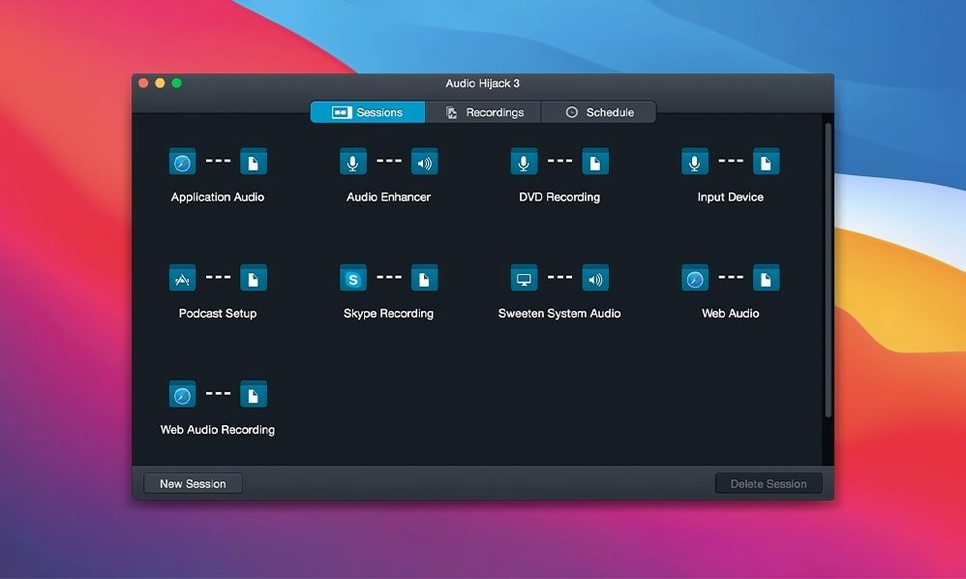
Audio Hijack runs on any Mac with macOS 14.4 Sonoma through to the freshly-minted macOS 27 Golden Gate, and it's a Universal 2 binary that feels right at home on Apple Silicon or an older Intel machine. That broad compatibility matters because this is the kind of utility you want to keep in your toolkit for years, not something that breaks with every OS update. Rogue Amoeba's 4.6.0 release brings official support for macOS 27 and a smarter built-in Transcribe block that now defaults to a Recommended transcription model, but let's talk about what makes the app sing for power users.
| Key Detail | Spec |
|---|---|
| Current Version | 4.6.0 |
| System Requirements | macOS 14.4 – macOS 27 |
| Architecture | Apple Silicon & Intel |
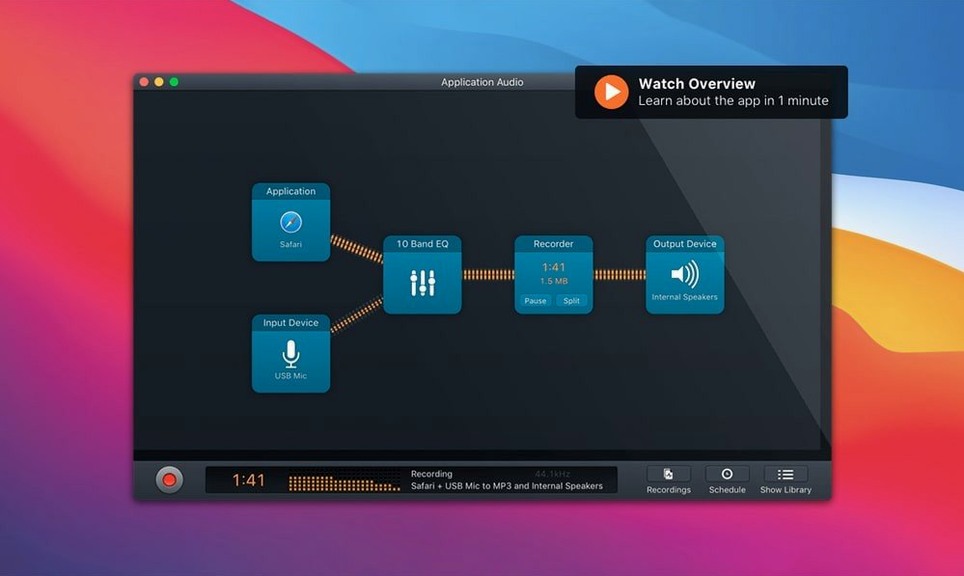
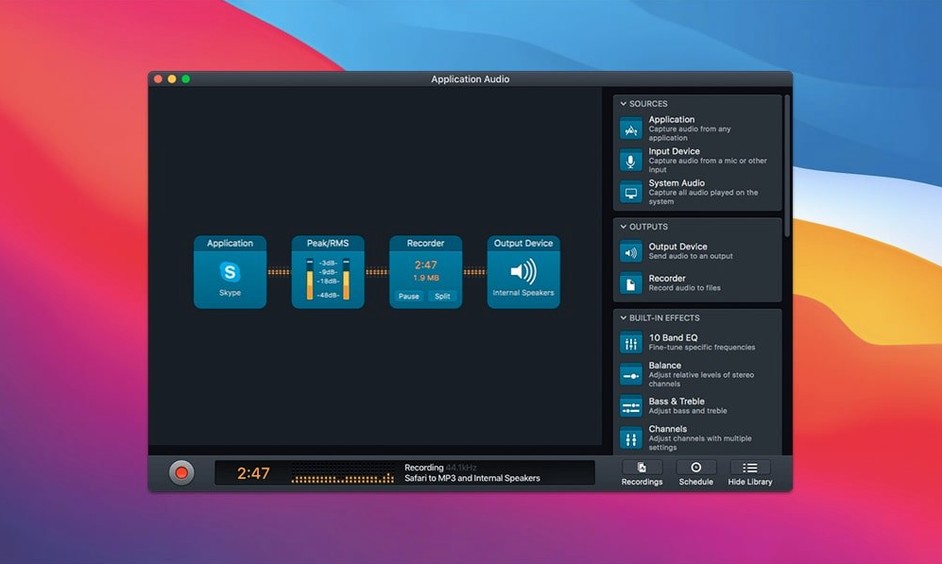
Long-time users know Audio Hijack's real depth isn't just grabbing a stream—it's the ability to pull from multiple sound sources in one session, then push that audio through a chain of built-in processing blocks. You can tweak an incoming VoIP call with a 10-band equalizer, duck it under a voiceover mic, and record the whole thing to a lossless FLAC file, all in a single workflow. The digitization tools for analog tapes and records are genuinely thoughtful, letting you capture a turntable or cassette deck while applying de-click and de-hum filters before the audio ever hits your drive. Combine that with the updated Whisper.cpp backend (bumped from 1.7.4 to 1.9.2) for transcription, and you've got a recording studio that handles everything from podcast interviews to archiving vinyl without needing three separate apps. It's the kind of layered control that rewards a tinkerer who wants to build a signal chain once and reuse it forever.
How Audio Hijack Plays with Your Mac Ecosystem
Audio Hijack doesn't live in a bubble — it's one of those utilities that quietly makes other apps better just by existing. The real magic shows up when you start routing audio between apps that were never designed to talk to each other. Pull a Safari livestream into a session, loop in your USB microphone, and pipe the whole mix directly to a QuickTime recording or a Voice Memos capture you've already got running. It feels like you've unlocked a hidden patch bay inside macOS, one that Apple never quite got around to building into the operating system themselves.
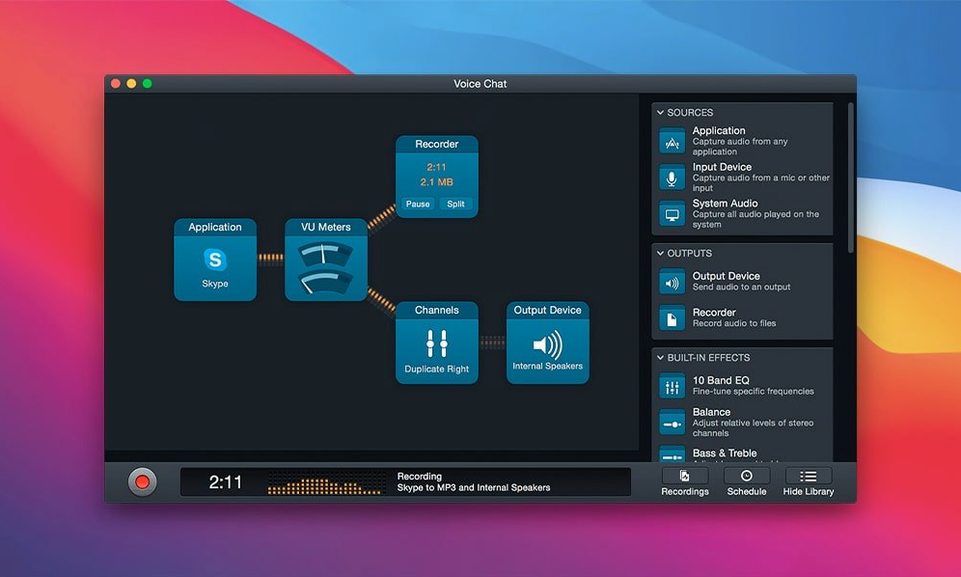
The app taps into the same low-level audio routing that Rogue Amoeba's other tools rely on, so if you're already using Loopback or SoundSource, Audio Hijack slots into that setup without any friction. You can capture a FaceTime call's system audio alongside your own mic input, apply the Denoise block to clean up room echo from your caller's side, and save the result as an MP3 while simultaneously sending a copy to the Transcribe block for a text file. It's the kind of multi-threaded thinking that makes a Mac feel less like a consumer device and more like a proper audio workstation. I've had it running alongside Logic Pro while pulling reference tracks from Apple Music, and neither app batted an eye — the routing just works, no aggregate device fiddling required.
Snags, Oddities, and the Usual Head-Scratchers
No app this deep comes without its quirks, and Audio Hijack has a few that trip people up. The biggest one I see: newer users don't realize the block-based interface needs an Output Device block added manually when they want to monitor through headphones or speakers. You drag your source blocks in, wire everything up to a Recorder block, hit Run, and then wonder why you can't hear anything. The fix is simple — drop an Output Device block into the chain, connect it, and pick your headphones from the dropdown. Once you know, it's second nature.
Another common snag involves the Transcribe block, especially after the 4.6.0 update. The Recommended model needs to download on first use, and that can take a couple of minutes on a slower connection. People sometimes click through, see the transcription panel sitting empty, and assume it's broken. Give it a moment — the download progress is tucked away in a tiny status bar at the bottom of the block. If it still won't budge, a quick trip to the block's settings menu to reselect the model usually jolts it back to life. Also worth noting: transcription works on already-recorded files you drop into the block, not just live streams, so you can always run it after the fact if you're in a hurry.
On M-series Macs, the occasional Gatekeeper hiccup crops up during installation. You mount the disk image, drag the app over, and double-click only to get the "unidentified developer" warning. The Terminal bypass step in the install instructions handles it cleanly — just paste the command, hit Enter, and the app launches without further fuss. Once it's running, macOS stops complaining, and subsequent updates from the same developer sail through.
Day-to-Day Performance: Lean and Quiet
I've run Audio Hijack through eight-hour recording days on an M1 MacBook Air, and it sips resources in a way that still surprises me. With a session pulling system audio, a condenser mic, and running live Denoise and Dehum filters, the app hovered around 6–8% CPU and roughly 180 MB of RAM. That's less than a handful of Safari tabs, and miles below what a full DAW would chew through doing the same work. The fans never spun up, even with a Zoom call recording to FLAC in the background while I edited photos. On an older Intel iMac, CPU usage nudged closer to 12–15% with the same session, but still felt invisible in daily use.
Stability has been rock-solid across both architectures. I've had exactly one crash in the past six months, and that turned out to be a third-party Audio Unit plugin I'd inserted into the chain, not Audio Hijack itself. The app's own processing blocks — the equalizer, compressor, and the trio of noise filters — have never dropped a recording or introduced artifacts that I didn't deliberately dial in. Timers and scheduled recordings fire reliably, which matters if you're capturing a radio show that airs while you're asleep. The only thing I'd flag: if you're stacking more than four or five heavy processing blocks, save your session as a template before hitting Record. It's not that it'll crash, but complex chains occasionally need a moment to reinitialize after waking a Mac from deep sleep.
Transcription block now leans on a Recommended model
The macOS 27 support is the headline feature you'll appreciate if you've already jumped to Golden Gate, but the Transcription block improvements are what I actually use every day now. The switch to a Recommended model means you don't have to guess which Whisper variant fits your recording — the app picks a sensible default based on your system's capabilities, and for most spoken-word audio, it's accurate enough that I've stopped correcting punctuation in the output. Updating the Whisper.cpp backend to 1.9.2 brought noticeably faster processing on Apple Silicon; a one-hour interview that used to take around four minutes to transcribe now finishes in about two and a half on the same M1 machine.
- macOS 27 (Golden Gate) compatibility — no workarounds needed, installs and runs as expected
- Recommended transcription model — one-click setup that picks the right Whisper variant automatically
- Whisper.cpp 1.9.2 — faster transcription on Apple Silicon, better handling of accented speech
The interface hasn't shifted dramatically, and that's a good thing — templates saved from version 4.5 opened without a hitch, and all my old session files loaded with block settings intact. If you're someone who rips internet streams or archives VoIP calls daily, the under-the-hood polish in 4.6.0 keeps things humming without forcing you to relearn anything. For the curious, some folks look around for an audio hijack mac free download or even an audio hijack torrent to test the waters before committing, and if you go that route, just make sure you're getting the full ACE backend set up properly so all the inter-app routing magic works from the start.
Version 4.6.0 welcomes macOS 27 Golden Gate with full support. The Transcribe block gets a smarter Recommended transcription model, and the underlying Whisper.cpp engine jumps from 1.7.4 to 1.9.2 for better accuracy.
- macOS 14.4 through macOS 27 (Golden Gate)
- Apple Silicon or Intel Mac
Questions people ask
Can Audio Hijack record from multiple sources at the same time?
Yes, you can combine audio from multiple applications, microphones, and other input sources within a single recording session and process each one independently.
Also on readers' docks
Sign in or create an account to leave a comment.
No comments yet. Tell me how it got on with your other devices.