Download UPDF 2 - AI-Powered PDF Editor for macOS
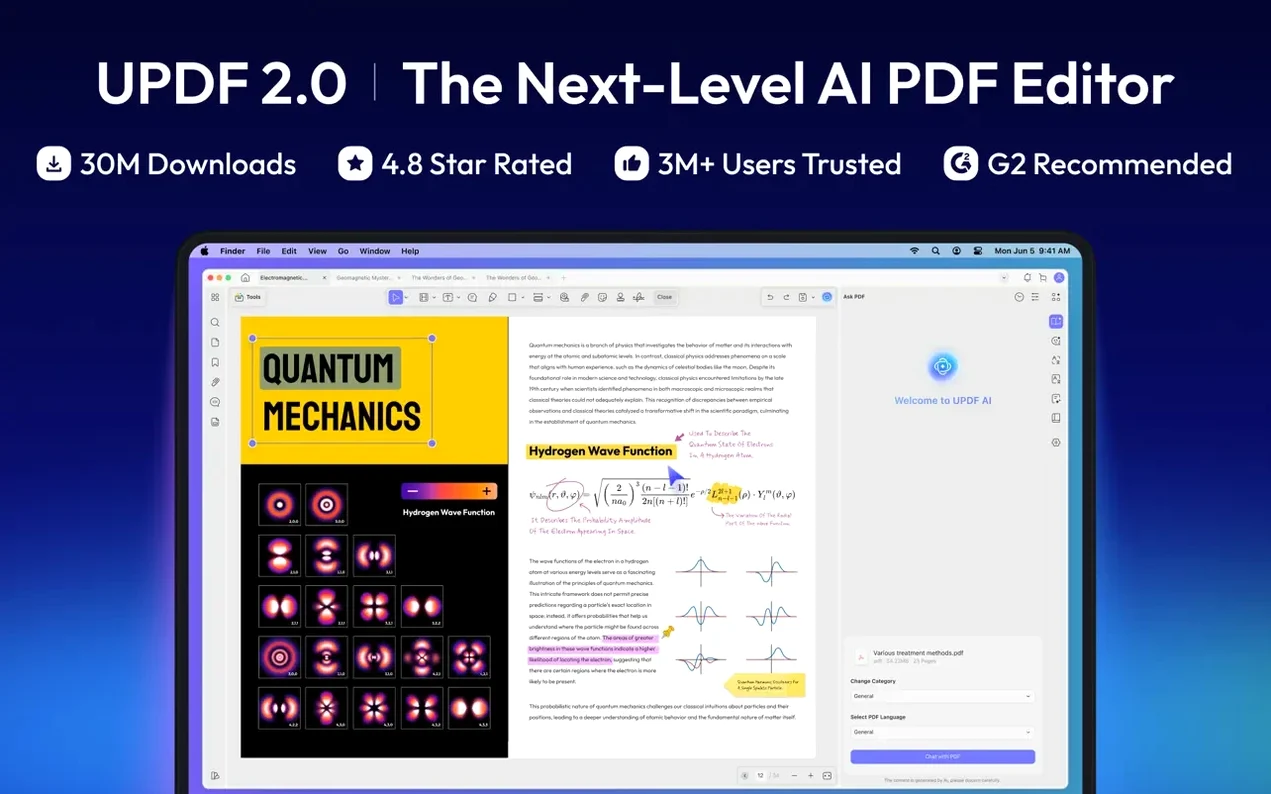
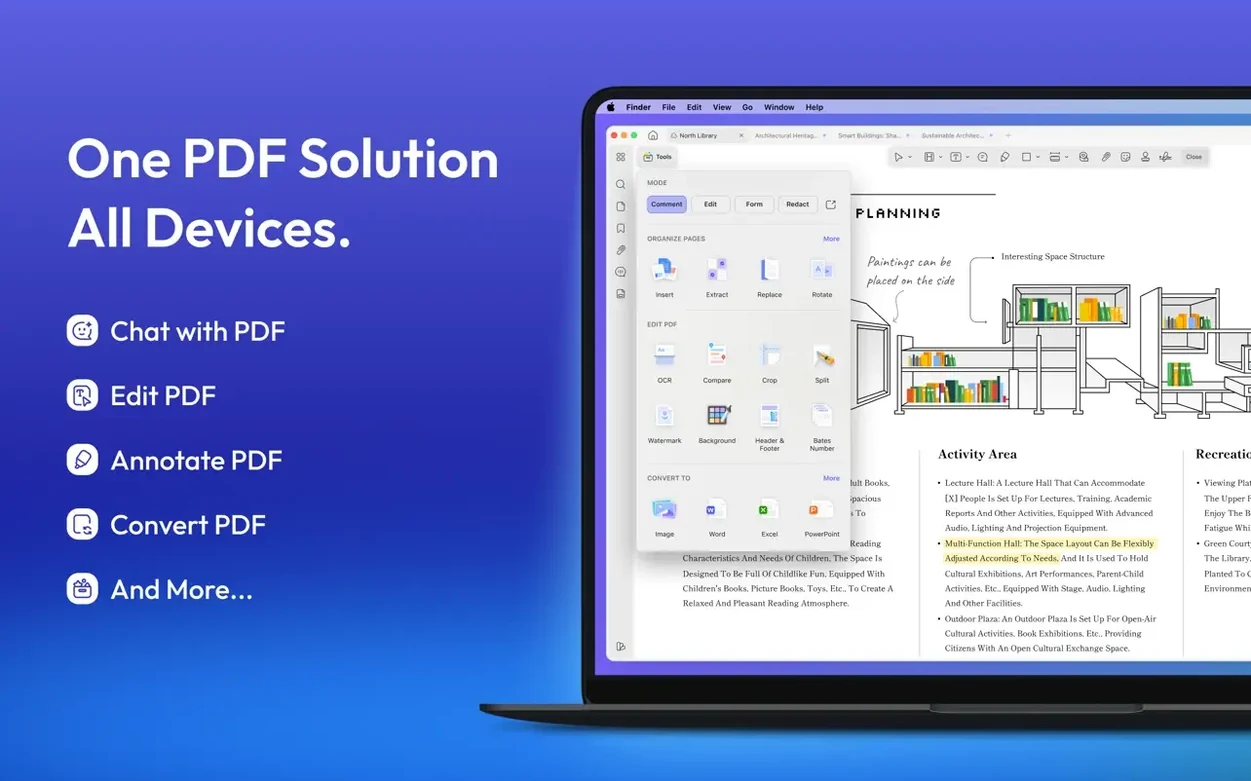
UPDF 2 reads and writes over a dozen file types, converting PDFs to DOCX, PPTX, HTML, and ten more formats without leaving the window. But before you dig into the toolkit, the first question is whether your machine is ready.
macOS 11 or later, runs native on Intel and Apple Silicon
You need macOS 11 or later, and the app runs natively on both Intel and Apple Silicon hardware. If your system landed after Big Sur, you are all set.
Freehand drawing, link editing, and four highlight styles
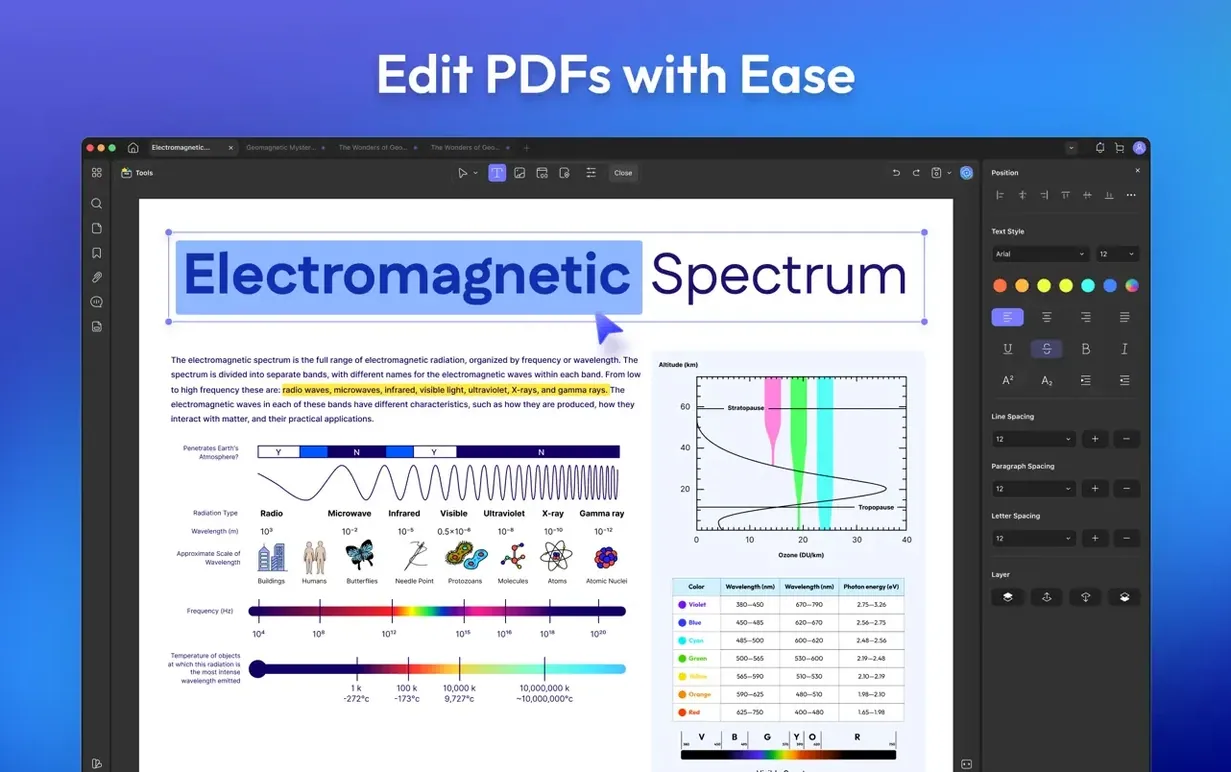
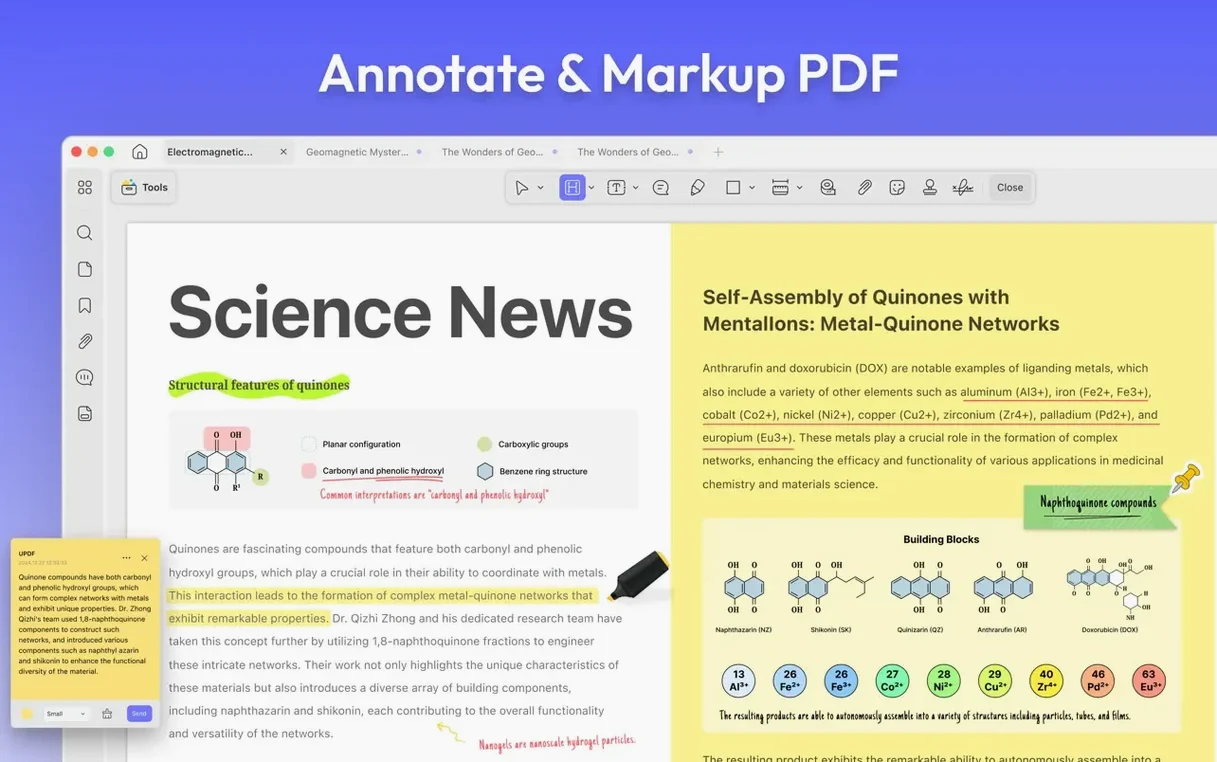
This is not just a reader with sticky notes. You can draw by hand on pages, add or remove web and page links, and highlight with four mark-up styles. The latest version also gives you custom rotation for images and text, plus manual crop-box tweaks when trimming white margins.
Can it handle the boring batch stuff?
Yes, and that is where it saves real afternoon time. Batch processing covers conversion, merging, OCR, compression, printing, creation, insertion, and encryption. A recent addition even splits across documents when batch printing double-sided PDFs.
What about forms and comments?
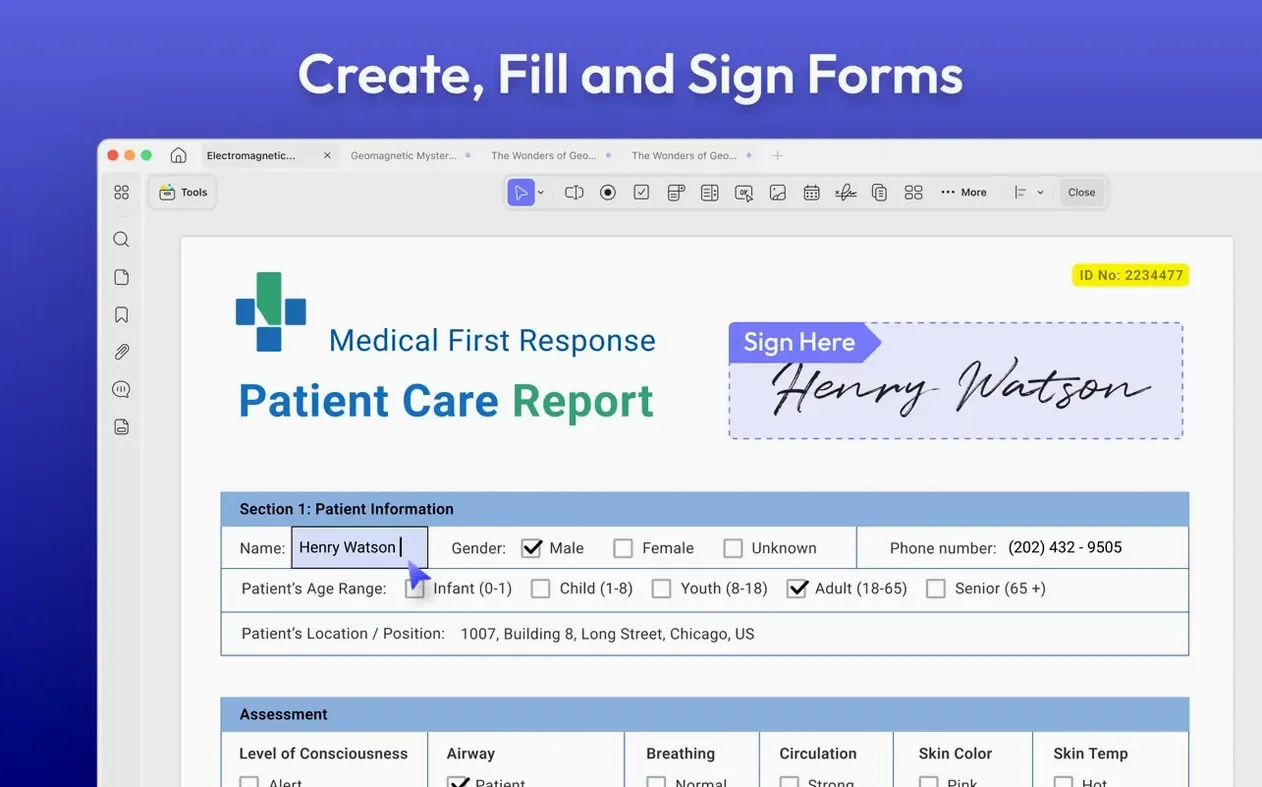
You can create fillable forms with interactive fields and manage comments from a central list. Multi-select delete now works in both the Comment and Form lists, so clearing out review clutter takes seconds.
UPDF 2 has a handful of micro-features I nearly passed over during the first week, and a couple of them genuinely changed how I reach for the app. Here are a few worth knowing about before you settle into your routine.
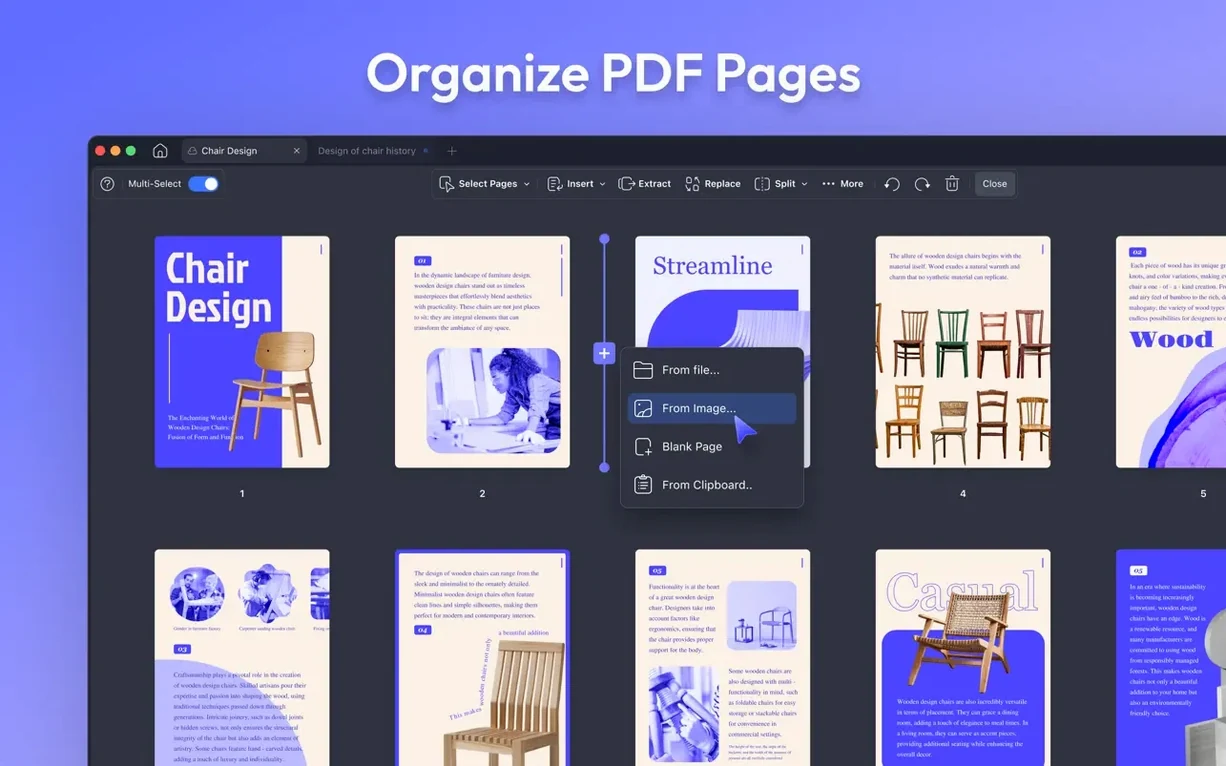
- Right-click on any page thumbnail in the sidebar to extract, rotate, or delete it without opening the organize menu. The same menu lets you insert a blank page or drag in a file right there.
- Hold Option while drawing a shape or signature, and the stroke snaps to a straight line. It is a small thing, but it makes hand-drawn annotations look cleaner without switching tools.
- Double-click a sticky note after placing it to change its color — there are six pastel options, and the change carries through when you export to another PDF reader.
- Text-to-speech lives under the View menu, not the toolbar. Once started, it reads the current page aloud and highlights each word, which is handy for proofreading dense contracts.
- The search bar supports partial-word matching and shows a clickable results list that stays open while you jump between hits — no need to reopen the panel each time.
Custom image and text rotation down to 3.7 degrees
Version 2.5.6 brought a few workflow tweaks that feel built for people who live inside PDFs daily. Custom rotation for images and text means you can now set an angle — 3.7 degrees, if that is what the scan demands — directly in the properties panel, rather than settling for 90-degree increments. Manual crop-box adjustment in Remove White Margins mode gives you a draggable bounding box instead of an automatic guess, so trimming a scanned book page no longer clips the footer.
The toggles for PDF/A and digital signature detection sit in preferences and stop the app from prompting you every time an archival file opens. And if you print stacks of double-sided documents, the new split-across-documents option in batch printing separates odd and even pages into distinct jobs, which makes life easier if you own a printer that chokes on auto-duplex.
Summarize a 15-page affidavit in 30 seconds
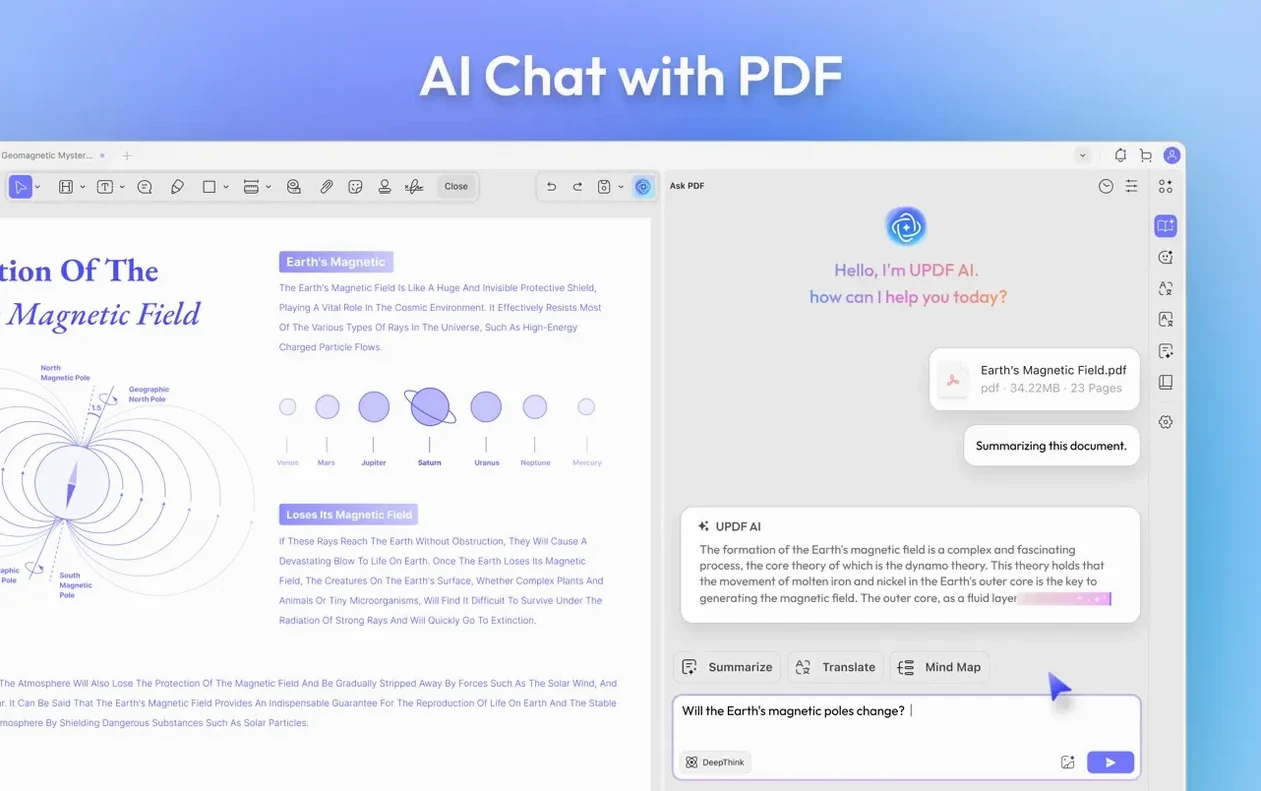
Imagine a paralegal who receives a fifty-page discovery PDF every morning. She opens it in UPDF 2, bookmarks the key exhibits in the sidebar, then uses the AI chat to summarize a fifteen-page affidavit in thirty seconds — not to skip reading it, but to know exactly which three paragraphs need her full attention. She draws a rectangle around a redacted section, types a callout that says “ask about this,” and assigns it a bright orange color so the attorney spots it immediately.
Before lunch, she converts the marked-up file to a clean DOCX for the lawyer who refuses to open PDFs, password-protects the original, and batch-prints two copies — splitting across documents because the office printer demands it. None of those steps required her to open a browser or a second application. That kind of single-window momentum is what makes a PDF editor stick.
Version 2.5.6 tightens a few rough edges:
- Custom rotation for images and text.
- Split across documents when batch printing double-sided PDFs.
- Toggles for PDF/A document detection and digital signature detection.
- Multi-select delete in the Comment and Form lists.
- Manual crop-box adjustment in Remove White Margins mode.
- macOS 11 or later
- Runs on Intel and Apple Silicon Macs
Also on readers' docks
Sign in or create an account to leave a comment.
No comments yet. Tell me how it got on with your other devices.