Download ABBYY FineReader PDF for macOS
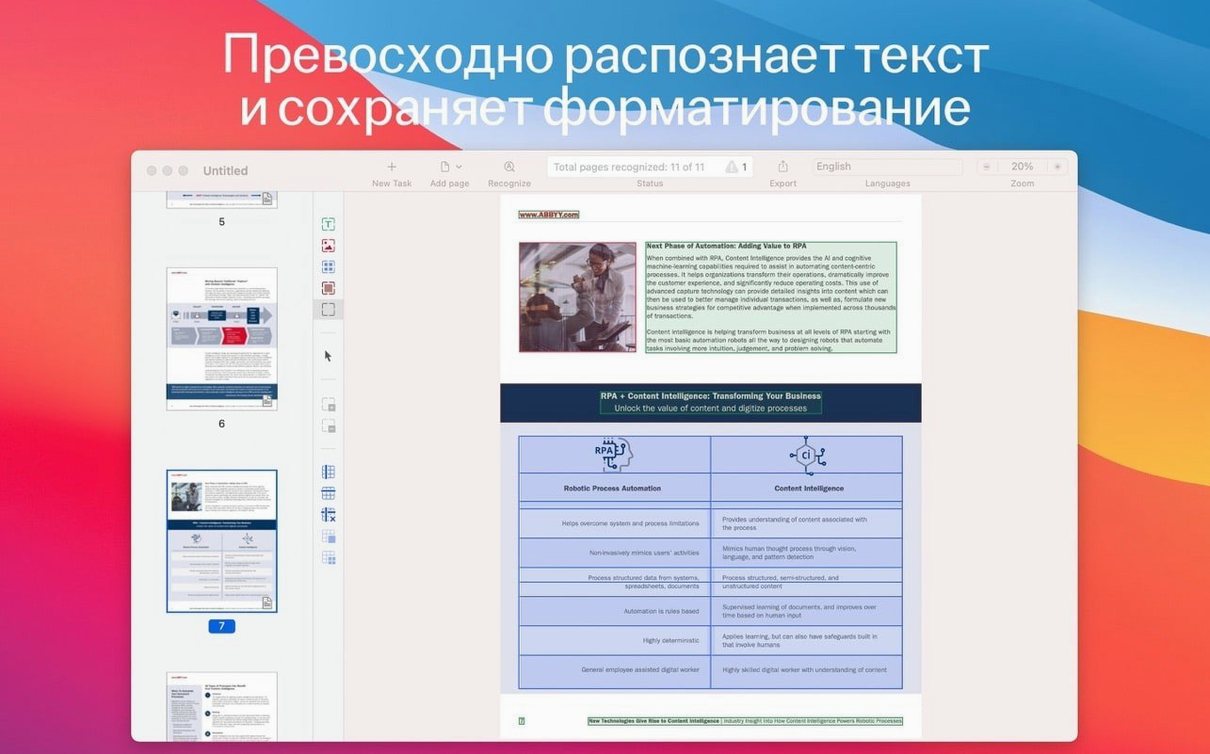
FineReader PDF lands on Intel Macs with macOS 11 or later, and it wants anything you can throw at it — paper documents, old scans, locked PDFs, even snapshots you've already captured on an iPhone or iPad. It's the Mac edition of ABBYY's long-running OCR and document toolkit, built to pull text and tables out of files that would otherwise be stuck as flattened images.
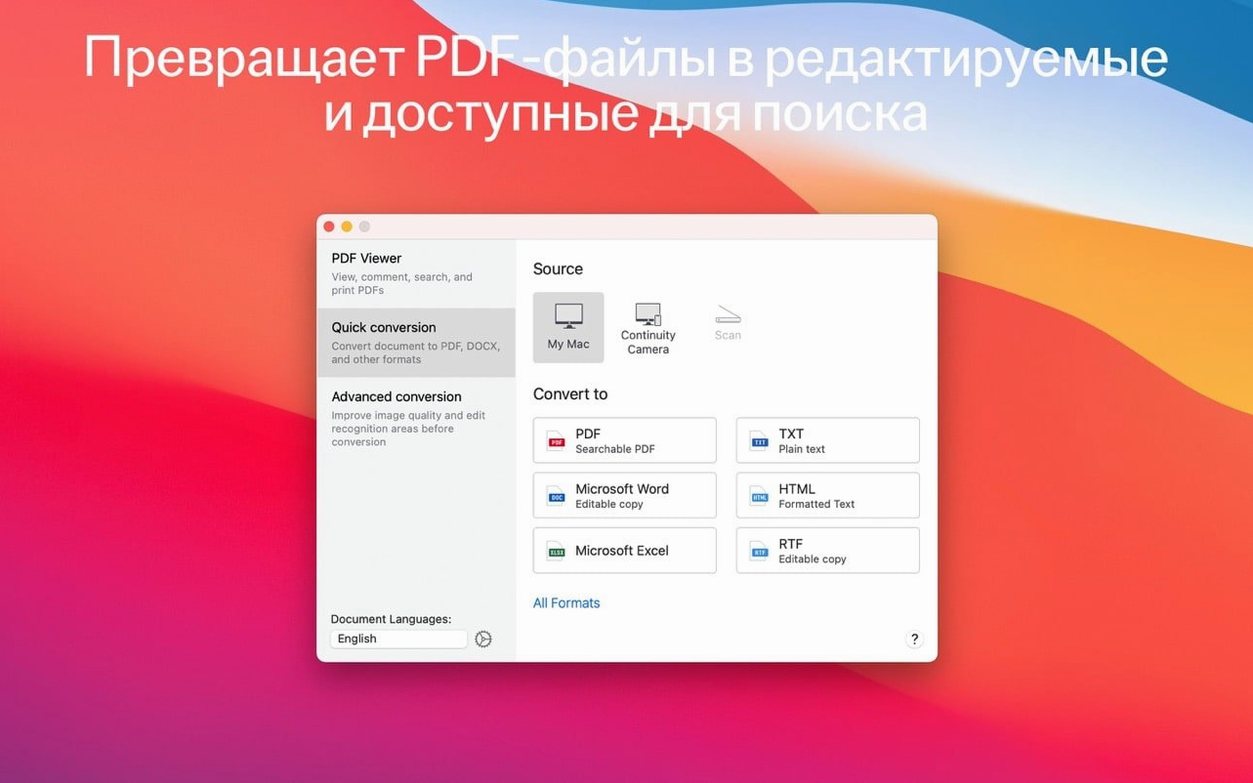
- Pull editable text from scanned contracts, book pages, or screenshots and drop it straight into Word, Pages, or a plain text file.
- Copy a fragment for citation or translation without retyping — it grabs the text right out of the image layer.
- Edit text and tables locked inside a PDF as if the file had never been flattened in the first place.
- Create PDF/A files for long-term archiving that won't break when software moves on.
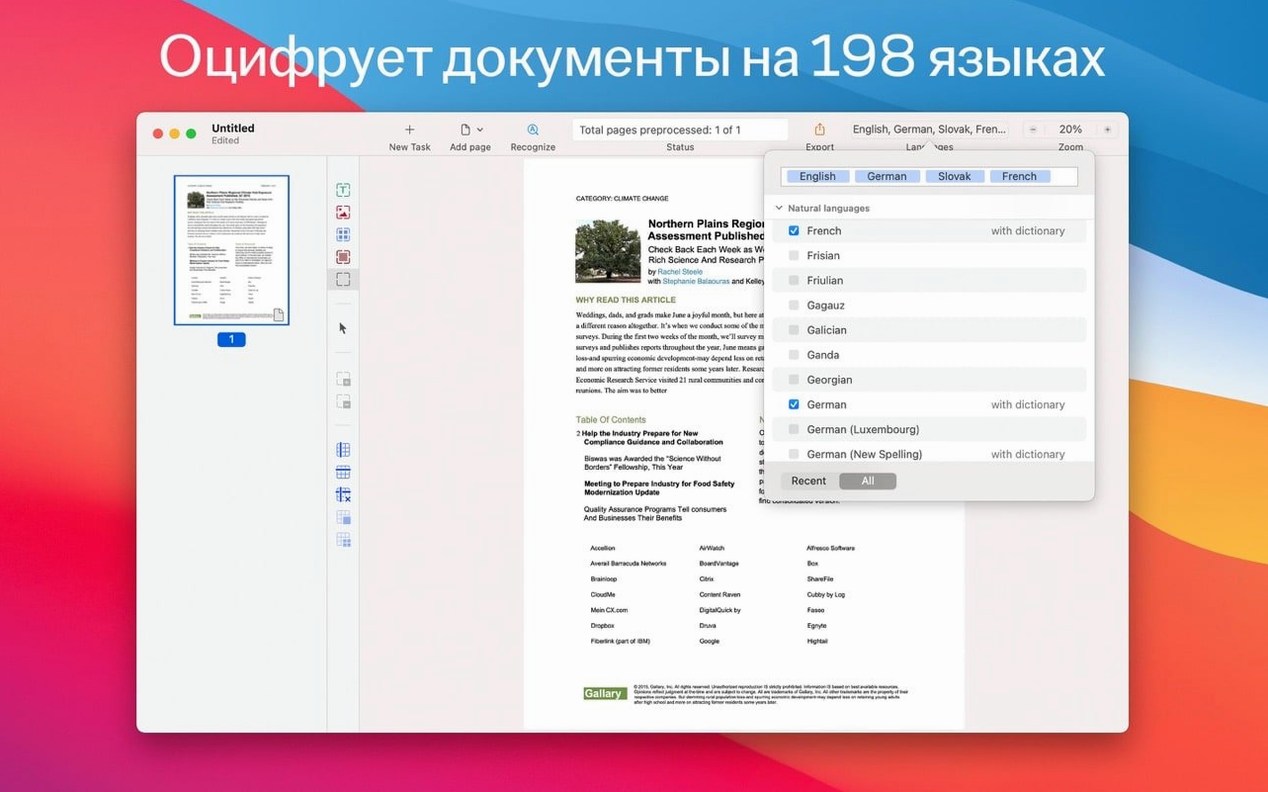
- Work across 198 recognition languages, with the interface itself available in six, including English, German, and Simplified Chinese.
- Switch between a full PDF viewer and the OCR editor, depending on whether you're reading or reworking a document.
It's not a lightweight annotation tool. FineReader PDF is for the moment you realize a PDF is just a picture of text and you need the real thing — searchable, selectable, and ready to edit — without sending it to a web service.
Undocumented gestures and Continuity Camera tricks
Plenty of FineReader's best moves aren't labelled on the toolbar. They're the kind of things you stumble into after a week or two, then wonder how you managed without them.
The Continuity Camera integration is more thoughtful than just snapping a page. In the OCR editor, you can right-click an area and choose to insert an image from iPhone or iPad — not a live capture, but a shot you took earlier that's sitting in your camera roll. Handy when you photographed a whiteboard in a meeting room and only later realized you need it inside the document you're rebuilding.
When you're working with multi-language documents, the language auto-detection works at the page level. A PDF that mixes English contracts with French footnotes won't throw it off — FineReader switches recognition languages mid-document. You don't need to split the file first.
The table editing tools reward a bit of fiddling. After recognition, a right-click on any table cell lets you split or merge columns without re-running OCR. If the automatic grid detection guessed wrong — say it joined two separate tables into one — you can break them apart manually in seconds. It's a niche power move, but for anyone dealing with financial statements or clinical data tables, it's the difference between usable output and a formatting headache.
Dark mode is fully supported, and the viewer's contrast settings are independent of your system theme. You can keep the document pane in a muted sepia or soft grey while the interface stays dark — less glare during long editing sessions without washing out scanned page textures.
Intel Mac startup lag and resource trade-offs
FineReader sits somewhere between a native Mac app and a heavyweight Windows port, and on Intel hardware it shows. Startup takes about five seconds on a 2019 iMac — not instant, but not the kind of wait that makes you reach for your phone. Once it's running, document loading is snappy, and page rendering in the viewer keeps up with fast scrolling even on 200-page files.
OCR processing is where the CPU matters most. On a quad-core Intel chip, a ten-page typed document finishes in roughly twenty seconds; a scan-heavy PDF with mixed handwriting and printed text might take forty to fifty seconds. The app uses all available cores during recognition, so fans will spin up, but it throttles back immediately once the job finishes. Memory usage hovers around 400–600 MB for typical work, climbing above 1 GB only with very large files or multiple open documents. That's heavier than Preview or Skim, but considerably lighter than running a full virtual machine for a Windows OCR tool.
Stability is a quiet strength. The app has survived marathon sessions — opening, converting, and re-saving thirty or forty documents in a row — without a crash or a hung window. The only rough edge I've noticed: occasionally, after waking a Mac from sleep with FineReader still open, the viewer pane doesn't redraw until you switch tabs or resize the window. It's a cosmetic glitch, not a data-loss risk, and it's been present across a couple of point releases. Saving work first is a habit worth keeping anyway.
Built for legal pros buried in non-digital documents
This isn't an app for someone who needs to sign a PDF once a month. It's built for people whose work depends on documents that weren't born digital.
Legal professionals tend to live in the app's PDF/A export and redaction-adjacent editing tools. A scanned court filing from ten years ago can become a searchable, archivable record without leaving the Mac. The password protection on output is basic but functional — enough to satisfy document-handling requirements without overcomplicating the workflow.
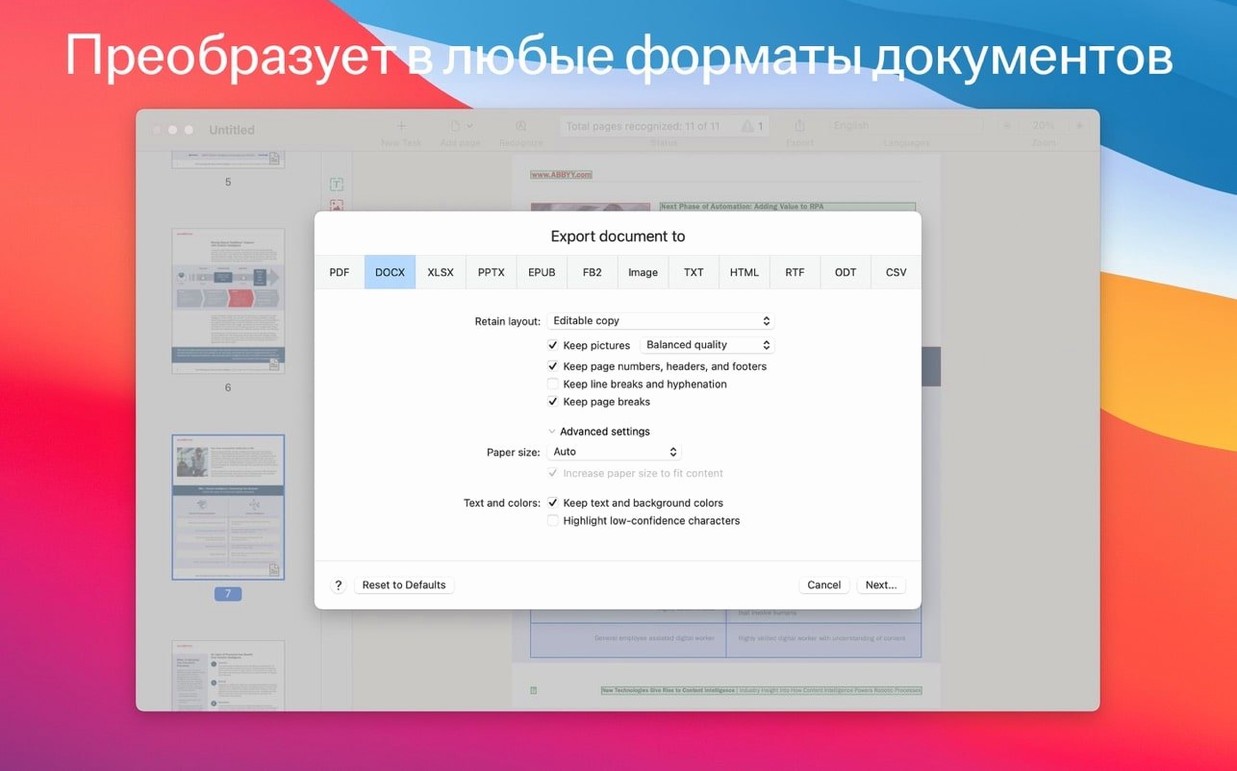
Academics and translators lean hard on the 198-language recognition and the citation workflow. Copying a passage from a scanned book chapter — with the formatting intact enough to drop into a reference manager — saves genuine hours over retyping. The ability to export to ODT as well as DOCX means it plays nicely with Zotero and LibreOffice setups, not just Microsoft's ecosystem.
Anyone managing archives or records — think local historians, medical administrators, small-press publishers — benefits from the batch mentality built into the export options. You can queue up a folder of old scans, set the output format once, and walk away. The PDF/UA export for universal access is a niche but meaningful feature for public-sector and educational organizations that need to meet accessibility standards without a separate remediation tool.
Six scanned contract pages from iPhone to clean text
Let me walk you through what a real session looks like — not a demo, just a Tuesday afternoon with a stack of paperwork.
I've got six pages of a scanned contract sitting in Photos on my iPhone, snapped yesterday at a client's office. I open FineReader, click the Open Image from iPhone option, and pull in all six pages at once. They land in the OCR editor as a single document, each page a crisp greyscale image with a faint blue overlay grid that shows where FineReader thinks the text regions are.
Page two has a table with merged cells — the automatic detection split it incorrectly. I right-click the table, choose Split Cells, and drag the boundaries back into place. It takes less than a minute. The recognition language is set to English and French because the contract has clauses in both; I leave auto-detection on and let it figure out which is which.
I hit Recognize. The progress bar moves steadily, and about thirty seconds later the text layer appears. I switch to the PDF viewer to skim the output — everything is selectable, searchable, and the French accents rendered correctly. The table on page two now exports cleanly. I save a copy as PDF/A for the archive and export another as DOCX to send to the legal team for edits.
The whole thing — import, fix one table, recognize, export twice — clocks in under four minutes. That's the rhythm FineReader settles into: a document moves from a static image to a living, editable file without ever leaving the desktop. No uploads, no queues, no "processing on our servers." Just the hum of an Intel Mac doing what it was built to do.
- macOS 11 or later
- Intel processor
Questions people ask
Can FineReader PDF create archive-ready PDFs?
Yes, it can generate PDF/A files specifically designed for long-term digital archiving.
Can I edit text inside a scanned PDF without converting the whole file?
Absolutely. The OCR editor mode lets you directly edit text and tables locked inside PDF files and scanned images.
How do I get a photo from my phone into FineReader PDF?
You can import images you've already captured on an iPhone or iPad straight into the app for OCR and conversion.
Also on readers' docks
Sign in or create an account to leave a comment.
No comments yet. Tell me how it got on with your other devices.