Download PDF Reader Pro for macOS
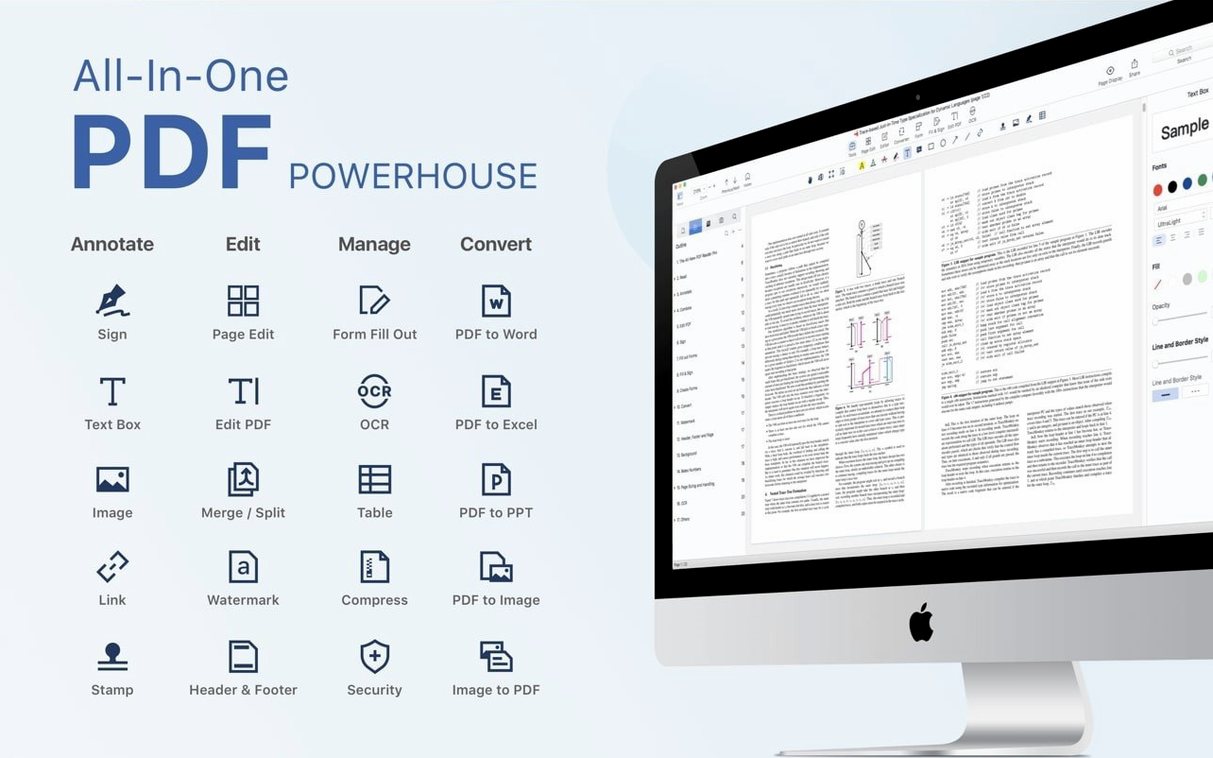
A scanned contract lands in my inbox at 4:45 PM — the kind that needs a signature, a few filled fields, and a quick export to send back before close of business. Instead of juggling three tools, I opened the whole thing in PDF Reader Pro and worked straight through from the raw scan to the finished file.
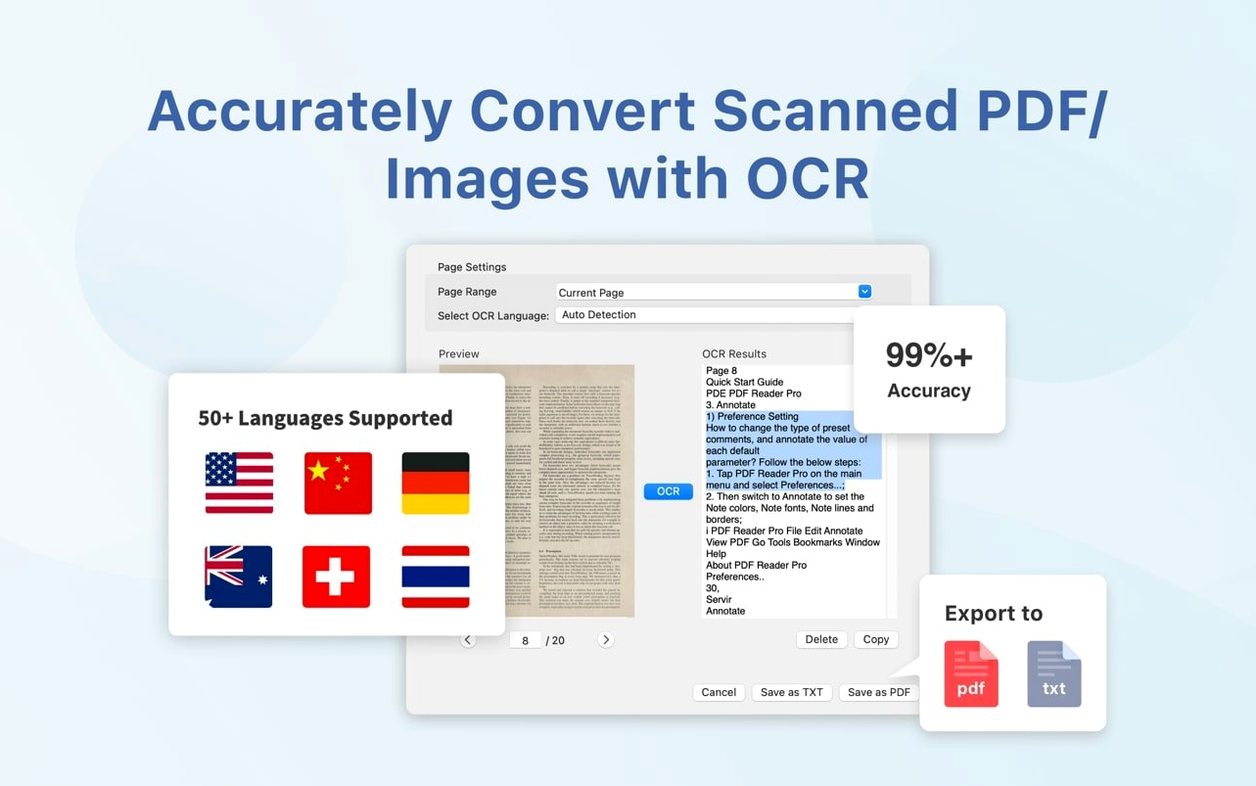
- OCR kicks things off. The scan was just an image, but the text recognition turned it into searchable, selectable text in about ten seconds — accurate enough that I didn't need to retype a thing.
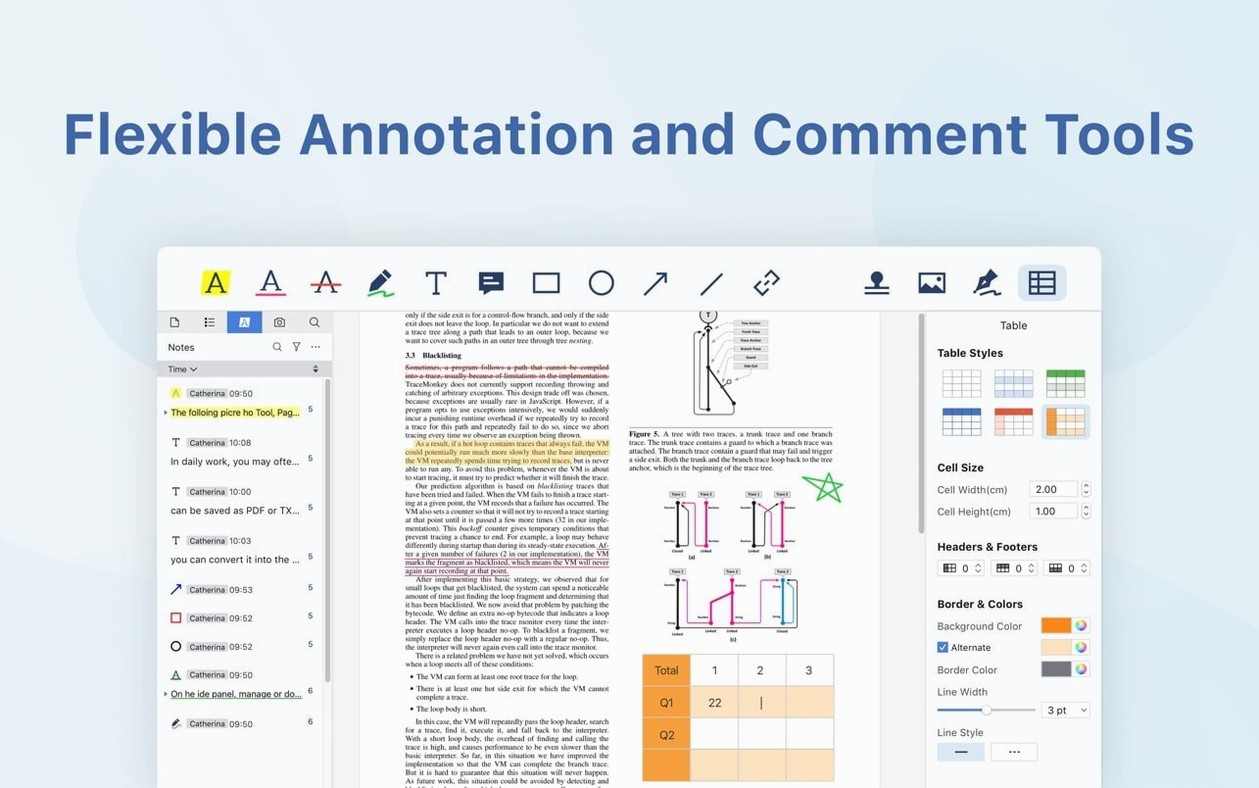
- Annotations stay clear. I highlighted the payment terms in yellow and added a sticky note for the client with a one-line reminder. The markup tools feel responsive and don't clutter the page.
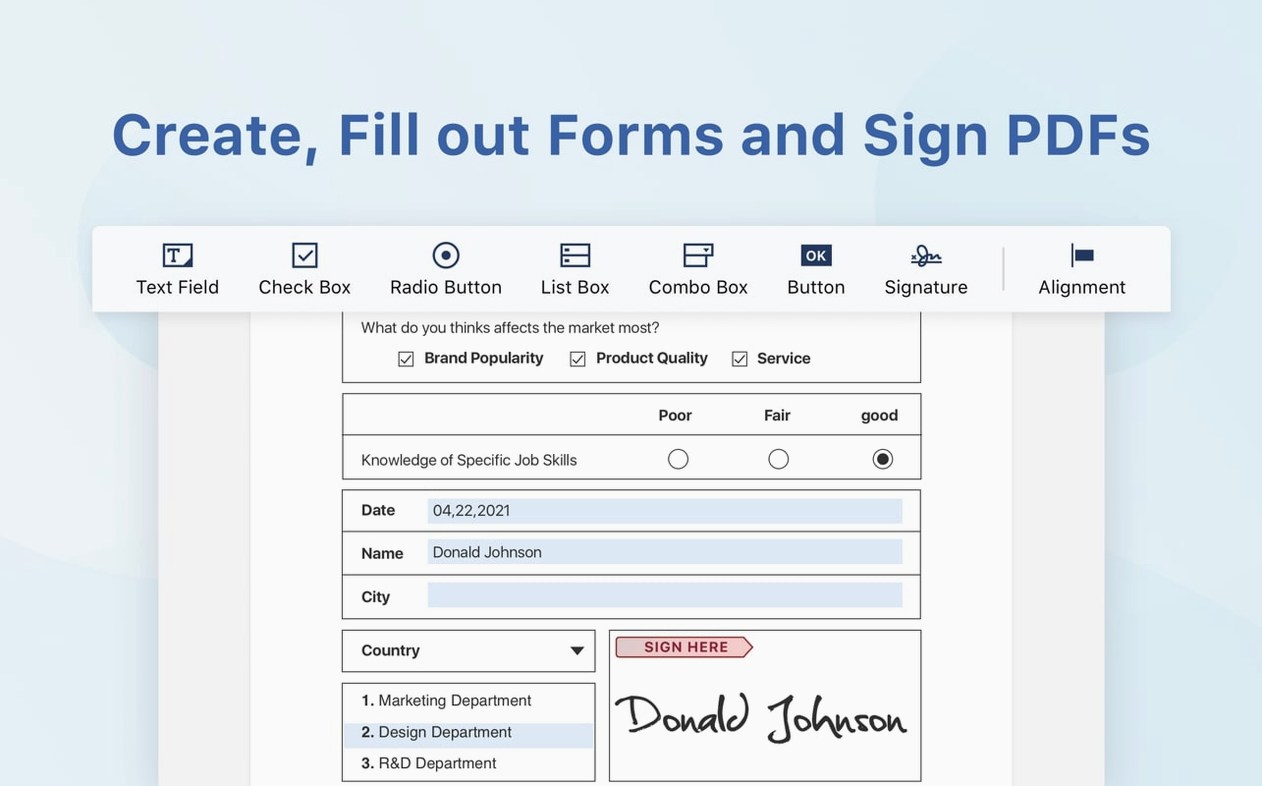
- Form fill without the fuss. The app detected the blank fields automatically, so I tabbed through name, date, and amount without drawing text boxes by hand.
- Signing is two clicks. I keep a scanned signature stored, dropped it onto the dotted line, and resized it to fit — no print-and-scan detour.
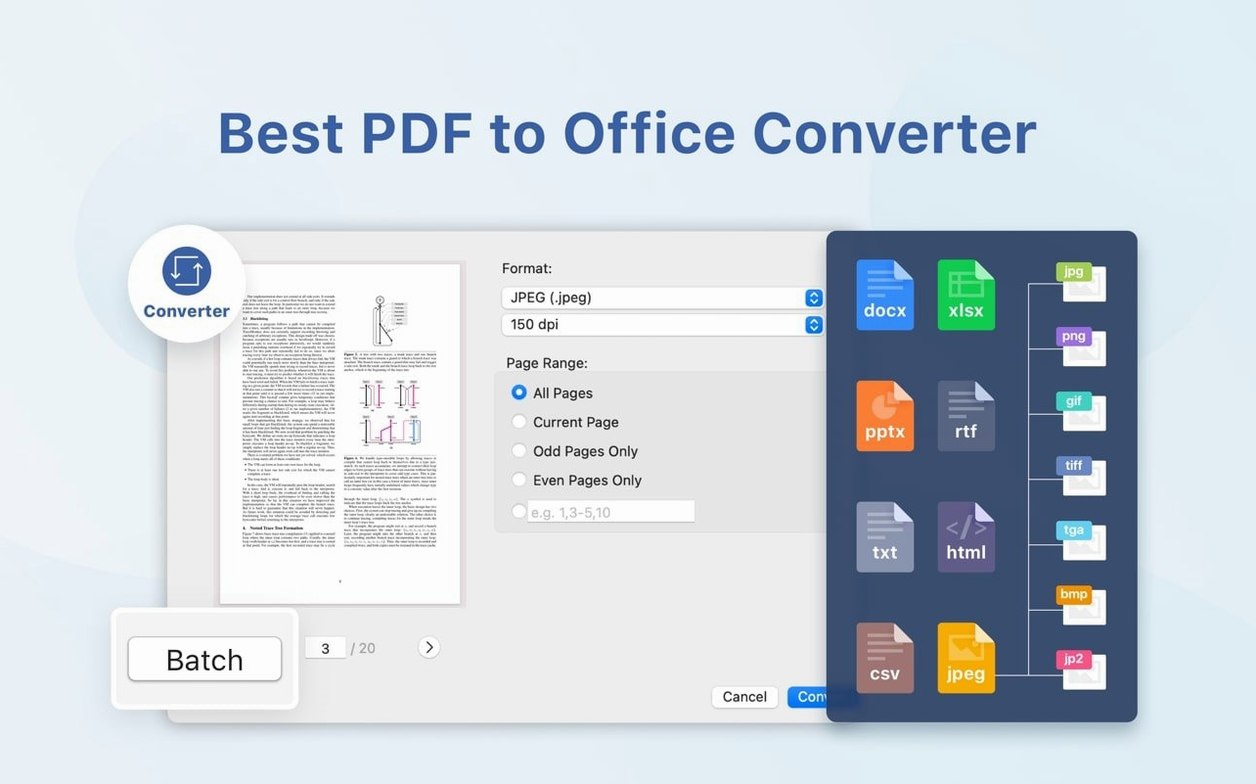
- Export to Word for the team. Accounting wanted the details in a .docx, so I converted the PDF to Word. The layout held up well enough that I only spot-checked the table alignment.
The whole task ran inside a single window, from a raw image scan to a signed PDF and a Word copy. If your day involves a steady trickle of forms, contracts, and last-minute document requests, that's exactly the kind of flow that keeps the clock from slipping.
What a paralegal's afternoon looks like
Clara works at a small law firm where discovery documents arrive in batches of fifty or more, often scanned at odd angles by opposing counsel. Her typical Wednesday involves marking exhibits, pulling individual pages for case binders, and preparing deposition summaries the senior partner needs by morning.
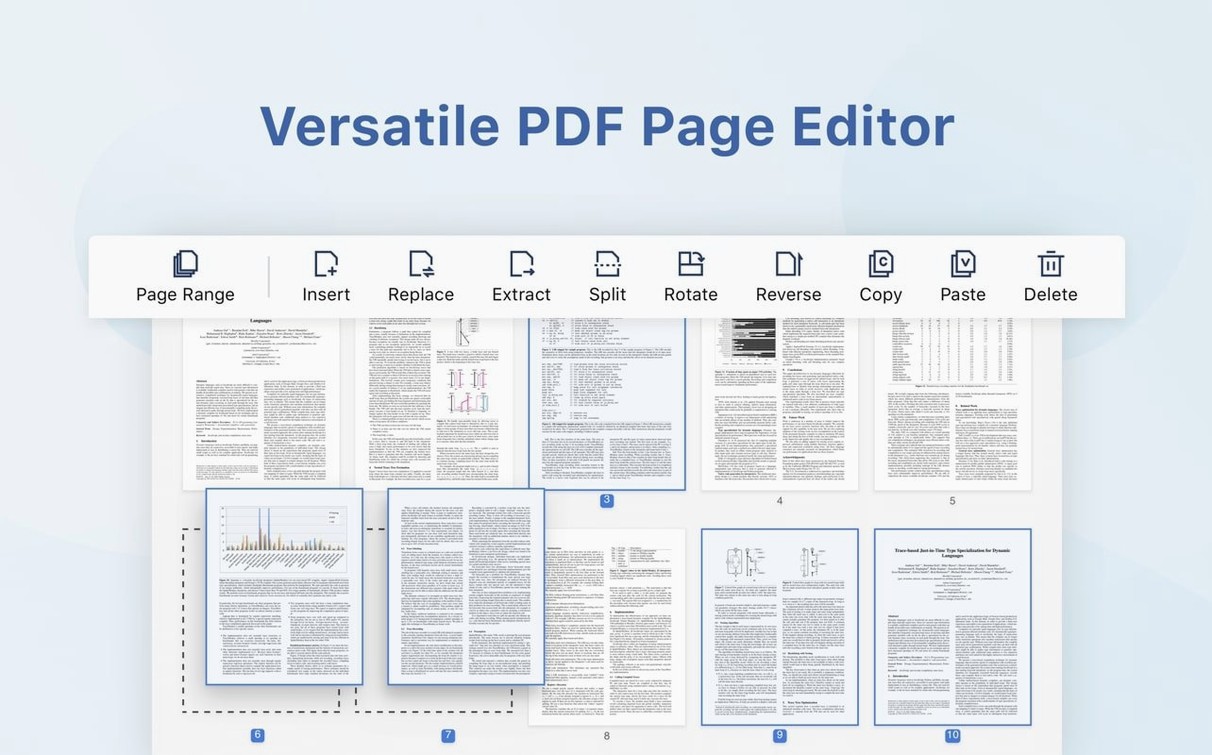
She drags a 90-page deposition into PDF Reader Pro and bookmarks every reference to the plaintiff's timeline — twelve entries in under two minutes, each labeled with a shorthand she'll recognize later. The split tool pulls out the exhibit pages she needs while the merge function bundles them with a cover sheet from another file. When she spots a poorly scanned paragraph, the OCR runs on just that page range, not the whole document, which saves her a solid five minutes over the built-in scanner tool she used at her old job. By the time she exports the summary notes as a CSV for the partner's spreadsheet, Clara has done in one application what used to mean switching between a viewer, a converter, and a lot of patience.
Tabbed reading and sidebar navigation replace your basic viewer
Does it actually replace a basic PDF viewer, or do I end up keeping both around? The reading experience handles the essentials — single-page and continuous scroll views, a sidebar for thumbnails and bookmarks, and tabs for multiple open files. Most people uninstall their old reader within a week because PDF Reader Pro does everything that lighter tool did plus the editing work.
What happens to my existing annotations from Preview or Acrobat? Highlights, underlines, and sticky notes created elsewhere show up without drama. PDF Reader Pro reads standard PDF annotation formats, so your markup history follows the file, not the app.
Is the conversion reliable enough for professional documents? The Word, Excel, and PowerPoint export holds formatting remarkably well for text-heavy layouts. Pages with complex tables or nested graphics sometimes need a quick alignment tweak, but the structure lands intact — you won't be rebuilding anything from scratch.
How does the text-to-speech sound? Functional, not audiobook quality. It uses macOS voice synthesis, so you can pick from the standard voices in System Preferences. Useful for proofreading a long contract by ear while you handle something else on your desk.
First few days: what's worth setting up early
Start by creating a signature profile on day one. Scan or snap a photo of your ink signature on white paper, drop it into the signature manager, and it'll sit ready for every form that comes your way afterward — no repeat setup.
Connect Dropbox immediately if that's where your documents live. The sync pane appears in the sidebar without ceremony, and opening files directly from cloud storage skips the download-and-reupload dance that eats up your Finder time. Saved changes sync back quietly.
Build a small preset library for the export formats you use most. Set your preferred PDF-to-Word conversion fidelity once, save it, and the next forty exports take one click instead of four. Same logic applies to image output if you regularly turn PDF pages into PNGs or JPEGs for presentations.
Finally, spend ten minutes learning the presentation mode. It strips the editing chrome and turns your PDF into a full-screen slide deck — black background, arrow-key navigation, no accidental annotation marks during a client meeting. That one feature tends to surprise people who thought they'd still need a separate slideshow app.
Version 6.5.0 has landed with the developer's latest fixes and improvements — a quiet polish pass that keeps things running smoothly on both Apple Silicon and Intel Macs.
- macOS 11 (Big Sur) or later
- Apple Silicon and Intel 64-bit
Questions people ask
Can PDF Reader Pro handle scanned documents?
Yes, it includes text recognition (OCR) that converts image-based scans into selectable, searchable text.
What formats can I export a PDF to?
You can export PDF content to Word, PowerPoint, Excel, RTF, HTML, plain text, images, and CSV.
Does the app support digital signatures?
Yes, PDF Reader Pro lets you place and resize a stored signature directly onto a document.
Also on readers' docks
Sign in or create an account to leave a comment.
No comments yet. Tell me how it got on with your other devices.