Download PDFelement Pro for macOS
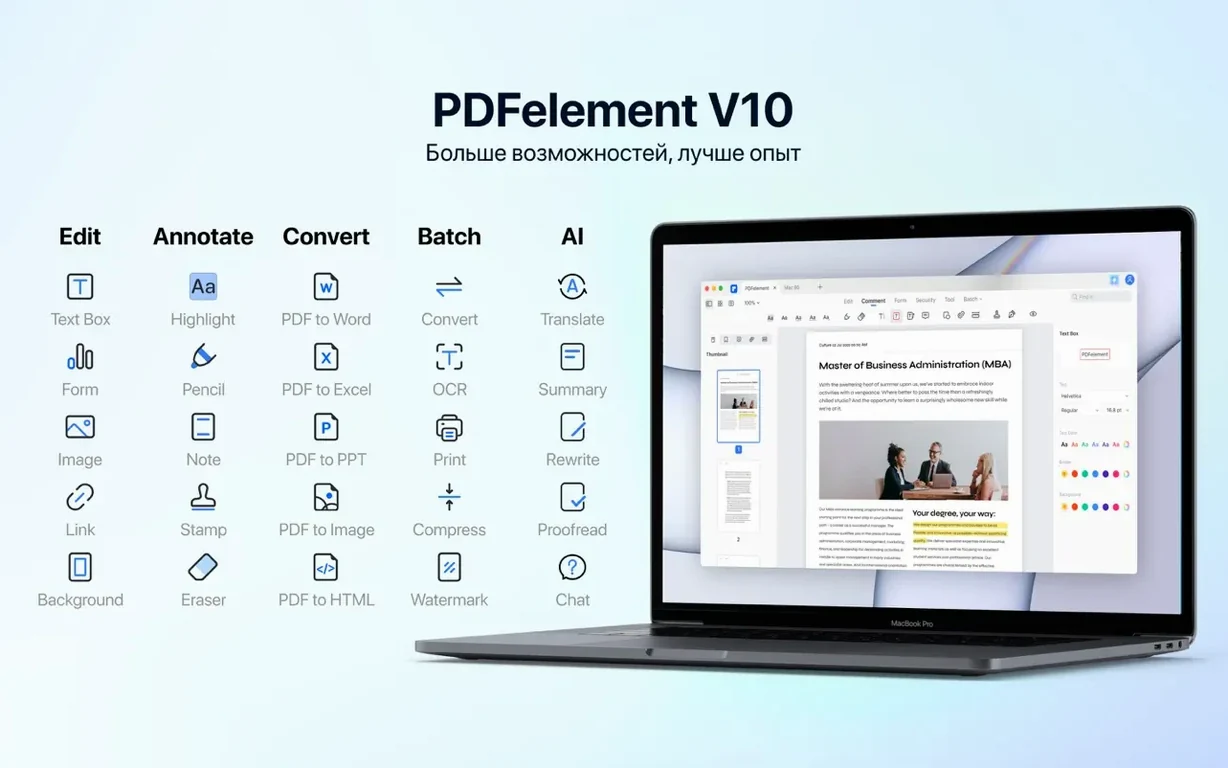
A blank paper form arrives by email, a scanned contract needs a signature, or a pile of invoices must be renamed and stamped with Bates numbers. PDFelement exists to make those moments feel less like friction and more like a quick click-through you can handle without leaving the Mac.
Multi-language OCR turns flat scans into searchable text
- Turning a flat scan into searchable, selectable text via OCR that understands 29 languages.
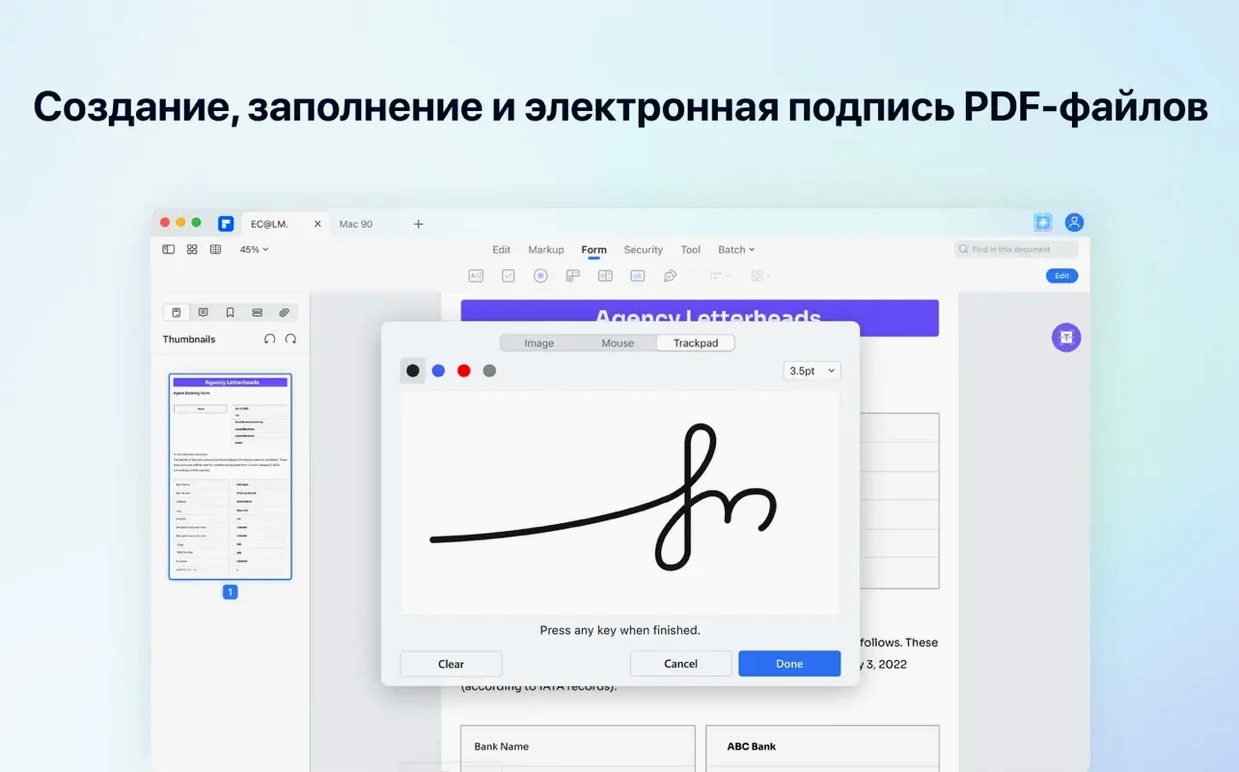
- Signing a PDF cleanly with a digital signature instead of printing and scribbling.
- Running batch jobs — convert, rename, or watermark a whole folder at once.
- Exporting to PDF/A when you need an archive-ready file that will look right years from now.
- Placing Bates numbering across a discovery file set without extra software.
Intel Mac requirement and the 10 interface languages included
- Built for Intel Macs with macOS 11 and later.
- OCR is bundled in the current 12.1.28 build.
- Interface languages include Russian, German, Arabic, Spanish, Italian, Dutch, Portuguese, French, Japanese, and Simplified Chinese.
Built-in OCR that activates the moment you open a scanned page
The big one is right in the build name: OCR is now baked in rather than feeling like an optional add-on you had to remember to configure. In practice that means the moment you open a scanned page or a phone photo of a document, PDFelement offers to recognize the text — and it does so without kicking you into a separate wizard. The recognition engine handles 29 languages, and you can leave it on auto-detect or lock it to a specific language for speedier results on multi-page files.
Beyond OCR, the 12.x line smoothed out a handful of interface quirks that had been hanging around since version 9. The toolbar icons are slightly larger on Retina displays, the dark-mode palette no longer gives you white text on cream backgrounds in the sidebar, and the batch-processing dialog remembers your last-used output folder instead of always defaulting to Documents. Small stuff, but it adds up when you process twenty files and realize you haven't had to re-navigate the folder tree once.
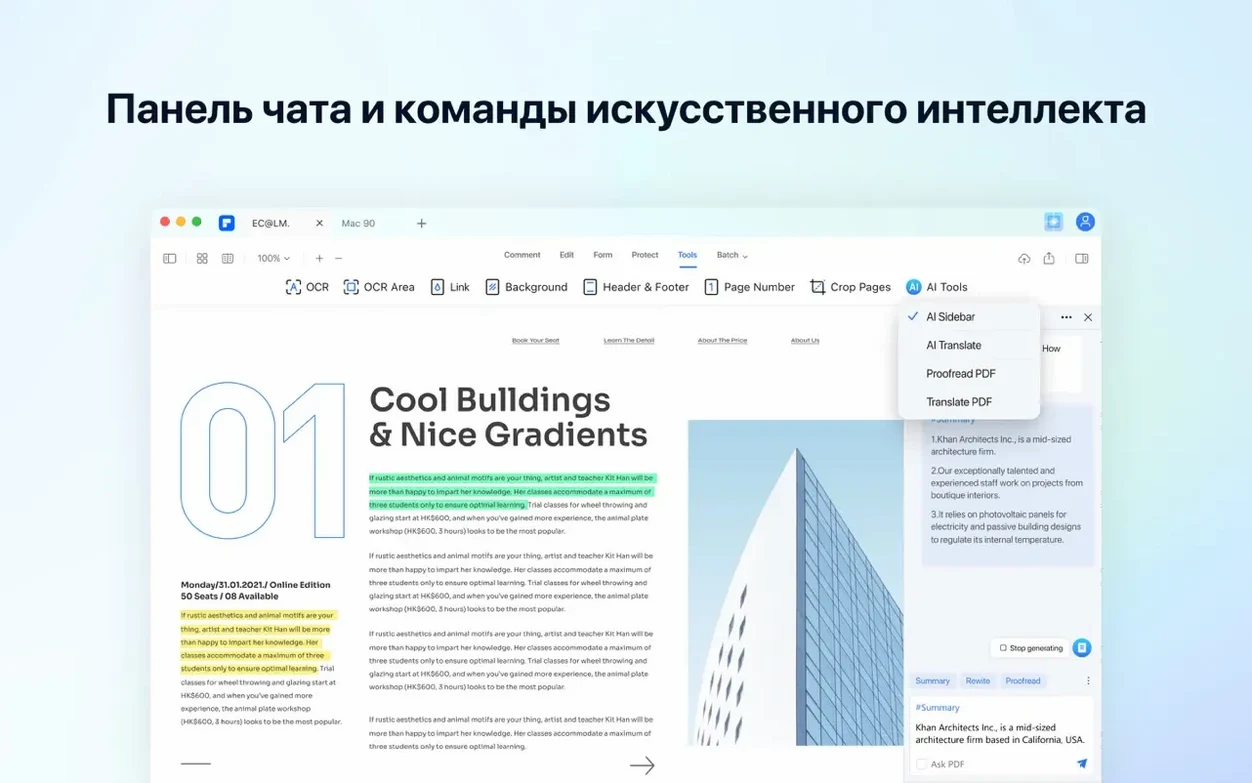
Wondershare also tightened the AI panel. Earlier builds could feel laggy when asking the summarizer to chew through a 60-page report; now the response arrives in about half the time it used to, and the translation quality for Japanese and Arabic source texts is noticeably less wooden.
OCR defaulting to the wrong language and how to lock your preference
No app is completely frictionless, and PDFelement has a few repeating pain points worth knowing about before you hit them mid-task.
OCR keeps defaulting to the wrong language. If you work mostly with documents in a single language, dig into Preferences > OCR and set the default there rather than relying on auto-detect every time. Auto-detect is good but sometimes hesitates between similar scripts — Czech and Polish, for instance — and a locked language setting cuts recognition time noticeably on long scans.
Batch conversion stalls on a single corrupt PDF. When one file in a batch job is damaged, PDFelement sometimes stops the whole queue instead of skipping it. The workaround is to enable "Skip problem files" in the batch dialog before you run the job. If you forgot, the log file (saved alongside the output folder) tells you exactly which file tripped it up so you can re-run the rest.
Redaction isn't truly permanent until you re-save. The redact tool blacks out content visually, but the underlying data only gets stripped when you save as a new file — not when you hit Save in place. Make it a habit to use File > Save As after any redaction pass, otherwise the "redacted" text can still be selected and copied. This trips up first-time users constantly.
Gatekeeper blocks the first launch. The install requires a Terminal command to bypass Gatekeeper, and the sequence can fail if you drag the wrong path or forget to quit the app before running it. When Terminal returns "no such file," double-check that the app is sitting in /Applications and that you typed the exact name — including the space in "PDFelement Pro."
How a legal assistant might spend a morning with it
Picture a paralegal who starts Monday with forty-three scanned affidavits, half in English and half in Spanish, all needing Bates numbering, redaction of social security numbers, and conversion to PDF/A for court filing. The morning begins by dropping the full folder into the batch OCR tool, language set to Spanish for that half and English for the rest, with auto-straighten turned on so the slightly skewed phone scans flatten out. While the recognition runs — about two minutes for the whole set on an older Intel iMac — she builds a Bates numbering template starting at DEF0001 with a custom prefix that matches the case docket.
Once OCR finishes, she opens the first file and uses the redact tool with a pattern search for "###-##-####" to catch social security numbers in one pass. A quick visual sweep confirms nothing got missed, she hits Save As to bake the redactions permanently, and applies the Bates footer. By 10:15 the whole batch is exported to PDF/A-2b and sitting in the shared case folder, searchable and court-ready. No printing, no Sharpie marker, no separate scanner software — just one app handling the pipeline from scan to archive.
Cold launch in four seconds, smooth scrolling after thumbnail stutter
On an Intel Mac running macOS 11 or newer, PDFelement opens in about four seconds cold and under two seconds warm. A 30-page text-heavy PDF scrolls smoothly with only minor stutter during the first second as thumbnails load in the sidebar. OCR speed depends heavily on DPI: a crisp 300-dpi scan of a typed letter finishes in under ten seconds, while a grainy 150-dpi photo of a wrinkled receipt takes closer to twenty and may need manual language switching to get clean results.
Memory usage is the one place where expectations should stay grounded. With a single moderate PDF open, the app idles around 280–350 MB of RAM. Throw a batch conversion of fifty files at it and that number climbs past 800 MB, and the fans on older MacBook Pro models will become audible. It never quite tips into beachball territory on a machine with 8 GB of RAM or more, but it's not a lightweight either — this is a full desktop editor, not a preview utility. The AI features add a small CPU spike when invoked, but Wondershare runs the actual inference server-side, so the Mac itself only handles the request round-trip rather than churning through a model locally.
Stability has been solid across the 12.x releases. Crashes are rare during normal editing, though the batch module can get unhappy if you feed it a mix of password-protected and unprotected files without entering credentials first. For anyone hunting a solution that covers editing, OCR, forms, and batch work without juggling three separate utilities, the current build holds up as a dependable Intel-native workhorse — and a quick search for wondershare pdfelement for mac crack or pdfelement torrent will show plenty of people have come to the same conclusion.
OCR lands inside the 12.1.28 build — scanned pages and image-based PDFs can now be turned into searchable text without a separate download.
- macOS 11 or later
- Intel-based Mac (x86 64-bit)
Questions people ask
Can PDFelement recognize handwriting in a scanned note?
Its OCR is tuned for printed text across 29 languages, so cursive handwriting results will vary and are not officially guaranteed.
Does PDFelement handle multi-page batch signing?
Batch processing covers conversion and file-level actions; digital signatures are applied one document at a time during a regular editing session.
Also on readers' docks
Sign in or create an account to leave a comment.
No comments yet. Tell me how it got on with your other devices.