Download PDF Expert for macOS
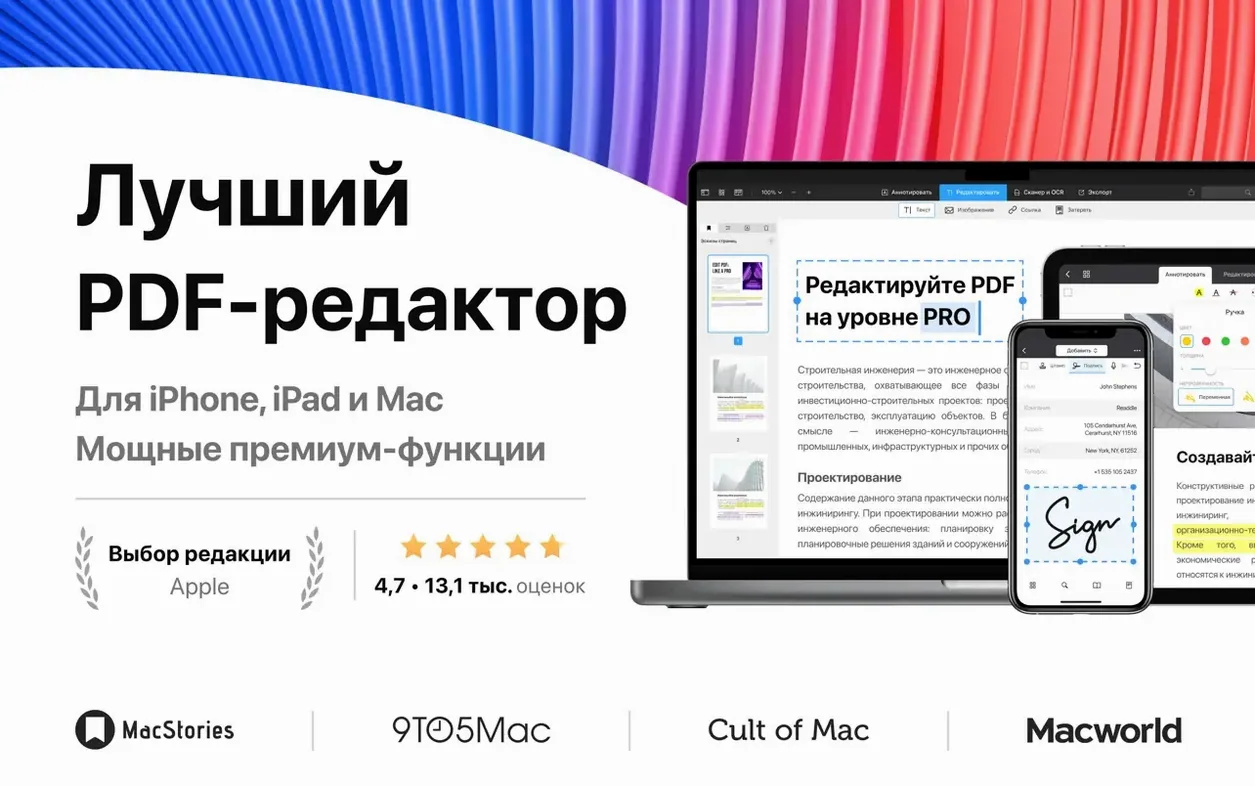
Universal binary, Monterey and newer
PDF Expert 3.11.1 runs on any Mac with macOS 12 Monterey or newer, and it's a universal binary — so it feels fast whether you're on an Apple Silicon machine or an older Intel model. The download lands as a standard pdf expert dmg, no activation hoops to jump through.
The first-timer walkthrough
- Open the disk image and drag PDF Expert straight into the Applications folder shortcut.
- Launch it from Launchpad once the copy finishes. If a sign-in screen pops up right away, just close it — the app activates itself on the next launch.
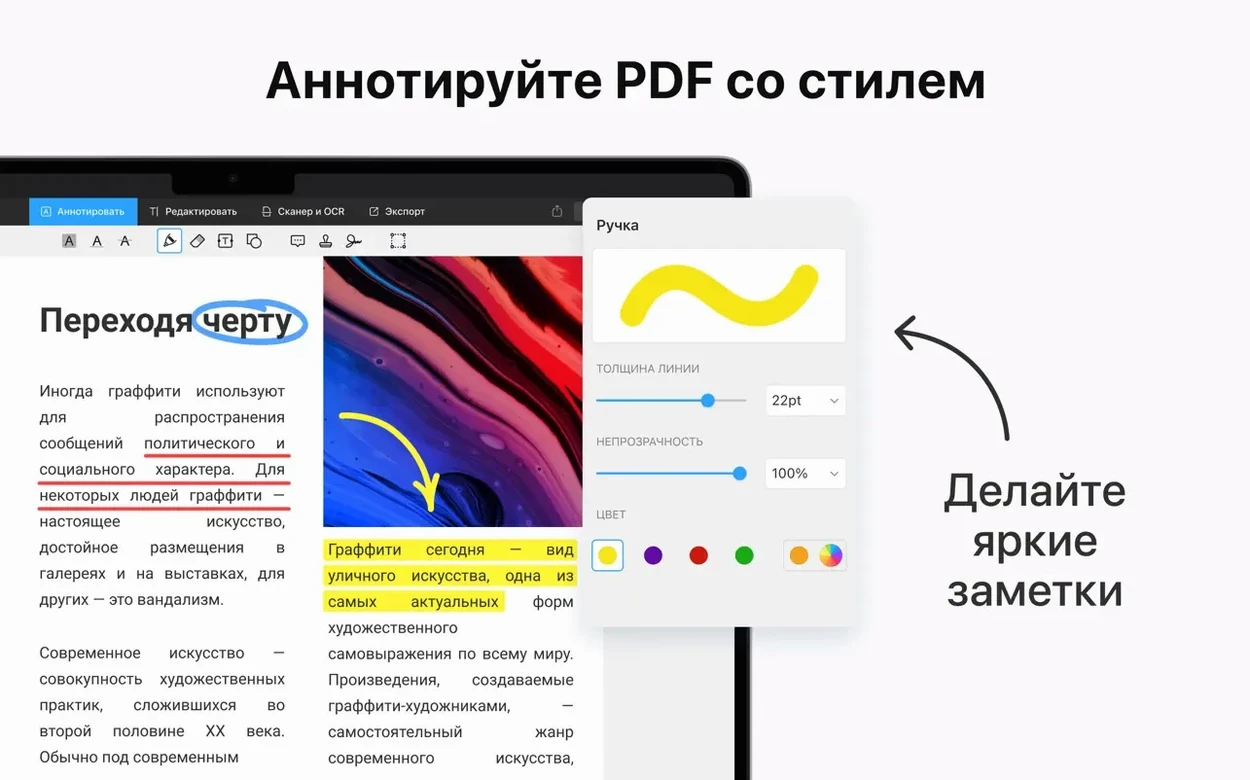
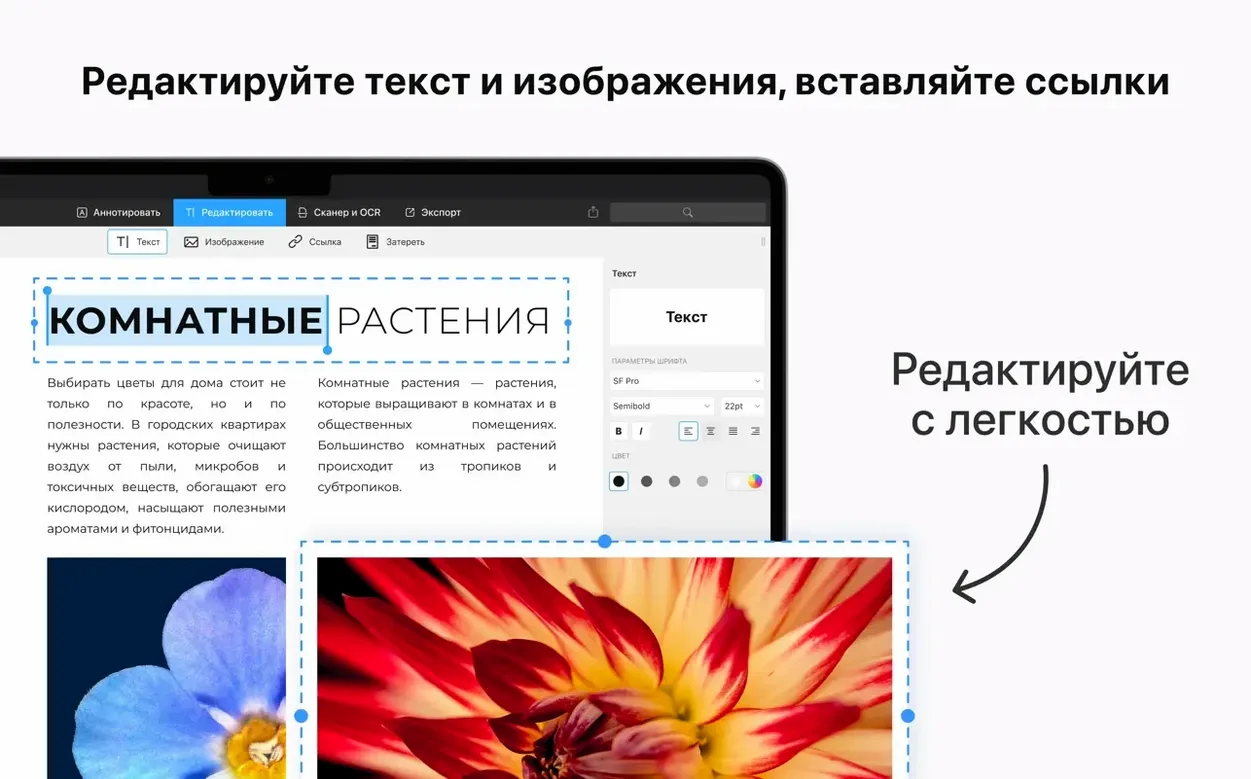
- Open a PDF and pick what you need: highlight text, scribble annotations, or jump into editing mode and actually change the words on the page.
- Build structure. Tap out a table of contents so long reports stop feeling like a maze.
- Fill forms directly in the app — no printing, no scanning, just type and save.
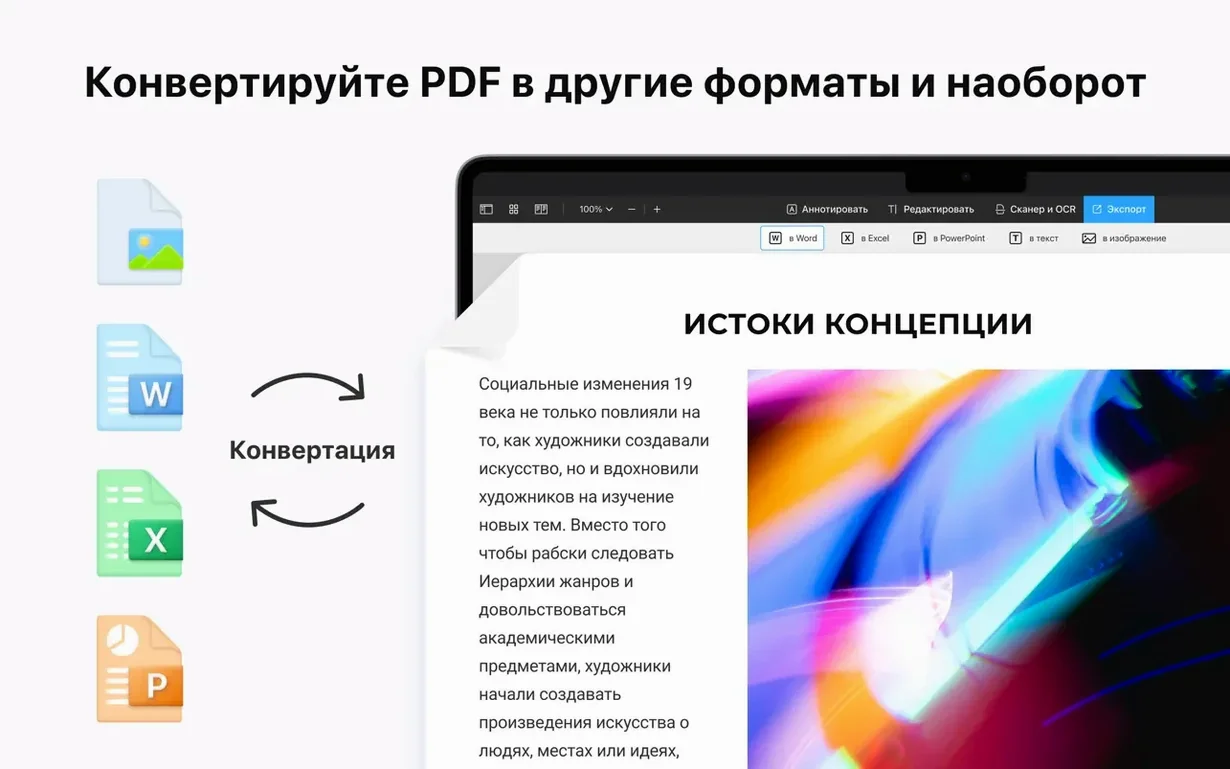
- Convert when needed. Turn Word, Pages, or Google Docs files into clean PDFs without leaving the workspace.
Handoff ties the Mac version to the iPhone and iPad apps, so you can mark up a contract on the couch and keep working at your desk without missing a beat. The interface is localized into ten languages, including Russian, Japanese, and Portuguese. For anyone who juggles documents across Apple devices and wants editing power without subscription noise, PDF Expert slots in cleanly.
Small habits that pay off early
After you've dragged the app into Applications and launched it a couple of times, a few setup moves make the first days smoother. None of them are buried in menus — they just aren't always obvious when you're excited to open a file and get going.
- Set your default reading mode. In preferences, pick whether documents open in view-only or edit mode. If you mostly read and occasionally annotate, view-only as the default saves you from accidental text shifts.
- Save a signature now, not later. Scribble one on a piece of paper, hold it to the camera, and tweak the crop. The app stores it across devices via iCloud, so your iPhone and iPad pick it up too. You won't scramble when someone emails a form five minutes before a deadline.
- Organize the toolbar. Right-click the toolbar area and customize it. Drag the tools you actually reach for — highlight, strikethrough, add text — and drop the ones you never use. The default set is fine, but a two-minute tidy keeps the interface out of your way.
- Turn on auto-save behavior. PDF Expert writes changes directly to the file, but knowing it syncs with Handoff means you can close the Mac and open your iPad mid-sentence. Test this once with a throwaway document so the rhythm feels natural.
- Lock a test document. Pick an unimportant PDF, set a password, close it, and reopen it. The habit sticks faster when you've done it once. Later, locking a contract or invoice becomes muscle memory.
Recents list greets you on Tuesday
Imagine Tuesday morning. You open PDF Expert and the last five files you touched appear in the recents list — no Finder digging needed. You click a draft contract a colleague sent, and since you set view-only as the default, it opens cleanly without the editing handles jumping out. You scroll with the trackpad, pinch to zoom on a clause that feels vague, and grab the highlighter to mark it. A yellow streak lands exactly where you intended because the app snaps to the text baseline.
You want to leave a note, so you switch to the annotation tool, draw a quick circle around a figure, and type “double-check this with legal” in a sticky note. The note collapses to a small icon, keeping the page tidy. Then you flip to the signature field on the last page, tap your stored signature, and place it. The whole session — open, read, mark up, sign — runs inside six or seven minutes, and you haven't touched Preview or a browser.
Midday, your colleague sends a Pages file that needs to become a PDF before a client call. You drag it onto the PDF Expert window, and the conversion finishes in a few seconds. The layout holds — fonts, spacing, and embedded images land where they should. You merge it with a cover sheet you had open in another tab, reorder pages by dragging thumbnails in the sidebar, and save. The app never asks you to think about file formats; it just handles them.
Better text reflow when fixing typos
Version 3.11.1 didn't arrive with a splash screen of new features, but the refinements show up in daily use. The editing engine handles text reflow better than builds from a year ago — when you fix a typo mid-paragraph, surrounding words shift naturally instead of leaving awkward gaps. Image replacement is snappier too: dropping a new screenshot into a PDF keeps the positioning relative to the original, so you spend less time nudging things around.
The table-of-contents builder got smarter about detecting heading styles. Where earlier versions sometimes needed manual tweaking to recognize section breaks, 3.11.1 picks up bolded lines and larger font sizes and builds a clickable outline faster. Apple Silicon users might notice smoother scrolling through heavy, graphics-packed documents — the kind that used to stutter a beat on page flips. And the sign-in screen that appeared on first launch in older builds now dismisses more gracefully; closing it once and relaunching is all it takes, and the app remembers.
Preparing a client-ready document from scratch
Start with a proposal you wrote in Pages. Exporting it as a PDF is fine, but opening it directly in PDF Expert gives you more control over the final look. Here's a workflow that turns a rough draft into a polished deliverable.
- Convert and open. Drag the Pages file onto the PDF Expert icon. The app converts it and opens the new PDF in a fresh tab.
- Check the text. Switch to edit mode and scan for line-break oddities. If a heading orphaned itself at the bottom of a page, tap into the text block and adjust the phrasing slightly until it reflows onto the next page naturally.
- Replace a placeholder image. Click the placeholder graphic your template used, hit delete, then drag a final chart image from Finder onto the same spot. Resize by pulling a corner handle — proportions stay locked unless you override them.
- Add navigation. Open the table-of-contents panel and let the app auto-generate entries from your headings. Rename any that feel too generic, like “Introduction,” to something more specific, like “Project Scope Introduction.”
- Link to external resources. Select a mention of your portfolio site, right-click, and choose Add Link. Paste the URL. When the client reads the PDF, tapping that link opens their browser — no extra steps.
- Merge with supplementary files. Open a pricing sheet PDF in another tab, drag its thumbnail into the proposal's sidebar, and drop it after the last page. Rearrange if needed.
- Review and lock. Scroll through once, then set a password from the File menu so the document arrives read-only. The client gets a clean, navigable, professional file, all produced inside one app.
Share sheet sends PDFs anywhere
PDF Expert doesn't try to be an island. It hooks into the system in ways that make it feel like part of the furniture after a few days. The share sheet sends any open PDF straight to Mail, Messages, or Notes with one click — and the recipient gets the annotated version, not the original. If you use Reminders, dragging a PDF thumbnail onto the Reminders icon creates a task with a direct link back to the file. On a deadline day, that link saves hunting through folders.
Handoff is the quiet star here. Start reading a research paper on your iPad over breakfast, and the Mac dock shows a PDF Expert icon the moment you sit down. Click it, and the same page opens, scroll position preserved. Your highlights and sticky notes sync too, so nothing gets stranded on one device. This works across iPhone, iPad, Mac, and even Vision Pro — the same document database follows your Apple ID.
Finder integration runs deeper than expected. Right-click any PDF in a folder and the “Open With” menu lists PDF Expert alongside Preview. Set it as the default once, and every PDF you double-click lands in an environment built for editing, not just viewing. The app also respects macOS tags — if you tagged a file “Urgent” in Finder, that tag shows up in PDF Expert's recent files list, and you can filter by it. Combine that with Spotlight, which indexes PDF Expert's annotations, and searching for “signature” or a phrase you typed into a sticky note pulls up the exact file.
For users who work with scanned documents, the app complements Quick Look. Preview a scan in Finder to check it's the right one, then open it in PDF Expert to add text boxes over form fields. The two tools handle different moments — Quick Look for glances, PDF Expert for the real work. And when someone sends a docx file that needs to become a PDF immediately, bypassing Pages or Word entirely feels like a shortcut you wish the whole system offered.
Some folks search for a pdf expert torrent or a pdf expert crack mac download to get started quickly, and the straightforward disk-image install here means you can skip the forum hunts. No activation codes, no pdf expert mac torrent loops, no pdf expert crack workarounds — just a clean dmg that lands ready. The app stays out of your way and lets macOS features like iCloud Drive and Handoff do their job, which is exactly how a good Mac citizen should behave.
- macOS 12 or later
- Apple Silicon or Intel 64-bit Mac
Also on readers' docks
Sign in or create an account to leave a comment.
No comments yet. Tell me how it got on with your other devices.