Download Nitro PDF Pro for macOS
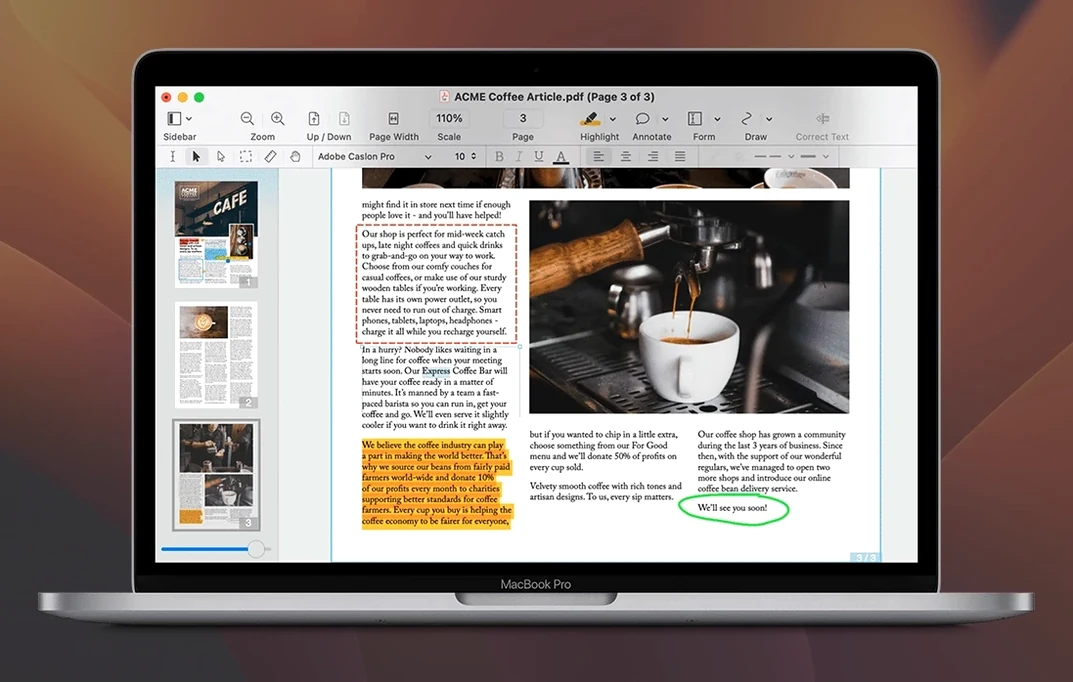
Nitro PDF Pro 13.3.1 runs on any Mac with macOS 10.14 Mojave or later, both Intel and Apple Silicon, and asks for just 1 GB of RAM. If your machine fits that bill, here’s where to start.
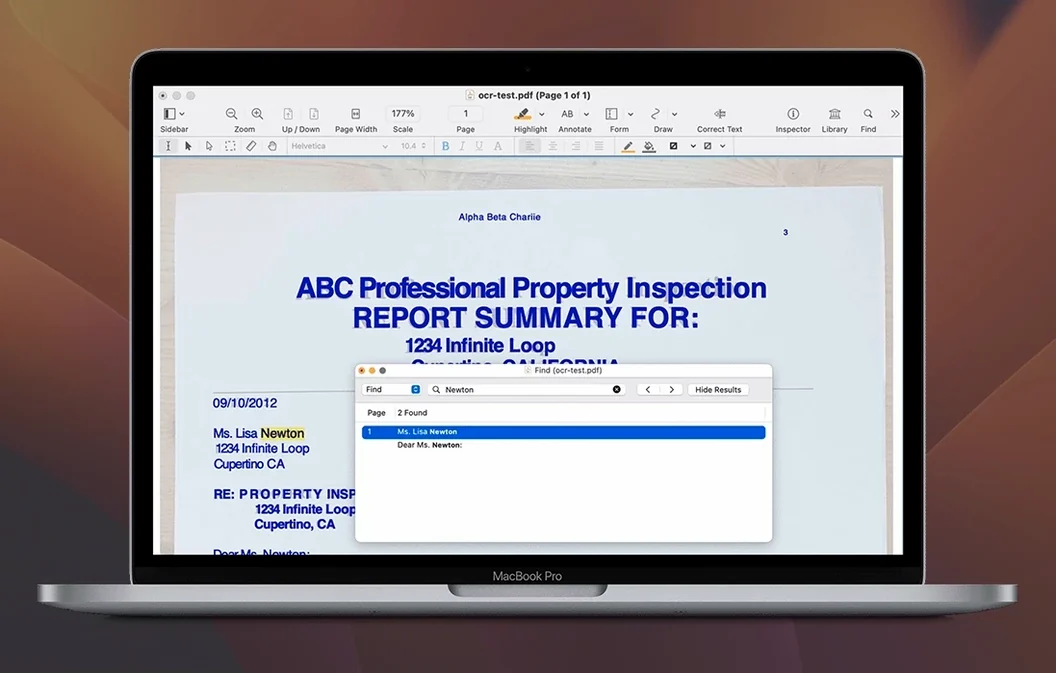
- Run OCR on a scanned page — Open any image-heavy PDF, head to the Recognize Text tool, and let the engine build a searchable layer. Handy for old contracts or photographed book pages.
- Edit an image without leaving the PDF — Click any picture, then move, resize, copy, or delete it right on the canvas. No round‑trips to an image editor.
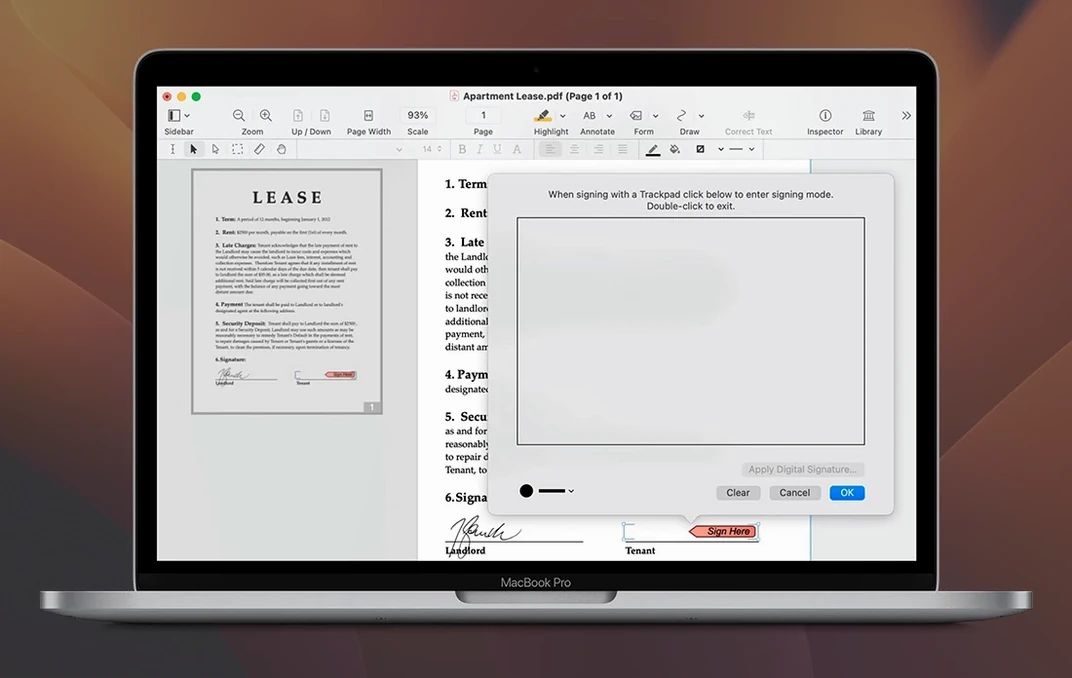
- Fill and save a form — Grab a tax doc or application form, type straight into the fields, add your signature, and save it. The app creates cross‑platform fillable forms too, so you can build your own for colleagues on Windows.
- Record an audio note — Tap the audio annotation tool, speak a quick reminder or team comment, and drop it onto the page. Playback happens inside the PDF for anyone with Nitro.
- Export to Word or PowerPoint — Use the export pane to turn a finished PDF into an editable Office document. Layouts stay surprisingly intact.
Those five moves reveal the core rhythm: stay in one app, handle text, images, forms, and markup, then pass the result along in whatever format fits. Bookmarks, headers, footers, and watermarks build from there, and the redaction tool is ready when you need to strip sensitive bits before sharing.
Try Highlighting, Redacting, and Form-Filling on a Throwaway PDF
The toolbar can feel crowded if you jump straight in, so give yourself fifteen minutes with a throwaway PDF. Drag a scanned contract or an old manual onto the dock icon and try three things that matter most later: highlight a paragraph, strike through a sentence, then pull a single image out of the page. Nitro PDF Pro writes changes straight into the file as you work, which means you don't lose markup if the Mac sleeps — but it also means saving a copy of anything you want to keep untouched.
For scanned documents, run OCR before you annotate. Highlighting a page that hasn't been recognized yet just highlights pixels, not words. The Recognize Text button sits in the toolbar; click it, pick your language, and let the engine build the text layer. After that, copying a column of figures preserves the layout, fonts and all, which feels like magic the first time you paste it into Numbers or Excel.
If you receive forms from Windows users — think government paperwork or supplier questionnaires — open one, type into the fields, and save. The file stays compatible on the other side. Building your own form takes a few extra clicks: drop text fields, checkboxes, and a signature block, then save. The cross‑platform compatibility means you can build once and share anywhere.
Bypass the Gatekeeper Block with a Terminal Command
The Gatekeeper dance trips up plenty of first-time users. The app ships as a disk image; after mounting it, dragging Nitro PDF Pro into Applications isn't enough — you need the Terminal step. Open Gatekeeper friendly, hit Enter when prompted, and the app launches normally from then on. If you skip that, macOS will refuse to open it and the error message won't explain why.
Another common frustration: text editing that won't behave. When you click a paragraph and get a blue bounding box, you're in editable text block mode. If the font isn't embedded in the original PDF, Nitro substitutes the closest match and the spacing can shift. For quick fixes, edit small chunks rather than entire pages at once. For anything that needs perfect fidelity, export to Word, make your changes there, then bring it back as a PDF.
OCR quality drops hard on low‑resolution scans. If the text comes out garbled, check that the original scan was at least 200 dpi. Anything below that and the recognition engine struggles, especially with serif fonts or tight columns. Re‑scanning at 300 dpi solves it almost every time.
Some users hunting for a nitro para mac full experience find the batch processing tucked away — it lives under the Tools menu, not in the toolbar. Select a folder of PDFs, choose your action (OCR, redact, watermark), and let it run. It respects the folder structure, so you won't end up with a flat pile of renamed files.
Turn On Page Thumbnails to Navigate Long Documents
Head to Preferences the first time you launch. Nitro PDF Pro ships with a few defaults that don't match how most people actually work.
- Turn on "Show page thumbnails at launch" — without it, you're navigating long documents blind. The sidebar gives you drag‑and‑drop page reordering too, which beats scrolling endlessly.
- Set the measurement unit to your region — the ruler and grid default to inches. If you work in metric, switch to centimeters under the General tab.
- Adjust the default font for text boxes — the fallback sans‑serif is fine, but if your company uses a specific typeface, set it once and every new text annotation starts with it.
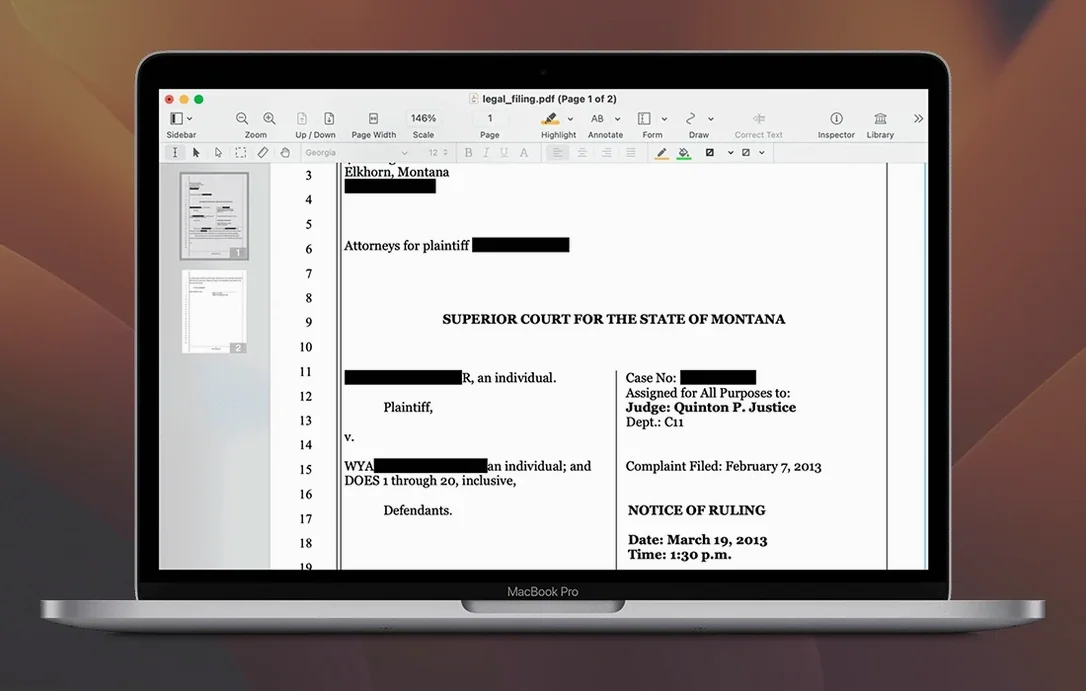
- Enable the redaction tool in the toolbar — it's off by default, and hunting through menus when you need to scrub a bank account number before forwarding a PDF is exactly the wrong moment to go looking.
For anyone who handles scanned documents daily, the OCR language setting matters. It defaults to English, but if your PDFs mix languages, add the second language in Preferences — the recognition engine handles bilingual pages far better when both are declared upfront.
- macOS 10.14 Mojave or later
- Intel and Apple Silicon Macs
- 1 GB RAM
- Up to 2 GB disk space
- Display resolution 1280×800 or higher
Questions people ask
Can Nitro PDF Pro create editable tables of contents?
Yes, you can build an editable table of contents and bundle multiple files into document portfolios right inside the app.
Does the Mac version support batch processing?
It does — batch processing and automation tools are included on the Mac.
What file formats can I extract from a PDF?
You can export PDFs to Microsoft Word, Excel, and PowerPoint, and extract file attachments and annotations individually.
Also on readers' docks
Sign in or create an account to leave a comment.
No comments yet. Tell me how it got on with your other devices.