Download macOS Mojave for macOS
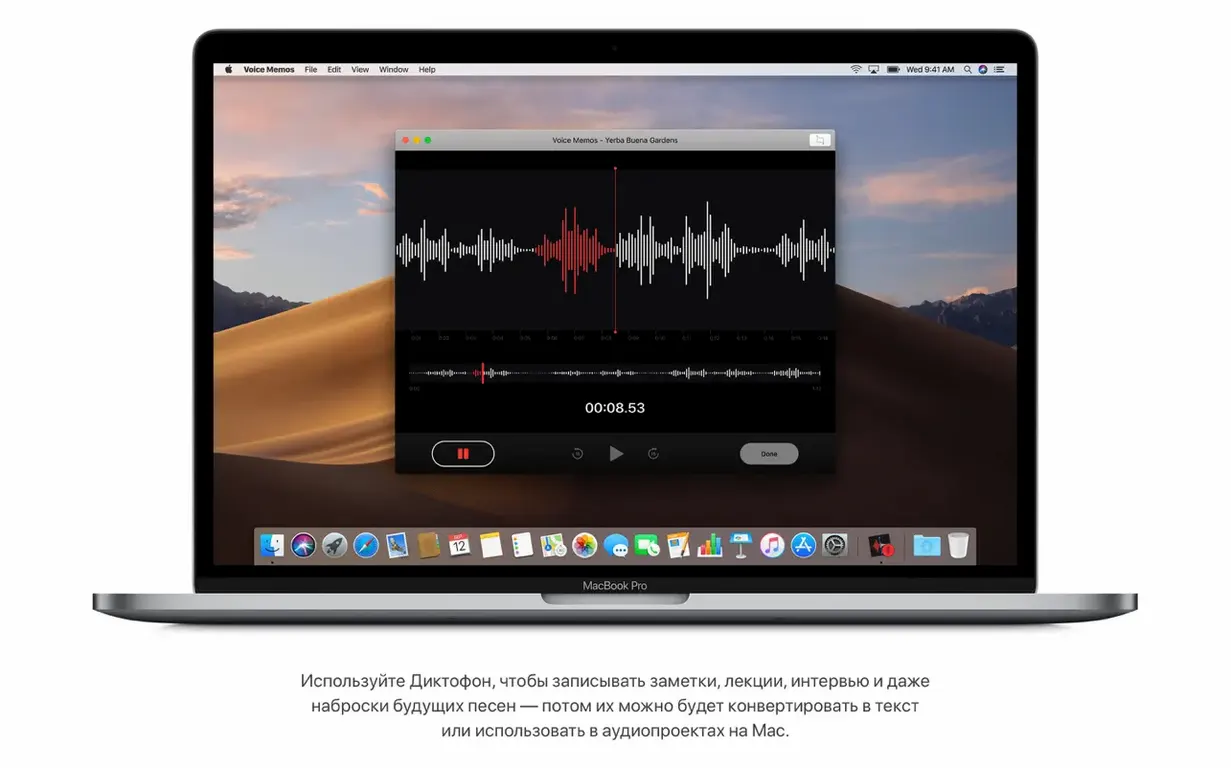
Newer versions of macOS eventually leave older hardware behind, and that can feel like a dead end. macOS Mojave is the stopgap that keeps plenty of capable Intel Macs running with a modern-enough feature set—without pushing them into unsupported territory.
What the desktop brings
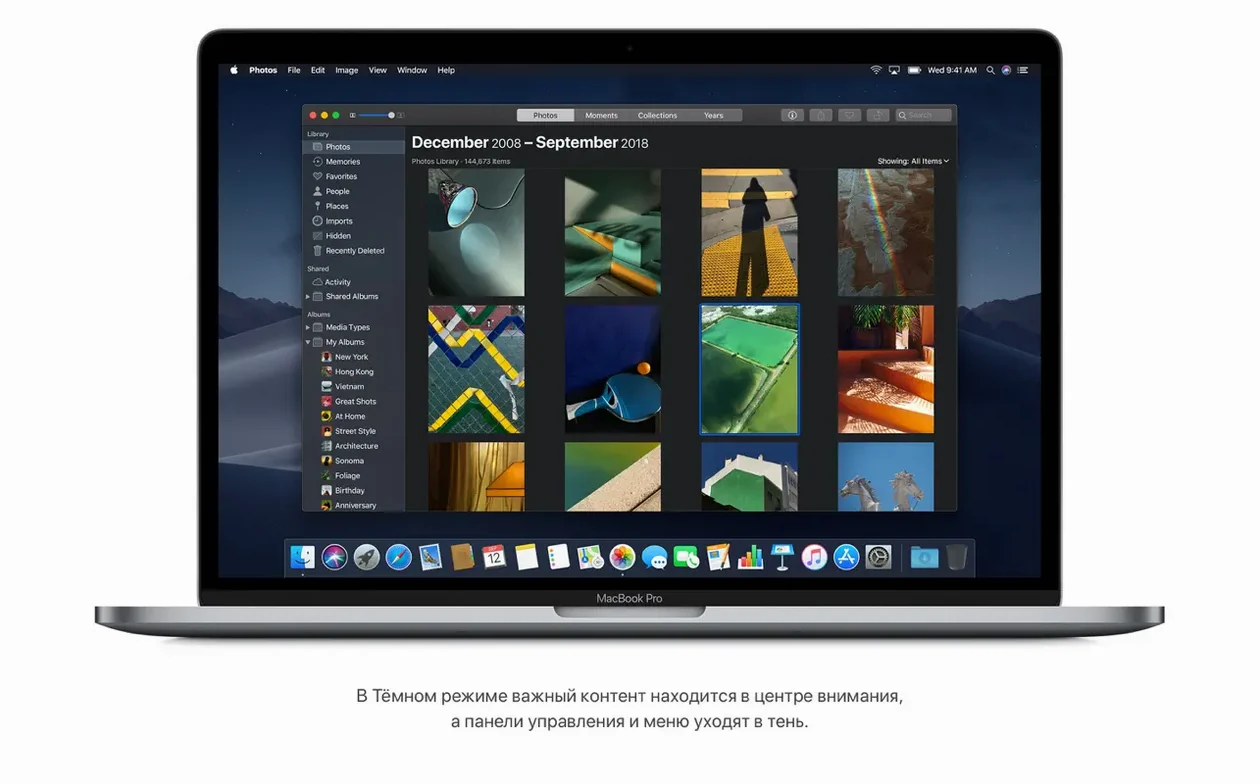
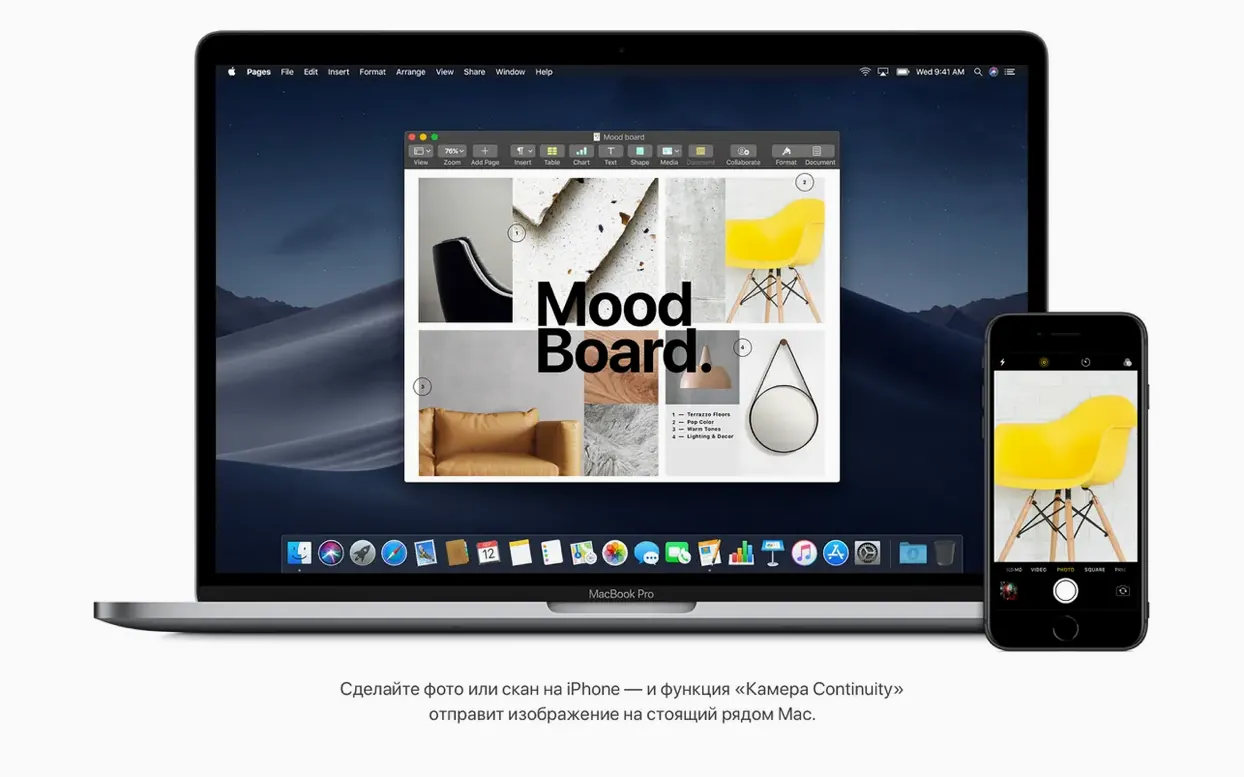
This is a full desktop operating system built for Intel-based Macs, and it introduced the system-wide Dark Mode that many people still prefer. It ships with Safari and its improved Intelligent Tracking Prevention, plus apps that pull your Apple ecosystem closer together. Continuity lets you grab photos, screenshots, and document scans straight from an iPhone or iPad. The Home app and Voice Memos also landed here, so your Mac starts to feel like a natural extension of the same iCloud account you use everywhere else.
A Release Built for Metal-Capable Older Macs
If your Mac sits in the sweet spot—MacBook Pro from mid 2012, iMac from late 2012, Mac mini from late 2012, or a Mac Pro from 2010 or 2012 with a Metal-capable GPU—this release is tailored to you. It’s not the latest, but it’s stable, familiar, and keeps those machines productive. For anyone holding onto an older Intel Mac and wanting a dark, quiet desktop that still talks to their other Apple devices, Mojave remains a solid place to land.
How Mojave fits into the Apple ecosystem
Mojave’s real strength isn’t any single feature—it’s how quietly it pulls your other devices into the Mac’s orbit. Continuity Camera sits in the right-click menu of Finder, Notes, and Mail, letting you snap a photo or scan a document with your iPhone and have it appear instantly on the desktop. No AirDrop, no cables, no fuss. The Home app mirrors what you see on iOS, so controlling lights or checking a door sensor feels exactly the same whether you’re at a desk or on the couch.
iCloud desktop and documents sync works without ceremony. Drop a file in the Documents folder, and it’s on your iPad a moment later. The redesigned Mac App Store shares the editorial curation Apple introduced on iOS, and app updates arrive the same way they do on an iPhone. Safari tabs and bookmarks sync across devices through iCloud, and with Intelligent Tracking Prevention tightened up, cross-site tracking gets blocked whether you’re on Wi-Fi at home or a coffee shop network. Mojave wasn’t the first macOS to play nice with iOS, but it was the one where the lines between devices started to genuinely blur.
High Sierra Feels Like Mojave Without Dark Mode and Stacks
macOS High Sierra (10.13) feels like the diet version of Mojave. It introduced APFS and laid the groundwork for Metal 2, but it lacks Dark Mode, Stacks, and the desktop-level media tools. If you’ve got a Mac that can run Mojave, upgrading from High Sierra is mostly a quality-of-life jump—better Finder, tighter Safari privacy, and Continuity Camera alone make it worthwhile.
macOS Catalina (10.15) drew a hard line: no more 32-bit apps. That was a dealbreaker for anyone relying on legacy software or older games. Catalina also split iTunes into separate Music, Podcasts, and TV apps, which some loved and others found cluttered. Mojave keeps iTunes intact and doesn’t cut off your app library. For Macs that can run both, the choice often comes down to whether you value Dark Mode and a gentler upgrade path over the latest security patches.
macOS Sierra (10.12) is the one people hold onto out of habit. It’s comfortable, it runs on even older hardware, and it introduced the first Continuity features. But compared to Mojave, it looks brighter and busier—no system-wide dark theme, no Stacks to tame a messy desktop, and a Safari that’s noticeably more lenient with trackers. The gap between Sierra and Mojave is wide enough that the jump feels like a generation change rather than a point update.
Hunting for Dark Mode in the Wrong Preference Pane
The biggest one I see: installing Mojave and then immediately hunting for a Dark Mode toggle that isn’t where you expect it. It’s not a checkbox in General preferences—it’s under System Preferences > General as “Appearance,” and you pick Light or Dark. Easy to miss on a quick first pass.
Another classic is forgetting that Stacks only organizes the desktop; it doesn’t move files out of the Desktop folder. Users sometimes assume enabling Stacks archives things elsewhere, then panic when they open the Desktop folder and see the same pile. It’s a visual grouping, not a relocation.
And if you’re coming from a version that still ran 32-bit apps without complaint, Mojave will warn you that those apps “are not optimized for your Mac.” The warning looks ominous the first time, but the app still launches. Catalina is the version that slams the door shut—Mojave just gives a nudge.
Stacks Greyed Out Until Desktop Sorting Is Set to None
Stacks refuse to activate. If you right-click the desktop and “Use Stacks” is greyed out, your desktop might be sorted by something other than “None.” Set sorting to “None” first, then enable Stacks. The two settings don’t always play nicely together until you reset them.
Continuity Camera doesn’t show up. Both devices need Bluetooth and Wi-Fi on, signed into the same iCloud account, and Handoff enabled. On the Mac, check System Preferences > General and make sure “Allow Handoff between this Mac and your iCloud devices” is checked. If it still doesn’t appear, sign out of iCloud on the iPhone and back in—it’s a blunt fix, but it works.
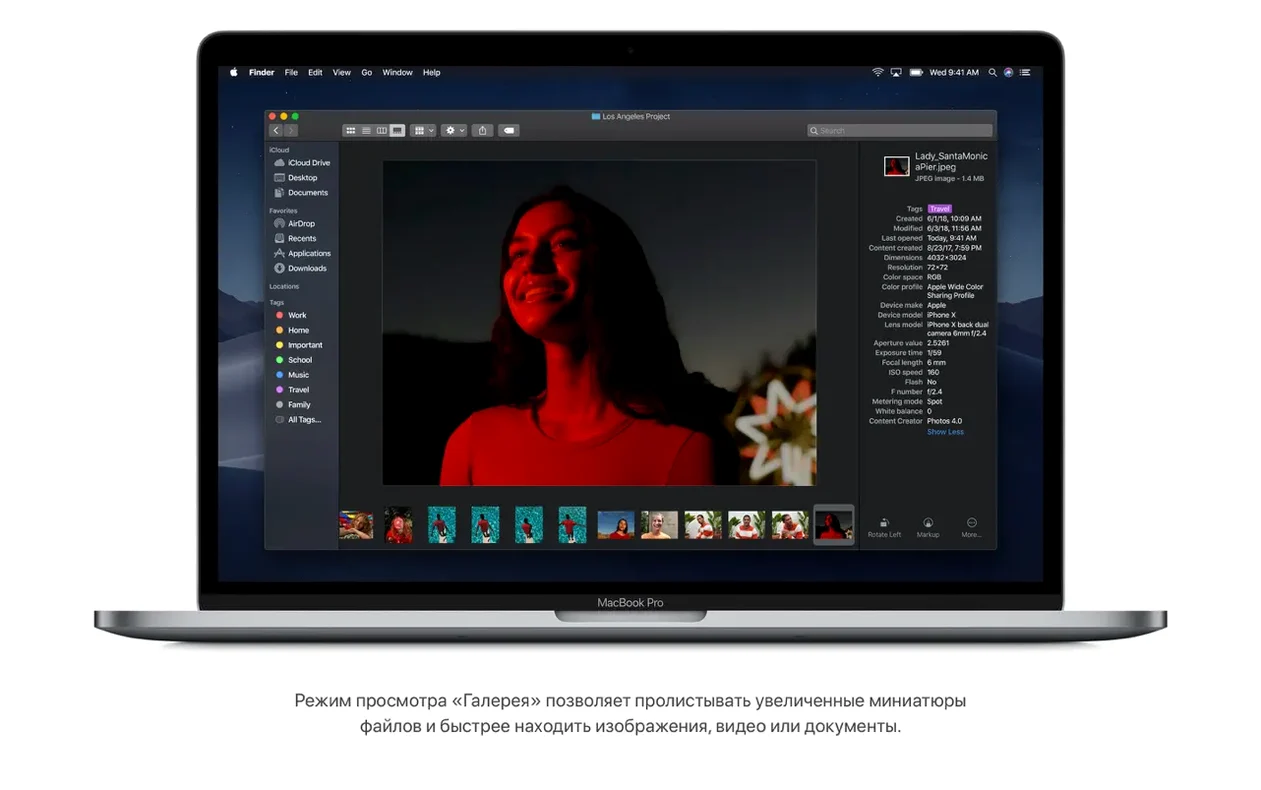
Gallery View previews won’t load for some files. Mojave’s Finder uses Quick Look’s engine to generate previews, and if a file format doesn’t have a compatible Quick Look plugin installed, you’ll see a generic icon instead. Installing third-party plugins or opening the file once in its default app usually kickstarts the preview generation.
FaceTime group calls drop participants. The 32-person limit is real, but bandwidth and local network quality matter more. If a group call keeps dropping someone, try having them turn off video and stay audio-only. It’s not elegant, but it stabilizes the connection on slower upload speeds.
macOS Mojave 10.14.6 download dmg files won’t open. Sometimes Gatekeeper blocks disk images that aren’t from identified developers. Head to System Preferences > Security & Privacy and look for a “Open Anyway” button in the General tab. If you’ve downloaded the mac os mojave torrent or a mojave torrent and the DMG mounts but the installer won’t launch, check that the system date is correct—an incorrect clock can confuse certificate checks.
Storage balloons after installation. Mojave’s 12.5 GB requirement is just the installer. Once the system settles, Time Machine local snapshots can eat up tens of gigabytes. Run tmutil listlocalsnapshots / in Terminal to see them, and sudo tmutil deletelocalsnapshots / to clear space if your drive is choked.
Version 10.14.6 is a maintenance update that improves the stability and reliability of the Mac.
- macOS 10.8 or later
- Intel architecture
- 2 GB of memory
- 12.5 GB of available storage
- MacBook Early 2015 or newer, MacBook Air Mid 2012 or newer, MacBook Pro Mid 2012 or newer, Mac mini Late 2012 or newer, iMac Late 2012 or newer, iMac Pro 2017, Mac Pro Late 2013 or mid 2010/mid 2012 with recommended Metal-capable graphics cards
Questions people ask
Which Macs can run macOS Mojave?
It supports MacBook models from early 2015, MacBook Air and MacBook Pro from mid 2012, Mac mini from late 2012, iMac from late 2012, iMac Pro from 2017, and Mac Pro from late 2013 (or mid 2010/mid 2012 with a Metal-capable graphics card).
Does macOS Mojave include Dark Mode?
Yes, Dark Mode was introduced with this version and works across the built-in apps and system interface.
Also on readers' docks
Sign in or create an account to leave a comment.
No comments yet. Tell me how it got on with your other devices.