









Download The Sims 4 for macOS

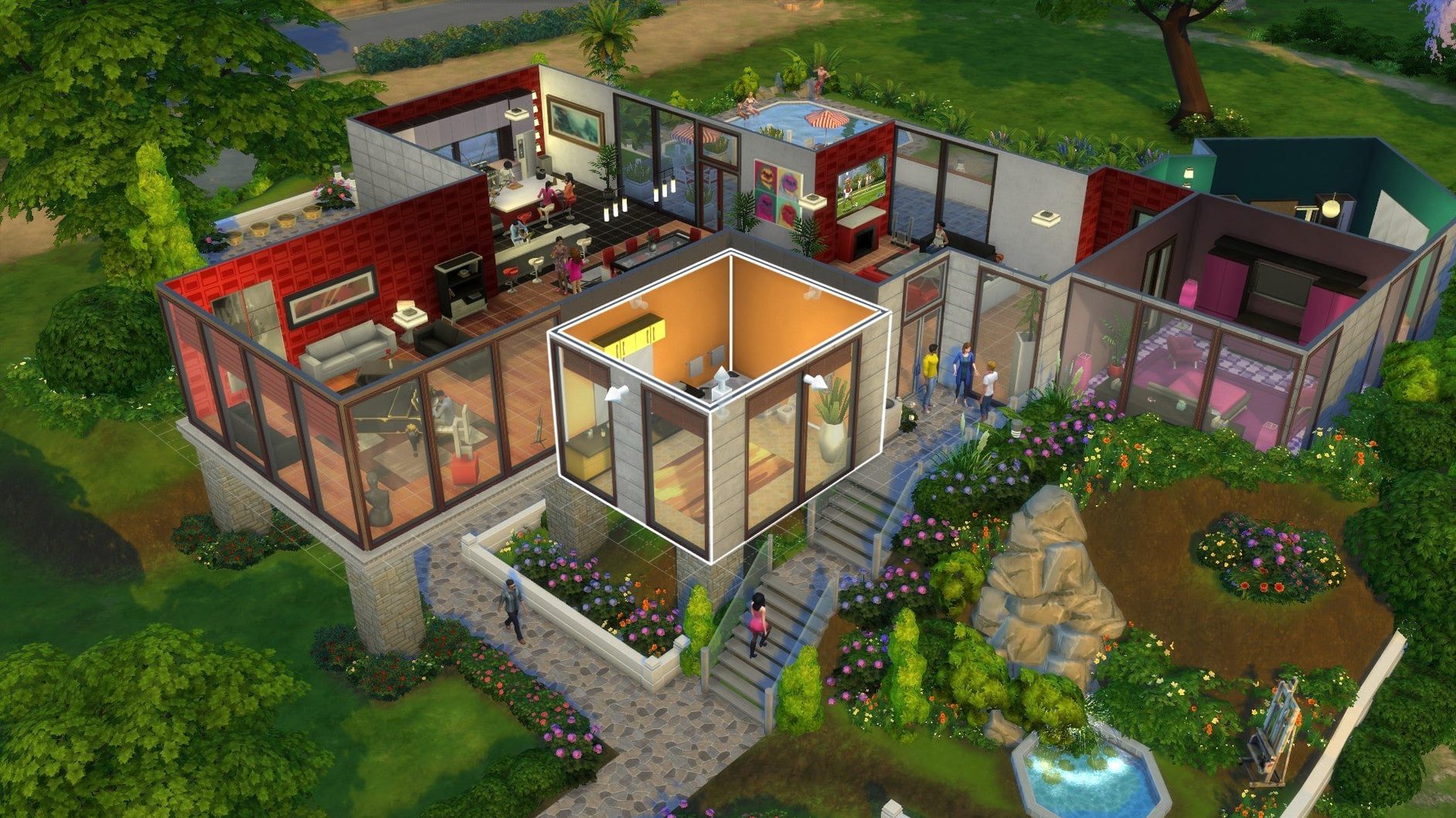

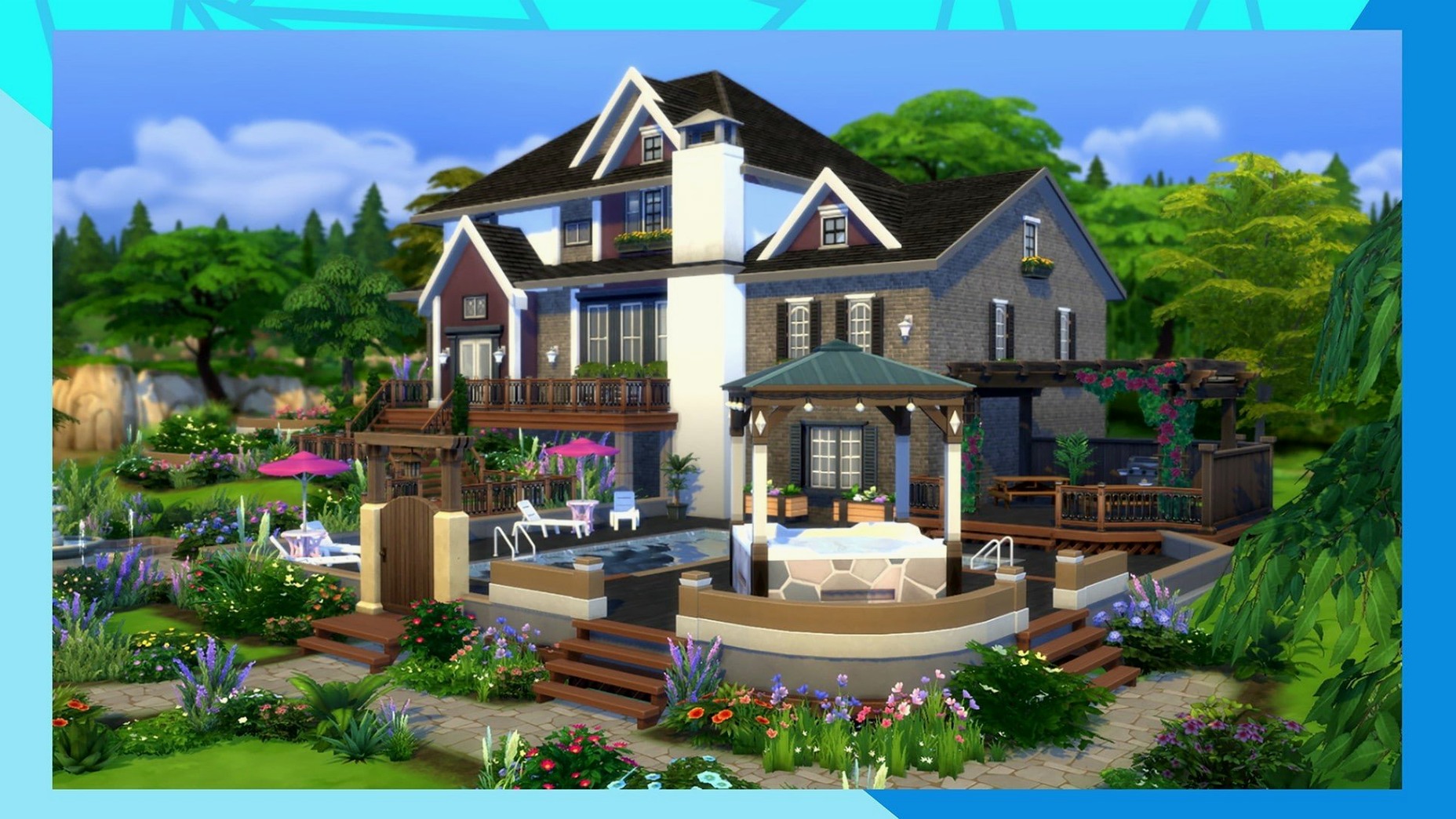
Sculpt a household from personality to floorplan
It's a sandbox where you shape people from scratch. Choose appearances, assign traits, and dress them up before moving them into a home you design room by room.
What do I actually do with my Sims?
You direct their daily routines, from morning coffee to late-night skill-building. Push them toward careers, spark friendships or rivalries, and chase long-term life goals that unlock new behaviors.
Can they leave the neighborhood?
Absolutely. Your Sims can travel to different towns, visit community lots, and meet other households. The world feels connected without forcing you into a single storyline.
What’s the creative half of the game?
Build Mode lets you construct houses from foundation to roof, then clutter them with personality. Combined with Create-a-Sim, it’s a design tool as much as a life simulator.
A morning routine, from alarm to aspiration
Let’s walk through a typical session that shows how the pieces click together. I’ll start with a Sim I’ve been playing for a while — Elise, a freelance programmer with the Geek and Loner traits. She lives in a tiny Willow Creek cottage I built around a central courtyard, because I wanted her to have outdoor workspace without leaving home.
When I load her household at 7 a.m. Sim-time, the first thing I do is check her Needs panel. Her social bar is almost empty, which fits her Loner trait just fine, but her fun is dipping and she’s hungry. I queue three actions: grab leftovers from the fridge, practice programming on her laptop, and — once her mood lifts — call her mentor from the Tech Guru career. The queue system means I set the plan, then watch it play out, stepping in only when something unexpected happens.
By 9 a.m. her daily task for a promotion appears: “Complete a mobile app concept.” That sends me into Build Mode briefly — not to renovate, but to check whether her desk setup has enough environment score to keep her focused. I swap out a cheap lamp for one with a higher décor rating, then hop back to Live Mode. Small tweaks like that feed directly into her performance bar.
Around midday, I send Elise to the town library in Oasis Springs. She needs research materials, and honestly, I just wanted a change of scenery. The loading screen between worlds lasts about twelve seconds on my M1 Air — short enough that I don’t mind the trip. At the library, she bumps into a Sim from another household I played two weeks ago, and they autonomously start chatting. I let it run. These unscripted moments are what keep a save file alive.
By evening, Elise has finished her work task, gained a programming skill point, and made a new acquaintance. I save, switch to the world map, and peek into a different household — a chaotic family of four I use when I want pure storytelling over goal-chasing. That’s the rhythm: long stretches of gentle management, then a pivot when creativity strikes.
Kill edge scrolling and other friction cuts
The defaults work, but a few tweaks make the game feel less like it’s fighting you. Here’s what I adjust on every fresh install:
- Edge scrolling off. In Game Options under Camera, uncheck edge scrolling and rely on right-click drag instead. On a MacBook trackpad, edge scrolling tends to fling the view across the lot when you’re just reaching for a menu.
- Autonomy set to “Full” but with exceptions. I keep full autonomy on for unplayed households so the world feels alive, but I toggle it off for my active Sim when I’m building a specific scene. It’s under Gameplay settings — no mods needed.
- Classic Sims 3-style camera. If you’ve played older entries, the default TS4 camera feels floaty. Tick the box for “The Sims 3 Camera” in the same Camera panel. It snaps rotation to fixed angles and makes Build Mode placement far more precise.
- Graphics: Retina resolution with laptop mode off. On Apple Silicon, the game defaults to a lower resolution for battery life. Head into Graphics, set the resolution to your display’s native setting, and disable Laptop Mode unless you’re truly unplugged. Textures sharpen noticeably, and the UI stops looking soft.
- Notification duration extended. The default pop-up window vanishes before I’ve read half of it. Under Game Options, lengthen the notification display time. Small change, big relief during multi-Sim households.
- Sound: music volume down, UI clicks up. The soundtrack is lovely until you’ve heard the Build Mode piano loop for the hundredth hour. I drop music to about 30% and boost UI sound effects so I never miss a task completion chime while focusing elsewhere.
None of these require digging into config files. They’re all in the in-game options panel, and they stick between sessions without reverting.
Smoother Marketplace browsing and cached images
Version 1.127.41.1030 landed with a handful of fixes that target the Marketplace, and while that might sound niche, it touches anyone who browses community creations in-game. The official notes highlight three things: Marketplace browsing got smoother, images now cache after the first download, and a batch of bug fixes went in.
In practice, the caching change is the one you feel immediately. Before, scrolling through a long list of player-made rooms or households meant waiting for thumbnail after thumbnail to reload every time. Now, once an image downloads, it stays cached. The difference on a large gallery is tangible — scrolling through fifty lots no longer feels like wading through mud. On my M1 Air, the gallery loads roughly twice as fast on a repeat visit, and thumbnails appear near-instantly instead of popping in one row at a time.
The browsing improvements are subtler. Filtering by pack or lot type used to stutter briefly; that’s gone. The interface snaps to filtered results without the half-second freeze that became habitual to work around. It’s a polish update more than a feature drop, but it removes friction from a part of the game I dip into every time I need a fresh community lot or a pre-built starter home.
The bug fixes aren’t detailed in the patch notes, but community chatter points to corrected text strings in several languages and a fix for an occasional crash when switching between Build and Live Mode with large multi-story lots. I haven’t hit that crash since the update, where previously it showed up maybe once every few hours on complex builds.
M1 MacBook Air launch and steady native performance
I’ve been running The Sims 4 natively on Apple Silicon since the day it got ARM support, and version 1.127.41.1030 continues the same steady performance profile. On a MacBook Air with M1 and 8GB of RAM, the game launches in under fifteen seconds from a cold start — quicker than many native productivity apps. Once loaded, the frame rate hovers between 45 and 60 fps with all settings at High and Retina resolution enabled, dipping only when the camera pans across a dense neighborhood with multiple active lots.
Memory usage sits around 1.8 to 2.4 GB for the base game, which leaves comfortable headroom on an 8GB machine. I routinely keep Safari with a dozen tabs open alongside it without swapping becoming a problem. The fanless Air stays warm but never hot, even after two-hour sessions, and I’ve yet to see the game trigger a system temperature warning.
Stability is where this build genuinely impresses. Across roughly forty hours post-update, I’ve had zero crashes to desktop. The only hiccup I can reproduce is the occasional freeze on the initial splash screen — a long-standing quirk the install notes address: keeping only your Tray, Saves, and Mods folders inside the Documents Sims 4 directory clears it right up. It’s not a dealbreaker, just a housekeeping step worth knowing if you carry mods or old save data forward.
For Intel Mac users on 64-bit hardware, performance holds up as well, though load times stretch a bit longer — twenty to thirty seconds to the main menu on a 2018 MacBook Pro, and fans will spin up during extended Build Mode sessions. The game scales down gracefully on older machines, and the architecture support means nobody’s left out.
Where The Sims 4 shines on macOS is how little it demands while delivering a full simulation. It doesn’t need an always-online connection, doesn’t hammer the SSD with constant writes, and doesn’t punish you for alt-tabbing. That last part matters more than it sounds: I regularly flick between the game and Safari to look up build inspiration, and it tabs back without a stutter or a resolution reset. For a title that started its life in 2014, the Mac port holds up better than plenty of newer releases.
The 8/25/2026 update sharpens the Marketplace experience. Browsing feels snappier, and images now cache after the first download so thumbnails don’t reload every time you scroll. A handful of bug fixes round out the patch.
- Tested on macOS Sonoma with an Apple M1 MacBook Air (2020)
- Runs on both Intel and Apple Silicon Macs
Questions people ask
What languages does The Sims 4 support?
It includes Russian, English, German, Danish, Spanish, Italian, both Traditional and Simplified Chinese, Korean, Dutch, Polish, Portuguese, Finnish, French, Czech, Swedish, and Japanese.
Also on readers' docks
Sign in or create an account to leave a comment.
No comments yet. Tell me how it got on with your other devices.
More in Games
See all The Medium
1.1.22 Games
35 GB
The Medium
1.1.22 Games
35 GB
 The Universim
1.2.00.48216 Games
2.9 GB
The Universim
1.2.00.48216 Games
2.9 GB
 The Life and Suffering of Sir Brante
1.05.1 Games
1.4 GB
The Life and Suffering of Sir Brante
1.05.1 Games
1.4 GB
 This War of Mine: Final Cut
6.0.8 Games
2.5 GB
This War of Mine: Final Cut
6.0.8 Games
2.5 GB
 The Last Campfire
1.7 Games
1.3 GB
The Last Campfire
1.7 Games
1.3 GB
 Updated Timberborn
1.1.2.8.ffc2de0.gm Native Games
1.1 GB
Updated Timberborn
1.1.2.8.ffc2de0.gm Native Games
1.1 GB
 The Drifter
1.1.5 Games
669 MB
The Drifter
1.1.5 Games
669 MB
 The Battle of Polytopia
2.17.3.16375 Games
172 MB
The Battle of Polytopia
2.17.3.16375 Games
172 MB